- Khurram Shahzad
- WordPress
- 275
- 0
In 2025, security researchers logged 11,334 new vulnerabilities in the WordPress ecosystem, and the most dangerous ones were being exploited within hours of disclosure. That is why every site owner needs a practical WordPress security checklist, not a vague list of tips.
The good news is that WordPress core itself is very secure. Most hacks come through outdated plugins, weak logins, unpatched servers and missing backups, and you can fix all of those.
This WordPress security checklist gives you 25 steps grouped into six areas, in priority order. Each step is tied to a real attack from 2026, so you know exactly why it matters. You will also get a recovery plan if your site is ever hacked, and a simple maintenance schedule to keep it safe. I secure and clean WordPress sites as part of my work, and this is the checklist I use.
Your Priority Plan at a Glance
Not sure where to start? Begin with the left column today, then work across.
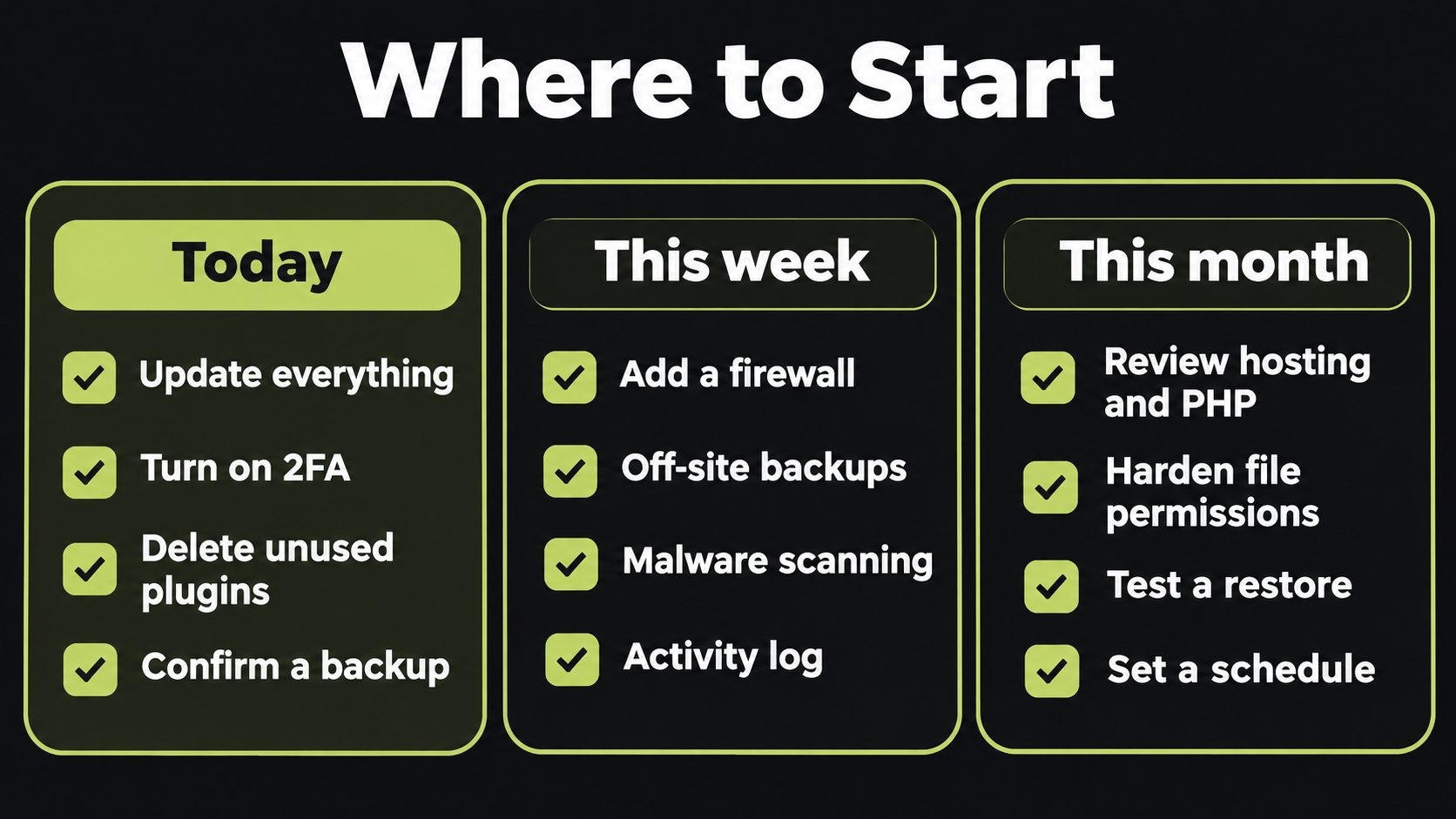
| Do today (30 minutes) | Do this week | Do this month |
|---|---|---|
| Update core, plugins and themes | Set up a web application firewall | Review hosting and PHP version |
| Turn on 2FA for all admins | Automate off-site backups | Harden file permissions and wp-config.php |
| Delete unused plugins and users | Turn on malware scanning | Test a full restore from backup |
| Confirm a recent backup exists | Turn on an activity log | Set up a maintenance schedule |
Why WordPress Sites Get Hacked in 2026
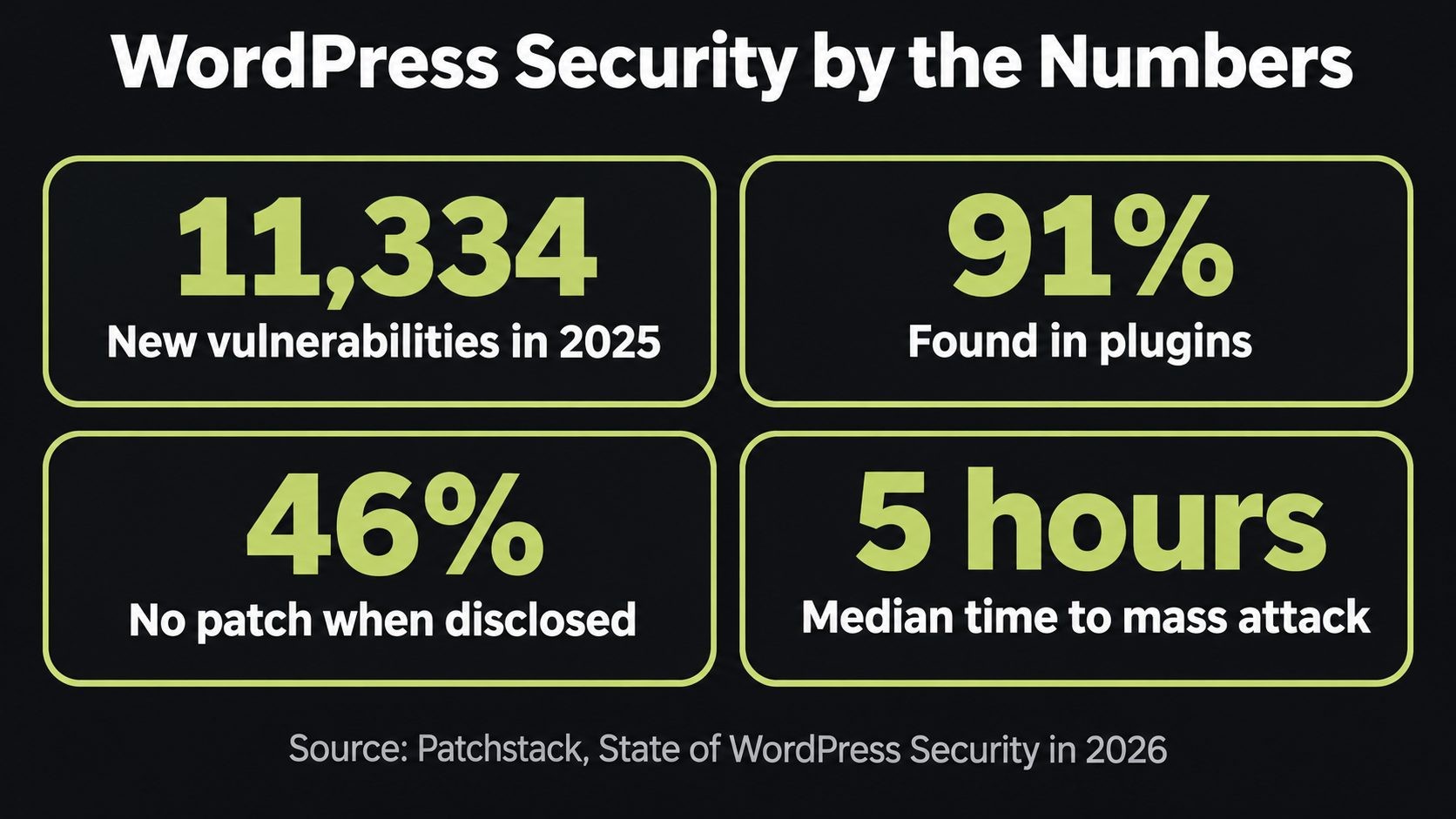
Patchstack's State of WordPress Security in 2026 report shows where the real risk lies:
- 11,334 new vulnerabilities were found in the WordPress ecosystem in 2025, up 42% from the year before.
- 91% were in plugins and 9% in themes. Only six were found in WordPress core, all low priority.
- 46% had no developer patch by the time they were made public, so updating alone could not protect you.
- The weighted median time to first mass exploitation was about five hours for heavily exploited vulnerabilities.
- Highly exploitable vulnerabilities rose 113% year over year.
The lesson is clear. The risk is rarely WordPress itself. It is the plugins, themes, servers and habits around it. Attackers use automated tools to scan millions of sites for these weaknesses, so even small sites are targets. That is why this checklist covers far more than "keep everything updated".
Real Attacks from 2026, and What They Teach
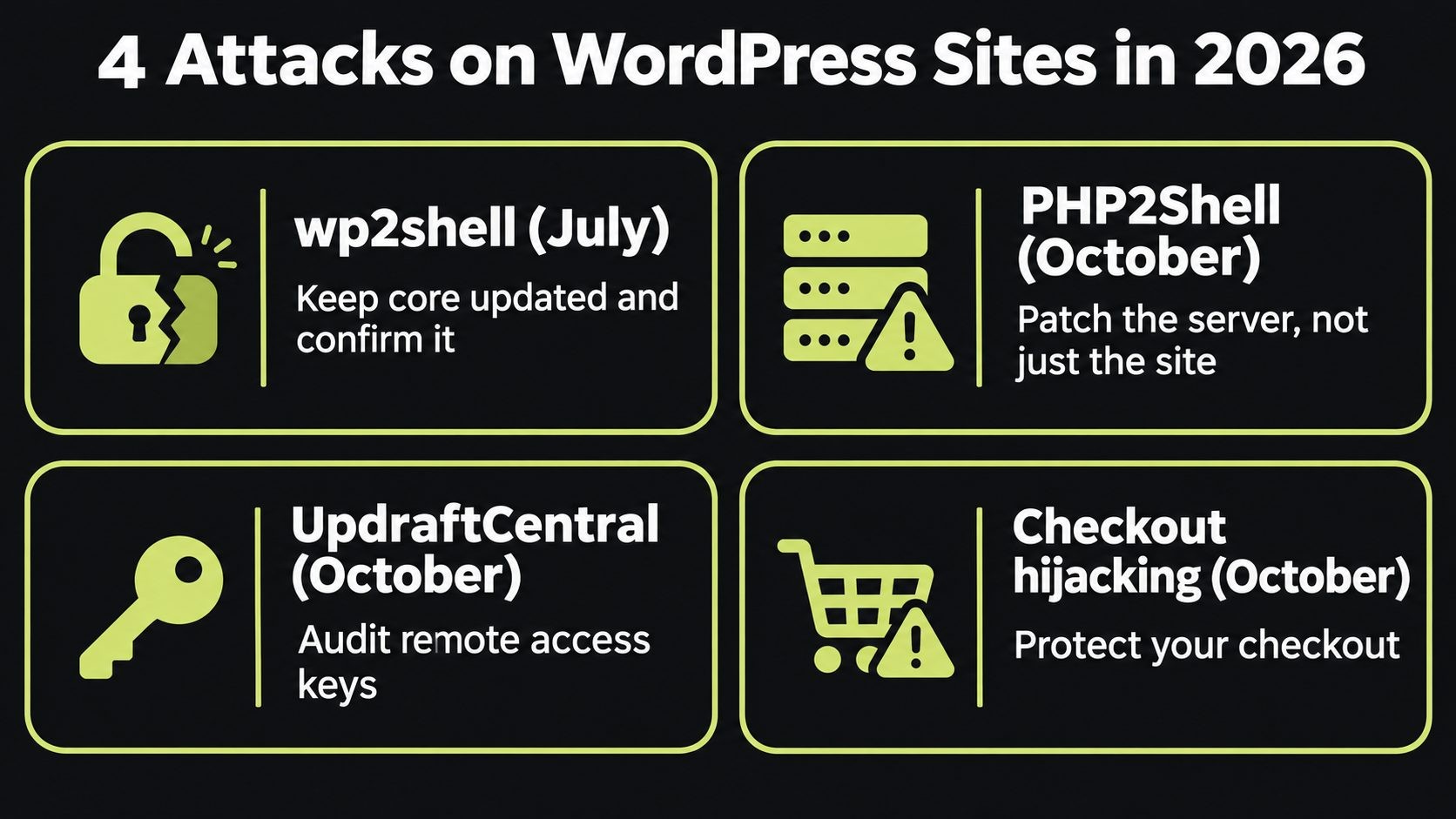
These recent incidents show how WordPress sites are actually being attacked:
- wp2shell (July 2026). A rare, critical WordPress core flaw allowed unauthenticated remote code execution on WordPress 6.9 and 7.0. WordPress released fixed versions 6.8.6, 6.9.5 and 7.0.2 and pushed forced automatic updates. Wordfence's analysis of wp2shell explains the details. Lesson: keep core updated and confirm the update actually completed.
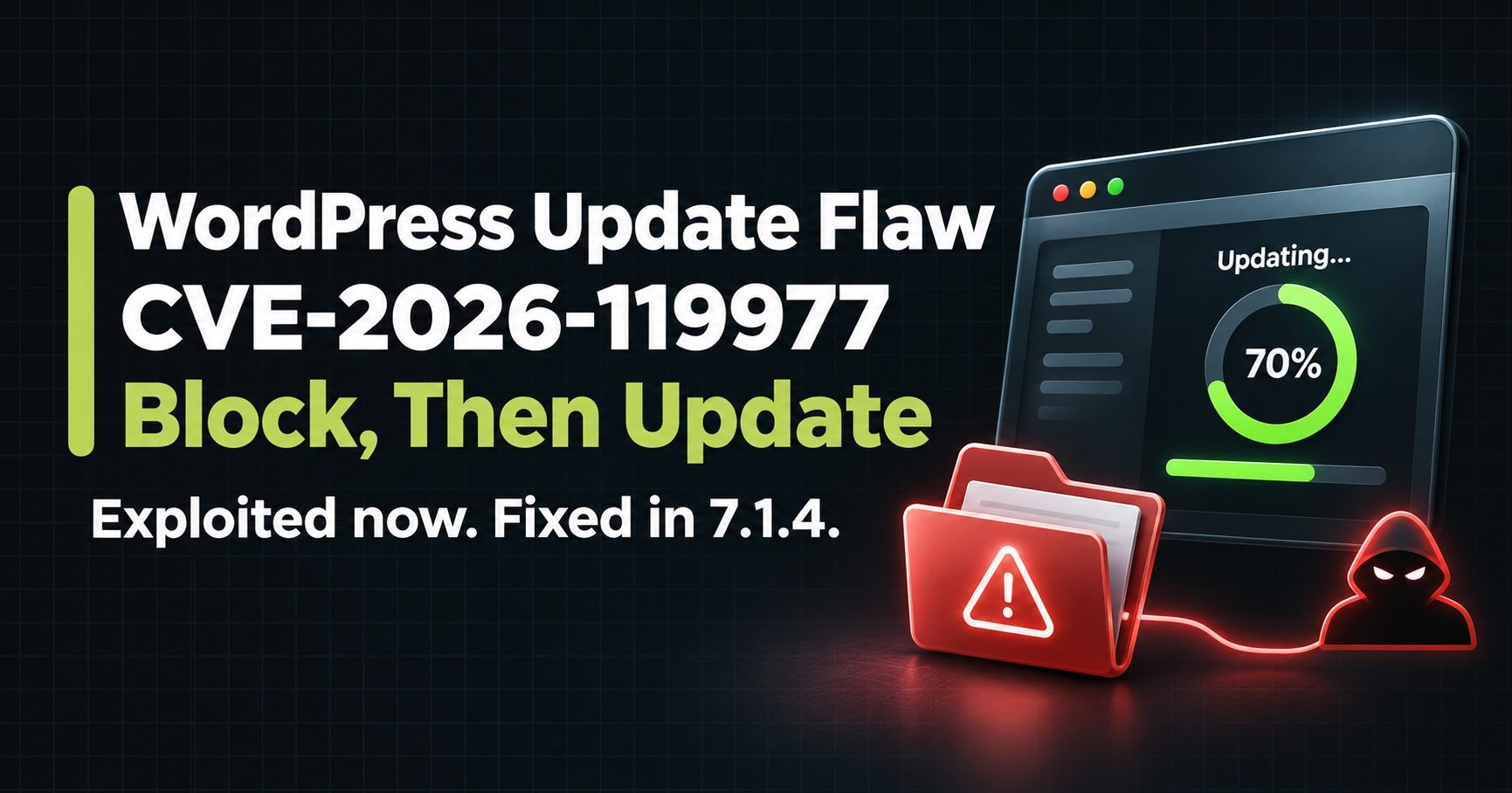
- CVE-2026-119977 (November 2026). A flaw in WordPress core's own updater was exploited while sites installed the fix, WordPress 7.1.4, so even the update itself could be raced. Lesson: block web access to
wp-content/upgradebefore you update, then verify the install. - PHP2Shell (October 2026). Critical PHP flaws allowed attackers to run code on servers without logging in, and updating WordPress did not fix them. I covered this in my WordPress 7.2 release date post. Lesson: patch the server, not just the website.
- The UpdraftCentral backdoor attack (October 2026). Attackers used stolen remote management keys to install backdoor plugins on WordPress sites. Lesson: audit remote access and keys.
- Checkout hijacking attacks (October 2026). Malicious apps targeted ecommerce checkouts to steal payment data. Lesson: checkouts are prime targets, so store owners need extra care.
Updates and Software (Steps 1 to 5)
Most WordPress hacks start with software that is out of date or should not be there at all.
1. Keep WordPress core updated
Leave automatic minor updates switched on, because those are the security releases. After any major security event, confirm your version under Dashboard > Updates rather than assuming the update finished. For wp2shell, sites needed 6.8.6, 6.9.5, 7.0.2 or newer, and some hosts blocked the automatic update from completing.
2. Update plugins and themes promptly
Apply security updates within a day. Test major feature updates on a staging site first, especially for WooCommerce, page builders and membership plugins. For simple, well-maintained plugins, turning on automatic updates is usually safer than forgetting them.
3. Delete plugins and themes you do not use
Deactivated plugins and themes can still be exploited, because their files remain on your server. Delete anything you are not using, and keep only one spare default theme as a fallback.
4. Vet every plugin before you install it
With 91% of vulnerabilities in plugins, every new plugin is a risk decision. Before installing, check:
- when it was last updated
- how many active installs it has
- whether the developer answers support questions
- whether it has a history of unpatched vulnerabilities
Avoid nulled (pirated) plugins completely, since they often contain malware. Be cautious with brand-new plugins from unknown developers, including quickly generated AI-built plugins that may never have been reviewed.
5. Run a supported, patched PHP version
Your server software matters as much as WordPress. Ask your host to confirm you are on a supported PHP version with the latest security patches. After PHP2Shell, that meant PHP 8.2.35, 8.3.36, 8.4.27, 8.5.12 or newer. Older versions such as PHP 7.4, 8.0 and 8.1 no longer receive official security fixes.
Logins and User Accounts (Steps 6 to 10)
Stolen and weak logins are another common way into a WordPress site.
6. Turn on two-factor authentication
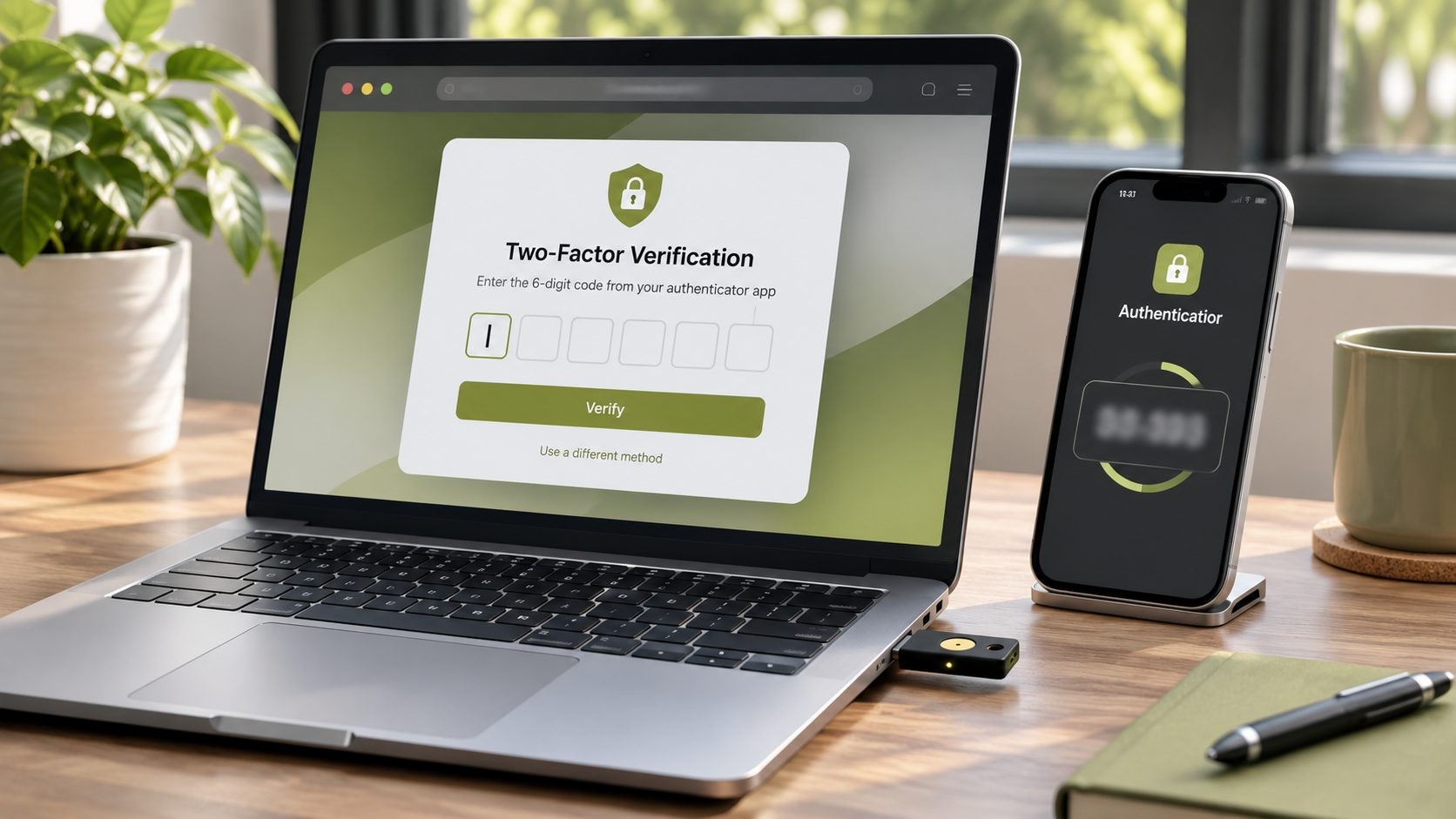
Require two-factor authentication (2FA) for every administrator, editor and shop manager. An authenticator app or a passkey is much stronger than an SMS code. This single step stops most password-based attacks.
7. Use a password manager and unique passwords
Every account should have a long, unique password stored in a password manager. You do not need to change passwords every 90 days, which mostly leads to weaker, predictable passwords. Change them immediately if there is any sign of a breach.
8. Limit login attempts and block bots
Limit repeated failed logins, and add bot protection to your login, registration and password reset forms. This blocks brute force and credential stuffing attacks, where bots try leaked passwords from other sites.
9. Give users the lowest role they need
Not everyone needs to be an administrator. Writers can be authors or editors, and store staff can be shop managers. Remove old accounts for former staff, contractors and agencies as soon as they no longer need access.
10. Audit application passwords and remote access keys
Backup tools, management dashboards and integrations often connect through application passwords or remote keys that never expire. Review them in each user's profile and in the tools themselves, and revoke anything you do not recognize or no longer use. This was the entry point in the UpdraftCentral backdoor attack.
Hosting and Server Hardening (Steps 11 to 15)
The official WordPress hardening guide covers these settings in technical detail. Here is what matters most.
11. Choose hosting that isolates and patches for you
Good hosting keeps each site isolated, patches the server quickly and offers backups and staging. On cheap shared hosting, a hacked neighbor can sometimes affect you. If you are unsure what you need, read my comparison of shared vs VPS vs WordPress hosting.
12. Use HTTPS everywhere
Install an SSL certificate with automatic renewal, redirect all HTTP traffic to HTTPS, and make sure your WordPress Address and Site Address settings both use https. This protects logins and customer data in transit.
13. Set safe file permissions and protect wp-config.php
The WordPress handbook recommends 755 for folders and 644 for files, with only your user account able to write to core files. Your wp-config.php file holds your database password, so restrict it further (often 400 or 440, depending on your host) and block direct web access to it. Ask your host before changing permissions if you are unsure.
14. Disable the built-in file editor
WordPress lets administrators edit plugin and theme code from the dashboard, which is also the first tool an attacker reaches for after getting in. Turn it off by adding this line to wp-config.php:
define( 'DISALLOW_FILE_EDIT', true );
15. Turn off features you do not use
Every feature you do not use is attack surface. Common examples:
- XML-RPC, if no app or service needs it (some mobile apps and Jetpack features do).
- Directory browsing, so visitors cannot list the files in your folders.
- User registration, if your site does not need public accounts.
Firewall, Scanning and Monitoring (Steps 16 to 20)
With 46% of vulnerabilities unpatched at disclosure and attacks starting within hours, you need protection that works even before a fix exists.
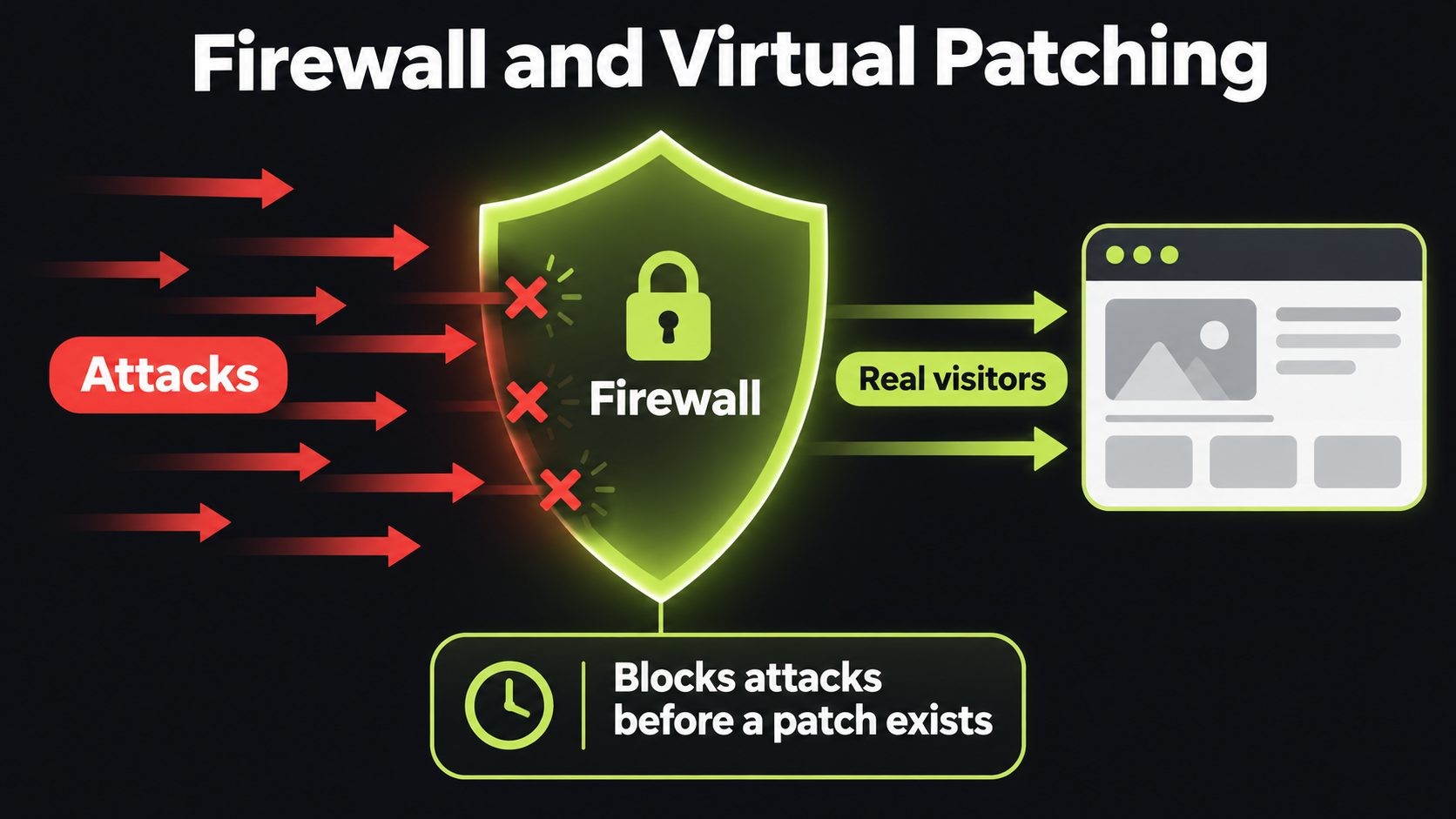
16. Put a web application firewall in front of your site
A web application firewall (WAF) filters malicious requests before they reach WordPress. You can get one through Cloudflare, your host or a security service. My guide to Cloudflare settings for WordPress includes security rules that work well for most sites.
17. Use virtual patching where you can
Virtual patching means the firewall blocks attacks against a known vulnerability, even if the plugin developer has not released a fix yet. For wp2shell, several firewall providers released protection on the day of disclosure. This is the main defense against that five-hour exploitation window.
18. Scan for malware and changed files
Run regular malware scans, and check core file integrity so you know if any WordPress core file has been changed. Attackers increasingly hide code inside legitimate plugin and theme files rather than adding obvious new ones.
19. Keep an activity log
An activity log records logins, new users, plugin installs and settings changes. It helps you spot suspicious activity early, and it is invaluable for working out what happened after an incident.
20. Monitor uptime, blocklists and Google Search Console
Set up uptime monitoring, check whether your domain appears on security blocklists, and verify your site in Google Search Console so you receive security warnings. You want to hear about a problem before your customers or Google do.
Backups and Recovery (Steps 21 to 23)
No security setup is perfect. Backups decide whether a hack is a bad afternoon or a disaster.
21. Automate off-site backups
Back up both your files and your database automatically, and store copies somewhere other than your web server. A simple rule is 3-2-1: three copies of your data, on two types of storage, with one copy off-site. Online stores should back up the database more often, ideally several times a day during busy periods, so you never lose orders. If you run a store, my WooCommerce Black Friday checklist covers backup timing around big sales.
22. Test a restore every quarter
A backup you have never restored is only a hope. Every few months, restore a recent backup to a staging site and confirm everything works, including logins, forms and checkout.
23. Use a staging site for changes
Test updates, new plugins and design changes on a staging copy first. This prevents broken updates on your live site and gives you a safe place to investigate problems.
People and Devices (Steps 24 and 25)
Attackers increasingly go after the people who manage websites, not the websites themselves.
24. Secure the devices of everyone with admin access
If an attacker takes over the laptop of someone with admin access, they can often walk straight into your site, using saved passwords or logged-in sessions. Make sure every admin device is encrypted, updated and protected. My developer laptop security checklist explains how.
25. Train your team to spot phishing and fake alerts
A common trick is a fake email saying "your site has a critical vulnerability, install this patch plugin now". Never install plugins or follow login links from unexpected emails. Verify any security alert through official sources first.
If Your WordPress Site Is Hacked: First Steps
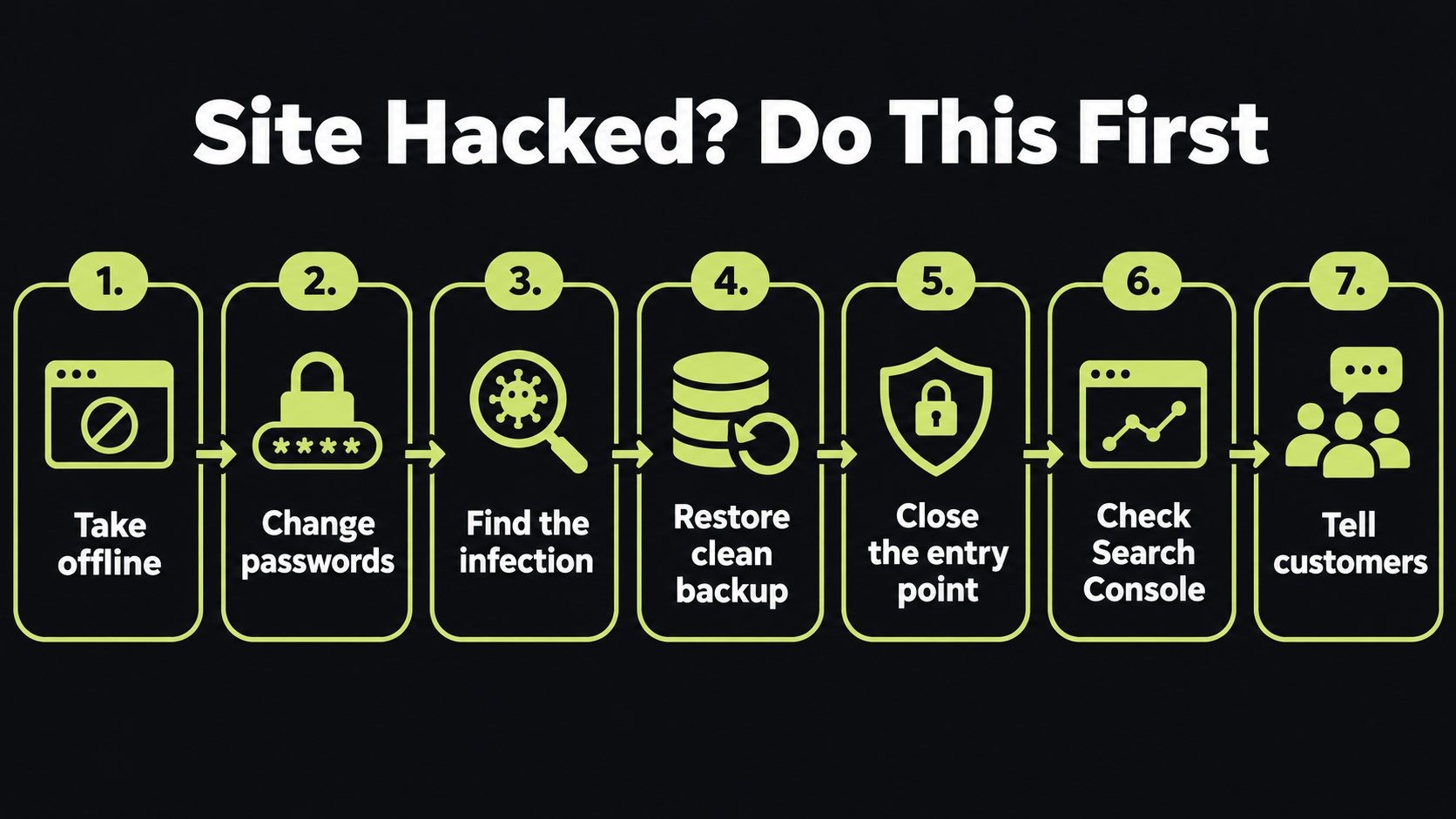
If you see warning signs such as unknown admin users, strange redirects or spam pages in Google, act quickly and in this order:
- Take the site offline or into maintenance mode. If you do, return a 503 status code so search engines know it is temporary; here is how to use a 503 status during maintenance.
- From a clean device, change all passwords for WordPress, hosting, database and FTP or SFTP, and revoke sessions, application passwords and remote access keys.
- Find the infection. Look for unknown admin users, recently modified files, unfamiliar plugins and suspicious code in theme and plugin files.
- Restore from a clean backup taken before the infection, or clean the site manually if no clean backup exists.
- Update everything and close the entry point, whether that was a vulnerable plugin, a weak password or an exposed key.
- Check Google Search Console for security issues, and request a review once the site is clean. A technical SEO audit can help you find spam pages and recover rankings.
- Tell affected customers if personal or payment data may have been exposed, and check your legal obligations.
For a real example of the cleanup process, see my guide to the UpdraftCentral backdoor attack.
Your WordPress Security Maintenance Schedule
Security is a habit, not a one-time project. Use this schedule to stay on top of it.
| Weekly | Monthly | Quarterly |
|---|---|---|
| Apply updates | Review users and roles | Test a full restore from backup |
| Confirm backups ran | Review your plugin list and remove extras | Review hosting and PHP version |
| Review security alerts and scan results | Check the activity log | Audit application passwords and remote keys |
If you would rather hand this off, my WordPress maintenance and security services can take it off your plate.
For the bigger picture, see our website security for small business guide: a layer-by-layer plan, a 30-day checklist and typical costs.
Frequently Asked Questions
Conclusion
A WordPress security checklist only works if you act on it. WordPress core is solid, but plugins, logins, servers and backups need regular attention, especially now that new vulnerabilities are attacked within hours.
Start with the four "do today" items: update everything, turn on two-factor authentication, delete what you do not use and confirm you have a recent backup. Then work through the rest of the 25 steps over the coming weeks.
If you want a professional review of your site, book a WordPress security audit and I will check it against this checklist.
Get new posts by email
New guides and alerts, sent when they are published. No spam. Unsubscribe anytime.


Comments (0)