Putting Cloudflare in front of a WordPress site takes about ten minutes. Getting the settings right takes longer, because WordPress is not a static website. It has a logged-in admin area, cookies that change what each visitor sees, a login page that bots hit thousands of times a day, and an old xmlrpc.php endpoint that most sites no longer need. Cloudflare's defaults were built for the whole internet, not for that mix, so a few of them help WordPress, a few do nothing, and a few quietly break things.
This guide walks through the Cloudflare settings for WordPress that are worth changing in the 2026 dashboard, tab by tab. You will get the SSL mode that avoids redirect loops, the speed toggles to switch on and the ones to leave alone, a free set of Cache Rules that caches your HTML safely, an honest look at whether Cloudflare APO is worth $5 a month, and five WAF custom rules that fit inside the free plan. Everything here reflects the current dashboard, so there are no Page Rules and no Auto Minify, both of which still show up in older tutorials.
Quick answer: the Cloudflare settings most WordPress sites need
- Proxy (orange cloud) only the records that serve your website, and leave mail and FTP records as DNS only.
- Set SSL/TLS to Full (strict) once your server has a valid certificate.
- Keep Rocket Loader off until you have tested it on a staging copy.
- Use Caching Level Standard and switch on Smart Tiered Cache.
- Cache your HTML with either APO ($5 a month on the free plan) or a free set of Cache Rules, never both.
- Add WAF custom rules for xmlrpc.php and wp-login.php, and only turn on Bot Fight Mode if your site has no webhooks, APIs or app traffic.
How Cloudflare Sits in Front of WordPress (and What It Can't Fix)
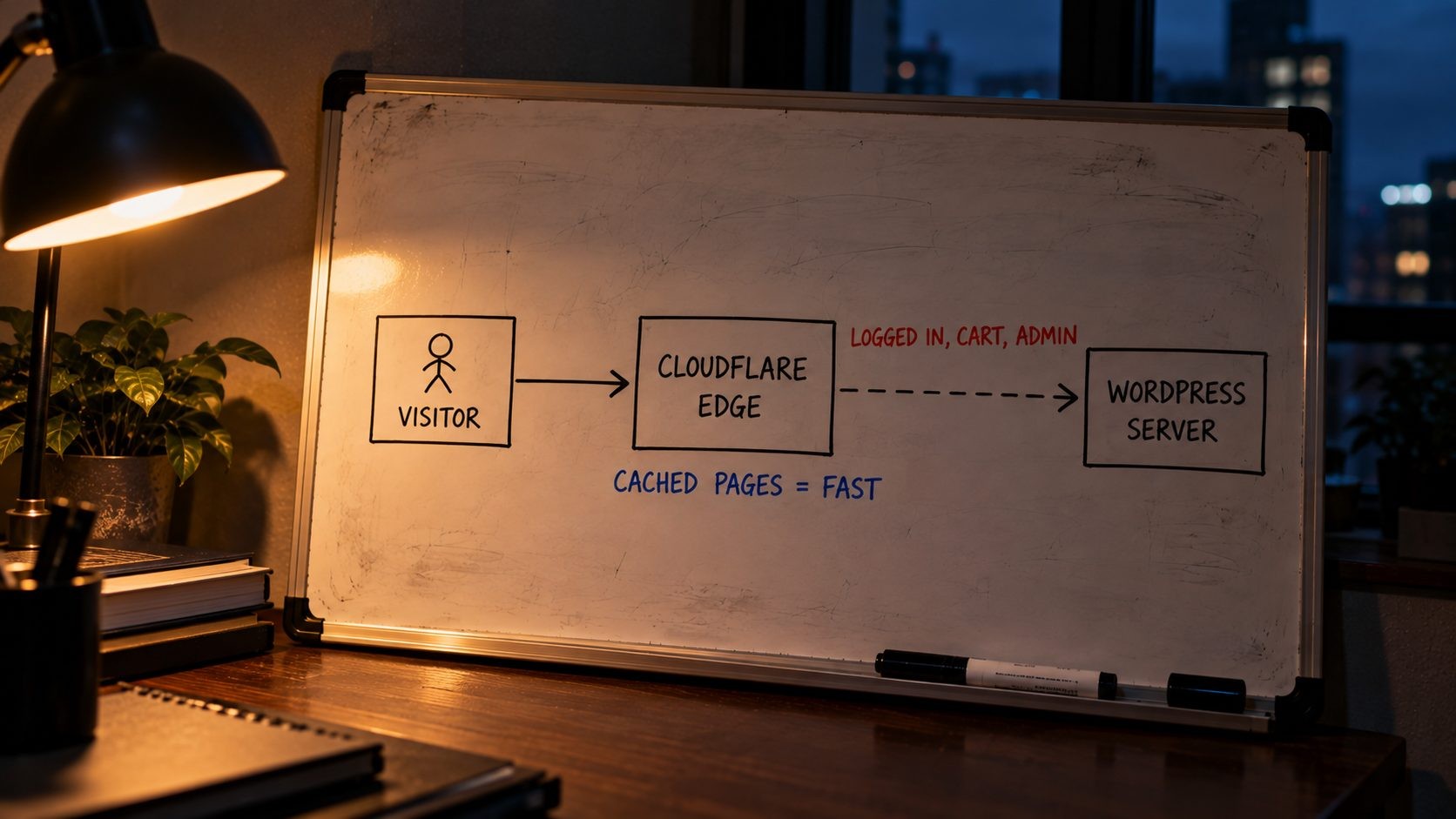
Cloudflare works as a reverse proxy. When you point your domain's nameservers to Cloudflare and switch a DNS record to "Proxied" (the orange cloud), visitors no longer connect to your server directly. They connect to the nearest Cloudflare data center, and Cloudflare connects to your server, which it calls the origin, on their behalf. A gray cloud record means "DNS only", so traffic for that hostname goes straight to your server and none of the settings in this guide apply to it.
The part that surprises most WordPress owners is what Cloudflare caches by default. Out of the box, it caches static files such as images, CSS, JavaScript and fonts, but it does not cache your HTML pages. Every page view still travels to your server, where PHP runs and the database answers queries before anything is sent back. That is why a site can sit behind Cloudflare for years and still have a slow Time to First Byte. To serve the HTML itself from the edge, you need either Automatic Platform Optimization (APO) or your own Cache Rules, and both are covered below.
Cloudflare also cannot fix a slow origin. It will not speed up your wp-admin dashboard, a slow database or a heavy page builder, and logged-in users, carts and checkouts always skip the cache and land on your server. Before you tune Cloudflare, it is worth knowing why your WordPress site is slow in the first place, because a CDN hides a slow server from some visitors but never repairs it.
One habit before you start: change one setting at a time and test after each change. If you flip six switches at once and the admin area starts looping, you will not know which one did it.
Step 1: Add Your Site and Get DNS Right
Nameservers and the DNS import
When you add a domain to Cloudflare, it scans your existing DNS and imports the records it finds. That scan is good but not perfect. Before you change your nameservers at the registrar, open your current host's DNS zone in another tab and compare it line by line with what Cloudflare imported. Missing TXT records (for email verification and SPF), missing subdomains and missing MX records are the usual gaps. Once everything matches, switch the nameservers. Propagation often finishes within an hour, though it can take longer.
Which records to proxy
Proxy the A, AAAA or CNAME records that serve your website, which usually means the root domain and www. Leave these as DNS only:
- MX records and any mail hostnames (mail.example.com), because Cloudflare's proxy does not handle email traffic
- FTP, SFTP and SSH hostnames
- Control panel hostnames such as cpanel or webmail, unless your host tells you otherwise
- Any subdomain used by a service that needs to see real connections, such as some VPN or game servers
If you proxy a mail hostname by mistake, email stops working. If you leave www as DNS only, half your visitors skip every setting you configure.
Cloudflare plugin or host integration
The official Cloudflare plugin from WordPress.org is actively maintained, has more than 200,000 active installs and needs WordPress 6.7 or later with PHP 7.4 or later. You need it for APO, because it tells Cloudflare when a page has changed and purges the edge copy for you. Some managed hosts offer their own Cloudflare integration instead. If yours does, read what it covers before adding the plugin on top, so the two do not fight over purging.
SSL/TLS Settings for WordPress
Automatic SSL/TLS vs Full (strict)
Open SSL/TLS, then Overview. New zones now default to "Automatic SSL/TLS", which uses Cloudflare's own scanner to pick the most secure mode your server can handle. That is a sensible default, but it is still worth knowing which mode you end up in, because the mode decides how Cloudflare talks to your server.
Cloudflare's own documentation says it "strongly recommends using Full or Full (strict) modes". Full encrypts the connection between Cloudflare and your server but does not check the certificate. Full (strict) encrypts it and also checks that the certificate is valid, which is the only mode that stops someone from impersonating your origin. For WordPress, set a custom mode of Full (strict) as soon as your server has a valid certificate. That can be a free Let's Encrypt certificate from your host, or a free Cloudflare Origin CA certificate that you install on the server and that only Cloudflare trusts.
Why Flexible causes "too many redirects"
Flexible mode encrypts traffic only between the visitor and Cloudflare. Cloudflare then talks to your server over plain HTTP. WordPress, seeing an HTTP request while its Site Address starts with https, redirects to HTTPS. Cloudflare passes that redirect to the visitor, the browser asks again over HTTPS, Cloudflare fetches over HTTP again, and the loop never ends. The browser gives up with ERR_TOO_MANY_REDIRECTS. Moving to Full or Full (strict) fixes this almost every time, and it also closes the security gap Flexible leaves open.
Edge certificate toggles
Under SSL/TLS, then Edge Certificates, set these:
- Always Use HTTPS: On. Sends every HTTP request to HTTPS at the edge, before it reaches WordPress.
- Automatic HTTPS Rewrites: On. Rewrites http:// links to https:// where possible, which clears up most mixed content warnings from old posts.
- Minimum TLS Version: TLS 1.2. Very old browsers that only support TLS 1.0 or 1.1 are almost gone, and 1.2 is the common baseline for compliance.
- TLS 1.3: On. Faster handshakes and better security.
- HSTS: Only after everything works. HSTS tells browsers to refuse plain HTTP for your domain for a set period. It is a good setting, but it is hard to undo, because browsers remember it. Turn it on last, start with a short max-age, and only add subdomains if every subdomain has a valid certificate.
Speed Settings: What to Turn On and What to Leave Off
Turn these on
Open Speed, then Settings (the exact menu names shift slightly between dashboard updates, but the toggles are the same).
- HTTP/3 (with QUIC): On. Browsers that support it get faster connections, and older ones fall back to HTTP/2.
- 0-RTT Connection Resumption: On. Returning visitors reconnect faster.
- Early Hints: On, then test. Early Hints lets Cloudflare tell the browser which files to start loading before the full HTML arrives. It helps most sites and rarely causes problems.
- Compression: Brotli and Gzip compression are handled automatically for text files, so there is usually nothing to switch.
Rocket Loader: off by default for WordPress
Rocket Loader defers all of a page's JavaScript until after the page renders, so text and images appear sooner. It is available on every plan, and on a simple site it can help paint times. On WordPress, it often clashes with cache plugins that already delay or defer scripts, with page builders, and with plugins that expect jQuery to load in a set order. Cloudflare's own guidance is that if you see JavaScript or jQuery problems, you should turn Rocket Loader off and retest.
My advice is to leave it off by default and test it on a staging copy. If it helps and only one script breaks, you can exclude that script by adding data-cfasync="false" to its tag, placed before the src attribute:
html
<script data-cfasync="false" src="/wp-content/themes/your-theme/js/slider.js"></script>If that script depends on other scripts, those need the attribute too, which is usually the point where it is simpler to keep Rocket Loader off and let your cache plugin handle script delay.
Auto Minify is gone
If an older tutorial tells you to tick the HTML, CSS and JavaScript boxes under Auto Minify, you will not find them. Cloudflare discontinued Auto Minify on August 5, 2024. Minify your files in your cache plugin instead (LiteSpeed Cache, WP Rocket and most others do this), and make sure only one tool is minifying so you do not get double processing.
Leave these off if you already handle them
- Cloudflare Fonts: Rewrites Google Fonts so they load from your own domain. If you already self-host fonts through your theme or a plugin, keep it off to avoid two systems touching the same files.
- Email Address Obfuscation: Hides email addresses from scrapers, but it does this with JavaScript that runs on every page. If your site shows no email addresses, or uses a contact form instead, switch it off.
- Speed Brain: Prefetches pages a visitor may click next. Test it, and switch it off if it adds requests without improving your real-world numbers.
- Web Analytics: If you already use Google Analytics or another tool, a second analytics script is just extra weight.
Caching Basics: Caching Level, Browser Cache TTL and Tiered Cache
These settings live under Caching, then Configuration and Tiered Cache. They are quick to set and safe on almost any WordPress site.
Caching Level: Standard. This caches static files and treats different query strings as different files, which is what WordPress expects. The other options ignore query strings in ways that can serve the wrong version of a file after an update.
Browser Cache TTL: Respect Existing Headers, or one month. This decides how long a visitor's browser keeps static files before asking again. If your host or cache plugin already sends long cache headers for images, CSS and JavaScript (most good setups do), choose "Respect Existing Headers" so Cloudflare does not override them. If your server sends no headers at all, set a value of at least one month. WordPress adds version numbers to theme and plugin files when they change, so long browser caching rarely serves stale CSS.
Smart Tiered Cache: On. Tiered caching lets Cloudflare data centers ask a nearby "upper tier" data center for a file before going all the way to your server. That means fewer requests hit your origin and cache hit rates go up. Smart Tiered Cache is available on the Free, Pro, Business and Enterprise plans, so there is no reason to leave it off.
Crawler Hints: On. Crawler Hints tells participating search engines when your content changes, which can reduce wasted crawling of unchanged pages.
Always Online: Off. It serves a saved copy of your pages from the Internet Archive when your server is down, but that copy can be old and ignores logins and carts.
Development Mode: for troubleshooting only. Development Mode bypasses Cloudflare's cache so you can see changes straight from your server. It switches itself off after three hours, which is easy to forget when you are testing and wondering why caching "came back".
Cloudflare APO for WordPress: Setup and When It's Worth $5
What APO does
Automatic Platform Optimization is Cloudflare's purpose-built cache for WordPress. Instead of caching only static files, it caches your full HTML pages at the edge, so the whole page can be served from a data center near the visitor without touching your server. It runs on Cloudflare Workers and works together with the Cloudflare WordPress plugin, which tells the edge when content changes and purges the cached copy when you update a post or page.
APO is careful with dynamic content. According to how Cloudflare APO caches and bypasses pages, logged-in users and requests that carry session or WooCommerce cookies skip the cache, so editors see live pages and shoppers see their own carts. Cloudflare also says APO caches certain third-party fonts and scripts along with the page. In Cloudflare's own tests, APO improved Time to First Byte by 72% and First Contentful Paint by 23%. Treat those as Cloudflare's figures, not a promise for your site, because your results depend on where your visitors are and how slow your server is today.
How to enable it
- Install and activate the Cloudflare plugin from Plugins, then Add New.
- In your Cloudflare dashboard, open My Profile, then API Tokens, and create a token using the "WordPress" template. Copy it.
- In WordPress, open the Cloudflare plugin settings, sign in with your email and the token.
- Switch on Automatic Platform Optimization in the plugin (or in the Cloudflare dashboard under Speed, then Optimization). On the Free plan, you will be asked to add the $5 per month subscription. It is included with Pro, Business and Enterprise.
- Leave "Cache by device type" off unless your theme serves different HTML to phones and desktops. Most modern themes are responsive and serve the same HTML to everyone, so splitting the cache by device only lowers your hit rate.
- Purge the cache once, then test using the headers in the testing section below.
When APO is worth it, and when to skip it
APO is worth the money for brochure sites, service business sites, blogs and content sites, especially when visitors come from many regions while the server sits in one. Five dollars a month for edge-served HTML and automatic purging is one of the cheapest speed upgrades in WordPress.
Skip it, or think twice, in these cases:
- Heavy WooCommerce or membership sites. If most of your visitors are logged in or carry cart cookies, most requests bypass APO anyway, so you pay for a cache few people hit.
- You are already on Cloudflare Pro or higher. APO is included, so just switch it on.
- Split-zone Enterprise setups. APO is not compatible with Enterprise subdomain setups where www lives in a different zone from the root domain.
- You already cache HTML with Cache Rules. Do not stack APO on top of a rule that caches all HTML. Two systems caching and purging the same pages leads to stale content that is hard to trace. Pick one.
Cloudflare Cache Rules for WordPress (the Free Alternative to APO)
If you would rather not pay for APO, or you want more control over what is cached, Cloudflare cache rules can do much of the same job for free. You give up APO's built-in automatic purging and its extra handling of third-party files, so you need a purge method, but the core benefit, HTML served from the edge for anonymous visitors, is the same.
Page Rules are deprecated
Older guides build this with Page Rules and a "Cache Everything" setting. Cloudflare now marks Page Rules as deprecated and splits their jobs across newer products. Caching settings moved to Cache Rules. Rocket Loader, Security Level, SSL and Email Obfuscation overrides moved to Configuration Rules. Always Use HTTPS and forwarding URLs moved to Redirect Rules. If you still have old Page Rules, follow Cloudflare's Page Rules migration guide: create the new rule, turn off the matching Page Rule, check that the site behaves, then delete the old rule. Cloudflare warns that Cache Rules behave differently by default, so test each one rather than copying settings blindly.
The free plan gives you 10 Cache Rules (Pro gets 25, Business 50, Enterprise 300). The setup below uses four.
Rule order matters: last match wins
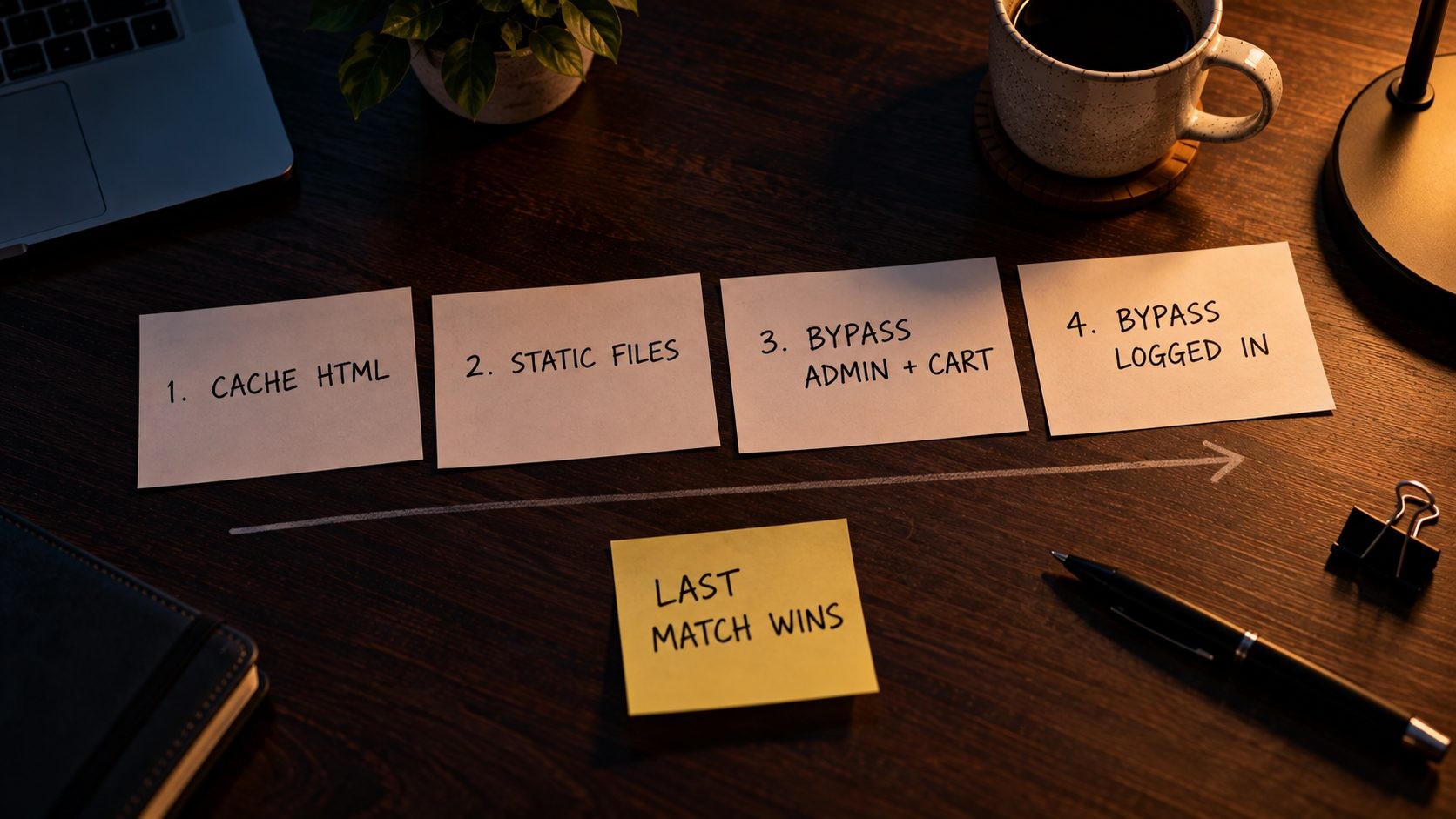
Cache Rules stack. When several rules match the same request, Cloudflare applies all of them, and if two rules set the same thing, the last matching rule wins. That changes how you order them. Put the broad "cache my pages" rule first and the "never cache this" rules last, so a bypass always has the final say. This is the opposite of how many people set up Page Rules, where the first match won.
The four-rule set
Create these under Caching, then Cache Rules, in this order. Replace example.com with your own domain.
Rule 1: Cache HTML for anonymous visitors. This makes your pages eligible for caching at the edge.
(http.host eq "example.com") or (http.host eq "www.example.com")- Cache eligibility: Eligible for cache
- Edge TTL: Ignore cache-control header and use this TTL, 2 hours (raise it if you purge reliably)
- Browser TTL: Respect origin
- Serve stale content while revalidating: leave enabled, so visitors get the cached copy while Cloudflare fetches a fresh one
Rule 2: Long edge cache for static files. Static files are cached by default, but this gives them a longer life at the edge.
(http.request.uri.path.extension in {"css" "js" "jpg" "jpeg" "png" "gif" "webp" "avif" "svg" "ico" "woff" "woff2"})- Cache eligibility: Eligible for cache
- Edge TTL: Use cache-control header if present, otherwise 1 month
- Browser TTL: Respect origin
Rule 3: Bypass admin, login and system paths. Anything here must always come from your server.
(http.request.uri.path contains "/wp-admin/")
or (http.request.uri.path eq "/wp-login.php")
or (http.request.uri.path contains "/wp-json/")
or (http.request.uri.path eq "/xmlrpc.php")
or (http.request.uri.path eq "/wp-cron.php")
or (http.request.uri.query contains "preview=true")
or (http.request.uri.path contains "/cart")
or (http.request.uri.path contains "/checkout")
or (http.request.uri.path contains "/my-account")
or (http.request.uri.query contains "wc-ajax")- Cache eligibility: Bypass cache
If you do not run WooCommerce, you can drop the last four lines.
Rule 4: Bypass anyone with a WordPress or WooCommerce session cookie. This is the rule that keeps logged-in users, password-protected posts, commenters and shoppers out of the shared cache.
(http.cookie contains "wordpress_logged_in")
or (http.cookie contains "wp-postpass")
or (http.cookie contains "comment_author")
or (http.cookie contains "woocommerce_items_in_cart")
or (http.cookie contains "wp_woocommerce_session")- Cache eligibility: Bypass cache
Because rules 3 and 4 come last, they override rule 1 whenever they match. An anonymous visitor reading a blog post gets a cached page. An editor, a shopper or anyone on a checkout page gets a fresh one from your server.
Purging: the part people forget
With Cache Rules, nothing purges your HTML automatically, so an edited post stays stale at the edge until the Edge TTL runs out. You have three common options:
- The Cloudflare plugin's "Auto Purge Content On Update" feature, which purges the changed URLs when you publish or update.
- The LiteSpeed Cache plugin's Cloudflare API option, which can clear Cloudflare's cache whenever LiteSpeed runs a Purge All.
- The WP Rocket Cloudflare integration, which purges Cloudflare when WP Rocket clears its own cache.
Pick one and confirm it works by editing a post and checking the page in a private window.
One more limit worth knowing: links with tracking parameters (such as utm_source) are treated as different URLs, so each one creates its own cache entry. The cache key setting that ignores query strings is only available to Enterprise and pay-as-you-go customers, so on the free plan you simply accept a lower hit rate on campaign traffic.
Security Rules That Actually Stop WordPress Attacks
Five free WAF custom rules
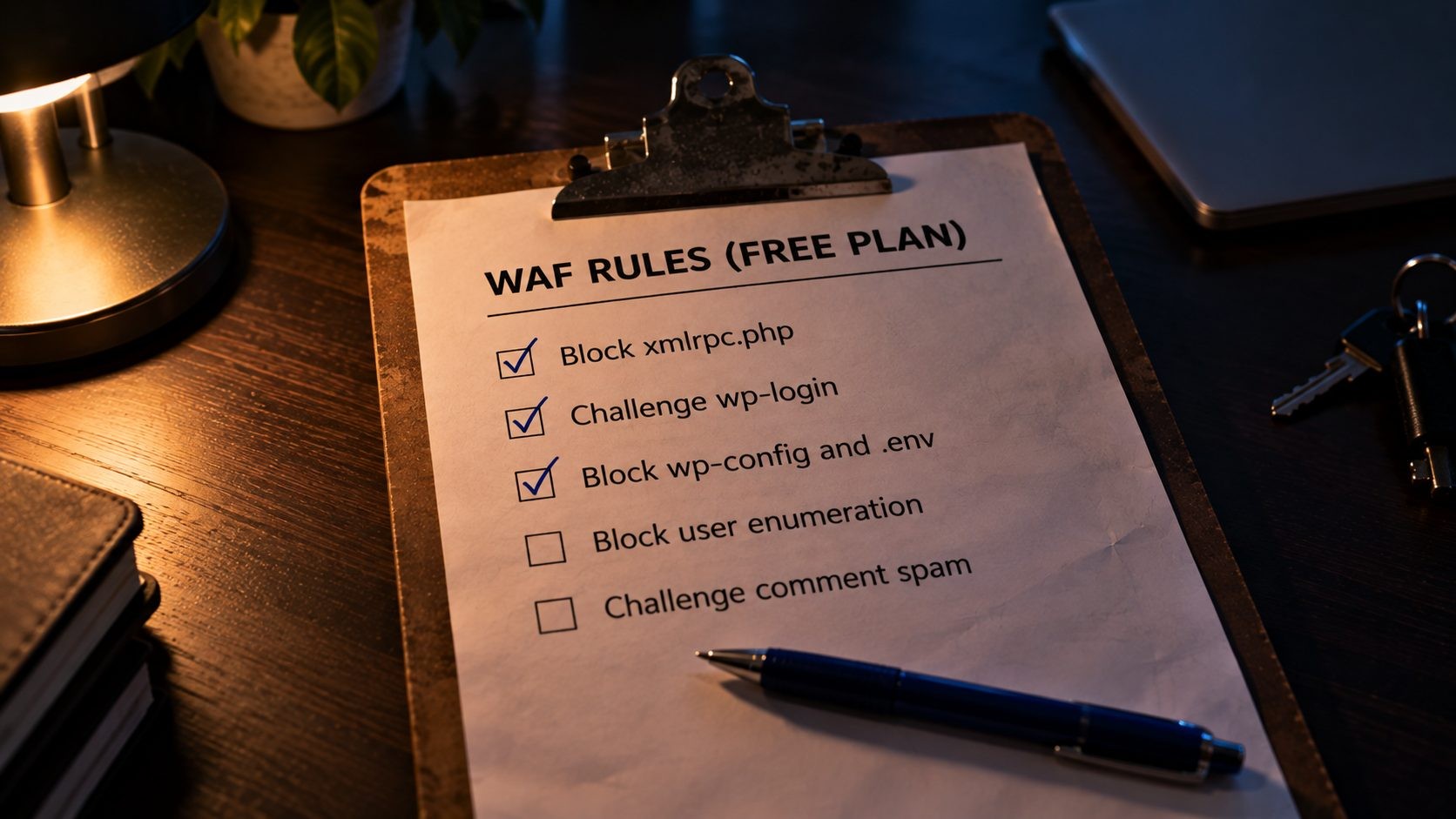
The free plan includes 5 WAF custom rules (Pro gets 20, Business 100 and Enterprise 1,000), as listed in Cloudflare's WAF custom rules limits by plan. That is enough to block most of the junk traffic that hits WordPress sites. Create these under Security, then WAF, then Custom rules.
Rule 1: Block xmlrpc.php. XML-RPC is an old remote publishing API that attackers use for brute force logins and pingback abuse. Most sites do not need it.
(http.request.uri.path eq "/xmlrpc.php")Action: Block. If you use Jetpack or post from the WordPress mobile app, test before you block, because some of their features rely on XML-RPC.
Rule 2: Challenge the login page and admin area. A managed challenge is invisible to most real people but stops scripts cold.
(http.request.uri.path eq "/wp-login.php")
or (http.request.uri.path contains "/wp-admin/"
  and not http.request.uri.path contains "/wp-admin/admin-ajax.php"
  and not http.request.uri.path contains "/wp-admin/admin-post.php")
Action: Managed Challenge. The two exclusions matter, because admin-ajax.php and admin-post.php serve public features such as forms, filters and add-to-cart buttons. If you have a fixed office IP, you can add and not ip.src in {203.0.113.10} (with your own IP) so you never see the challenge.
Rule 3: Block probes for sensitive files and PHP in uploads. Bots constantly scan for configuration files and for PHP shells uploaded through vulnerable plugins.
(http.request.uri.path contains "wp-config")
or (http.request.uri.path contains "/.env")
or (http.request.uri.path contains "/.git")
or (http.request.uri.path eq "/readme.html")
or (http.request.uri.path contains "/wp-content/uploads/"
  and http.request.uri.path.extension eq "php")
Action: Block. No legitimate visitor ever requests these.
Rule 4: Stop user enumeration. Bots find your usernames through author archives and the REST API, then use them in login attacks.
(http.request.uri.query contains "author=")
or (http.request.uri.path contains "/wp-json/wp/v2/users"
  and not http.cookie contains "wordpress_logged_in")
Action: Block.
Rule 5: Challenge comment spam from outside your market, and block empty user agents. Adjust the country list to the places your real customers live.
(http.request.uri.path eq "/wp-comments-post.php"
  and not ip.src.country in {"US" "CA"})
or (http.user_agent eq "")
Action: Managed Challenge. Be careful with country rules on public pages, since blocking whole countries can also block search engine crawlers and genuine visitors who travel. Limiting the rule to the comment form keeps that risk small.
Your one free rate limiting rule
The free plan includes one rate limiting rule with tight limits: a 10 second counting period, a 10 second mitigation timeout, counting by IP only, and matching on path. Point it at the login page:
(http.request.uri.path eq "/wp-login.php")Set it to block when one IP sends more than about 5 requests in 10 seconds. A 10 second block will not stop a determined attacker on its own, but combined with the managed challenge from rule 2, it makes brute force attempts slow and expensive. Pro raises the limits to a counting period of up to 1 minute and a block of up to 1 hour.
Bot Fight Mode: read this before you turn it on
Bot Fight Mode is free and it does catch a lot of automated traffic. The catch is in Cloudflare's own documentation: "You cannot bypass or skip Bot Fight Mode using WAF custom rules or Page Rules." It covers your whole domain, and Cloudflare warns it "may challenge API or mobile app traffic". On WordPress, that can mean payment gateway webhooks (Stripe, PayPal), uptime monitors, headless front ends, mobile apps and some plugin license checks get challenged, with no way to make an exception.
So turn it on only if your site has none of those. Otherwise, rely on the WAF rules above, or upgrade to Super Bot Fight Mode, which supports skip rules.
Other security settings
- Security Level: Leave it at the default. Raising it challenges more real visitors without adding much protection.
- Under Attack Mode: Only during an active attack. It shows a check page to every visitor, which hurts conversions.
- Turnstile: Cloudflare's free CAPTCHA alternative. Add it to login, registration and comment forms through a plugin for a second layer that does not annoy people.
- Managed rules: On Pro and above, the Cloudflare Managed Ruleset includes WordPress and PHP specific protections. It is one of the main reasons to upgrade if your site takes regular attacks.
Edge rules only see requests, not what runs inside WordPress. The UpdraftCentral backdoor attack came in through signed commands on a trusted remote-management channel, which no WAF rule can tell apart from normal traffic. So alongside these rules, check your plugin folders and user list for anything you did not install or create.
| Rule | What it matches | Action |
|---|---|---|
| 1 | /xmlrpc.php | Block |
| 2 | wp-login.php and wp-admin (minus ajax and post handlers) | Managed Challenge |
| 3 | wp-config, .env, .git, readme.html, PHP in uploads | Block |
| 4 | ?author= and the public users endpoint | Block |
| 5 | Comment posts from outside your market, empty user agents | Managed Challenge |
| Rate limit | /wp-login.php over about 5 requests in 10 seconds | Block for 10 seconds |
Pairing Cloudflare with Your Cache Plugin and Host
Cloudflare is the outer layer, not the whole stack. Every request that skips the edge cache, including logged-in editors, carts, checkouts, admin screens and the first visitor after a purge, still lands on your server. That is why an origin page cache still matters, even with APO.
If your host runs LiteSpeed, the LiteSpeed Cache plugin pairs well with Cloudflare. Under its CDN settings, switch on the Cloudflare API, paste a token created from Cloudflare's "WordPress" template, and enable "Clear Cloudflare cache" so Cloudflare purges whenever LiteSpeed runs a Purge All. You do not need LiteSpeed's CDN Mapping for Cloudflare, since Cloudflare already proxies your whole domain. WP Rocket offers a similar Cloudflare integration. Whichever plugin you use, let it handle minification and script delay, keep Rocket Loader off, and make sure only one tool purges your HTML.
The host underneath makes a real difference here. A fast origin means your bypassed requests feel quick too, and a valid server certificate makes Full (strict) a two-minute job. Nexi Bloom's WordPress hosting includes LiteSpeed caching on every plan, free SSL with automatic renewal and daily backups, so you can run LiteSpeed at the origin and Cloudflare at the edge, and roll back easily if a new rule misbehaves. If you want to see how these pieces fit with the rest of a build, my WordPress tech stack walks through the tools I reach for.
How to Test That Your Settings Work
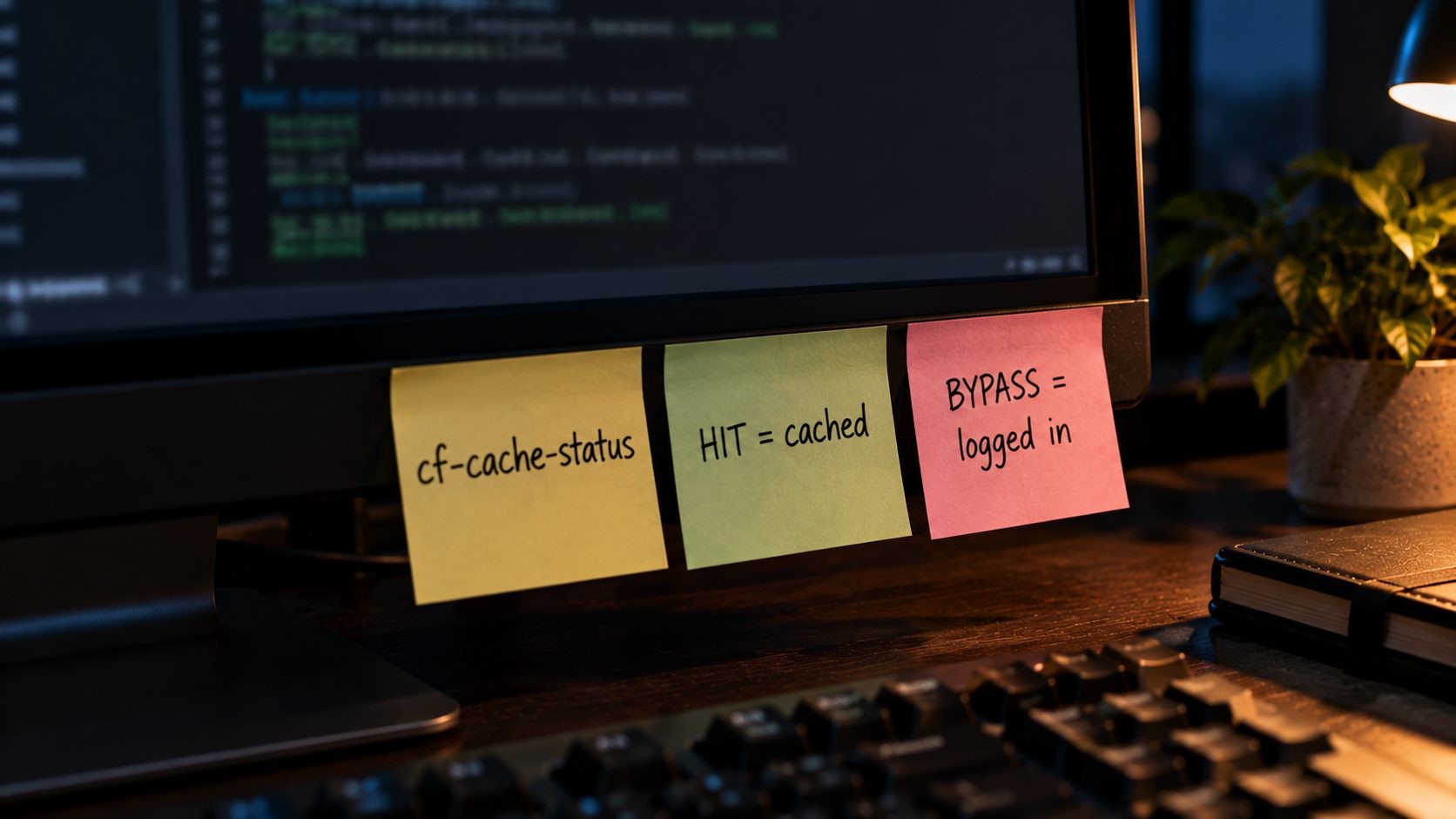
Do not trust the dashboard alone. Check the response headers.
Open a terminal and request your homepage as an anonymous visitor:
curl -I https://example.com/Look for the cf-cache-status header. The values you will see most are:
- HIT: served from Cloudflare's cache. This is what you want for anonymous HTML.
- MISS: not in cache yet, fetched from your server. Request again and it should turn into a HIT.
- EXPIRED: was cached, but the TTL ran out, so Cloudflare refetched it.
- BYPASS: a rule or cookie told Cloudflare to skip the cache.
- DYNAMIC: Cloudflare does not consider this cacheable, which is normal for HTML if you have neither APO nor Cache Rules.
If you use APO, Cloudflare's verification guide says it is working when you see CF-Cache-Status: HIT, cf-apo-via: tcache and cf-edge-cache: cache, platform=wordpress.
Then log in, open your homepage with the browser's developer tools on the Network tab, and check the same header. You should see BYPASS or DYNAMIC, never HIT. A HIT for a logged-in user means your cookie rule is wrong and you risk serving one person's admin bar to everyone.
Finally, run the page through PageSpeed Insights and compare Time to First Byte with your earlier numbers. The field data uses a rolling 28-day window, so it takes weeks to reflect the change, while the lab section shows it right away.
Common Cloudflare + WordPress Problems and Fixes
Too many redirects. Almost always Flexible SSL combined with WordPress forcing HTTPS. Switch to Full (strict). If it persists, check for a duplicate HTTPS redirect in a plugin or your .htaccess file and keep only one.
Mixed content warnings. Old posts with http:// image links. Turn on Automatic HTTPS Rewrites, then update the URLs in your database with a search and replace tool so you are not relying on the rewrite forever. A technical SEO audit will also catch mixed content and redirect chains across the whole site.
Login loops or the admin bar showing for visitors. Your HTML cache is catching logged-in pages. Check that your bypass rules come last and include the wordpress_logged_in cookie, then purge everything.
Stale content after updates. You are caching HTML without a purge method. Set up auto purge in the Cloudflare plugin or your cache plugin, as described above.
Every visitor shows the same IP in logs or security plugins. Your server is seeing Cloudflare's IPs, not visitors'. Configure your server to read the CF-Connecting-IP header (most hosts and LiteSpeed have a setting for this), otherwise login limiters may lock out everyone at once.
Webhooks or REST API calls fail with 403 or a challenge. Usually Bot Fight Mode or an over-broad WAF rule. Bot Fight Mode cannot be skipped, so turn it off, then check your custom rules under Security, then Events to see which rule fired.
Errors 521, 522, 525 and 526. These come from the connection between Cloudflare and your server. A 521 means your server refused the connection, often because a firewall is blocking Cloudflare's IP ranges. A 522 means the connection timed out. A 525 means the SSL handshake failed. A 526 means Full (strict) found an invalid certificate on your server, so renew or install a valid one.
Free Plan vs Pro: Do You Need to Pay?
For most small business and content sites, the free plan plus APO at $5 a month covers everything that matters: edge-cached HTML, SSL, HTTP/3, Smart Tiered Cache, 10 Cache Rules, 5 WAF custom rules and one rate limiting rule.
Pro costs $20 a month billed annually or $25 billed monthly. It includes APO, adds the Cloudflare Managed Ruleset with WordPress protections, Super Bot Fight Mode with skip rules, image optimization through Polish, 20 WAF custom rules, 25 Cache Rules and better rate limiting. It is worth it for online stores, sites that take regular attacks, and sites with webhooks that need bot protection with exceptions. It is also worth remembering that putting everything behind one provider means you share its bad days, as the recent Cloudflare outage showed, so keep your origin healthy either way.
FAQs
Conclusion
Good Cloudflare settings for WordPress come down to three layers. At the edge, you want secure SSL in Full (strict) mode and the handful of speed toggles that help without breaking scripts. For caching, you serve your HTML from Cloudflare with either APO or four well-ordered Cache Rules, while making sure logged-in users, carts and checkouts always skip the cache. For security, you spend your five free WAF rules and one rate limiting rule where WordPress actually gets attacked, and you treat Bot Fight Mode with care.
Change one thing at a time, check the cf-cache-status header after each change, and keep your origin fast so the requests Cloudflare cannot cache still feel quick. If you are weighing whether WordPress is the right platform at all for your next build, my take on Laravel vs WordPress covers when each one makes sense.
Want a fast origin behind Cloudflare? Nexi Bloom WordPress hosting comes with LiteSpeed caching, free SSL and daily backups on every plan, starting at $3.99 a month, so the pages Cloudflare can't cache still load quickly.
No Tags

Comments (0)