
A website can have excellent content and still struggle in search. Sometimes the cause is a single line of code: a noindex tag left over from development, a robots.txt rule copied from a staging site, or a chain of redirects nobody noticed after a redesign. Visitors never see these problems. Search engines run into them on every visit.
This technical SEO audit checklist walks you through finding those problems in the right order. It's a step-by-step process you can run yourself, in one long session or over a few days, using only free tools. Each of the 27 steps tells you what to check, which tool to use, what good looks like and how to fix what you find.
I audit my own sites and client sites, from WordPress builds to custom Laravel applications, and this is the order I work in. It starts with the problems that can stop a site from appearing in search at all, then moves on to speed, security and structure, and ends with a simple way to decide what to fix first.
Quick answer: what is a technical SEO audit?
A technical SEO audit checks whether search engines can crawl, render, index and understand your website, and whether the site loads quickly and securely for visitors.
The audit at a glance:
- Crawlability: robots.txt, sitemap, site crawl, errors and redirects
- Indexability: indexing report, noindex tags, canonicals and URL Inspection
- Rendering: making sure Google sees your JavaScript content
- Site architecture: click depth, orphan pages and breadcrumbs
- Speed: Core Web Vitals, lab diagnostics and server response
- Mobile: mobile parity and intrusive pop-ups
- Security: HTTPS and security issues
- Structured data: validating schema
- Special cases: hreflang, pagination and faceted navigation
- AI search readiness: AI crawler access and Bing visibility
- Prioritize and monitor: fixing what matters first
Most small sites can complete this audit in a day using free tools.
Technical SEO vs On-Page SEO: What This Audit Covers
SEO work usually falls into three areas, and it helps to know which one you're working on.
Technical SEO covers the foundations of the whole site: how search engines crawl it, render it and index it, plus speed, mobile experience, security, site structure and structured data. Problems here usually affect many pages at once.
On-page SEO covers what's on each individual page, such as titles, headings, content, images and internal links. If you're working page by page, my on-page SEO checklist covers 30 checks to run before publishing.
Off-page SEO covers signals from outside your site, mainly backlinks and brand mentions.
This guide is the site-level audit. Run it first, because the best on-page work in the world won't help a page that search engines can't reach. Once the foundations are sound, work through the on-page checklist on your most important pages.

Before You Start: Your Free Technical SEO Audit Toolkit
You don't need paid software to run a thorough audit. These free tools cover every step in this website audit checklist:
| Tool | What it checks | Free limit |
|---|---|---|
| Google Search Console | Indexing, Core Web Vitals, robots.txt, sitemaps, security issues and URL Inspection | Free |
| Bing Webmaster Tools | Bing indexing, Site Scan and crawl issues. Bing's index also supports Copilot. | Free |
| PageSpeed Insights and Lighthouse | Real-user and lab performance data | Free |
| Screaming Frog SEO Spider | Full site crawl: status codes, titles, canonicals, directives and click depth | Up to 500 URLs free |
| Google Rich Results Test and Schema Markup Validator | Structured data validity | Free |
| Chrome DevTools | Rendering, mobile view, network requests and console errors | Free |
| SEO Site Checker | Quick page-level technical and on-page score | Free with daily limits |
If you haven't set up Search Console or Bing Webmaster Tools yet, do that first. A domain property in Search Console is the best option, because it covers every version of your site (http, https, www and non-www) in one place. Bing Webmaster Tools can import your verified sites straight from Search Console, which takes a couple of minutes. Some reports need a few days to fill with data, so set them up before you plan to run the audit.
Set Your Baseline First
Before you change anything, record where the site stands today. Note your organic clicks and impressions for the last three months, the number of indexed pages, your Core Web Vitals status and your top landing pages. Without a baseline, you can't prove later that your fixes made a difference.
A quick way to start is to get a baseline score with SEO Site Checker's Website SEO Score Checker. It checks meta tags, Core Web Vitals, HTTPS, canonical tags, robots.txt and structured data on any page, and gives you a score from 0 to 100. Run it on your homepage and one or two key templates. If you want to see every feature of the tool, here's a walkthrough of SEO Site Checker's full audit. This post focuses on the audit process itself.
Set Up an Audit Sheet
Create a simple spreadsheet with six columns: issue, affected URLs, severity, effort, owner and status. As you work through the SEO audit steps below, log every problem you find instead of fixing things as you go. Fixing on the fly feels productive, but it makes it easy to spend an hour on something minor while a critical issue waits. Log first, then prioritize in Phase 11.
Phase 1: Crawlability
Crawlability is whether search engines can reach your pages at all. If they can't crawl a page, nothing else in this audit matters for that page. Every step from here follows the same pattern: what to check, the free tool to use, what good looks like and how to fix problems.
Step 1. Check Your robots.txt File
What to check: your robots.txt file tells crawlers which parts of your site they may visit. Open yourdomain.com/robots.txt in a browser and read it line by line. Look for a Disallow: / line under User-agent: *, which blocks the entire site and is a common leftover from staging sites. Also look for rules that block CSS or JavaScript folders, because search engines need those files to render your pages properly.
Free tool: the robots.txt report in Google Search Console. It shows the robots.txt files Google found for your top 20 hosts, when each was last crawled, any errors or warnings, and how the file changed over the last 30 days. It replaced the old robots.txt Tester, which some audit guides still mention.
What good looks like: a short file that blocks only areas with no search value, such as admin pages, internal search results or cart pages, and that includes a line pointing to your XML sitemap. For a typical WordPress site, that can be as simple as:
User-agent: *
Disallow: /wp-admin/
Allow: /wp-admin/admin-ajax.php

Sitemap: https://www.example.com/sitemap_index.xml
How to fix: remove accidental blocks and request a recrawl of the file from the robots.txt report. One important point: robots.txt controls crawling, not indexing. Google's robots.txt documentation is clear that it is not a way to keep a page out of Google. A blocked URL can still be indexed if other pages link to it. If you want a page kept out of search results, use a noindex tag or password protection instead.
Step 2. Review Your XML Sitemap
What to check: your XML sitemap is the list of pages you want search engines to find and index. It should contain only canonical, indexable URLs that return a 200 status code.
Free tool: the Sitemaps report in Google Search Console and the Sitemaps section in Bing Webmaster Tools. Your crawler can also compare the sitemap with what it finds.
What good looks like: a sitemap with no redirects, no 404s, no noindexed pages and no duplicate URLs, submitted to both Google and Bing, and referenced in robots.txt.
How to fix: most CMS platforms and SEO plugins generate sitemaps automatically, so fix the setting rather than the file. Exclude tag archives, thin pages or anything marked noindex. Then compare the number of submitted URLs with the number indexed. A big gap is a clue to investigate in Phase 2. Larger sites usually split their sitemap into several smaller ones grouped under a sitemap index file, such as one for posts, one for pages and one for products. That also makes it easier to spot which section has indexing problems.
Step 3. Crawl Your Site Like a Search Engine
What to check: a full crawl shows you your site the way a search engine sees it, with every URL, status code, title, canonical tag, directive and how many clicks each page is from the homepage.
Free tool: Screaming Frog SEO Spider. The free version crawls up to 500 URLs and includes broken link checks, metadata analysis, duplicate detection and JavaScript rendering.
What good looks like: a crawl that finds every important page, with mostly 200 status codes and no surprises.
Before you start the crawl, adjust two settings. Set the user agent to a smartphone crawler, so you see the mobile version that search engines index. And if your site relies on JavaScript, switch on JavaScript rendering so the crawler sees the same content a browser would.
How to fix: at this stage, you're collecting data rather than fixing. Export the crawl and keep it open for the next steps. If your site has more than 500 URLs, crawl one section at a time, such as the blog, then products, then service pages. Or rely more heavily on Search Console reports, which cover your whole site.
Step 4. Find and Fix 4xx and 5xx Errors
What to check: status codes tell crawlers what happened when they requested a page. In your crawl, filter for 4xx client errors (such as 404 Not Found) and 5xx server errors.
Free tool: your Screaming Frog crawl, plus the Page indexing report in Search Console, which lists server errors and not-found pages Google encountered.
What good looks like: no internal links pointing to 404 pages, and no 5xx errors at all.
How to fix:
- 404 errors: update internal links to point to a working page. If a deleted page still has backlinks or traffic, redirect it to the most relevant live page.
- 5xx errors: these point to server problems. In my experience, the usual causes are exhausted hosting resources, a plugin conflict, a PHP version mismatch or a timeout on heavy pages. Check your server error logs first.
- Soft 404s: pages that show an error message but return a 200 status. Make them return a proper 404 or 410, or give them real content.
Step 5. Clean Up Redirects
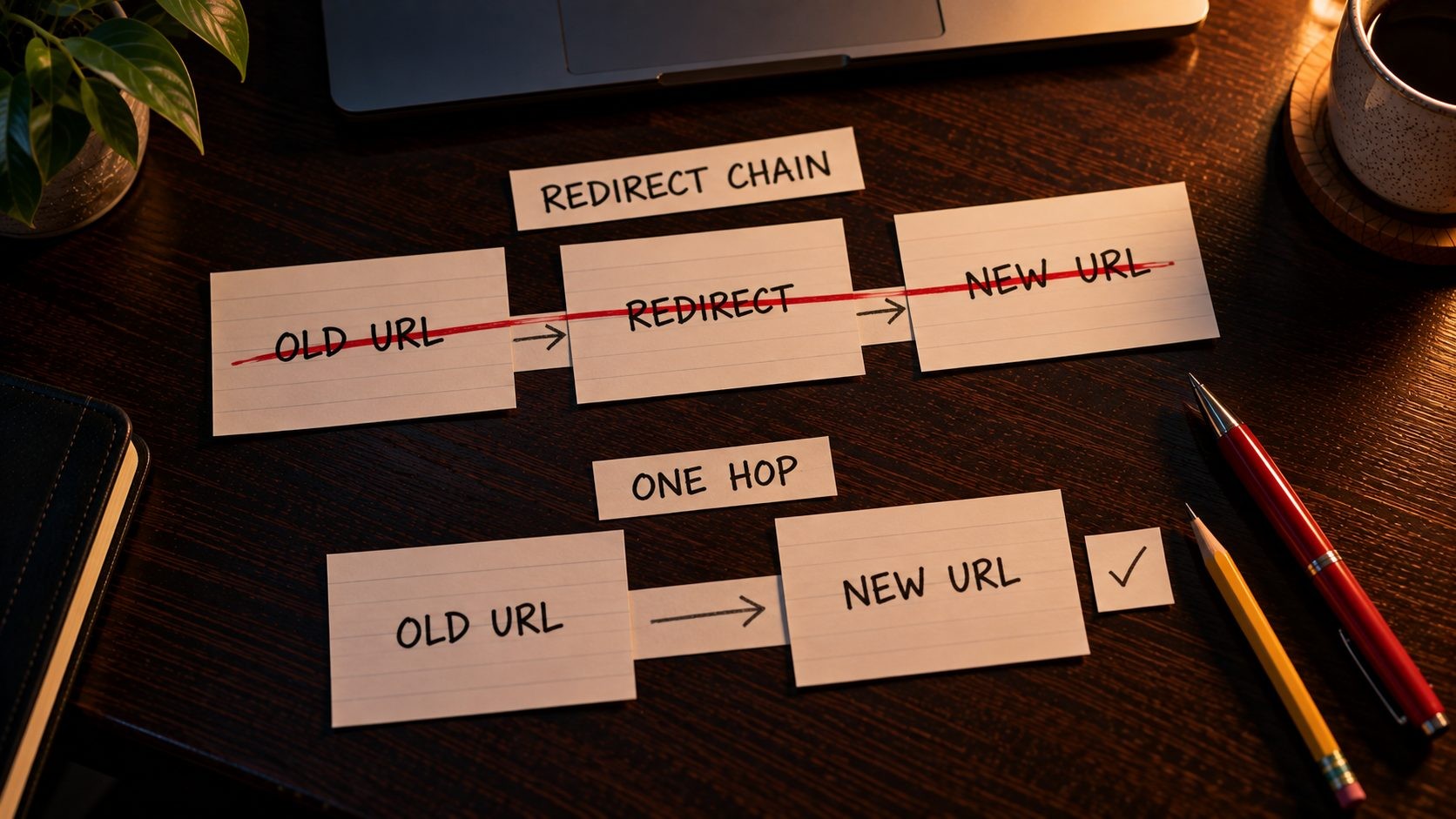
What to check: redirects send visitors and crawlers from one URL to another. Look for redirect chains (A redirects to B, which redirects to C), redirect loops, and temporary 302 redirects being used for permanent moves.
Free tool: Screaming Frog's redirect reports, or a browser extension that shows each redirect hop.
What good looks like: every redirect goes straight to its final destination in a single hop, and permanent moves use 301s.
How to fix: point each old URL directly to the final URL, and update internal links so they skip the redirect entirely. Don't redirect large numbers of unrelated pages to the homepage, because search engines may treat that as a soft 404. Redirects matter most after a site change, and protecting rankings during a redesign depends on getting them right. The checklist in my guide to protecting rankings during a redesign covers the process.
Phase 2: Indexability
A page can be crawlable and still not get indexed. This phase checks whether your important pages actually make it into Google's index, and why some don't.
Step 6. Read the Page Indexing Report
What to check: the Page indexing report in Google Search Console shows how many of your pages are indexed and lists the reasons other pages aren't. Google's Page indexing report guide lists the common reasons, including server errors, robots.txt blocks, noindex tags, 404 errors, redirect problems, duplicates without a proper canonical, 401 or 403 access errors and soft 404s.
Free tool: Google Search Console.
What good looks like: all your important pages are indexed, and the unindexed ones are unindexed for reasons you expect.
How to fix: go through each reason and decide whether it's a problem. Not every unindexed page needs fixing. "Alternate page with proper canonical tag" usually means the system is working as intended, and pages you've deliberately set to noindex should appear as excluded. Focus on important pages that show up under reasons like "Crawled, currently not indexed", server errors or unexpected noindex tags.
"Crawled, currently not indexed" deserves a closer look, because it usually isn't a technical block at all. Google reached the page and decided not to index it, which often points to thin or duplicated content, or a page with few internal links pointing to it. "Discovered, currently not indexed" means Google knows the URL exists but hasn't crawled it yet, which can be a sign of weak internal linking or a site that's slow to respond.
One practical note: Search Console reports can lag behind reality, and Google has confirmed past delays in the indexing report that didn't affect crawling or rankings. If numbers suddenly look odd, check whether it's a reporting delay before you panic. Here's what happened when the indexing report lagged behind.
Step 7. Audit Noindex Tags and Directives
What to check: a noindex directive tells search engines not to index a page. It's useful on thank-you pages, internal search results and thin archives, and disastrous on pages you want to rank.
Free tool: your crawl's "Directives" or "Indexability" column, plus URL Inspection in Search Console for individual pages.
What good looks like: noindex appears only on pages you've deliberately chosen to keep out of search.
How to fix: check both places a noindex can live: the meta robots tag in the page's HTML and the X-Robots-Tag HTTP header, which is easy to miss because it isn't visible in the page source. On WordPress sites, also check that "Discourage search engines from indexing this site" under Settings, Reading is unticked, and review your SEO plugin's settings for post types and archives.
Step 8. Check Canonical Tags and Duplicate Versions
What to check: your site should resolve to one version only. Test the four common variations of your homepage: http and https, with and without www. Every variation should redirect to the same final URL. Then check canonical tags across your crawl.
Free tool: your browser for the homepage test, and your crawl's canonical column for the rest.
What good looks like: one version of the site, self-referencing canonical tags using absolute URLs, and canonicals that only ever point to indexable pages that return a 200 status.
For example, if your preferred version is https://www.example.com/, then http://example.com/, http://www.example.com/ and https://example.com/ should each redirect there in a single step.
How to fix: add 301 redirects so every variation resolves to the preferred version. Fix canonicals that point to redirected, noindexed or broken URLs. Watch for duplicates created by URL parameters, tag pages, archives and trailing-slash variations, and make sure each one either canonicalizes to the main version or isn't linked internally.
Step 9. Spot-Check Key URLs With URL Inspection
What to check: reports show patterns across the site, but the URL Inspection tool shows exactly how Google sees one specific page.
Free tool: the URL Inspection tool in Google Search Console.
What good looks like: your key pages show as indexed, the canonical Google selected matches the one you declared, the last crawl date is recent, and the page is crawlable and indexable.
How to fix: inspect your homepage, your top landing pages and one example of each page template. If Google has chosen a different canonical from yours, that's a signal it sees duplicates you need to resolve. After fixing an issue on an important page, use "Request indexing" to ask Google to recrawl it.
Phase 3: Rendering and JavaScript
Many modern websites build their content with JavaScript. That's fine for visitors, but it adds a step for search engines, so it's worth confirming they see what your visitors see.
Step 10. Confirm Google Sees Your Rendered Content
What to check: according to Google's guide to how Google crawls, renders and indexes JavaScript, JavaScript pages go through three phases: crawling, rendering and indexing. Pages are queued for rendering in a headless version of Chromium, and Google indexes the rendered HTML. If important content only appears after scripts run, you need to confirm it survives that process.
Free tool: URL Inspection in Search Console. Use "Test live URL", then "View tested page" to see the rendered HTML and a screenshot.
What good looks like: your main content, headings, internal links and structured data all appear in the rendered HTML.
How to fix: if content is missing, check whether scripts are blocked by robots.txt, failing with errors (the Chrome DevTools console will show them) or loading content only after user interaction. Google's own guidance notes that server-side rendering still helps, both for performance and for crawlers that don't run JavaScript. That second point matters more than it used to, because not every AI crawler renders JavaScript the way Googlebot does. Content that's present in the initial HTML is the safest bet for being read by every system that visits your site.
Step 11. Make Sure Links and Content Don't Depend on Clicks
What to check: search engines discover pages by following links. A link built as a JavaScript click handler instead of a real <a href=""> element may not be followed. Content that loads only after someone clicks a tab, scrolls or presses a "load more" button may be missed.
Free tool: Chrome DevTools. Inspect your navigation and key links to confirm they're elements with an href attribute. Compare your crawler's results with JavaScript rendering switched on and off.
How to fix: for sites built with JavaScript frameworks like React or Next.js, use server-side rendering or static generation for pages that need to rank. It's one of the reasons I choose server-rendered setups for content-heavy projects, as covered in the stack I use for WordPress and Laravel builds.
Phase 4: Site Architecture and Internal Linking
Site architecture is how your pages are organized and connected. A clear structure helps visitors find things and helps search engines understand which pages matter most.
Step 12. Check Click Depth and Structure
What to check: click depth is how many clicks a page is from your homepage. Pages buried deep in a site tend to be crawled less often and treated as less important.
Free tool: your Screaming Frog crawl, which reports the "Crawl Depth" of every URL.
What good looks like: a common practitioner guideline is to keep important pages within about three clicks of the homepage. Treat it as a useful target rather than a Google rule. Your URL structure should also reflect a logical hierarchy, such as /services/web-design/ rather than random IDs.
How to fix: bring important deep pages closer to the homepage by linking to them from category pages, hub pages or navigation. A hub page is a central guide on a topic that links out to every related post, which shortens click depth and shows search engines how the content fits together. Group related content under clear categories so the structure makes sense to both visitors and crawlers.
Step 13. Find Orphan Pages and Broken Internal Links
What to check: orphan pages are pages that no other page on your site links to. Search engines may struggle to find them, and they receive no internal authority. Broken internal links waste crawl activity and frustrate visitors.
Free tool: compare your crawl with your XML sitemap and your analytics landing pages. URLs that appear in the sitemap or analytics but not in the crawl are likely orphans. Your crawl's "Inlinks" data also shows how many internal links point to each page.
What good looks like: every important page has several internal links pointing to it, and no internal links lead to 404s.
How to fix: add contextual links to orphan pages from related content. If an orphan page has no value, remove it or merge it into a stronger page with a redirect. Fix or remove every broken internal link found in the crawl.
Step 14. Review Breadcrumbs and Navigation
What to check: breadcrumbs show visitors where they are in your site, like Home > Blog > Technical SEO. They also give search engines clear signals about structure. Your main navigation should be crawlable HTML, not built entirely with scripts.
Free tool: your browser and Chrome DevTools, plus the Rich Results Test for breadcrumb schema.
What good looks like: breadcrumbs on deeper pages, marked up with BreadcrumbList structured data, and navigation links that appear in the page's HTML.
How to fix: most SEO plugins and many themes can add breadcrumbs and the matching schema automatically. Keep navigation focused on your most important sections rather than linking to everything.
Phase 5: Speed and Core Web Vitals
Speed affects how visitors experience your site and is part of Google's page experience signals. This phase separates real-world performance from lab tests, because the two often tell different stories.
Step 15. Check Field Data First
What to check: field data comes from real Chrome users visiting your site. It's what Google uses for Core Web Vitals, so start here rather than with a lab score.
Free tool: the Core Web Vitals report in Google Search Console, which groups URLs with similar performance, and the field data section at the top of PageSpeed Insights.
What good looks like: URLs passing all three Core Web Vitals at these thresholds:
- Largest Contentful Paint (LCP): 2.5 seconds or less
- Interaction to Next Paint (INP): 200 milliseconds or less
- Cumulative Layout Shift (CLS): 0.1 or less
How to fix: note which URL groups fail and which metric they fail on. Search Console groups similar pages together, so one failing group usually points to one template, such as all blog posts or all product pages. That tells you where to focus in the next step.
Step 16. Diagnose With PageSpeed Insights and Lighthouse
What to check: lab data tests a page under controlled conditions and shows you the causes behind poor field data.
Free tool: PageSpeed Insights and Lighthouse in Chrome DevTools.
What good looks like: the diagnostics list few high-impact opportunities, and the main content loads quickly without layout shifts.
How to fix: test templates, not every URL: your homepage, a blog post, a product or service page and a category page. Fixing a template fixes every page that uses it. The most common causes I see are oversized images, render-blocking CSS and JavaScript, too many third-party scripts like chat widgets and tracking tags, web fonts that load late, and images or ads without reserved space, which cause layout shifts. For images, the biggest wins are usually resizing them to their display size, converting them to WebP or AVIF, setting width and height attributes, and making sure the largest image near the top of the page isn't lazy-loaded. Don't chase a perfect lab score. A page that passes in the field is doing its job.
Step 17. Check Server Response Time and Hosting
What to check: if the server takes a long time to respond, every other speed improvement is limited. In PageSpeed Insights and Lighthouse, look at server response time and Time to First Byte (TTFB).
Free tool: PageSpeed Insights diagnostics and the Network panel in Chrome DevTools.
What good looks like: a fast, consistent server response, even on uncached pages.
How to fix: add page caching, use a content delivery network (CDN), keep your PHP version current, and clean up a slow or bloated database. On WordPress and other PHP sites, server-level caching, object caching and PHP's OPcache together often make a bigger difference than any front-end optimization. If the server is consistently slow even after caching, the hosting plan may be the limit. Platform choice plays a role too, and my comparison of how platform choice affects speed looks at the differences between hosted and self-hosted stores.
Phase 6: Mobile and Page Experience
Google uses mobile-first indexing, which means it mainly uses the mobile version of your pages for indexing and ranking. Your mobile site isn't a smaller version of the real site. For search purposes, it is the real site.
Step 18. Test Mobile Parity and Usability

What to check: mobile parity means your mobile pages contain the same important content, links, structured data, titles and meta descriptions as desktop. Hidden mobile content or trimmed-down mobile templates can mean search engines never see parts of your site.
Free tool: Lighthouse and Chrome DevTools device mode. Google retired the Mobile-Friendly Test, its API and the Mobile Usability report in Search Console in December 2023, so if an audit guide tells you to use the Mobile-Friendly Test, it's out of date.
What good looks like: the same content and links on mobile and desktop, readable text without zooming, tap targets that are easy to hit and no horizontal scrolling.
How to fix: compare a desktop crawl with a mobile crawl, or simply compare key pages side by side. Restore any missing content to the mobile version, and fix layout problems at the template level.
Step 19. Remove Intrusive Interstitials
What to check: pop-ups that cover the main content on mobile, especially right after someone arrives from search, make for a poor experience.
Free tool: your own phone. Visit your site from a Google search result, just like a real visitor.
What good looks like: visitors can read the content immediately. Legally required notices, like cookie consent banners, are fine when they're reasonably sized.
How to fix: replace full-screen pop-ups with smaller banners, delay them until a visitor has engaged with the page, or remove them on mobile entirely.
Phase 7: Security and HTTPS
Security protects your visitors and your reputation. HTTPS is a basic expectation in 2026, and an insecure or hacked site can lose trust and visibility quickly.
Step 20. Confirm HTTPS Everywhere
What to check: every page should load over HTTPS with a valid SSL certificate, and every HTTP URL should redirect to its HTTPS version in a single 301 redirect.
Free tool: the browser padlock, the Chrome DevTools console (which shows mixed content warnings), and the HTTPS check in SEO Site Checker's Website SEO Score Checker.
What good looks like: a valid certificate, no mixed content and a single HTTP to HTTPS redirect.
How to fix: mixed content happens when an HTTPS page loads images, scripts or stylesheets over HTTP. Update those references to HTTPS, usually with a search and replace in the database for older WordPress sites. Make sure your certificate renews automatically, which most good hosts handle for you. Also check that internal links, canonical tags, sitemap URLs and structured data all use the HTTPS version. It's common to find a site that redirects correctly but still lists HTTP URLs in its sitemap, which sends search engines through an unnecessary redirect on every crawl.
Step 21. Check the Security Issues Report and Software Updates
What to check: the Security issues report in Google Search Console flags hacked content, malware and other harmful issues Google has detected on your site.
Free tool: Google Search Console, plus your CMS dashboard for pending updates.
What good looks like: no security issues reported, and a CMS, theme, plugins and frameworks that are all up to date.
How to fix: if the report shows an issue, clean the site, fix the vulnerability that allowed it, then request a review in Search Console. Keep software updated as a routine, because outdated plugins and frameworks are a common way into a site. A few basic habits close most of the remaining gaps: turn on two-factor authentication for admin accounts, give each user only the access they need, remove old accounts, and keep automatic off-site backups so you can recover quickly if something goes wrong. Even major frameworks have serious vulnerabilities from time to time, as this example of a recent critical framework vulnerability in React Server Components shows. Up-to-date software is not always enough on its own: in the UpdraftCentral backdoor attack, a stolen remote-management key let attackers install plugins on fully updated WordPress sites, so this step should also include checking for plugins and admin or editor accounts you do not recognise.
Phase 8: Structured Data
Structured data helps search engines understand exactly what your pages are about, and it can make pages eligible for rich results in search.
Step 22. Validate Your Schema
What to check: whether your structured data is valid and free of errors on every template that uses it.
Free tool: Google's Rich Results Test, which checks eligibility for Google's rich result features, and the Schema Markup Validator, which checks general schema.org validity.
What good looks like: no errors on any template, and only minor warnings where optional fields are missing.
How to fix: test one page from each template type, such as an article, a product, a location page and a breadcrumb trail, rather than single pages at random. Errors usually come from the theme or plugin generating the markup, so fix them at the source and every page using that template is fixed at once.
Step 23. Remove Outdated or Misleading Markup
What to check: structured data must describe content that's actually visible on the page, and it should reflect how search features work today.
Free tool: the Rich Results Test and your page source.
What good looks like: schema that matches visible content, with no markup for features you don't actually offer.
How to fix: remove markup that doesn't match the page, such as review stars that aren't shown to visitors. Also keep up with changes. Google stopped showing FAQ rich results in Search starting May 7, 2026. There's no need to rip out existing FAQPage markup, but don't count on it producing a rich result anymore.
Phase 9: International and Special Cases
This phase only applies to some sites. If your site is in one language, doesn't use paginated lists and doesn't have filters, skip to Phase 10.
Step 24. Check Hreflang, Pagination and Faceted Navigation
What to check:
- Hreflang: if you have versions of pages in different languages or for different regions, hreflang tags tell search engines which version to show to which users. Check that every hreflang tag has a matching return tag on the other page, and that language and region codes are valid.
- Pagination: paginated lists, such as blog archives or product categories, should use crawlable links between pages, and each page should be indexable if it has unique content.
- Faceted navigation: filters for size, color, price and so on can create thousands of near-identical URL combinations. Left unchecked, they waste crawl activity on pages with no search value.
Free tool: your crawl's hreflang and pagination reports, plus Search Console's Page indexing report for signs of parameter-driven duplicates.
What good looks like: valid, reciprocal hreflang tags, crawlable pagination and filter URLs that are controlled rather than endlessly crawlable.
How to fix: fix missing return tags and invalid codes. Add an x-default hreflang value for the page you want to show users whose language or region doesn't match any of your versions, such as a language selector or your main international page. For faceted navigation, decide which filter combinations deserve their own indexable pages, usually those with real search demand, and keep the rest out of the crawl with robots.txt rules, canonical tags or by not linking to them.
Phase 10: AI Crawler and AI Search Readiness
AI-powered search tools now read and cite web pages to answer questions. A technical audit in 2026 should check that you're making deliberate choices about how these systems access your site.
Step 25. Review AI Crawler Access and Bing Visibility
What to check: your robots.txt rules for AI crawlers. Different crawlers do different jobs. Some are used to fetch pages for AI search and answers, while others collect content for training AI models. Examples include Googlebot and Bingbot for search, and OpenAI's OAI-SearchBot for ChatGPT search and GPTBot for model training. Each provider publishes its own crawler documentation, and these names and purposes change, so check the current documentation before you write rules.
Free tool: your robots.txt file, the robots.txt report in Search Console and Bing Webmaster Tools.
What good looks like: a clear, deliberate policy. Most businesses want their pages to be eligible to appear in AI search answers, even if they choose to block training crawlers.
How to fix: make sure you haven't blocked search-related AI crawlers by accident with a broad rule, such as a blanket block copied from a template. If you decide to block a training crawler while keeping search access open, the rule targets that crawler by name, for example:
User-agent: GPTBot
Disallow: /
Rules like this only affect the named crawler, so search crawlers keep their access. Verify your site in Bing Webmaster Tools and check that your pages are indexed there, because Microsoft's Copilot draws on Bing's index. If Bing can't see your site, you're invisible to a growing share of AI-assisted search.
Phase 11: Prioritize, Fix and Monitor
By now, your audit sheet probably has dozens of entries. This final phase turns that list into a plan.
Step 26. Prioritize Fixes by Impact and Effort

What to check: every issue in your audit sheet, scored for impact (how much it affects visibility or users) and effort (how hard it is to fix).
Free tool: your audit spreadsheet.
What good looks like: a clear order of work, with the most important fixes first.
How to fix: sort every issue into one of four groups:
| Low effort | High effort | |
|---|---|---|
| High impact | Fix first | Plan and schedule |
| Low impact | Batch together | Deprioritize |
A sitewide noindex tag, a robots.txt rule blocking the whole site, or a broken HTTPS setup is high impact and usually low effort, so it goes straight to the top. A handful of missing alt attributes on old posts is low impact, so batch those into a quiet afternoon. Rebuilding a slow theme might be high impact and high effort, so it needs a proper plan rather than a quick patch.
Here's what a single row in your audit sheet might look like once it's scored:
| Issue | Affected URLs | Severity | Effort | Owner | Status |
|---|---|---|---|---|---|
| Blog archive pages set to noindex by plugin setting | 48 | High | Low | Developer | To do |
Written this way, every issue becomes a clear task someone can pick up, rather than a vague note in a long report.
Step 27. Re-Check Fixes and Set Up Monitoring
What to check: whether each fix actually worked, and whether new issues appear over time.
Free tool: Google Search Console, Bing Webmaster Tools and a fresh crawl.
What good looks like: fixed issues stay fixed, and you hear about new problems quickly.
How to fix: after fixing an issue that Search Console reported, use "Validate fix" in the relevant report so Google rechecks the affected pages. Re-crawl the site to confirm crawl issues are gone. Make sure Search Console email alerts are switched on, and put a short monthly check in your calendar: indexing, Core Web Vitals, security issues and new crawl errors. Compare against your baseline to measure the impact of your work.
If you're auditing for a client or reporting to a manager, finish with a short summary rather than the full spreadsheet: the three to five most important issues found, what was fixed, what's still planned, and how key metrics moved compared with the baseline. Most people reading an audit want to know what changed and what happens next, not every warning the tools produced.
How Often Should You Run a Technical SEO Audit?
Run a full technical SEO audit at least once or twice a year. Larger sites, or sites that change often, benefit from more frequent reviews.
Some moments call for an audit regardless of the schedule:
- Before and after a redesign, migration or platform change, because this is when redirects, canonicals and robots.txt rules most often go wrong
- After a significant drop in traffic, to rule out technical causes before looking at content or algorithm updates
- After installing major new plugins, themes or features that change how pages are built
Between full audits, a quick monthly check in Search Console catches most new problems early. Ten minutes a month is far cheaper than discovering a problem six months after it started.
5 Common Technical SEO Audit Mistakes
- Treating robots.txt as a way to hide pages. It controls crawling, not indexing. Blocked pages can still appear in search. Use noindex when you want a page kept out of results.
- Chasing a perfect lab score. A PageSpeed lab score is a diagnostic tool. Real-user field data is what reflects your visitors' experience, so prioritize passing Core Web Vitals in the field.
- Auditing only the homepage. Most technical problems live in templates. Test one page of each template type, because that's where sitewide issues show up.
- Fixing low-impact warnings first. Audit tools often produce long lists of warnings. Clearing dozens of minor ones feels productive while a critical indexing issue waits. Prioritize by impact.
- Not recording a baseline. Without before-and-after numbers, you can't show what your fixes achieved, and you can't spot if something gets worse.
Frequently Asked Questions
Conclusion: Fix the Foundations First
Search engines can only rank what they can crawl, render and index. Everything in this technical SEO audit checklist exists to make sure nothing technical stands between your content and the people searching for it. Most sites don't have dozens of serious problems. They have one or two that quietly hold everything else back, and a structured audit is how you find them.
Start with Phase 1 today. Once the foundations are solid, run the on-page checklist on your most important pages, and then set a reminder to repeat the audit in six months.
Get a free technical score for any page Check meta tags, Core Web Vitals, HTTPS, canonical tags, robots.txt and structured data in one scan with SEO Site Checker's free Website SEO Score Checker.
No Tags


Comments (0)