- Khurram Shahzad
- Security Alerts
- 1691
- 0
Updated: October 22, 2026. I'll keep this post current as TeamUpdraft and the research teams share more.
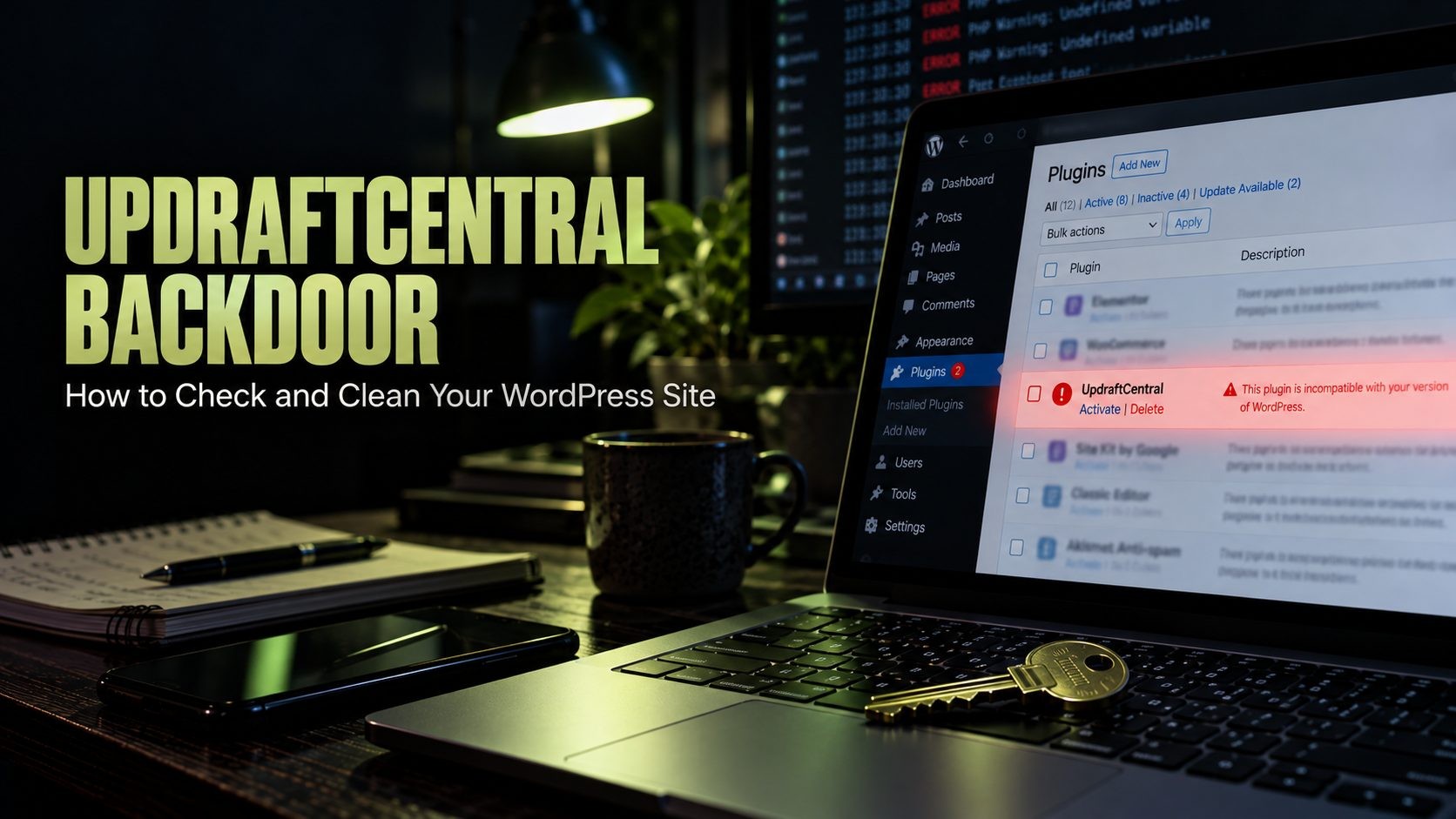
Since 18 October 2026, someone holding stolen UpdraftCentral keys has been pushing backdoor plugins onto WordPress sites. This UpdraftCentral backdoor doesn't rely on a bug in your code or a weak password. It arrives through a channel your site was built to trust, so every security check on the site waves it straight through.
The numbers are what make this one serious. UpdraftPlus runs on more than 4 million WordPress sites, and around 10% of them hold an UpdraftCentral or Migrator key. That puts roughly 400,000 sites in the blast radius. And here's the part most people miss: updating UpdraftPlus revokes the stolen keys, but it does nothing about a backdoor that's already sitting in your plugins folder.
I've spent years looking after WordPress sites and the Linux servers under them, so this guide is written the way I'd work through it on a real fleet. You'll check a site in about five minutes, clean it in the right order, and then make sure Google doesn't punish you for what happened.
The Short Answer
If you're short on time, do these four things on every site running UpdraftPlus:
- Update UpdraftPlus to 1.26.13 (Premium 2.26.13) or later. Skip 1.26.12, because it shipped with a bug that left the keys in place.
- Delete every UpdraftCentral key by hand, even after updating. Your backups keep working.
- Check the plugin folders on disk and your user list for anything you didn't install or create.
- Restore a backup from before 17 October if you find signs the backdoor was actually used.
| Item | Detail |
|---|---|
| Type | Remote management key compromise, not a code flaw |
| CVE | None |
| Affected | Any UpdraftPlus version, free or Premium, with an active UpdraftCentral cloud key |
| First backdoor seen | 18 October 2026, 15:32 UTC |
| Fixed release | UpdraftPlus 1.26.13 / Premium 2.26.13 |
| Backdoor removed by update? | No, you have to clean it up yourself |
What Happened in the UpdraftCentral Backdoor Attack
The TeamUpdraft Breach
Over the weekend of 17 to 18 October, someone got unauthorized access to teamupdraft.com, the company behind UpdraftPlus. According to TeamUpdraft's official incident notice, the attacker likely reached the customer database.
That database held a lot. Names, email and billing addresses, order history, hashed passwords and two-factor settings were all in there. Worse, it held the connection keys for UpdraftCentral, UpdraftVault and UpdraftClone, and those keys are what turned a customer data breach into a site takeover problem.
A few things were not touched. Card details were never stored because Stripe and PayPal handle payments. The plugin files and downloads on wordpress.org are clean. Self-hosted UpdraftCentral dashboards aren't affected either, because the stolen keys came from TeamUpdraft's cloud service.
Timeline of the Attack
The sequence matters because it tells you which backups are safe and which updates actually help:
- 12 October: Imunify360 saw the attacker's main IP probing sites a week before the wave.
- 17 to 18 October: unauthorized access to teamupdraft.com.
- 18 October, 15:32 UTC: Patchstack records the first backdoor install.
- 19 October, early hours: Nethemba, a Slovak security firm, catches the attack on its own sites.
- 19 October, 09:23 UTC: the last install in that first wave.
- 19 October: UpdraftPlus 1.26.12 ships, but a bug stops it from removing keys.
- 19 October, after 22:00 BST: 1.26.13 and 2.26.13 ship and revoke the old cloud keys.
- 20 October: TeamUpdraft says the access route is closed. Researchers still see probing against sites that were already cleaned.
This Is a Key Compromise, Not a Plugin Bug
I want to be clear on this because it changes how you respond. When a plugin has a vulnerability, you patch the code and you're done. Here the code works exactly as designed. The attacker simply holds keys the system was built to trust, so the commands are properly encrypted and signed, and your site has no way to tell them apart from real ones.
Don't confuse this with CVE-2026-10795, the UpdraftCentral flaw fixed in June 2026 in versions 1.26.5 and 2.26.5. That bug let attackers forge commands with no key at all. If any of your sites are still below 1.26.5, they're exposed to both problems at the same time, so treat those as top priority.
How the UpdraftCentral Backdoor Works
Signed Commands Through the Remote Management Channel
The UpdraftCentral client ships inside every copy of UpdraftPlus. It sits idle until the site gets a key. Once it has one, the site generates an RSA key pair, stores the dashboard's public key, and from then on runs any command signed with the matching private key. It runs those commands with the permissions of whoever created the connection, and no human confirms them.
The attacker's workflow is simple. First they send a probe to probe.central.updraftplus.com to confirm the site answers UpdraftCentral messages. A few hours later they send a signed plugin.upload_plugin command. WordPress installs and activates the plugin through its normal installer. There's no email, no notice in the dashboard, and nothing in the logs that a busy site owner would ever look at.
The Account That Looks Like an Editor
Every delivered plugin is a backdoor. The main variant hooks into every request and waits for a secret URL parameter carrying a 32-character token. When it sees the token, it creates a user with a hardcoded password and gives it the Editor role. Then it quietly adds two extra capabilities, manage_options and install_plugins.
That combination is clever, and it's what makes this dangerous. When you scan your administrator list, the account isn't there. It shows up as an Editor, which most people skip. But install_plugins means it can run any code it wants, and manage_options lets it promote itself to full admin whenever it likes.
Look for usernames built from two words and two digits, such as data-ops43 or media-staff96, a display name of "Site Tools", and an email address at example.org.
Three Backdoor Variants
Imunify360 pulled samples from more than 2,200 servers in its network and found three distinct types:
- A plugin with a random name (for example
text-board-2dc) carrying the description "Small maintenance toolkit: keeps option storage tidy." This is the one that creates the fake Editor. - A second random-name plugin with a different description on every site. It creates a full administrator and hides that account from the Users screen and the admin count.
- "Site Health Cache", which creates no account at all. It signs the visitor in as the site's first administrator and hides itself from the Plugins screen.
Patchstack has counted 99 different plugin names so far, and "Site Health Cache" is the one that keeps coming back. The rest are random combinations that the next wave will change, so don't rely on names alone.
Why 2FA and Login Plugins Don't Stop It
The backdoor never touches the login form. It sets the authentication cookie directly and drops the attacker into wp-admin. That means two-factor authentication, login attempt limits and every login protection plugin you've installed simply never run. To make things worse, the account it created stays in the database after you delete the plugin, and the attacker already knows its password.
Early samples had a coding error that crashed the site with an HTTP 500 on every uncached page. That's how the first victims noticed within minutes. Don't repair that plugin. Fixing the error is exactly what switches the backdoor on. Remove it instead.
Is Your Site Affected?
Any site running UpdraftPlus, free or Premium, that holds an active UpdraftCentral cloud key is exposed. It doesn't matter which version you run, because the commands are genuine.
The catch is that plenty of sites hold a key their owners never meant to create. When you connect a TeamUpdraft.com account inside UpdraftPlus, there's a checkbox labelled "Add this website to UpdraftCentral", and it's ticked by default. Leave it ticked, log in once, and your site now has a key. Patchstack is seeing exactly this on sites whose owners only ever used UpdraftPlus for backups.
Keys also don't expire. Patchstack found keys issued in November 2025 still working in October 2026. So if you connected an account a year ago and forgot about it, that key is still live today.
You're in the clear if you run self-hosted UpdraftCentral, or if you use free UpdraftPlus with no TeamUpdraft account and no key. You should still update the plugin.
Once you've run the checks below, this table tells you how worried to be:
| What you find | What it means | What to do |
|---|---|---|
| A key, but no backdoor | Exposed, not hit | Update, delete the key, move on |
| A backdoor plugin, but no hidden account and no trigger in logs | Installed but not used | Delete the key first, remove the plugin, rotate passwords |
| A hidden account or the trigger in your access logs | Used, so the site is fully compromised | Restore a pre-17 October backup and run the full cleanup |
How to Check Your WordPress Site for the UpdraftCentral Backdoor
I'll give you both the wp-admin route and the WP-CLI route for each step. If you have SSH, use the command line. Two of the three backdoor variants hide from the WordPress screens, and the CLI with --skip-plugins doesn't care what a plugin tries to hide.
Step 1: Check for an UpdraftCentral Key
In wp-admin, go to Settings > UpdraftPlus Backups > Advanced Tools > UpdraftCentral. If it tells you there's no UpdraftCentral dashboard currently able to control the site, you have no key. If you see anything under "Manage existing keys", you do.
From the command line it's one line:
bash
wp option get updraft_central_localkeys --skip-pluginsAny output means the site is exposed. An error saying it could not get the option means there's no key stored.
Step 2: Look for Backdoor Plugins on Disk, Not Just in wp-admin
The Plugins screen can lie to you here, because "Site Health Cache" hides itself from it. So go to the files directly. First, search for the description string the first variant carries:
bash
grep -rl "Small maintenance toolkit: keeps option storage tidy" wp-content/plugins/Then list both plugin folders, newest first:
bash
ls -lt wp-content/plugins wp-content/mu-pluginsAnything dated 18 or 19 October that you didn't install deserves a close look. The folder patterns seen so far include site-health-cache, site-health- followed by a hex string, render-helper- followed by a hex string, and two random words followed by a short hex code, like asset-gantry-eb3. Don't forget the mu-plugins folder. Must-use plugins load automatically and never appear in the normal list.
Step 3: Find Hidden Admin and Editor Accounts
List your admins and editors with plugins switched off, so no backdoor gets a chance to filter the results:
bash
wp user list --role=administrator --skip-plugins
wp user list --role=editor --skip-plugins
Then hunt for any non-admin account that holds admin-level capabilities. Adjust the wp_ prefix if your tables use a different one:
bash
wp db query "SELECT u.ID, u.user_login, u.user_email FROM wp_users u JOIN wp_usermeta m ON m.user_id = u.ID WHERE m.meta_key AND m.meta_value LIKE '%manage_options%' AND m.meta_value NOT LIKE '%administrator%'" --skip-pluginsFinally, check for leftover options the backdoors write. Look for option names ending in _sync_token, _uid or _installed, and for one called sh_cache_ver:
bash
wp option list --search="*_sync_token" --skip-plugins
wp option list --search="sh_cache_ver" --skip-plugins
Step 4: Check Your Logs
Your logs tell you whether the backdoor was merely installed or actually used, and that's the difference between a quick cleanup and a full restore.
Start with the UpdraftCentral log. A probe to probe.central.updraftplus.com followed by "Command received: plugin.upload_plugin" is the install itself.
Next, search your web server access logs for the activation trigger. That's a query parameter with a short random name carrying a 32-character value:
bash
grep -E '[?&]_?[A-Za-z0-9]{4,12}=[A-Za-z0-9_]{32}([&" ]|$)' /var/log/apache2/*access*This pattern can throw a few false positives from tracking parameters, so read each hit. A real match means someone logged in through the backdoor.
You can also check the User-Agent on POST requests to your site root. Genuine UpdraftCentral traffic identifies itself with a class-udrpc.php version number and the teamupdraft.com URL, and the attacker's requests don't. The attacker used 43.250.53.42 and an IPv6 address that belongs to Cloudflare WARP, which ordinary people use too. Note them, but don't treat an IP block as protection, because the attacker rotated addresses within a day. Patchstack's full list of indicators of compromise is worth keeping open while you check.
No SSH Access? Do It From cPanel
Most small business owners don't have shell access, and that's fine. Open cPanel > File Manager, go to wp-content/plugins, and sort by "Last Modified" so the newest folders sit at the top. Do the same in wp-content/mu-plugins. Then check your Users screen for unfamiliar Editors and the UpdraftCentral tab for keys.
If your site shows a 500 error on every page, rename the suspicious plugin folder in File Manager (adding -disabled to the name works). WordPress deactivates it automatically and the site comes back. If none of this feels comfortable, ask your host. InMotion Hosting, Imunify360 and Patchstack-protected hosts have already rolled out firewall rules for this campaign, and most hosts will run these checks for you.
How to Clean an Infected Site, in the Right Order
Order matters more than speed here. If you remove the plugin before you kill the key, the attacker can push a fixed replacement while you're still working. Follow these steps exactly:
- Update UpdraftPlus to 1.26.13 or later (Premium 2.26.13). This release disconnects UpdraftCentral cloud connections created before 22:00 BST on 18 October. Don't stop at 1.26.12, because that version announced the fix but didn't actually apply it.
- Delete every UpdraftCentral key by hand, even after updating. Nethemba found that keys created between 12:07 and 21:00 UTC on 18 October can survive the update. Go to Settings > UpdraftPlus Backups > Advanced Tools > UpdraftCentral > Manage existing keys and delete them all, or run
wp option delete updraft_central_localkeys. Removing the site from your UpdraftCentral dashboard isn't enough, because the key that matters lives on the site itself. Your scheduled backups keep running. Only remote management stops. - Kill the key before you touch the backdoor. I'm repeating this as its own step because it's the mistake I'd expect people to make. With the key still in place, the attacker can simply reinstall.
- Quarantine the plugin, don't uninstall it. Deactivate it and move its folder outside the web root, for example
mkdir -p ~/quarantine && mv wp-content/plugins/site-health-cache ~/quarantine/. Don't delete it through wp-admin, because its uninstall routine wipes its own traces, and you may want that evidence later. And again, don't fix its code. - Remove the hidden account and leftover options. Delete any account you found in Step 3. When WordPress asks what to do with its content, attribute it to a real admin. Then delete the
_sync_token,_uid,_installedandsh_cache_veroptions you found. - Rotate everything. Change every administrator password. Then run
wp config shuffle-salts, which signs out every session on the site at once. This step matters because two of the variants log in as your existing first admin, so deleting accounts alone won't lock them out. Once that's done, turn on 2FA. - If the backdoor was used, restore a backup from before 17 October. Then repeat steps 1, 2 and 6 on the restored site. People forget this part. An old backup brings back the old plugin version, the old keys and the old passwords, so restoring alone puts you right back where you started.
- Secure your TeamUpdraft account. Change your teamupdraft.com password by typing the address yourself, and change it anywhere you reused it. Reset 2FA in My Account. If you use UpdraftVault, reconnect it with the new password, because TeamUpdraft disconnected every Vault site.
Watch for phishing. TeamUpdraft never emails asking for passwords or keys. A breach this public always brings copycat emails, so treat any "urgent security action" link with suspicion.
Managing Many Sites? Check Them All at Once
If you look after a fleet of client sites, clicking through each wp-admin will eat your whole day. When you're responsible for dozens or hundreds of installs, you script it. Here's a simple loop for a server where each site lives in its own public_html folder. Adjust the path pattern to match your setup:
bash
#!/bin/bash
echo "site,has_key,suspect_plugins" > updraft-audit.csv
for path in /home/*/public_html; do
  [ -f "$path/wp-config.php" ] || continue
  if wp --path="$path" option get updraft_central_localkeys --skip-plugins --skip-themes >/dev/null 2>&1; then
    key="yes"
  else
    key="no"
  fi
  hits=$(grep -rl "Small maintenance toolkit" "$path/wp-content/plugins" 2>/dev/null | wc -l)
  echo "$path,$key,$hits" >> updraft-audit.csv
done
Run it as the user that owns each site, or add --allow-root only if you know what you're doing. Then triage. Sites with a backdoor hit go first, sites with a key go second, and sites with neither just need the update. Always use --skip-plugins in these checks, so a backdoor never gets a chance to run while you're inspecting it.
If you use ManageWP, MainWP or WP Umbrella, you can push the UpdraftPlus update from there. Deleting the keys and checking the files still has to happen on each site.
Protect Your SEO After a Backdoor
Every article ranking for this attack stops at the cleanup. But a hacked site has a second problem that shows up weeks later in your traffic, and as someone who works in technical SEO, this is the part I'd never skip.
Check Google Search Console first. Open Security Issues and Manual Actions. If Google flagged hacked content, clean the site, then use "Request Review" so the warning comes off your search results.
Search your own domain. Run site:yourdomain.com on Google and scroll. Backdoors with admin access are often used to inject spam pages, pharma links or foreign-language content. If you see pages you didn't create, delete them, return a 410 for those URLs, and submit an updated sitemap.
Watch the downtime. The buggy variant threw 500 errors on every uncached page. A few hours of that won't hurt you, but days of server errors make Google crawl less and can drop pages from the index. I explained how 5xx errors affect crawling and rankings in a separate post, and the same recovery logic applies here.
Check your blacklist status. Look your domain up on Google Safe Browsing's site status page. A red warning screen in Chrome will kill conversions faster than any ranking drop.
Run a full scan once the site is clean. I'd run it through a free SEO and security score check to catch injected links, changed meta tags or broken pages the backdoor left behind. (Disclosure: I built SEO Site Checker.) If you want a structured process, follow my technical SEO audit checklist step by step. And if your rankings still haven't recovered after a few weeks, I offer technical SEO support.
How to Prevent the Next Remote Management Attack
This is the second time in five months that attackers have abused the UpdraftCentral channel. It won't be the last remote management tool to get hit, so take the general lesson rather than just patching this one incident.
Remove connections you don't use. Every remote management service with keys to your site is a door. If you aren't actively managing a site through UpdraftCentral, ManageWP or anything similar, disconnect it and delete the keys.
Use least privilege for the ones you keep. Create the remote connection under a dedicated user that can't install plugins. On one site Patchstack looked at, that single detail stopped the attack cold, because the stolen key had no right to install anything.
Put a firewall in front of WordPress. A WAF layer catches this kind of command traffic before it reaches PHP. If you're on Cloudflare, my guide to Cloudflare WAF rules for WordPress covers the free rules worth turning on. Pair it with an activity log that alerts you on every new plugin install and every new user, because those are the two traces this attack leaves.
Keep 30+ days of off-site backups. If your only backups are a week deep and the compromise sat unnoticed for ten days, you have nothing clean to restore. Keep backups on storage the site itself can't reach.
Ask whether you need the plugin stack at all. Not every site needs WordPress. If you run a small business site with a handful of pages, a platform with no third-party plugins removes this entire class of risk. I built Sitelyx partly for that reason, since there are no plugins or remote management keys to steal. WordPress is still the right call for plenty of projects, and I've written about when WordPress isn't the right tool if you're weighing it up.
Frequently Asked Questions
Final Word
The UpdraftCentral backdoor is serious, but the fix is straightforward once you know the order. Kill the keys first, check your files and users with plugins switched off, clean up methodically, and then make sure Google sees a healthy site again. Updating alone isn't enough, so don't let anyone tell you otherwise.
If you'd rather have someone check your sites for you, or you need help with WordPress development and maintenance, get in touch. I'll keep updating this post as more details come out, and you can find more security alerts on the blog.
Further reading: Nethemba's original backdoor analysis is the deepest technical breakdown available if you want to see the backdoor code itself.
No Tags

Comments (0)