Updated November 14, 2026 · Status: Actively exploited · Fixed in WordPress 7.1.4
WordPress CVE-2026-119977 is the rare security flaw where the fix itself is the risky part. The bug lives in WordPress core's update process, and attackers are already using it. CISA added it to its Known Exploited Vulnerabilities (KEV) catalog on November 3, 2026.
Here is the catch most coverage skips. When you update to WordPress 7.1.4, the update still runs on the old, vulnerable updater. So the moment you install the fix is the moment an attacker can strike.
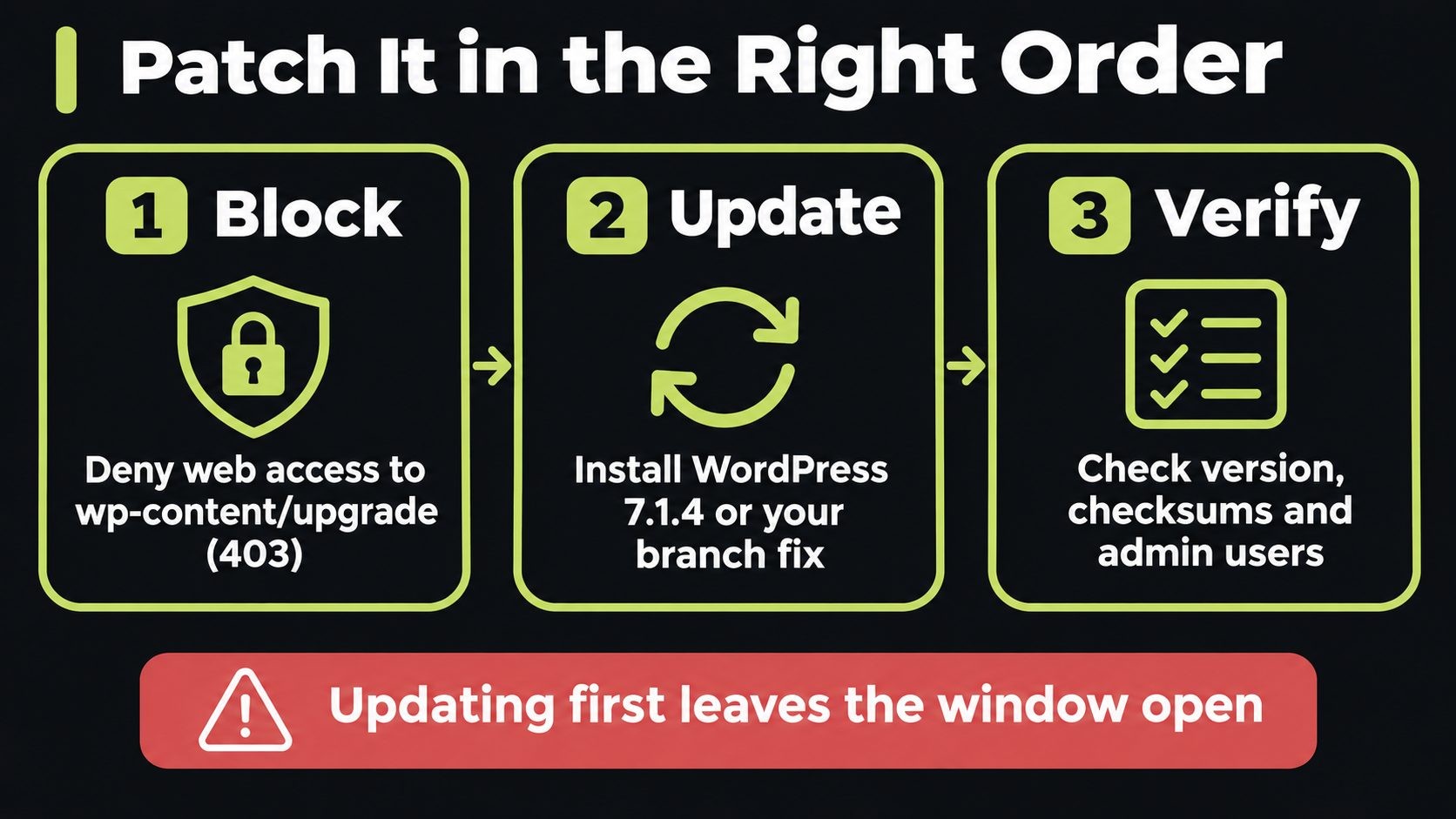
The safe order is simple:
- Block web access to
wp-content/upgrade - Update to 7.1.4 (or your branch's fixed version)
- Verify the update and check for signs of compromise
This guide walks through each step in plain English, with copy-paste server rules for Apache, Nginx and Cloudflare. If you run several WordPress sites, it also covers how to patch them all without racing each one. For the bigger picture, see my website security guide for small businesses.
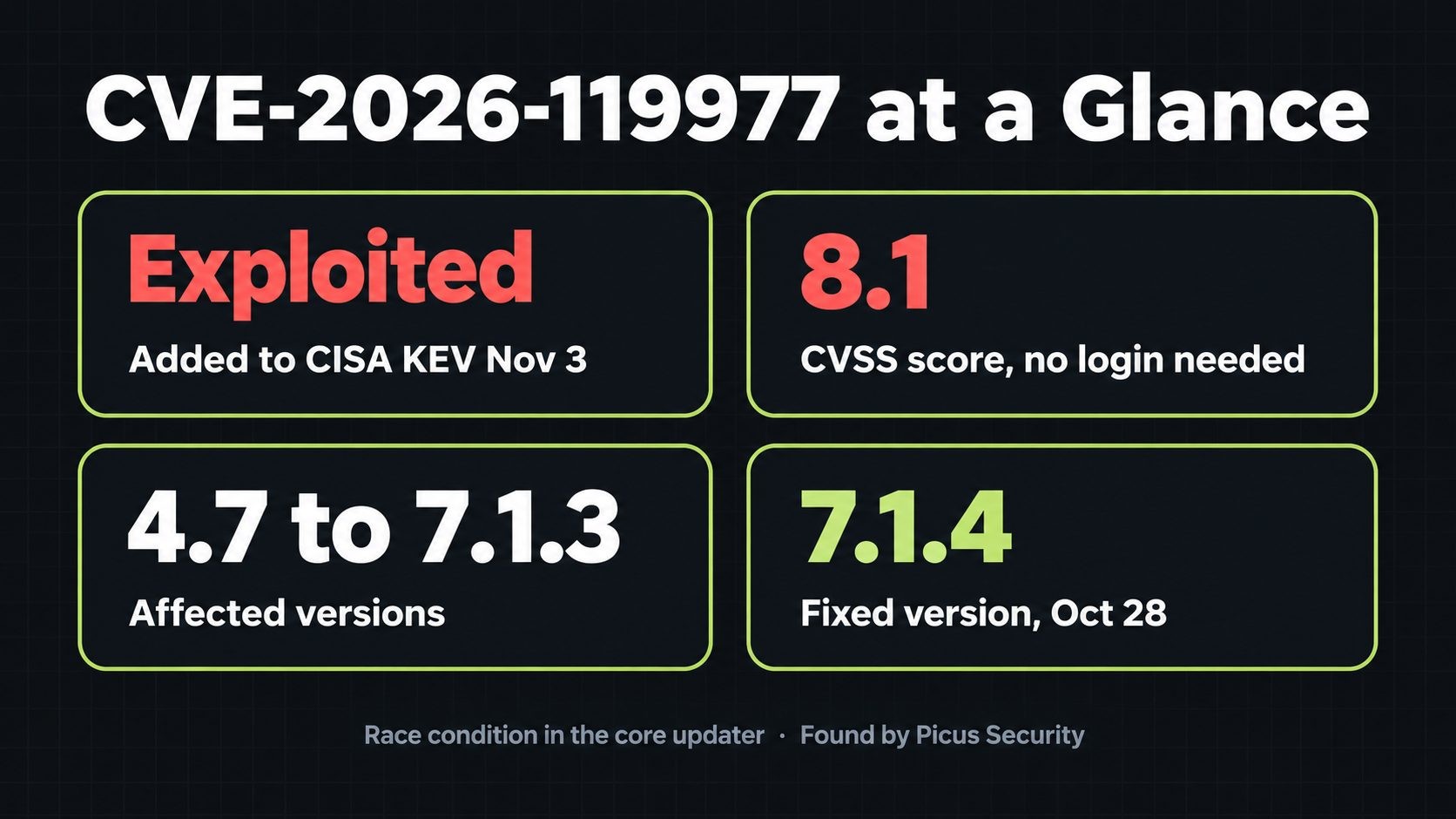
CVE-2026-119977 at a glance
| Item | Detail |
|---|---|
| CVE | CVE-2026-119977 |
| Type | Race condition (TOCTOU, CWE-367) in the core updater |
| Impact | Unauthenticated remote code execution during a core update |
| Severity | CVSS 8.1 High (Wordfence). WordPress's own advisory rates it Low |
| Affected | WordPress 4.7 through 7.1.3 |
| Fixed in | 7.1.4, released October 28, 2026, plus backports to older branches |
| Exploited | Yes. Added to CISA KEV on November 3, 2026 |
| Found by | Umut Bayram, Picus Security |
What is CVE-2026-119977?
CVE-2026-119977 is a flaw in how WordPress core updates itself. During a full-package core upgrade, WordPress uses staging paths that are predictable and reachable from the web. For a short window, an attacker with no account can use those paths to run code on your server.
The upgrade window, in plain English
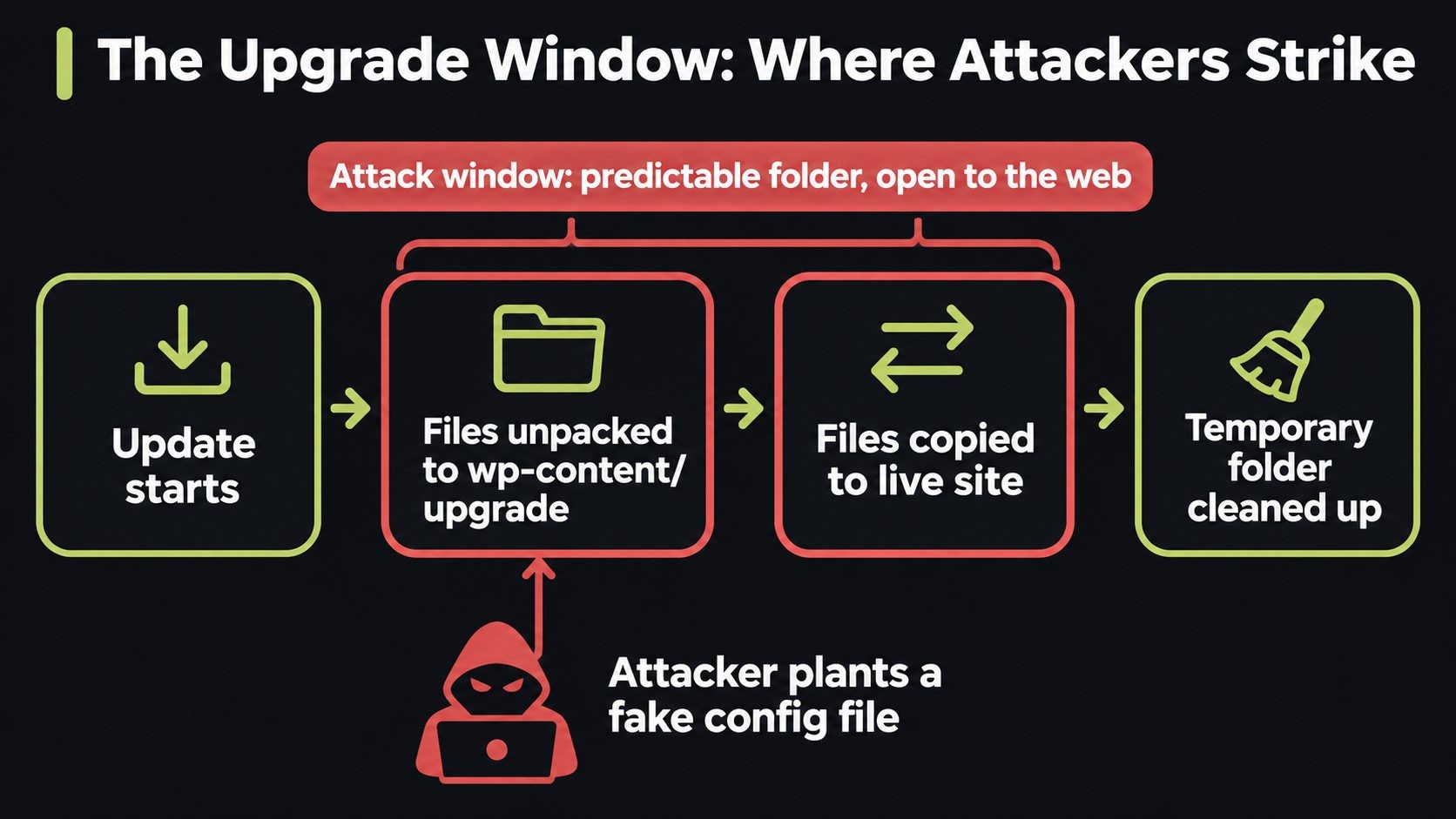
When WordPress installs a new core version, it does not overwrite your files in one step. It first unpacks the new release into a temporary folder under wp-content/upgrade, then copies those files into your live site, then cleans up.
Before 7.1.4, that temporary folder had a predictable name. So for the few seconds between unpacking and cleanup, anyone who guessed the path could request files inside it directly from a browser or a script.
How attackers win the race
This is a time-of-check time-of-use (TOCTOU) race condition. WordPress checks the state of its files, and then acts on them a moment later. If an attacker changes something in that gap, the check no longer means anything.
According to Bayram's research at Picus Security, an attacker who wins the race can plant a malicious wp-config.php in the temporary update folder. The updater then copies it over the site's live configuration. From there, the attacker can create the first administrator account and, on a typical single-site install, upload a plugin to run code on the server.
Attackers do not need to log in, and nobody has to click anything. They just need to be polling the right path at the right moment, which is why automated scanners are hammering it.
Why it's rated 8.1 High and also "Low"
Wordfence, which assigned the CVE, scores it CVSS 8.1 High. WordPress's own GitHub advisory rates it Low. Both make sense on paper, because the attack needs precise timing, so the attack complexity is high.
In practice, ignore the label. CISA only adds a flaw to KEV when there is evidence of real-world exploitation. Wordfence has reported blocking thousands of attempts a day. An exploited flaw with a "Low" rating is still more urgent than a critical flaw nobody is using.
Why updating to WordPress 7.1.4 can still expose your site
This is the part that makes CVE-2026-119977 different.
WordPress 7.1.4 fixes the flaw by giving the staging folder a random name that attackers cannot guess. But that fix only applies to updates that run after 7.1.4 is installed. The update to 7.1.4 still runs on your old updater, with the old predictable path.
As The Hacker News reported, Bayram says an attacker who catches that final window can still set up the temporary copy of WordPress with their own database, log in to it and run PHP with the web server's permissions before cleanup.
Three more details matter:
- WP-CLI is not a workaround.
wp core updateuses the same updater, so it has the same window. - Automatic updates ran the same risk. If your site auto-updated to 7.1.4, the update happened through the old code path, without anyone watching.
- Partial updates are not automatically safe. Bayram told The Hacker News that exposure depends on what the specific update package contains.
So "just update" is the right destination, but the wrong first step. Block the folder first.
Is my WordPress site affected?
Your site needs attention if any of these are true:
- It runs WordPress older than 7.1.4, or older than the fixed version for your branch
- A core update ran on it between October 28, 2026 and the day you blocked
wp-content/upgrade - Core auto-updates are switched on
- It sits on shared hosting where you don't control the server config
https://yoursite.com/wp-content/upgrade/returns anything other than 403 Forbidden
To check your version, go to Dashboard → Updates, or run wp core version over SSH.
| WordPress branch | Affected | Fixed version |
|---|---|---|
| 7.1 | 7.1.0 to 7.1.3 | 7.1.4 |
| 7.0 | 7.0.0 to 7.0.7 | 7.0.8 |
| 4.7 to 6.9 | Earlier releases in each branch | The security backport for that branch (down to 4.7.39) |
| Older than 4.7 | Affected per researcher notes | No fix. Move to a supported release |
WordPress shipped the backports for older branches the same day as 7.1.4. Still, only the latest version is fully supported, so treat a backport as a stopgap and plan the move to 7.1.4. My WordPress 7.2 release date guide covers what is coming next.
How to patch CVE-2026-119977 safely (step by step)
Step 1: Back up files and database
Take a full backup before touching anything. If something goes wrong mid-update, you want a clean restore point, not a guess.
Step 2: Block web access to wp-content/upgrade
WordPress never needs visitors to load anything from this folder, so blocking it costs you nothing. Use the rule that matches your server.
Apache (best: virtual host config)
Put this in the vhost, not in an .htaccess file inside the upgrade folder. WordPress recreates that folder during updates, so a file inside it can vanish.
<Directory "/var/www/html/wp-content/upgrade">
    Require all denied
</Directory>
Change the path to match your site's document root, then reload Apache.
Apache or LiteSpeed with .htaccess only (shared hosting)
Add this to the .htaccess file in your WordPress root, above the # BEGIN WordPress block:
RedirectMatch 403 ^/wp-content/upgrade/
If WordPress lives in a subfolder, add that folder to the path.
Nginx
Add this inside your site's server block. The ^~ makes it win over your PHP location rule:
location ^~ /wp-content/upgrade/ {
    deny all;
}
Then run nginx -t and reload.
Cloudflare (extra layer)
Create a WAF custom rule with this expression and the action set to Block:
starts_with(http.request.uri.path, "/wp-content/upgrade/")
This stops requests at the edge, but attackers who know your origin IP can skip Cloudflare. Keep the server rule as well. My Cloudflare settings for WordPress guide covers locking down the origin.
Step 3: Confirm the block returns 403
Don't assume the rule works. Test it:
curl -I https://yoursite.com/wp-content/upgrade/
You want HTTP/2 403 (or HTTP/1.1 403). A 200 or 404 means the rule isn't active, so fix it before going on.
Step 4: Update to WordPress 7.1.4
Now update from Dashboard → Updates, or with wp core update over SSH. With the folder blocked, the race has nothing to race against. On an older branch, install that branch's fixed version, then plan the move to 7.1.4.
Step 5: Verify the update
Confirm the version and check that core files match the official release:
wp core version
wp core verify-checksums
verify-checksums flags any core file that was added or changed. A clean result is a good sign. Any unexpected file needs a closer look.
Step 6: Leave the block in place
The 7.1.4 fix randomizes the folder name, but keeping the block costs nothing and protects you from the next updater bug. Add it to your standard server setup, alongside the steps in my WordPress security checklist.
On managed or shared hosting? What to ask your host
If you can't edit server config, your host controls the most important step. Many managed hosts applied blocks quickly, but don't assume. Send them these three questions:
- Do you block web access to
wp-content/upgradeon my account, and since when? - Which WordPress version are my sites on right now?
- How long do you keep access logs, and can you check for requests to
/wp-content/upgrade/since October 28?
In the meantime, add the .htaccess rule from Step 2 yourself. Most shared hosts run Apache or LiteSpeed, which both read it. If you keep hitting limits like this, my shared vs VPS hosting comparison explains when it's worth moving.
Managing many sites? Patch order for agencies
Patching sites one by one means racing the window on every single one. Flip the order: block everywhere first, then update everywhere.
- Block at the server level. On WHM/cPanel, Plesk or a custom stack, add the rule once in the global web server config so it covers every account.
- Add the Cloudflare rule to every zone you manage, as a second layer.
- Spot-check the 403 on a few sites from different accounts.
- Mass-update with your management tool or WP-CLI.
- Run
wp core verify-checksumsacross all sites and review anything flagged.
I manage WHM servers with more than 200 hosted accounts, and server-level blocks are the only approach that scales. Per-site fixes always miss one.
How to check if your site was compromised
If a core update ran while the folder was open, check for these signs:
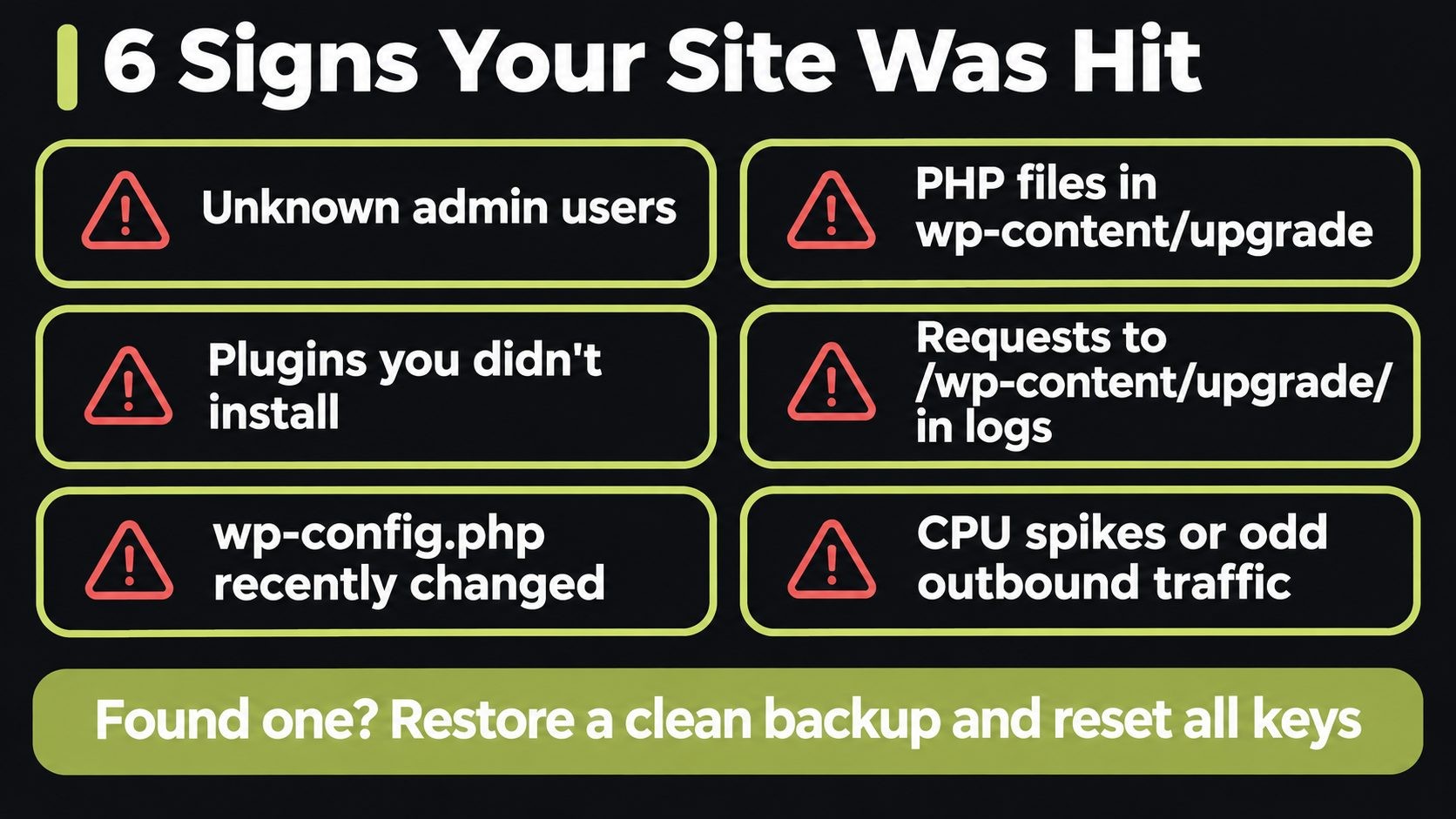
- Unknown admin users. Go to Users and filter by Administrator. Remove anyone you don't recognize, after taking a backup for evidence.
- Unfamiliar plugins. The attack path ends with a plugin upload. Look for plugins you didn't install, including inactive ones.
- A changed wp-config.php. Check its modified date and compare database credentials and keys against what you expect.
- PHP files in wp-content/upgrade. This folder should be empty or hold only leftover update files.
- Odd requests in access logs. Search for
/wp-content/upgrade/requests, especially from IPs that hit your site repeatedly. - Unexpected outbound connections or spikes in CPU, which often point to a web shell or miner.
If you find any of these, treat the site as compromised. Restore from a clean backup taken before the update, change every password and secret key, and check the server, not just WordPress. The recovery steps in my small business security guide walk through the full process. I've recovered more than 50 attacked sites, and the ones that came back clean were the ones where we cleaned the server, not just the plugins. For another real-world example of a hidden admin account, see the UpdraftCentral backdoor case.
WordPress core is no longer the "safe" part
For years, WordPress security advice boiled down to "keep core updated and watch your plugins." 2026 changed that. Before this year, the WordPress entries in CISA's KEV catalog were plugins. In 2026, core joined the list three times: the wp2shell chain (CVE-2026-63030 and CVE-2026-60137) in July, CVE-2026-87902 in September, and now CVE-2026-119977.
What that means for you:
- Treat core updates like urgent patches, not routine maintenance. Read the release notes when a security release lands.
- Watch the KEV catalog or follow a source that tracks it. KEV status matters more than a CVSS score.
- Harden the server, not just WordPress. Blocking folders that never need public access, like
wp-content/upgrade, shrinks the attack surface for bugs nobody has found yet.
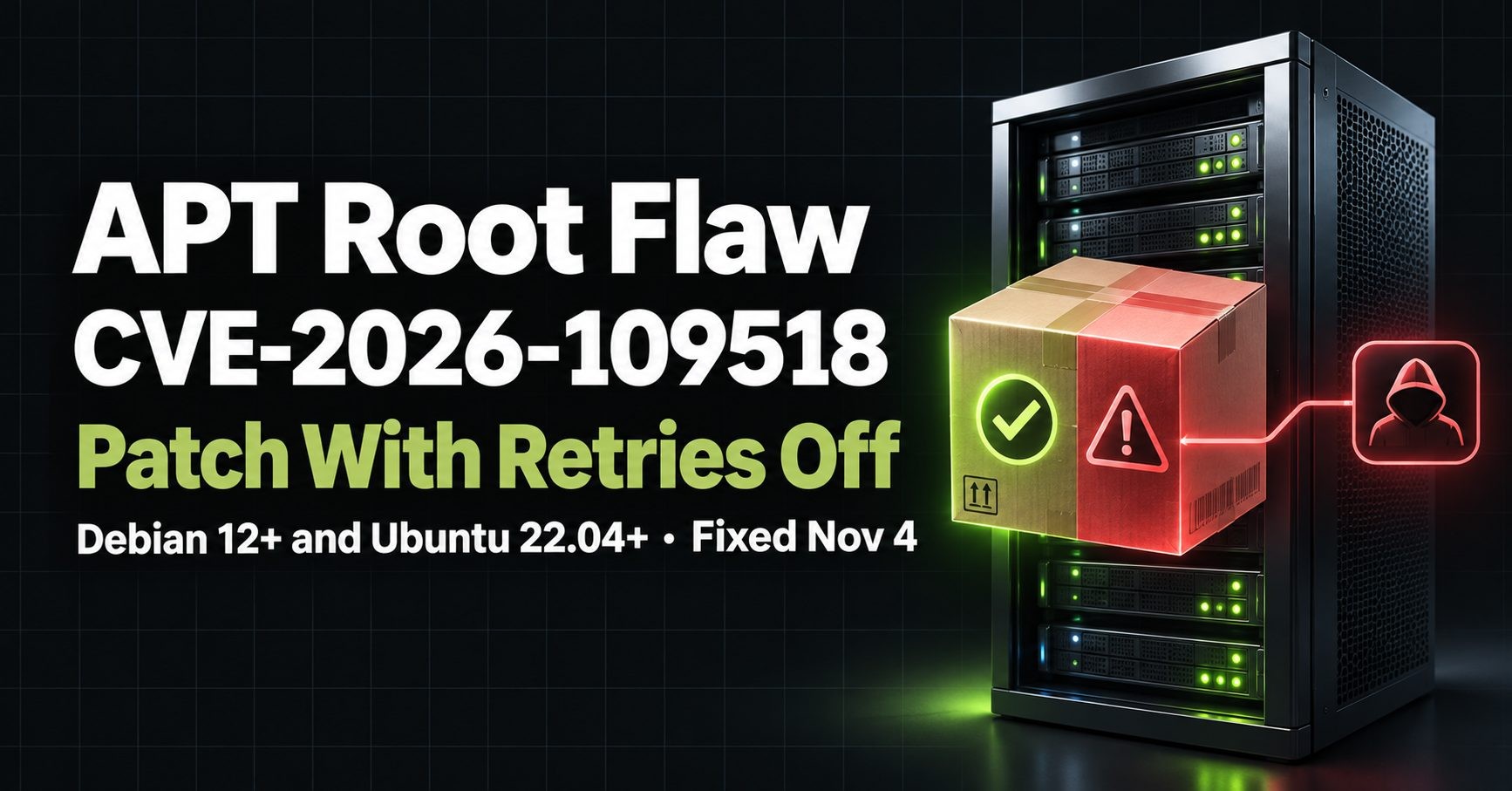
WordPress is not the only updater with this problem. In November 2026, APT on Debian and Ubuntu had a similar weakness: the vulnerable APT had to download its own fix. Our APT CVE-2026-109518 guide covers how to patch the server underneath your site safely.
This alert is part of our website security for small business guide, which puts every 2026 incident into a layer-by-layer plan you can follow.
Not sure if this affects you? I've recovered 50+ attacked websites. Request a security review.
CVE-2026-119977 FAQs
Conclusion: Block, Update, Verify
CVE-2026-119977 is a reminder that the update process is part of your attack surface. The fix is straightforward, but the order matters: block wp-content/upgrade, update to 7.1.4, then verify the install and check for signs of compromise. Keep the block in place afterward. It's a one-line rule that protects you from this bug and the next one.
If you manage several WordPress sites, or you're not sure whether a site was touched during the window, I can help. I run and secure WHM and bare-metal servers and have recovered more than 50 attacked sites. See my website security services.
Sources
Get new posts by email
New guides and alerts, sent when they are published. No spam. Unsubscribe anytime.

Comments (0)