WP Rocket and LiteSpeed Cache are two of the most popular ways to speed up a WordPress site, and they are compared constantly. Most of those comparisons follow the same pattern: a list of features, a screenshot of one PageSpeed Insights score for each plugin, and a winner. The trouble is that a single score on a single site tells you very little about how either plugin will perform on yours.
The real answer depends on something most comparisons mention only in passing: the web server your host runs. LiteSpeed Cache does its most important job, page caching, at the server level, and that only works on LiteSpeed servers. WP Rocket works on any server but caches pages through WordPress and PHP. That one difference shapes almost every result you will see.
It also explains why two people can test the same plugins and reach opposite conclusions. One tested on LiteSpeed hosting, the other on a generic Apache or Nginx server, and neither mentioned it. Once you know what to look for, those conflicting reviews start to make sense.
This guide explains that difference properly, shows you how to test both plugins fairly on your own site, compares the features that actually matter, covers pricing and WooCommerce, and ends with a simple table to help you choose.
Quick answer: WP Rocket or LiteSpeed Cache?
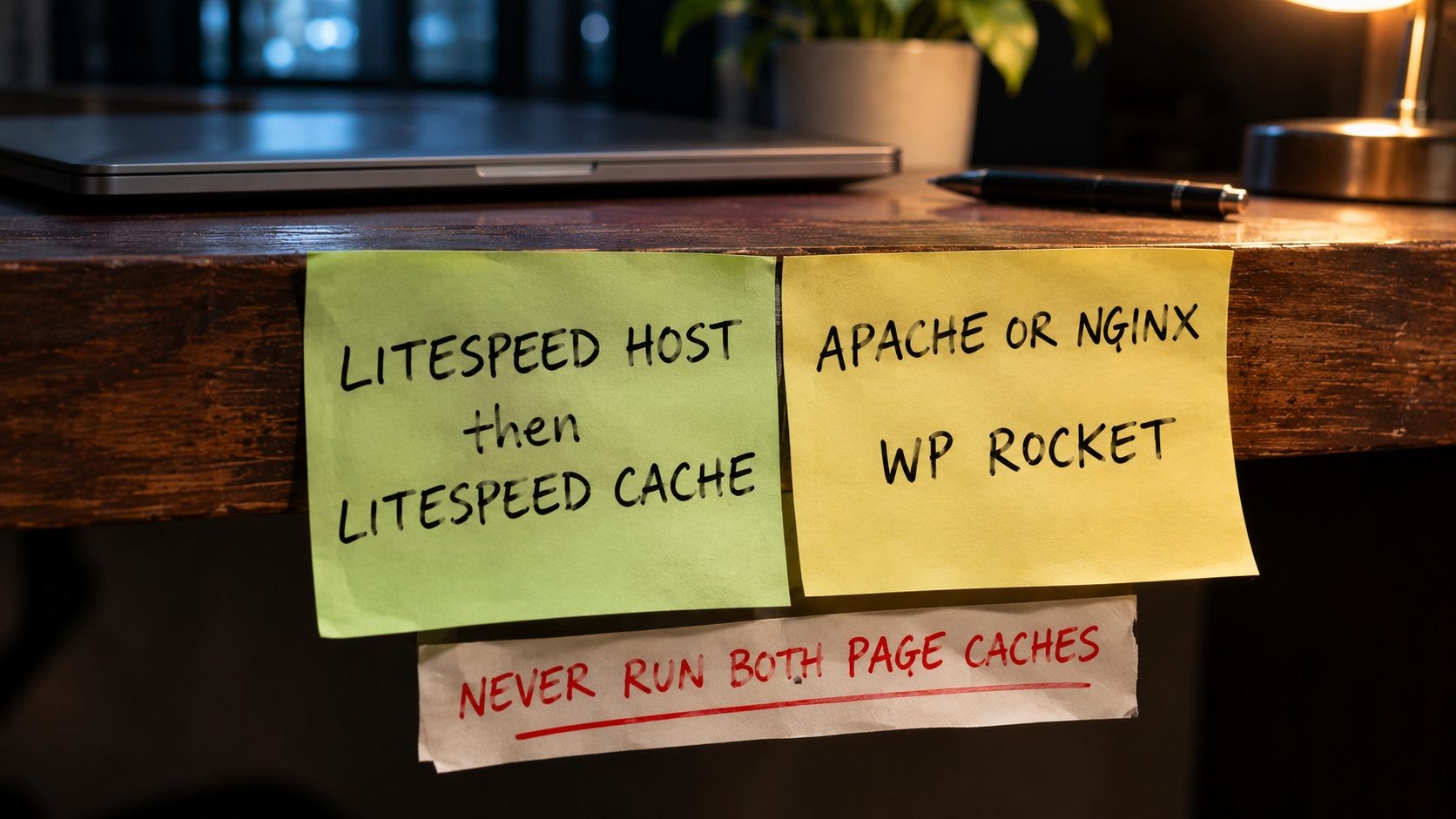
- If your host runs a LiteSpeed server, LiteSpeed Cache is usually the stronger choice, and the plugin itself is free.
- If your host runs Apache or Nginx, LiteSpeed Cache cannot do page caching, so WP Rocket is the simpler, complete option.
- Never run both plugins' page caches at the same time. Pick one, configure it well, and test.
The One Thing That Decides This: Your Web Server
Why LiteSpeed Cache needs a LiteSpeed server for page caching
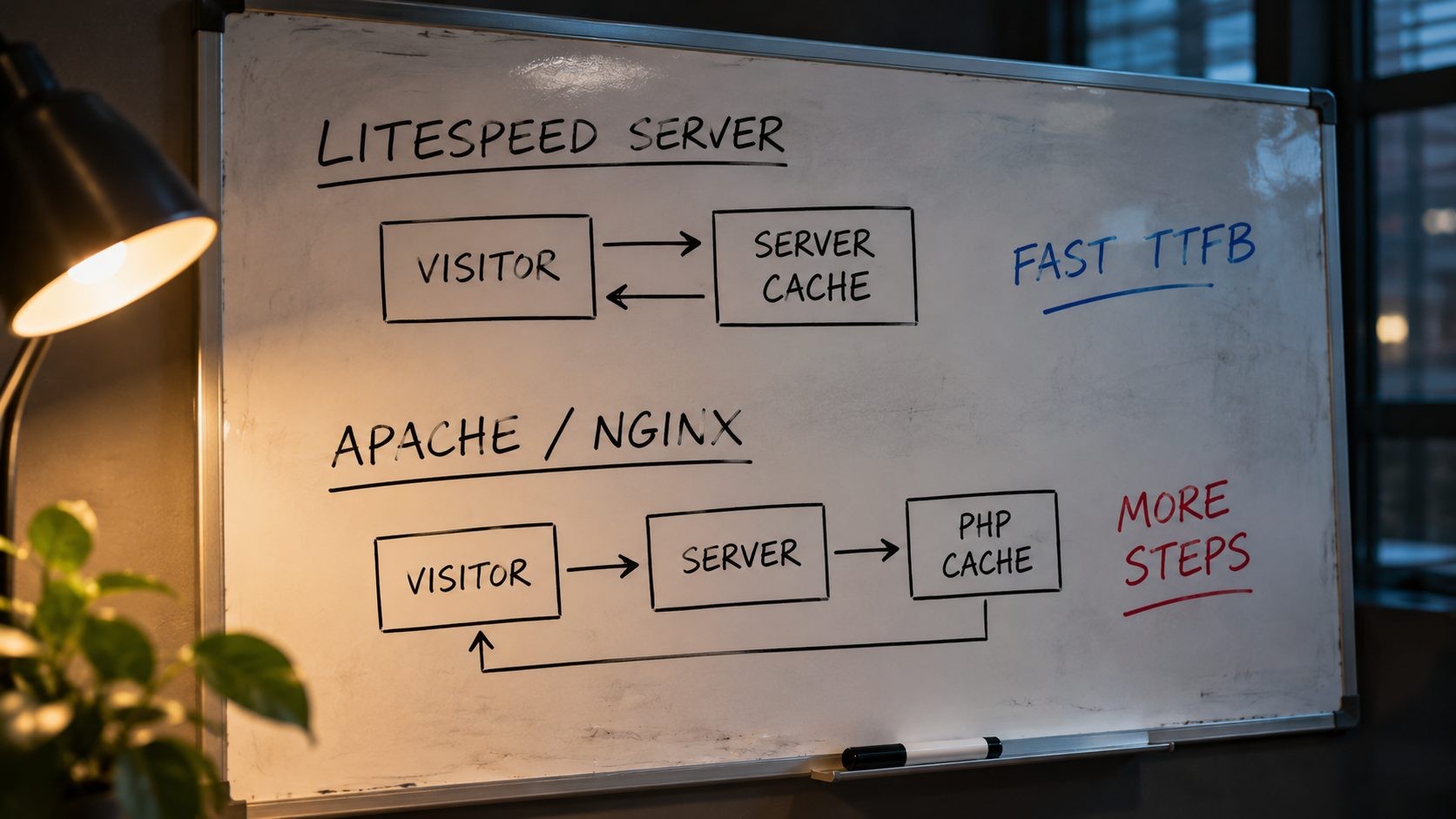
Page caching is the biggest speed win any caching plugin offers. Instead of running PHP and database queries for every visit, the site serves a saved copy of each page. How that saved copy is served is where the two plugins differ.
LiteSpeed Cache hands page caching to the web server itself. On a LiteSpeed server, cached pages are served before WordPress even loads, which keeps Time to First Byte low. The plugin's own listing on WordPress.org is clear about the requirement: "A LiteSpeed solution is required in order to use the LiteSpeed Exclusive features of this plugin." Page caching is one of those exclusive features, and it needs LiteSpeed Enterprise, OpenLiteSpeed or the QUIC.cloud CDN in front of the site.
On Apache or Nginx, LiteSpeed Cache on WordPress.org still offers many general optimizations: object cache support, image optimization, CSS, JavaScript and HTML minification and combining, lazy loading, critical CSS, deferred and delayed JavaScript, browser cache rules and a database cleaner. What it cannot do on those servers is the server-level page cache.
WP Rocket takes a different approach. It generates static HTML copies of pages and serves them through rewrite rules and PHP, which works on almost any host. It is not tied to one server type, which is a big part of its appeal. If you move host, WP Rocket moves with you and keeps working the same way.
There is a middle case worth knowing about. Some hosts run Nginx or Apache in front of a server-level cache of their own, such as Varnish or a custom page cache. On those hosts, the host's cache often handles page caching already, and the plugin's job shifts to front-end optimization. Many managed WordPress hosts publish guidance on which caching plugins they support, so check that before installing either one.
How to check whether your host runs LiteSpeed

You do not need to guess. Use one of these:
- Check the response headers. Open your site, open browser developer tools, go to the Network tab, reload, and click the first request. A
server: LiteSpeedheader, or anx-litespeed-cacheheader once LiteSpeed Cache is active, means you are on LiteSpeed. You can also runcurl -I https://yoursite.comin a terminal. - Look at your hosting plan. Many hosts advertise LiteSpeed servers or LiteSpeed caching on their plan pages.
- Ask support. A one-line question gets a definite answer.
If you are choosing a host now, this is worth deciding up front. Nexi Bloom's WordPress hosting, for example, includes LiteSpeed caching on every plan, which means LiteSpeed Cache's server-level page cache is available from day one.
How to Test Both Plugins Fairly
Most published comparisons test once, on desktop, and report a single PageSpeed score. That is not enough to decide anything, because scores change between runs, mobile and desktop differ, and a PageSpeed score is a summary of several metrics rather than a speed measurement in itself. Here is a fair method you can repeat on your own site.
Keep everything else the same. Use the same site, the same server, the same theme and plugins, and the same pages. Only one caching plugin should be active at a time. Deactivate and remove the other completely, clear any server and CDN caches, and confirm the caching headers changed before testing.
Test the right pages. Use at least three page types: the homepage, a typical blog post or service page, and, for stores, a product page. Each template loads different scripts and behaves differently.
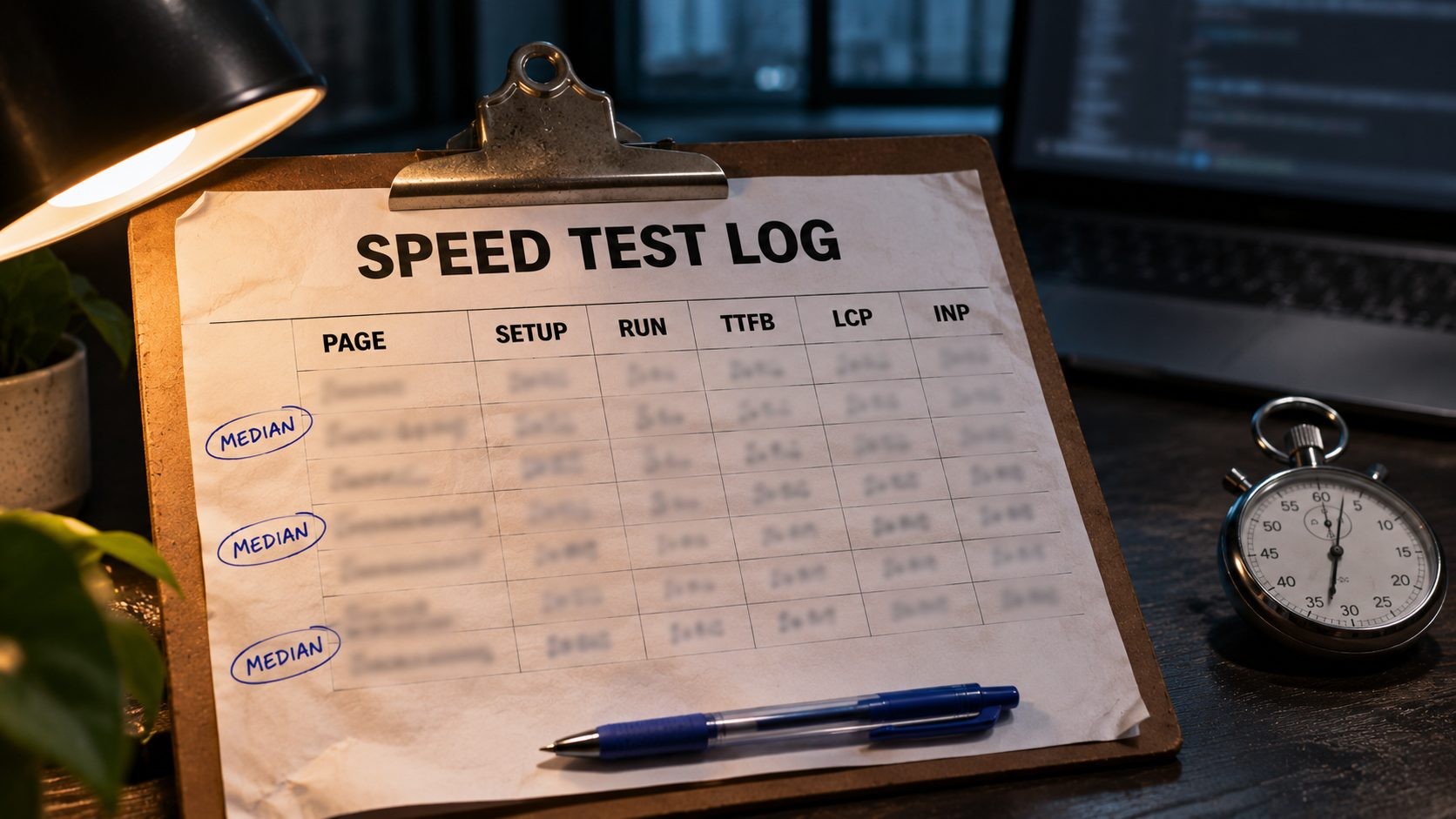
Measure the right things. For each page and each setup (no caching plugin, WP Rocket, LiteSpeed Cache), record:
- Time to First Byte (TTFB): How quickly the server responds. This is where server-level caching shows up most clearly.
- Largest Contentful Paint (LCP): When the main content appears.
- Cumulative Layout Shift (CLS): Whether optimizations like lazy loading cause layout jumps.
- Interaction to Next Paint (INP): Test a key interaction, such as opening the menu, in Chrome DevTools, because delayed JavaScript can affect it.
- Mobile and desktop scores in PageSpeed Insights, plus total page weight and number of requests.
Repeat and use the median. Run each test at least three to five times and use the middle value. A single run can be thrown off by network noise, a cold cache or a background process on the server.
Warm the cache first. Load each page once after clearing the cache, so you are testing the cached version visitors will actually see, not the first uncached request.
Test default settings and tuned settings. Start with each plugin's recommended preset, then apply sensible tuning. Many sites run on defaults, so both results are useful.
Test from the same location. Use the same testing tool, region and connection settings every time. A test from a server in Virginia and a test from Frankfurt will give different TTFB numbers for reasons that have nothing to do with the plugin.
Record everything in one sheet. A simple spreadsheet with one row per page, setup and run, and one column per metric, makes the comparison obvious. Add a notes column for anything unusual, such as a failed run, a slow third-party script or a change in settings. When you look back a month later, those notes are what make the numbers trustworthy.
Check that nothing broke. Speed is pointless if the menu stops working or checkout fails. After each setup, click through the site as a visitor would, submit a form, and on stores, add a product to the cart and reach the checkout page.
If you are new to reading these reports, this guide on how to read a PageSpeed Insights report explains the difference between the score, lab data and field data.
What the Results Usually Show
Published tests tend to point in the same direction, even when their numbers differ. WPBeginner's test of both plugins on a Hostinger site, which runs LiteSpeed servers, reported a desktop PageSpeed score of 99 with WP Rocket and 90 with LiteSpeed Cache on its advanced preset, while noting that LiteSpeed Cache had a better overall load time in Pingdom. That apparent contradiction is actually the most useful lesson in the whole comparison.
Here is why it happens. PageSpeed scores are heavily influenced by front-end work: how much JavaScript runs, how CSS is delivered and how images load. Both plugins can optimize the front end well, and the differences in score often come down to which settings are enabled, not which plugin is better. Load time and TTFB, on the other hand, depend on how the cached page is served. On a LiteSpeed server, LiteSpeed Cache's server-level cache serves pages without loading WordPress at all, so TTFB tends to be lower. WP Rocket's cached pages still go through the web server's rewrite rules and, depending on the setup, parts of PHP.
So on LiteSpeed hosting, expect LiteSpeed Cache to have the edge on TTFB and raw load time, while front-end metrics like LCP and the PageSpeed score depend mostly on how carefully each plugin is configured. On Apache or Nginx hosting, LiteSpeed Cache loses its page cache entirely, and WP Rocket's full page caching usually makes it the faster option by a clear margin.
Traffic is the other variable most tests ignore. A single test request does not show how a site behaves when hundreds of visitors arrive at once. Server-level caching handles that kind of load more efficiently, because cached pages never touch PHP. On a busy site or during a sale, that efficiency matters more than a few points of PageSpeed score, because it keeps the server responsive when it counts.
The practical takeaway is to compare like with like. When you read a review, check what server it was tested on, how many runs it used and which metrics it reported. When you test yourself, look at TTFB and LCP across several runs, not just the headline score.
Two cautions apply to any result, including your own. First, lab tests show potential, not real-user experience. Google's Core Web Vitals assessment uses 28 days of field data from real visitors, so confirm improvements in Search Console over the following weeks. Second, a caching plugin cannot fix a slow theme, heavy page builder or overloaded server. If your uncached numbers are poor, the bigger gains are often elsewhere, as covered in this guide to why your website is slow.
Feature Comparison
Page caching and preloading
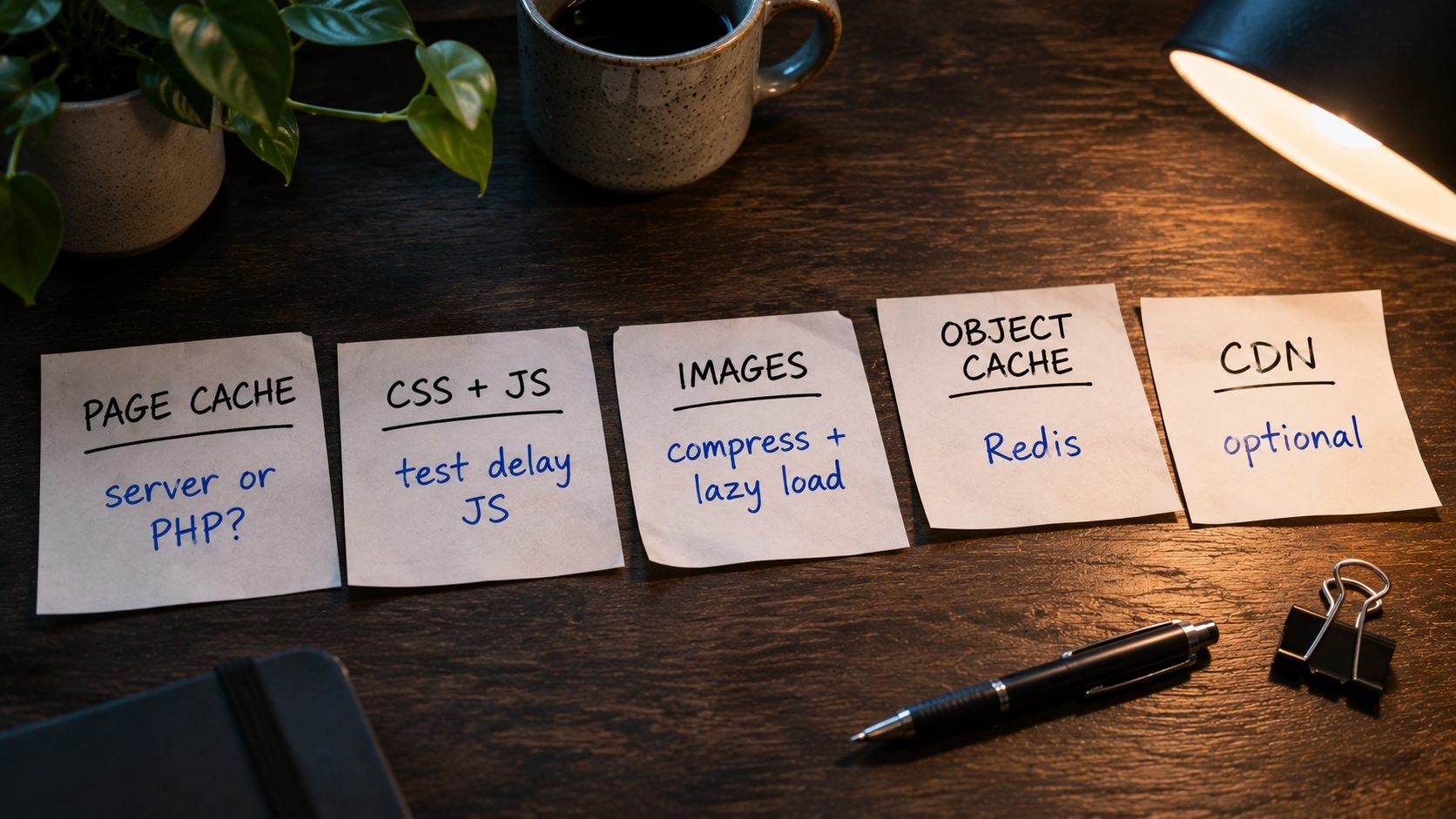
Both plugins cache pages, create separate caches for mobile where needed, and preload the cache so visitors rarely hit an uncached page. The key difference is the method described above: server-level caching for LiteSpeed Cache on LiteSpeed servers, and PHP and rewrite-based caching for WP Rocket on any server. Both purge the relevant cache when you update content.
Purging is worth checking on your own site. When you edit a post, the post itself, the homepage, category pages and any widget showing recent posts may all need refreshing. Both plugins handle common cases automatically, but sites with custom post types, page builders or complex menus sometimes need extra purge rules so visitors never see outdated content.
CSS and JavaScript optimization
Both offer minification, removal of unused CSS or critical CSS generation, deferred JavaScript and delayed JavaScript. WP Rocket's "Delay JavaScript execution" waits to load scripts until there is a user interaction such as scrolling, moving the mouse or tapping, and LiteSpeed Cache has its own delay options. These features usually help load-time metrics, but they need care. If too many scripts load at the first interaction, that first click or tap can become slow, which hurts Interaction to Next Paint. This guide on how to improve INP explains how to exclude critical scripts so delayed JavaScript does not backfire.
LiteSpeed Cache's more advanced CSS features, such as generating unused CSS and critical CSS, use QUIC.cloud services. WP Rocket handles its equivalent processing as part of the plugin and its own service.
Whichever plugin you use, removing unused CSS deserves extra testing. It works by keeping only the styles a page appears to use, which can strip styles that only appear after an interaction, such as an open dropdown menu, a popup or a mobile navigation panel. Check those states specifically after enabling it, and add exclusions where styles go missing.
Image optimization and lazy loading
Both plugins lazy load images, iframes and videos. LiteSpeed Cache also includes image optimization (compression and next-generation formats such as WebP) through QUIC.cloud. WP Rocket does not compress images itself, so most sites pair it with a separate image optimization plugin or service, which adds another tool and sometimes another cost.
Lazy loading needs one exception on every site: the main image at the top of the page. If the hero image or featured image is lazy loaded, the browser waits to fetch it, which usually makes Largest Contentful Paint worse. Both plugins let you exclude images from lazy loading, so exclude the above-the-fold image on each key template.
Object cache, ESI and logged-in users
LiteSpeed Cache supports Redis and Memcached object caching, which speeds up database-heavy pages and the WordPress dashboard. It also offers ESI (Edge Side Includes), which lets the server cache most of a page while keeping small parts, such as a cart count or a "Hi, Sarah" greeting, personalized. That is valuable for WooCommerce stores and membership sites where many visitors are logged in. Guest Mode is another LiteSpeed feature that serves a fast default version to first-time visitors before personalizing.
WP Rocket can cache pages for logged-in users separately and works alongside object caching provided by the host or another plugin, but it does not have an ESI equivalent.
Object caching is worth enabling on both setups if your host provides Redis or Memcached. Page caching speeds up anonymous visitors, but logged-in users, the admin dashboard and uncached pages still run database queries, and an object cache keeps the results of those queries in memory so they do not have to run every time.
CDN
WP Rocket offers RocketCDN as a paid add-on. LiteSpeed Cache integrates with QUIC.cloud's CDN, which can also provide LiteSpeed-style page caching for sites that are not on a LiteSpeed server. Both work alongside Cloudflare, which many sites already use. If you use Cloudflare, this guide to Cloudflare settings for WordPress covers how to avoid caching conflicts and which settings to leave off.
Features at a glance
| Feature | WP Rocket | LiteSpeed Cache |
|---|---|---|
| Page caching on any server | Yes | No, needs LiteSpeed or QUIC.cloud CDN |
| Server-level page caching | No | Yes, on LiteSpeed servers |
| Cache preloading | Yes | Yes |
| Minify CSS and JavaScript | Yes | Yes |
| Remove unused CSS or critical CSS | Yes | Yes, via QUIC.cloud |
| Delay JavaScript | Yes | Yes |
| Lazy load images and iframes | Yes | Yes |
| Image compression and WebP | No, needs a separate tool | Yes, via QUIC.cloud |
| Object cache (Redis, Memcached) | Works with host or separate plugin | Built-in support |
| ESI for personalized content | No | Yes, on LiteSpeed servers |
| Database cleanup | Yes | Yes |
| CDN | RocketCDN (paid add-on) | QUIC.cloud CDN |
| Price | Paid | Free plugin, some paid QUIC.cloud usage |
Ease of Use and Setup
WP Rocket's biggest strength is simplicity. It applies a sensible set of optimizations as soon as it is activated, and its settings are spread across a small number of clear tabs. For a site owner who wants good results without studying every option, that matters a lot.
LiteSpeed Cache offers far more control and far more settings, spread across many tabs and sub-tabs. Its presets, from Essentials to Extreme, make it much easier to start, but the depth that makes it powerful also makes it easier to misconfigure.
In both plugins, the settings most likely to break a site are the same kinds of front-end optimization: combining or delaying JavaScript, removing unused CSS, and aggressive lazy loading. Typical symptoms are menus or sliders that stop working, missing styles on some pages, and forms that fail to submit. Turn these on one at a time, test key pages and interactions after each change, and exclude any script or stylesheet that causes problems.
A sensible starting point for each plugin:
- WP Rocket: Keep page caching and preloading on, enable lazy loading with the hero image excluded, minify CSS and JavaScript, then try "Remove unused CSS" and "Delay JavaScript execution" separately, testing after each one.
- LiteSpeed Cache: Start with a mid-level preset rather than the most aggressive one, confirm the
x-litespeed-cache: hitheader on repeat visits, connect QUIC.cloud if you want image optimization, then enable CSS and JavaScript features one by one.
Make a full backup before you start. Both plugins can be switched off quickly if something breaks, but a backup means a bad setting never turns into a long outage.
Remember too that no caching plugin can fully make up for a heavy theme or a page builder that loads large scripts everywhere. A lean theme often matters more than which plugin you choose, which is one of the main arguments for custom WordPress theme development on sites where speed is important.
Pricing: Free vs Paid
LiteSpeed Cache is free to download and use. Some QUIC.cloud services, such as image optimization, CDN traffic and page optimization, are paid above certain usage levels. The current free allowances are shown in your QUIC.cloud dashboard, so check them against your site's size before relying on them.
WP Rocket is a paid plugin with a 14-day refund period. At the time of writing, WP Rocket's pricing page lists these yearly plans:
| Plan | Sites | Listed price |
|---|---|---|
| Single | 1 | $4 per month, billed yearly |
| Plus | 3 | $8 per month, billed yearly |
| Multi | 50 | $20 per month, billed yearly |
Three-year plans are cheaper per month. Those prices were shown alongside a time-limited promotion, and renewal prices were not listed, so check the current pricing before you buy. If you choose WP Rocket, also budget for an image optimization tool, since WP Rocket does not compress images itself.
Think about cost over two or three years, not just the first purchase. A paid plugin renews every year, an image optimization tool may add its own subscription, and a CDN can add another. On the other side, heavy use of QUIC.cloud's paid services can add up on large sites. Adding these together for your own site gives a much clearer picture than comparing headline prices.
For one site on LiteSpeed hosting, LiteSpeed Cache is usually the lowest-cost option. For agencies managing many sites on mixed hosting, WP Rocket's multi-site licenses can be simpler, because the same plugin behaves the same way on every server.
WooCommerce and Dynamic Sites
Online stores and membership sites are where caching gets complicated. Cart, checkout and account pages must never be served from a shared cache, and both plugins exclude standard WooCommerce pages automatically. Still, check those exclusions after setup, especially if you use custom checkout plugins or page builders.
The bigger difference is personalized content on otherwise cacheable pages. LiteSpeed Cache's ESI lets the server cache a product page while keeping the mini cart and customer details personalized, which can make a real difference for stores with many logged-in customers. WP Rocket handles these cases with cache exclusions and separate caches for logged-in users.
Be careful with delayed JavaScript on stores. Add-to-cart buttons, variation selectors and cart fragments all rely on JavaScript, and if those scripts are delayed until the first interaction, the first click can feel slow or fail. Exclude store scripts from delay features and test the full path from product page to checkout after every change.
Watch for cart fragments too. WooCommerce uses a background request to keep the mini cart up to date, and on some setups it runs on every page, even for visitors with empty carts. That request bypasses the page cache, so it can add load and slow pages down. Some themes and optimization settings limit it to pages that need it, which is worth testing on busy stores.
Can You Use WP Rocket and LiteSpeed Cache Together?
Not for page caching. Two plugins trying to cache and serve the same pages will conflict, leading to stale pages, broken layouts or features that seem to change randomly. Choose one plugin for page caching.
The same rule applies to other caching plugins and host-level caches. If your host already provides page caching, or you have an older plugin such as another cache or minification tool installed, remove the overlap before testing. Many confusing results come from two tools quietly doing the same job.
Some site owners on LiteSpeed hosting run WP Rocket for its front-end optimization while using LiteSpeed Cache only for specific features, such as image optimization or object cache, with LiteSpeed's page cache turned off. This can work, but it adds complexity and overlap, and most sites are better served by configuring one plugin properly.
If you switch from one plugin to the other, do it cleanly:
- Note your current settings and exclusions.
- Deactivate and delete the old plugin, using its option to remove settings and cache files if available.
- Clear any server, CDN and browser caches.
- Install and configure the new plugin, then retest the key pages using the method above.
Which One Should You Choose?
| Your situation | Best pick | Why |
|---|---|---|
| Host runs LiteSpeed or OpenLiteSpeed | LiteSpeed Cache | Server-level page caching and many free features |
| Host runs Apache or Nginx | WP Rocket | Full page caching on any server, simple setup |
| Beginner who wants it to just work | WP Rocket | Good results on activation, fewer settings |
| WooCommerce store on LiteSpeed hosting | LiteSpeed Cache | ESI and object cache help personalized pages |
| Agency managing sites on mixed hosts | WP Rocket | Same plugin and settings everywhere |
| Tight budget, LiteSpeed hosting | LiteSpeed Cache | The plugin is free |
The short version: check your server first. On LiteSpeed hosting, LiteSpeed Cache has a structural advantage and costs nothing to try. Anywhere else, WP Rocket is usually the better choice. In both cases, how carefully you configure the plugin matters as much as which one you pick.
If you are about to change host anyway, put the server type on your list of requirements. Choosing a host with LiteSpeed servers gives you the option of free server-level caching, and if you later prefer WP Rocket, it still works there. Choosing a host without LiteSpeed rules out LiteSpeed Cache's main feature from the start.
For the bigger picture, see our website security for small business guide: a layer-by-layer plan, a 30-day checklist and typical costs.
FAQs
Conclusion
The WP Rocket vs LiteSpeed Cache debate is less about which plugin is better and more about which one fits your server. On LiteSpeed hosting, LiteSpeed Cache's server-level page cache gives it a structural advantage, and the plugin is free. On Apache or Nginx, LiteSpeed Cache loses that advantage, and WP Rocket's simple, complete caching usually wins.
Whichever you choose, test it properly: same site, several page types, multiple runs, mobile and desktop, and real metrics like TTFB, LCP and INP rather than a single PageSpeed score. Turn on front-end optimizations one at a time, test key interactions after each change, and confirm the results in your field data over the following weeks. For a wider view of what else slows WordPress sites down, this list of technical SEO issues covers the problems that caching alone cannot fix.
Want LiteSpeed caching without the setup headaches? Nexi Bloom WordPress hosting includes LiteSpeed caching, free SSL and daily backups on every plan, starting at $3.99 a month.
Get new posts by email
New guides and alerts, sent when they are published. No spam. Unsubscribe anytime.


Comments (0)