- Khurram Shahzad
- WordPress
- 219
- 0
Most "custom" WordPress websites aren't custom at all. They're a premium multipurpose theme with a page builder on top, forty plugins underneath and a mobile PageSpeed score that nobody wants to talk about. They look fine in the demo and become harder to edit, slower and more fragile every year.
A real custom theme is different. It's built around one business's design, content and editors, and nothing else. There's no code for features the site doesn't use, no settings panel with 300 options, and no layout an editor can accidentally break.
This post walks through how I handle custom WordPress theme development, from the moment a Figma design lands in my inbox to launch day and the handover after it. It covers the decisions I make at each stage: how design tokens move from Figma into theme.json, how I model content with custom post types and ACF, how I build blocks and patterns editors can't break, the front-end build step, the performance budget I hold every page to, and the checks before launch.
It's written for two groups. If you're a business owner or marketing lead considering a custom build, you'll see what goes into one and what to expect. If you're a developer, you'll get a process you can adapt, with short code examples from the way I actually work. I build and maintain custom WordPress themes for clients, and this is the workflow behind them.
Custom WordPress theme development at a glance
Custom WordPress theme development means building a theme from scratch around one site's design and content, instead of adapting a pre-made theme. My workflow runs in ten stages:
- Discovery and requirements
- The Figma handoff
- Design tokens in theme.json
- The content model
- ACF blocks and block patterns
- Templates
- The front-end build step
- A performance budget
- Accessibility, SEO and security checks
- Staging, testing and launch
When a Custom Theme Is the Right Choice (and When It Isn't)
A custom WordPress theme isn't the right answer for every project, and I'd rather say that upfront than sell a build someone doesn't need.
A custom theme is usually the right choice when:
- The design is unique. If a designer has created a specific look in Figma, forcing it into a pre-made theme usually means fighting the theme's own styles and settings at every step.
- Content is central to the business. Marketing sites with many service pages, locations, case studies or resources benefit from a theme built around that exact content.
- Speed matters. A theme that only contains what the site uses is far easier to keep fast than a multipurpose theme carrying code for every possible layout.
- Several people edit the site. A custom theme can give editors flexible building blocks while protecting the layout and brand from accidental changes.
- The site needs to last. A clean, purpose-built theme is easier to maintain and extend over several years than a heavily customized premium theme.
A custom theme often isn't worth it when:
- The budget is very tight, and a well-chosen premium theme covers almost everything the site needs.
- The site is simple or short-lived, like a single landing page for a temporary campaign.
- Nobody will maintain it. Any WordPress site needs updates, and a custom theme is no exception.
If you're weighing it up, it helps to know what a custom build typically costs compared with the alternatives. And sometimes the real question is whether WordPress is the right platform at all, which I cover in when WordPress isn't the right platform.
If a custom theme is the right fit but you'd rather have it built for you, Nexi Bloom's website development service builds custom WordPress sites for US businesses.
Classic, Block or Hybrid: Which Kind of Theme I Build, and Why
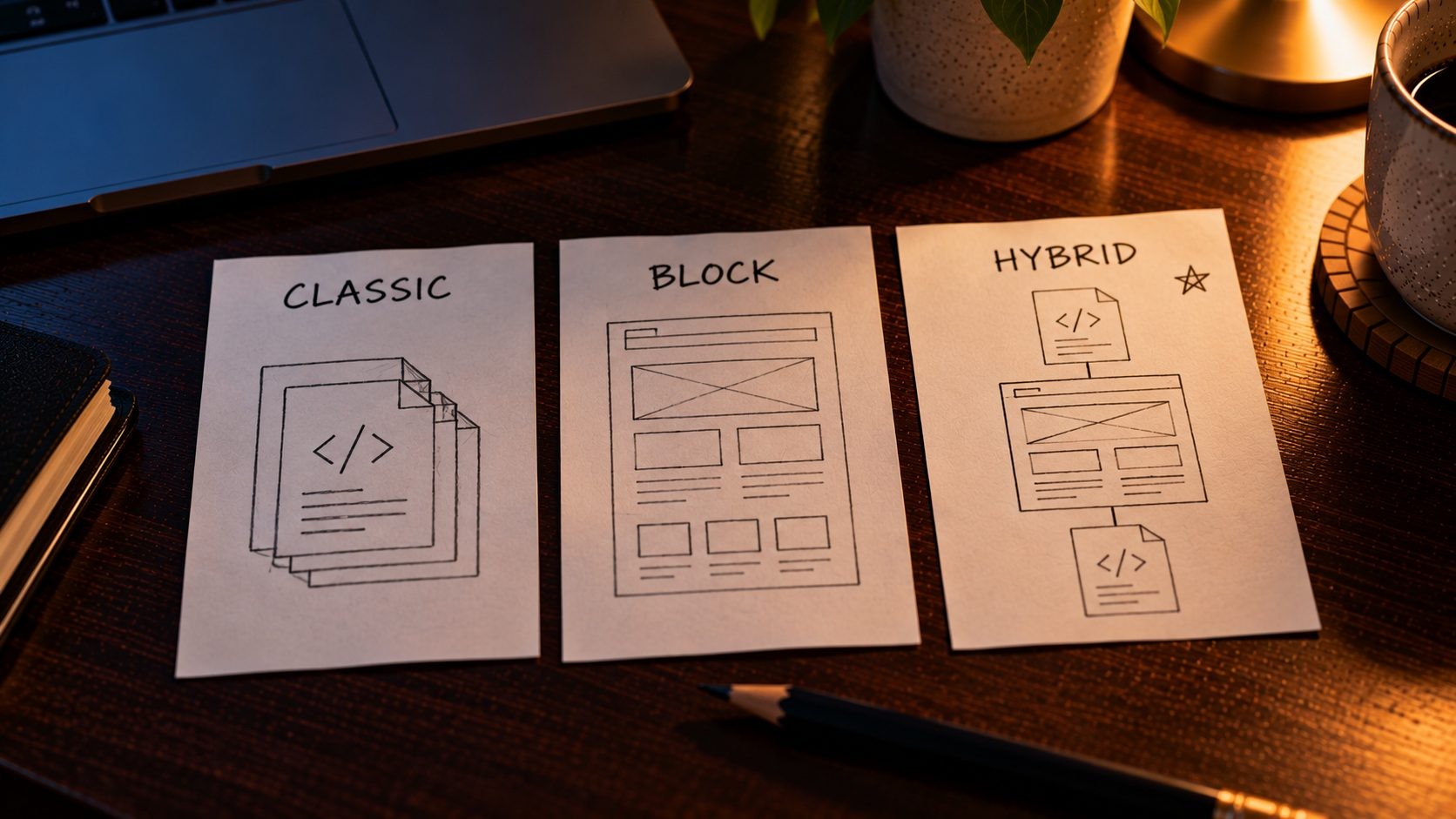
There are three ways to build a WordPress theme today, and the choice shapes everything that follows. The official WordPress Theme Handbook covers both main approaches in depth, but here's the short version.
- Classic themes use PHP template files like
header.php,single.phpandfooter.php. Developers have full control over the markup, but editors get less visual control over layouts. - Block themes build every template from blocks, stored as HTML files, and let editors change the whole site, including headers and footers, through Full Site Editing.
- Hybrid themes keep PHP templates for the overall structure while adding theme.json design settings, custom blocks and block patterns for page content.
For most client projects, I build hybrid themes. Here's why:
- I keep control of the markup and performance. The header, footer and core layouts are written in PHP, so I know exactly what HTML and assets each page loads.
- Editors still get a modern editing experience. Page content is built from blocks and patterns in the block editor, which most people find intuitive.
- The design system lives in theme.json. Colors, fonts and spacing are defined once and shared between the editor and the front end.
- Editors can't accidentally break the site. Full Site Editing gives editors the power to change headers and global layouts, which is great for some teams and risky for others. A hybrid theme lets me decide what's editable.
| Classic | Block | Hybrid | |
|---|---|---|---|
| Editing experience | Limited, often relies on fields | Full visual editing of everything | Visual editing of content, fixed structure |
| Developer control | Full | Shared with editors | Full over structure |
| Performance control | High | Good, depends on blocks used | High |
| Protection from editor mistakes | High | Lower | High |
| Best for | Legacy projects | Teams who want full design control | Most business websites |
Block themes are a good choice when a team wants full design control and has someone who understands the site editor well. For businesses that want a site that stays on-brand no matter who edits it, hybrid is usually the safer path.
A hybrid theme isn't a dead end, either. Because the design system already lives in theme.json and the content is already built from blocks, moving parts of the site to block templates later is a gradual change, not a rebuild. That flexibility is another reason I start most projects this way.
Stage 1: Discovery and Requirements
Every build starts with questions, not code. Before I open Figma, I want to understand what the site has to do and who will run it. The questions I ask at this stage are:
- Which page types does the site need? Homepage, service pages, location pages, blog posts, case studies, team pages, landing pages and so on.
- What content will editors change, and how often? A team that publishes weekly needs a different editing setup from one that updates the site twice a year.
- Who are the editors? A technical marketing lead and an office manager who edits once a month need very different guardrails.
- What does the site connect to? CRMs, form tools, booking systems, email marketing and ecommerce all affect the build.
- Is there an existing site? If so, I need the current URLs, the pages that bring in search traffic, and the content that has to move across.
- What does success look like? More enquiries, faster pages, easier editing or all three. Agreeing on this early shapes every trade-off later in the project.
For each page type, the content inventory lists the pieces of content it needs and where each one comes from. A location page, for example, might need an address, opening hours, a map, a short description, a list of services available there, staff profiles and reviews. Some of those are fixed fields, some are free-form content, and some are pulled from other parts of the site. Writing this down before development is what makes Stage 4 straightforward.
The output of this stage is a simple document: a list of page types, a content inventory and a list of integrations. It sounds basic, but it prevents most of the expensive surprises later in a project. This "requirement analysis" step is the first part of the broader process I describe in my complete WordPress and Laravel tech stack.
Stage 2: The Figma Handoff: What I Need From the Design
The quality of a custom WordPress theme depends heavily on the quality of the design handoff. A well-organized Figma file turns into a clean theme. A messy one turns into weeks of guesswork. Before development starts, I check the design file against this list:
- Defined color and text styles, or variables. Every color and text style used in the design should be a named style, not a one-off value. This is what becomes the design system in theme.json.
- A consistent spacing scale. Spacing between sections and elements should follow a scale, such as 8, 16, 24, 32 and 48 pixels, rather than random values.
- Components with variants and states. Buttons, cards and form fields should exist as components, with hover, focus and disabled states designed, not left for the developer to guess.
- Mobile, tablet and desktop frames. A desktop-only design leaves the most important screen size to chance.
- Real content. Real headlines, real paragraph lengths and real images reveal problems that lorem ipsum hides, like a heading that's twice as long as the design allows.
- Empty and error states. What does a blog archive look like with no posts? What does a form look like when a field fails validation?
- Image aspect ratios. Knowing whether a card image is 16:9 or 4:3 matters for layout stability and performance.
Naming matters too. If the designer names colors by purpose, like "Primary", "Accent" and "Surface", rather than by appearance, like "Dark blue 2", the names translate cleanly into code and still make sense after a rebrand. I agree on naming with the designer early, because renaming tokens halfway through a build creates confusion on both sides.
I use Figma's Dev Mode to inspect measurements, export assets and check the values behind each style. Icons are exported as SVG, and photography is exported at high resolution so I can generate properly sized versions for each layout, rather than relying on whatever size happened to be in the design. The most common issues I catch at this stage are one-off colors that are almost, but not quite, a brand color, inconsistent spacing between similar sections, and designs that only exist at desktop width. Fixing these in Figma takes minutes. Fixing them after development takes days.
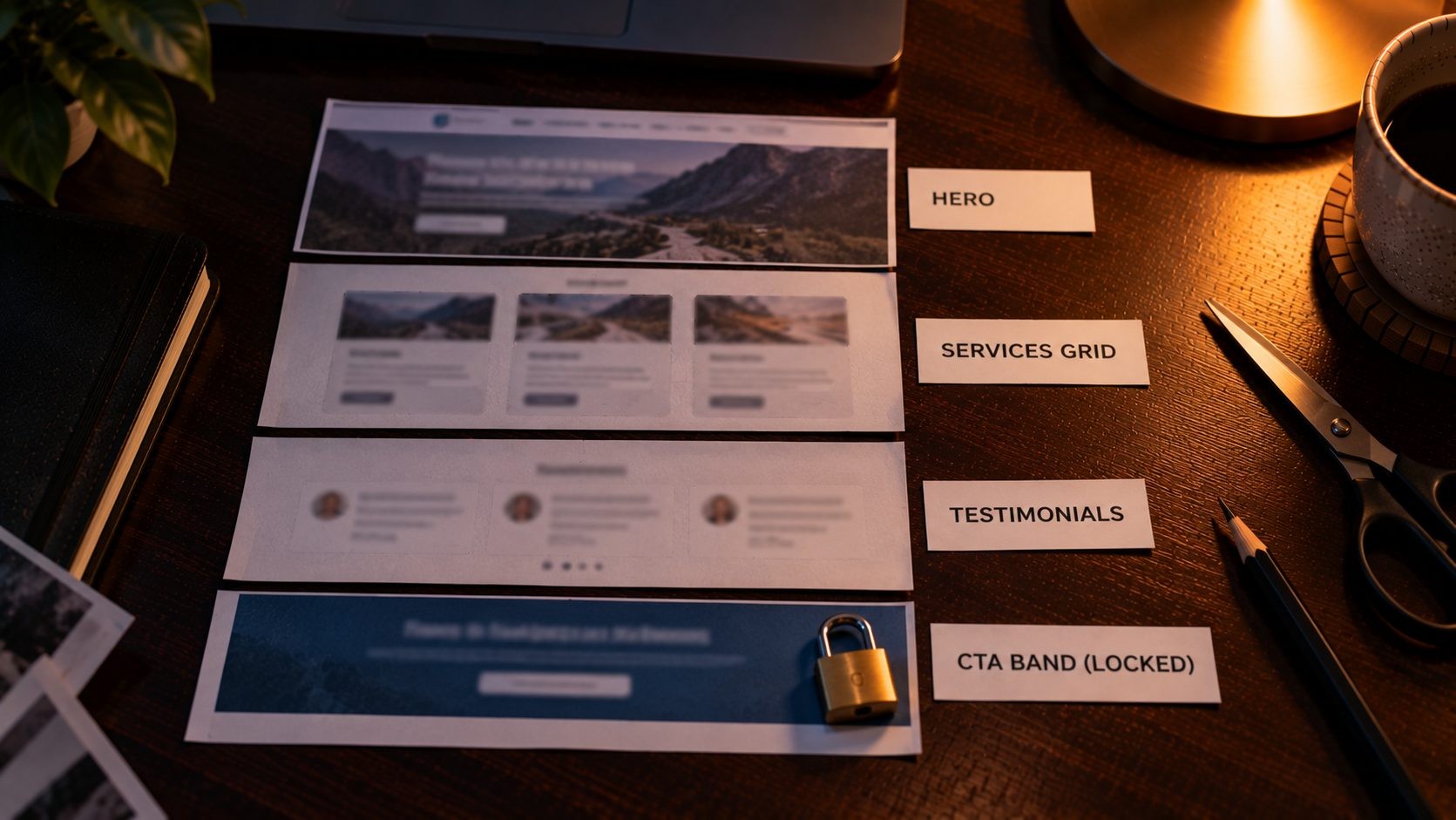
One habit that saves a lot of time: before writing any code, I go through the design and map every section to a block or pattern. A "testimonial slider" becomes a block. A "three services with icons" section becomes a pattern built from core blocks. This mapping becomes the development plan for Stage 5. If you're still shaping the design itself, these current website design trends are a useful reference for what's worth adopting.
Stage 3: Turning Figma Styles Into theme.json Design Tokens
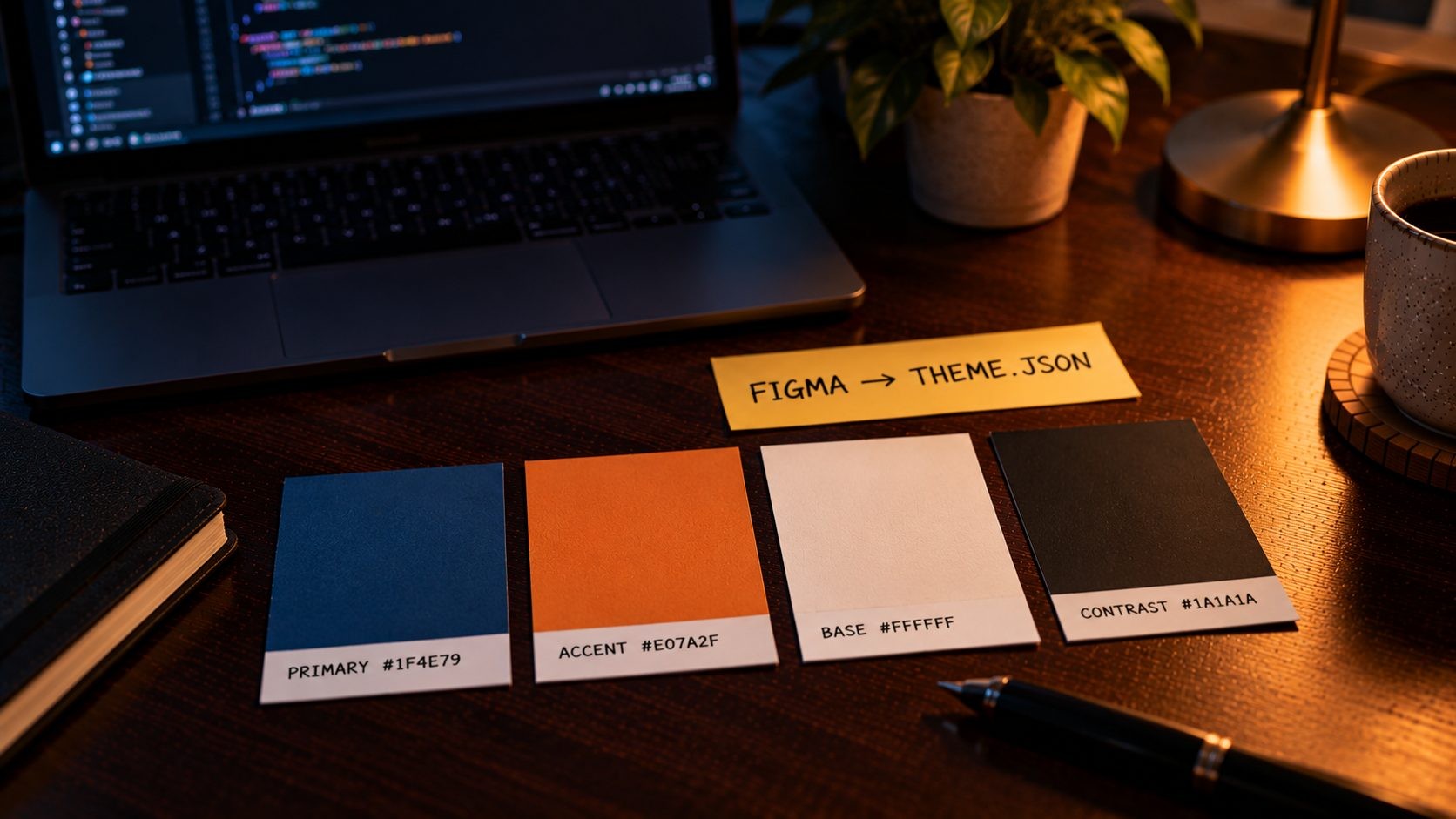
This is where a WordPress theme from Figma starts to take shape. Design tokens are the named values that make up a design system: colors, font families, font sizes and spacing. In Figma, they live as styles or variables. In WordPress, they live in theme.json.
WordPress's guide to theme.json describes it as a foundational piece of block theming. It controls the settings and styles available in the editor and on the front end. For a hybrid theme, it does three valuable jobs:
- One source of truth. The same brand colors and type scale appear in the editor and on the live site.
- On-brand editing. I can remove the free color picker and custom font sizes, so editors choose from the brand palette instead of inventing new colors.
- CSS variables for free. WordPress outputs each token as a CSS custom property, such as
--wp--preset--color--primary, which my own stylesheets can use.
Here's a trimmed example of the kind of theme.json I start with:
json
{
  "$schema": "https://schemas.wp.org/trunk/theme.json",
  "version": 3,
  "settings": {
    "color": {
      "custom": false,
      "customGradient": false,
      "defaultPalette": false,
      "palette": [
        { "slug": "primary", "name": "Primary", "color": "#1F4E79" },
        { "slug": "accent", "name": "Accent", "color": "#E07A2F" },
        { "slug": "base", "name": "Base", "color": "#FFFFFF" },
        { "slug": "contrast", "name": "Contrast", "color": "#1A1A1A" }
      ]
    },
    "typography": {
      "customFontSize": false,
      "fontSizes": [
        { "slug": "small", "name": "Small", "size": "0.875rem" },
        { "slug": "medium", "name": "Medium", "size": "1.125rem" },
        { "slug": "x-large", "name": "Extra large", "size": "2.5rem" }
      ]
    },
    "layout": { "contentSize": "720px", "wideSize": "1200px" }
  }
}
The mapping from Figma is direct. A Figma color variable called "Brand / Primary" becomes the primary slug. A text style called "Heading / XL" becomes the x-large font size. I keep the names close to the designer's naming, so anyone moving between the design file and the code can follow along. When the palette changes later, I update theme.json once, and the editor and front end change together.
Fonts belong in theme.json as well. Registering the brand fonts as font families, with the font files stored in the theme, means WordPress can load them in both the editor and the front end, and editors see the real typography while they write. It also keeps fonts self-hosted, which matters for performance in Stage 8.
The last piece is making the editor look like the website. A hybrid theme loads a small editor stylesheet so blocks in the editor match the front end as closely as possible. When an editor drags in a pattern and it looks exactly like the live page, they trust the system and stop working around it.
Stage 4: The Content Model: Post Types, Taxonomies and ACF Fields
Once the design system is in place, I set up the structure for the content itself. This stage decides how easy the site will be to manage for years, so it gets more attention than it usually does.
Custom post types hold content that isn't a regular post or page. Services, case studies, team members, locations and testimonials are common examples. Giving them their own post type means they get their own admin screen, their own templates and their own URLs.
Taxonomies group that content, such as service categories or regions.
ACF field groups hold structured data that shouldn't live inside free-form text: a service's starting price, a location's address and opening hours, or a team member's role. Advanced Custom Fields gives editors clear, labeled fields instead of asking them to format data correctly inside a paragraph.
Here's a simple custom post type registration:
php
<?php // mu-plugins/site-content.php
add_action( 'init', function () {
    register_post_type( 'service', array(
        'labels'       => array(
            'name'          => 'Services',
            'singular_name' => 'Service',
        ),
        'public'       => true,
        'has_archive'  => true,
        'rewrite'      => array( 'slug' => 'services' ),
        'show_in_rest' => true, // Needed for the block editor.
        'menu_icon'    => 'dashicons-hammer',
        'supports'     => array( 'title', 'editor', 'thumbnail', 'excerpt' ),
    ) );
} );
Site-wide information gets the same treatment. The business phone number, address, social links and opening hours appear in the header, footer and contact page, so they live in one ACF options page rather than being typed into several places. When the phone number changes, it changes once.
Notice that this code lives in a must-use plugin, not in the theme. It's a widely followed WordPress best practice: themes control how content looks, while plugins control what content exists. If the site ever gets a new theme, the services, case studies and locations stay exactly where they are. Putting post types inside the theme is one of the most common mistakes I see when taking over other developers' sites.
Stage 5: Building the Blocks: ACF Blocks and Block Patterns
This is the heart of the editing experience, and the stage where the Figma-to-block mapping from Stage 2 becomes real.
Native Blocks First
Before building anything custom, I check whether WordPress's core blocks can do the job. Headings, paragraphs, images, buttons, columns and groups, styled by theme.json, cover a surprising amount of most designs. Core blocks are maintained by WordPress, so they're one less thing to support. I only build a custom block when a section needs specific structure, data or behavior that core blocks can't provide cleanly.
ACF Blocks for Custom Sections
For custom sections, I use ACF Blocks. They let me build a block with a PHP template and ACF fields instead of writing a full React block, which makes them fast to build and easy to maintain. According to the ACF Blocks documentation, they're registered with WordPress's standard register_block_type() function, which reads a block.json file. ACF Blocks is a feature of ACF PRO.
A simple hero block has a block.json like this:
json
{
  "name": "acf/hero",
  "title": "Hero",
  "category": "theme",
  "icon": "cover-image",
  "description": "Page hero with heading, text and image.",
  "supports": { "align": [ "wide", "full" ], "anchor": true },
  "acf": {
    "mode": "preview",
    "renderTemplate": "render.php"
  }
}
It's registered in the theme with one line per block:
php
add_action( 'init', function () {
    register_block_type( get_template_directory() . '/blocks/hero' );
} );
And the render.php template outputs clean, escaped markup:
php
<?php $heading = get_field( 'heading' );
$image   = get_field( 'image' ); // Image field set to return an array.
$classes = 'hero' . ( ! empty( $block['className'] ) ? ' ' . $block['className'] : '' );
?>
<section class="<?php echo esc_attr( $classes ); ?>">
    <h1 class="hero__title"><?php echo esc_html( $heading ); ?></h1>
    <?php if ( $image ) {
        // The hero image is usually the LCP element, so load it early.
        echo wp_get_attachment_image( $image['ID'], 'full', false, array(
            'loading'       => 'eager',
            'fetchpriority' => 'high',
        ) );
    }
    ?>
</section>
That last detail matters. Because a hero image is usually the largest element on the page, it should load right away rather than being lazy-loaded. Small decisions like this, made once in a block template, apply to every page that uses the block.
Block Patterns for Ready-Made Sections
Block patterns are pre-built sections made from blocks, which editors insert with one click. A "services grid", "call to action band" or "FAQ section" works well as a pattern. In a theme, each pattern is a PHP file in the /patterns folder with a short header:
php
<?php /**
 * Title: Call to action band
 * Slug: mytheme/cta-band
 * Categories: call-to-action
 */
?>

class="wp-block-group alignfull has-primary-background-color has-background">

    class="wp-block-heading has-base-color has-text-color">Ready to get started?
Locking Layouts That Must Not Break
The lock attribute in that pattern stops editors from removing the section's container while still letting them edit the text. Locking is one of the most useful tools in a hybrid theme. I lock structural pieces, like a pattern's wrapper or a template's main sections, and leave content free to edit. Editors get flexibility where it helps and protection where mistakes are expensive.
Limiting the Block List
WordPress ships with a long list of core blocks, and many of them don't fit a given design. Leaving them all available invites editors to use blocks the design never accounted for. I limit the inserter to the blocks the site actually uses:
php
add_filter( 'allowed_block_types_all', function ( $allowed, $context ) {
    return array(
        'core/paragraph', 'core/heading', 'core/list', 'core/list-item',
        'core/image', 'core/buttons', 'core/button', 'core/group',
        'core/columns', 'core/column',
        'acf/hero', 'acf/testimonials', 'acf/faq',
    );
}, 10, 2 );
For small visual variations, like a button that comes in a solid and an outline version, I register block styles instead of building a new block. Editors pick the style from a menu, and the design stays consistent.
The goal of this stage is an editor that feels simple. A good custom theme gives editors a short list of well-named blocks and patterns that always look right, rather than dozens of options that can produce anything.
Stage 6: Templates and the Template Hierarchy
With blocks ready, I build the page templates that hold everything together. WordPress chooses which template file to use for each URL through the template hierarchy. A single service, for example, looks for single-service.php first, then falls back to single.php, then singular.php, then index.php. Understanding this order means each template can be specific without duplicating code.
My standard template set for a hybrid theme includes:
front-page.phpfor the homepagepage.phpfor standard pages, where most content comes from blockssingle.phpandarchive.phpfor blog posts and listingssingle-{post-type}.phpandarchive-{post-type}.phpfor each custom post typesearch.phpand404.php, which are easy to forget and often the most neglected pages on a site. A helpful 404 page with a search box and links to the main sections keeps visitors on the site instead of sending them back to Google, so it gets proper design attention rather than a default "page not found" line.
Shared pieces like the header, footer, post cards and pagination live in template parts, so a change to the card design happens in one file. For custom post types, templates often combine ACF fields for structured data with the block editor for the main content. A location page might pull the address and hours from fields while the description is written in blocks.
For custom post types, I also give editors a starting point. When registering a post type, WordPress lets you define a default block template, so every new case study or location opens with the right blocks already in place, in the right order. Editors fill in the content instead of building each page from a blank screen, and every page of that type ends up consistent.
Stage 7: The Front-End Build Step
The build step turns my source code into the optimized files the browser downloads. My front-end stack is deliberately small:
- CSS: Tailwind, used selectively, or plain CSS built on theme.json's CSS variables, depending on the project.
- JavaScript: vanilla JavaScript and Alpine.js for interactive pieces like menus, accordions and tabs. There's no jQuery dependency in the theme itself.
- Bundler: Vite compiles and minifies the CSS and JavaScript, and removes unused CSS, so the final files only contain what the site actually uses.
Everything lives in Git from the first commit, and I develop locally with LocalWP before anything touches a server.
Loading the output is handled in functions.php:
php
add_action( 'wp_enqueue_scripts', function () {
    $dir = get_template_directory();
    $uri = get_template_directory_uri();

    wp_enqueue_style( 'theme', $uri . '/dist/main.css', array(), filemtime( $dir . '/dist/main.css' ) );

    wp_enqueue_script( 'theme', $uri . '/dist/main.js', array(), filemtime( $dir . '/dist/main.js' ), array(
        'strategy'  => 'defer',
        'in_footer' => true,
    ) );
} );
Two details are worth noting. The file modification time works as the version number, so browsers get the new file after every deploy without manual cache-busting. And the script loads with the defer strategy, so it never blocks the page from rendering. For heavier scripts, like a slider or a map, I enqueue them only on the templates or blocks that need them, rather than loading them on every page.
When I use Tailwind, I configure it to read from the same design tokens as theme.json, so a utility class like a brand background color uses exactly the same value as the editor's palette. That keeps the hand-built templates and the block-built content perfectly in sync. Editor-only scripts and styles, such as block previews, load separately through the editor hooks, so none of that code ever reaches visitors.
Stage 8: Setting and Enforcing a Performance Budget
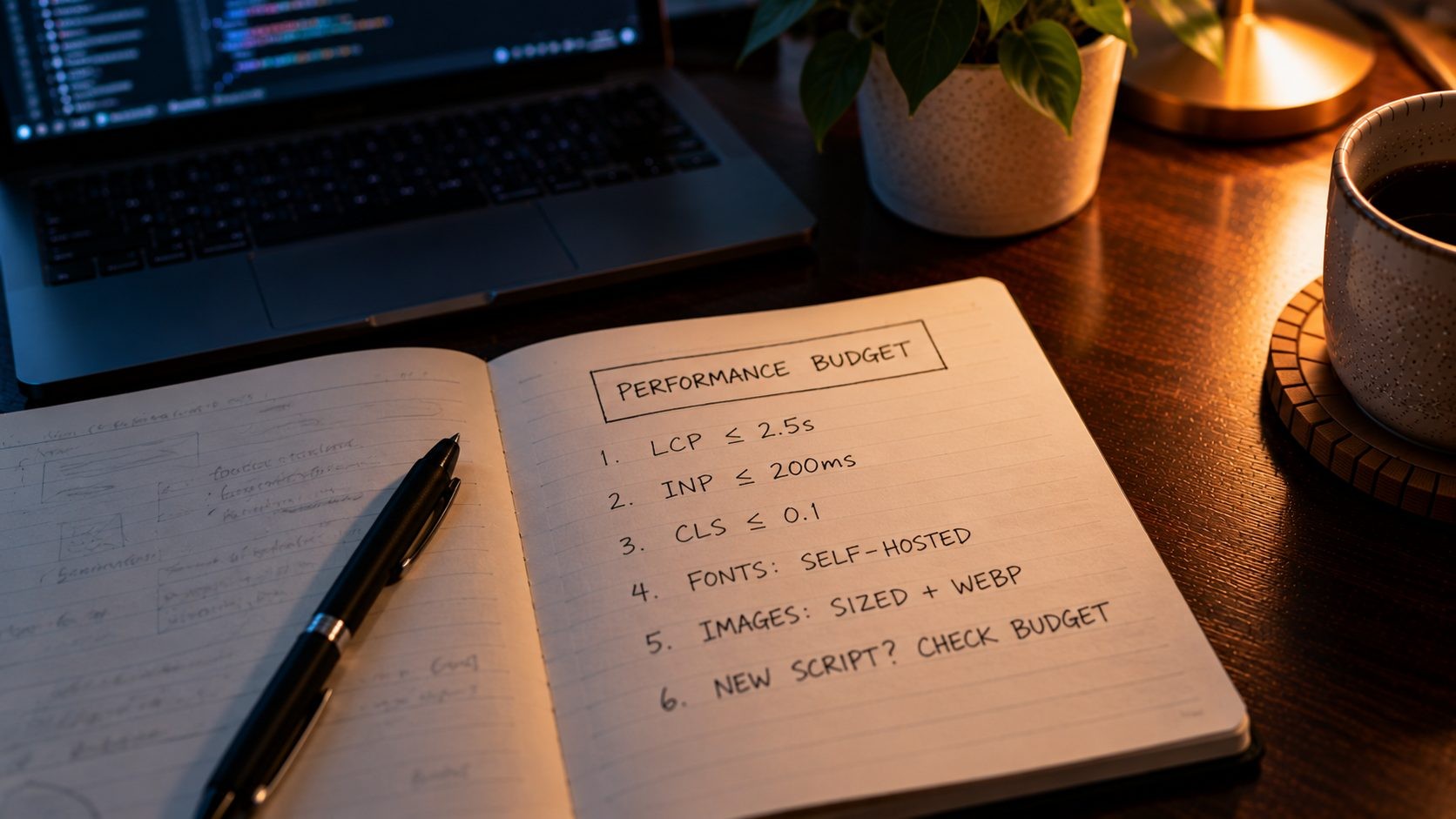
A performance budget is a set of limits a site has to stay within, agreed before development starts. Without one, performance tends to slip a little with every feature, plugin and tracking script until the site is slow and nobody can say exactly why.
My budget covers a few categories:
- Core Web Vitals: key templates must meet Google's "good" thresholds, which are Largest Contentful Paint of 2.5 seconds or less, Interaction to Next Paint of 200 milliseconds or less, and Cumulative Layout Shift of 0.1 or less.
- JavaScript: a limit on the total amount of JavaScript per page, with third-party scripts counted against it.
- Fonts: a maximum number of font families and weights, self-hosted rather than loaded from external servers.
- Images: every image sized for its display width, served in a modern format, with dimensions set to prevent layout shift.
- Requests: a ceiling on the number of files each page loads.
At the theme level, that means the hero image is never lazy-loaded, fonts are preloaded and limited to the weights the design uses, critical CSS loads first, and unused CSS is removed at build time. Every new block is checked against the budget before it ships.
The budget also applies after launch, which is where most sites lose their speed. Every new plugin, tracking script or embedded widget gets the same question: what does it add to the page, and is it worth it? A chat widget that loads on every page might cost more in speed than it earns in conversations. Having an agreed budget turns that from a matter of opinion into a simple check.
The server side matters just as much. I host on LiteSpeed or Nginx with Redis object caching and PHP's OPcache, which I cover in more detail in my tech stack post rather than repeating it here. During development, I test key templates against the budget regularly, and I explain how to interpret those results in this guide on how to read a PageSpeed Insights report. If you want to see what happens when nobody sets a budget, this breakdown of why websites get slow covers the usual suspects.
Stage 9: Accessibility, SEO and Security Checks
Before a theme goes anywhere near a staging site, it goes through three sets of checks.
Accessibility. I check semantic HTML (real buttons, real links and a logical heading order), keyboard navigation through menus and forms, visible focus states, color contrast against the brand palette, and an alt text field on every image block. Building these into the theme means every page inherits them, instead of relying on editors to remember. I test with a keyboard-only pass through every template and a free automated checker like WAVE or Lighthouse's accessibility audit, which together catch most common problems early.
SEO. Templates output one H1 per page, a clean heading structure and semantic markup that search engines can read easily. The theme supports structured data and works with the SEO plugin the client uses for titles and meta descriptions. The theme gets the technical foundation right, and the content team uses this on-page SEO checklist for each page they publish.
Security. I follow WordPress's coding standards for security: every piece of output is escaped, every input is sanitized and validated, forms use nonces, and database queries use prepared statements. Keeping the plugin list short also keeps the site's attack surface small, which is one of the quiet benefits of a custom theme.
Stage 10: Staging, Testing and Launch
The theme moves from my local environment to a staging site that mirrors the production server as closely as possible. Code goes to staging through Git, and the same process later deploys it to production. That means nothing reaches the live site that hasn't been tested on staging first.
The theme's code and the site's content travel in opposite directions, which is a detail that catches many teams out. Code moves forward, from local to staging to production, through Git. Content moves backward: when I need realistic data on staging, I copy the production database down, never the other way round. Pushing a staging database over a live site is one of the fastest ways to lose real orders, form entries or comments, so it simply never happens in my process.
On staging, I test:
- Browsers and devices: current versions of Chrome, Safari, Firefox and Edge, on real phones as well as desktop.
- The editor experience: the client's team adds real content using the blocks and patterns, which is the best way to find anything confusing before launch.
- Forms and integrations: every form submits, every notification arrives and every integration passes data correctly.
- Performance: key templates are checked against the performance budget with real content and images in place.
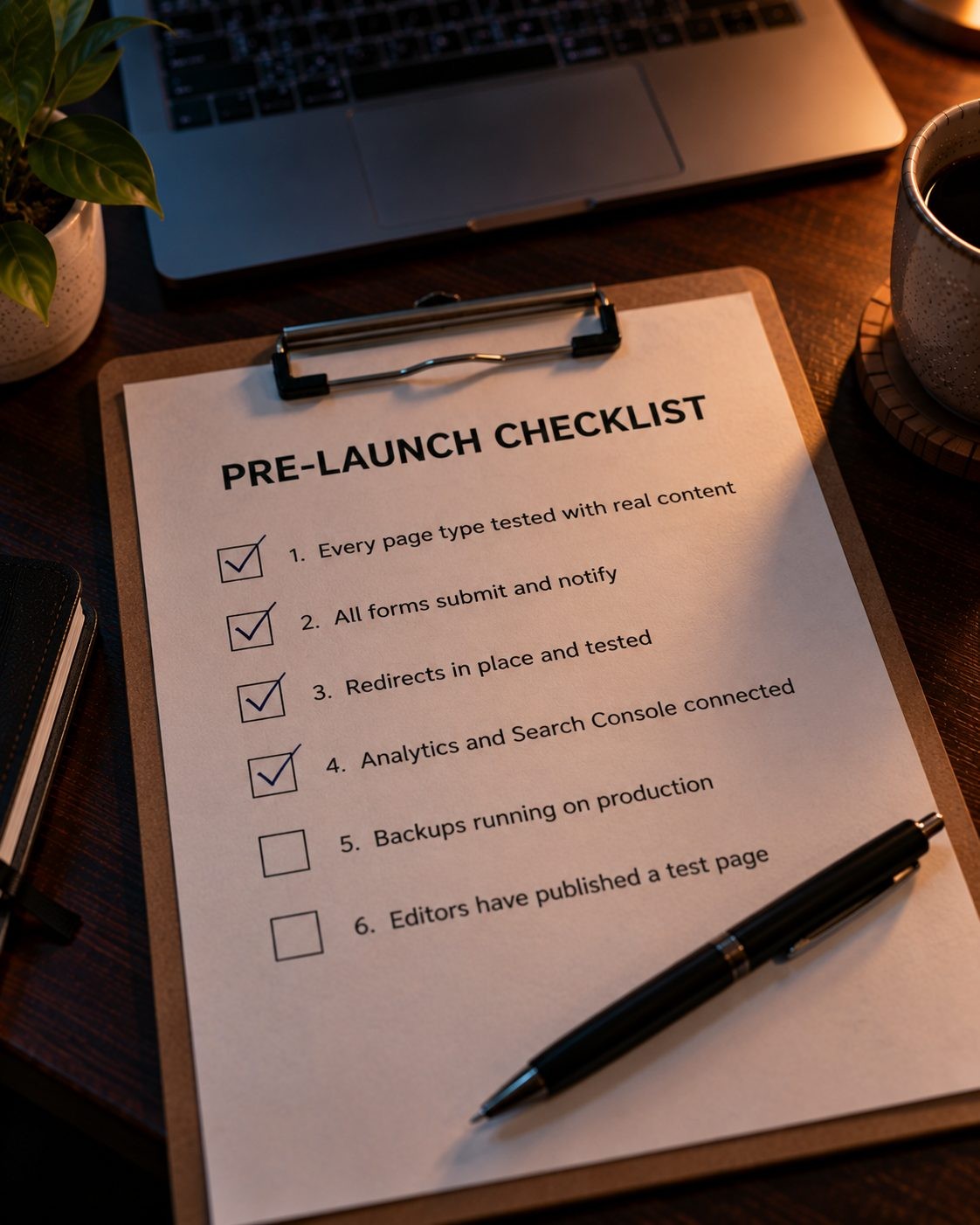
The launch itself follows a checklist. If the new theme replaces an existing site, every changed URL needs a 301 redirect, and I follow the steps in the launch checklist from my post on when a website needs a redesign. Then I remove any staging noindex settings, submit the XML sitemap in Search Console, and watch for crawl errors in the first few weeks. My final pre-launch pass is short but strict:
- Every page type has been checked with real content on mobile and desktop.
- All forms submit and notifications arrive at the right inbox.
- Redirects are in place and tested for the old site's important URLs.
- Analytics and Search Console are connected.
- Backups are running on the production server.
- The client's editors have logged in and published at least one test page themselves.
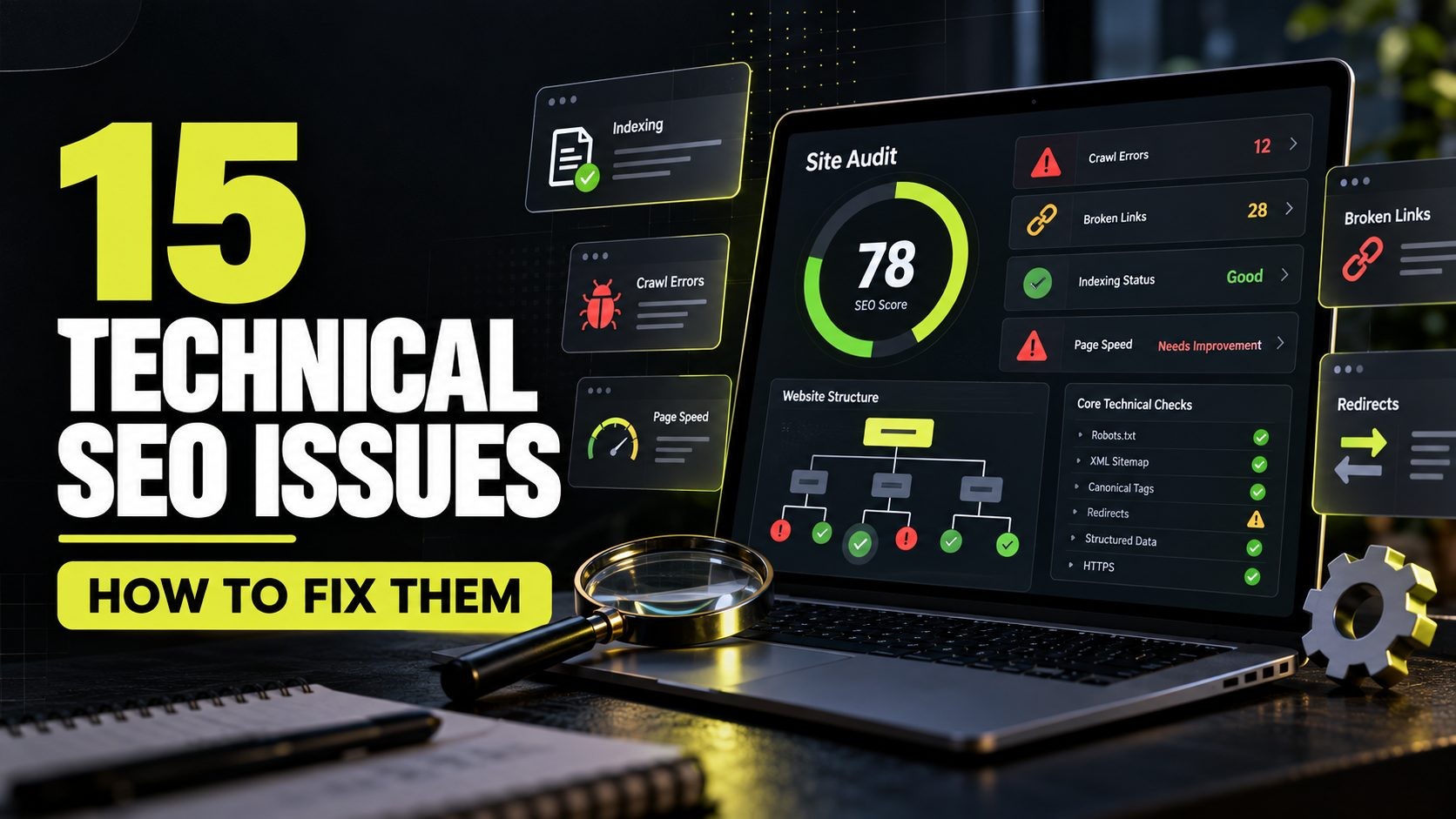
A full technical SEO audit checklist is useful a few weeks after launch to confirm everything settled correctly.
After Launch: Handover, Training and Maintenance
A custom theme isn't finished at launch. The handover decides whether the client actually enjoys using it.
Every client gets a short editor guide, often a screen recording, that covers which blocks and patterns to use for which kinds of content, how to add each custom post type, and what not to touch. Because the theme is built around their content, this guide is usually short. A focused theme needs much less explanation than a multipurpose one.
I also schedule a short check-in a few weeks after launch. By then, editors have used the site for real and have a list of small questions or friction points. Adjusting a block's options or adding one more pattern at this stage is quick, and it's often the difference between a team that tolerates their website and one that actually likes using it.
Ongoing maintenance follows the same principles as the build: updates are tested on staging before production, backups run before every update, and uptime is monitored. A well-built custom theme needs less maintenance than most, but WordPress core and plugins still need regular care.
How Long Does a Custom Theme Take, and What Does It Cost?
The timeline depends mainly on the scope, not the page count alone. The main factors are:
- The number of page types and templates, since each one is designed, built and tested
- The number of custom blocks, especially blocks with complex behavior
- Integrations, such as CRMs, booking systems or ecommerce
- Content migration from an existing site, including redirects
- Revision rounds on design and development
A small brochure site with a handful of page types moves quickly. A content-heavy site with many custom post types, integrations and a large migration takes considerably longer. The fastest projects are the ones with a well-prepared Figma file and content ready before development starts.
For pricing, see my breakdown of what a custom build typically costs in the US, which covers the range from simple sites to fully custom builds.
Frequently Asked Questions
Conclusion: Build Around the Content, Not the Theme
Good custom WordPress theme development starts from two things: the design system and the content model. Get those right, and everything else follows naturally. Design tokens flow from Figma into theme.json, content gets a proper structure, editors get blocks and patterns that always look right, and the whole site stays inside a performance budget from the first commit to launch day.
If you're planning a custom build, start where I start: list your page types, gather your content, and check your Figma file against the handoff checklist above. You'll save time and money on every stage that follows.
Want a custom WordPress theme built from your design? Nexi Bloom's website development service builds fast, custom WordPress websites for US businesses, from design handoff to launch.
No Tags

Comments (0)