
You run your website through PageSpeed Insights and get a red 42. Right above it, the report says your page passed the Core Web Vitals assessment. So is your site slow or not?
That contradiction is the most common reason people get confused by this tool, and it has a simple explanation: the report contains two completely different kinds of data. Once you know how to read PageSpeed Insights from the top down, the numbers stop contradicting each other and start telling you exactly what to fix.
This guide walks through the report in the order it appears on your screen. For each section, you'll see what it measures, which numbers matter most, and what to do about them. It also reflects the current version of the report. Google changed the warnings section in late 2025 and added a new category in 2026, so many older guides use names you won't find in your report anymore.
I read these reports every day when diagnosing slow client sites, and the method below is the order I work in.
Quick answer: how to read a PageSpeed Insights report
- Check the Core Web Vitals assessment first. It's based on real visitors and shows whether your page passes or fails.
- Note whether it shows "This URL" or "Origin" data, so you know if the results are for this page or your whole site.
- Look at the Performance score and lab metrics. These come from a simulated test on a mid-range phone.
- Open the Insights to see what's causing any slow metrics.
- Fix issues in order of impact, then test again.
In short, field data tells you how fast your site is for real visitors, and lab data helps you find out why.

What PageSpeed Insights Is, and How It Relates to Lighthouse and CrUX
PageSpeed Insights (PSI) is a free Google tool that combines two separate sources of information in one report.
The first is the Chrome UX Report (CrUX), Google's dataset of real-world performance from Chrome users who visit your site. This is called field data, because it comes from real visitors in the field.
The second is Lighthouse, an automated testing tool that loads your page in a controlled, simulated environment and measures it. This is called lab data, because it comes from a test run in a lab. Lighthouse is also built into Chrome DevTools, so you can run it on your own computer.
Google Search Console's Core Web Vitals report uses the same real-user data as the field section of PageSpeed Insights, but groups it across your whole site.
| Tool | Data type | Best for |
|---|---|---|
| PageSpeed Insights | Field data and lab data | Checking one page in detail |
| Lighthouse (in Chrome DevTools) | Lab data only | Testing changes as you work |
| Search Console Core Web Vitals report | Field data only | Finding problem page groups across your site |
| Chrome UX Report (CrUX) | Field data only | The real-user dataset behind the others |
Knowing which source a number comes from is the key to reading the whole report.
In practice, most people use them together. PageSpeed Insights is the quick public check for any page. Lighthouse in Chrome DevTools is better while you're actively working on a site, because you can test a staging site or a page that isn't public yet. And Search Console is where you go to see whether a problem affects one page or hundreds.
How to Run a PageSpeed Insights Test Properly
Getting a useful report starts with testing the right way.
- Enter the full URL of the page you want to test, including https.
- Test your main page templates, not just the homepage. A blog post, a service page and a product page often perform very differently, and fixing a template fixes every page that uses it.
- Start with the Mobile tab. Most sites perform worse on mobile, and that's usually where the problems are. Then check Desktop.
- Run the test more than once. Lab results vary from run to run, so a single test can mislead you. Look at several results and focus on the pattern.
- Note the date and time of each test. If you're tracking improvements, a simple spreadsheet with the date, page, mobile score and Core Web Vitals status makes progress far easier to see than a folder of screenshots.
- Test with nothing else changing. If you're in the middle of updating plugins or a marketing team is swapping banners, wait. Otherwise you won't know which change caused which result.
If you want a quicker way to work out what's wrong before reading every section, this guide on how to diagnose a slow website shows which numbers point to which problems.
Part 1: The Core Web Vitals Assessment (Field Data)
The first section of the report is the most important one, because it reflects what real people experienced on your site. If you only read one part of PageSpeed Insights, read this.
"This URL" vs "Origin"

At the top of the field data section, you'll see two options: This URL and Origin.
- This URL shows data for the exact page you tested.
- Origin shows data for your whole site combined.
PageSpeed Insights shows page-level data when it has enough of it. When a page doesn't have enough real-user traffic, PSI falls back to origin data and the "This URL" option appears greyed out. If even the origin doesn't have enough data, the section shows "No Data". That's common for new sites and low-traffic pages. In that case, the lab data further down is still useful as an approximation.
This matters because origin data describes your site in general, not the specific page you're looking at. A fast homepage can't hide slow product pages in page-level data, but it can in origin data.
What "Passed" and "Failed" Really Mean
The headline of the field data section says either "Core Web Vitals Assessment: Passed" or "Failed". The assessment is based on three metrics: Largest Contentful Paint (LCP), Interaction to Next Paint (INP) and Cumulative Layout Shift (CLS).
Each metric is judged at the 75th percentile. In plain terms, that means at least 75% of visits need a good experience for the metric to count as good. It's a deliberately demanding standard, because it accounts for visitors on slower phones and weaker connections, not just the lucky ones.
The pass or fail rules work like this:
- If all three metrics have enough data, the page passes only if all three are good at the 75th percentile.
- If INP doesn't have enough data, the page can still pass if LCP and CLS are both good.
- If LCP or CLS doesn't have enough data, the page can't be assessed.
Here's how that looks in practice. Imagine a page with an LCP of 2.2 seconds, a CLS of 0.05 and an INP of 260 milliseconds. LCP and CLS are both good, but INP is in the "needs improvement" range, so the page fails the assessment. The fix isn't faster images or a better server. It's making the page respond faster when people tap and click, which usually means reducing heavy JavaScript. Reading which metric failed tells you where to look.
This is also why the lab score and the assessment can disagree. A page can fail the assessment because real visitors on older phones struggle, even though the lab test looks fine. And a page can pass because most real visitors use fast devices, even though the lab score is low.
The Field Metrics and Their Thresholds
The field section shows five metrics. Three are Core Web Vitals, and two are supporting metrics. Here's what each one means for a visitor, and the thresholds from Google's guide to PageSpeed Insights data:
- Largest Contentful Paint (LCP): how long it takes for the main content, usually the biggest image or heading, to appear.
- Interaction to Next Paint (INP): how quickly the page responds when someone taps, clicks or types.
- Cumulative Layout Shift (CLS): how much the content jumps around while the page loads.
- First Contentful Paint (FCP): how long until anything at all appears on screen.
- Time to First Byte (TTFB): how long the server takes to start responding. Google marks this metric as experimental.
| Metric | Good | Needs improvement | Poor |
|---|---|---|---|
| LCP | 2.5 s or less | 2.5 to 4.0 s | Over 4.0 s |
| INP | 200 ms or less | 200 to 500 ms | Over 500 ms |
| CLS | 0.1 or less | 0.1 to 0.25 | Over 0.25 |
| FCP | 1.8 s or less | 1.8 to 3.0 s | Over 3.0 s |
| TTFB | 0.8 s or less | 0.8 to 1.8 s | Over 1.8 s |
If your Core Web Vitals are consistently poor across a site, it can be one of the signs worth reviewing in this guide on when poor Core Web Vitals point to a redesign.
The Distribution Bars and the 28-Day Window
Click "Expand view" in the field section to see a colored bar under each metric. The bar shows what share of visits were good, needed improvement or were poor. The single number shown for each metric is the 75th percentile value. For example, an INP of 150 milliseconds means 75% of interactions were faster than 150 milliseconds.
The field data covers the previous 28 days and updates daily. This has an important practical consequence: when you fix something today, the field data won't fully reflect it for up to four weeks, because the older, slower visits are still in the window. Use the lab data to confirm a fix straight away, then watch the field data improve gradually. It's also worth checking the distribution bars even when a metric passes. A metric that's only just inside the good range, with a large share of visits in the middle band, can slip into "needs improvement" after one heavy new plugin or a large image added to a page.
Part 2: The Performance Score (Lab Data)
Below the field data, you'll find the big circular score from 0 to 100. This is the number most people look at first, and the one most people misread. With the Performance score explained properly, you'll see it as a useful diagnostic test rather than the final verdict on your site.
How the Performance Score Is Calculated
The Performance score is a weighted average of five lab metrics. According to Google's documentation on how the Lighthouse performance score is calculated, the weights are:
| Lab metric | Weight in the score |
|---|---|
| Total Blocking Time (TBT) | 30% |
| Largest Contentful Paint (LCP) | 25% |
| Cumulative Layout Shift (CLS) | 25% |
| First Contentful Paint (FCP) | 10% |
| Speed Index | 10% |
Two things stand out. First, Total Blocking Time and LCP together make up 55% of the score. That's why heavy JavaScript and a slow main image drag the score down so much. Second, INP isn't part of the lab score at all, because it measures real interactions, which a simulated test can't reproduce. Total Blocking Time stands in for responsiveness in the lab.
The score bands are:
- 90 to 100: good
- 50 to 89: needs improvement
- 0 to 49: poor
The Five Lab Metrics in Plain English
- First Contentful Paint (FCP): when the first text or image appears.
- Largest Contentful Paint (LCP): when the main content appears.
- Total Blocking Time (TBT): how long the page was too busy running code to respond to a visitor between FCP and the page becoming usable. When the browser is running a long piece of JavaScript, it can't react to taps or clicks, so a high TBT usually means too much JavaScript, often from plugins, page builders or third-party scripts. Because it carries the biggest weight in the score, it's often the fastest way to see a big score change.
- Cumulative Layout Shift (CLS): how much the layout moved unexpectedly during the test.
- Speed Index: how quickly the visible part of the page fills in overall.
Why Your Score Changes Every Time You Test, and Why Mobile Is Lower
If you test the same page twice and get 68, then 74, nothing is broken. Google itself notes that scores vary between runs because of conditions outside the test, such as changes in network routing, ads and A/B tests that serve different content, the device running the test, browser extensions and antivirus software. Google recommends thinking of performance as a range of scores rather than one number.
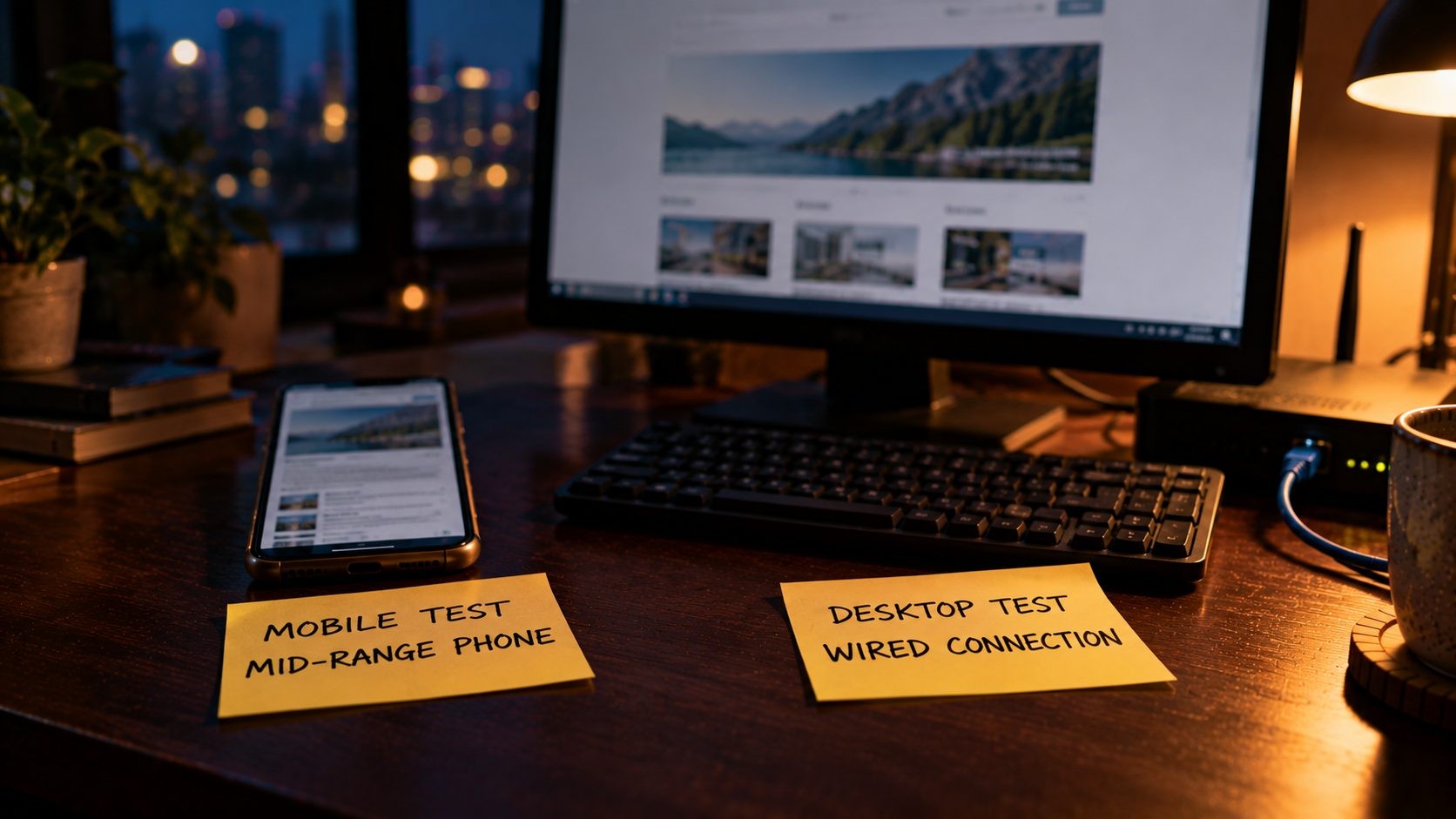
Mobile scores are almost always lower than desktop scores, and that's by design. The mobile test simulates a mid-tier phone on a mobile network, while the desktop test simulates a desktop computer on a wired connection. The tests run from Google data centers in North America, Europe or Asia, and you can see which one was used in the test environment details at the bottom of the lab section. A gap between mobile and desktop doesn't mean the test is wrong. It means your page asks a lot of a mid-range phone.
Part 3: Insights and Diagnostics (What's Slowing the Page Down)
Below the lab metrics, PageSpeed Insights lists specific problems on the page. This section changed significantly with Lighthouse 13, released in October 2025. The old performance audits, the "Opportunities" that many guides still describe, were replaced by a smaller set of Insights. The score calculation didn't change. Only the way problems are explained did.
If you're following an older tutorial, the warning names it mentions may not appear in your report at all. Here's how the most common ones map to what you'll see now, based on Google's guide to what changed in Lighthouse 13:
| What older guides call it | What your report shows now |
|---|---|
| Reduce initial server response time, Avoid multiple page redirects, Enable text compression | Document request latency |
| Serve images in next-gen formats, Properly size images, Efficiently encode images | Improve image delivery |
| Eliminate render-blocking resources | Render-blocking requests |
| Largest Contentful Paint element | LCP breakdown |
| Preload Largest Contentful Paint image | LCP request discovery |
| Avoid large layout shifts, Image elements do not have explicit width and height | Layout shift culprits |
| Ensure text remains visible during webfont load | Font display |
| Serve static assets with an efficient cache policy | Use efficient cache lifetimes |
| Reduce the impact of third-party code | 3rd parties |
| Avoid chaining critical requests | Network dependency tree |
A few old audits were removed without a replacement, including "Defer offscreen images", "Preload key requests" and "Lazy load third-party resources with facades". If a guide tells you to fix those, it's out of date.
The Insights Worth Understanding
- Document request latency covers everything that delays the server's first response: slow server processing, redirects and missing text compression. If this is flagged, start with your hosting, caching and redirects.
- LCP breakdown is one of the most useful parts of the report. It splits your Largest Contentful Paint into phases, from the server's first byte to the moment the main content is drawn, and shows which phase takes longest. That tells you exactly where to focus.
- LCP request discovery checks whether the browser can find your main image early, and whether it's being lazy-loaded when it shouldn't be.
- Render-blocking requests lists CSS and JavaScript files that stop the page from showing anything until they've loaded.
- Improve image delivery flags images that are too large, too heavily encoded or in older formats.
- Layout shift culprits points to the elements that caused content to jump, such as images without dimensions, late-loading fonts or ads.
- 3rd parties shows how much time and data external scripts like chat widgets, analytics and ads are using.
- Use efficient cache lifetimes flags files that browsers aren't told to keep, so returning visitors download them again.
- Font display checks whether text stays invisible while custom fonts load. The usual fix is to let the browser show a fallback font first.
- Network dependency tree shows chains of files that have to load one after another before the page can render. Long chains slow the first view of the page, and the usual fix is to reduce or reorder those requests.
- Optimize DOM size flags pages with a very large number of HTML elements, which is common with heavy page builders and makes every style change and interaction slower.
- Legacy JavaScript and duplicated JavaScript point to code that's larger than it needs to be, such as old browser support code or the same library loaded twice.
You'll also see a "Diagnostics" area for checks that sit outside the Insights, and a "Passed audits" list at the bottom. The passed list is worth a quick look, because it confirms what's already in good shape so you don't spend time on it.
Each Insight may show "Estimated savings". Treat these as a guide to impact, not a promise. Insights don't change the score directly. They explain the metrics that do. For practical fixes for each of these problems, see the 11 common causes of a slow website and how to fix each.
Part 4: Accessibility, Best Practices, SEO and Agentic Browsing
The report also scores four other categories. None of them affect the Performance score.
Accessibility runs automated checks for issues like missing image alt text, low color contrast and form fields without labels. A high score is a good sign, but automated tests can't catch everything, so it's a starting point rather than proof that a site is accessible.
Best Practices checks things like HTTPS, browser console errors and outdated or insecure code patterns.
SEO checks basic technical requirements, such as whether the page can be crawled and indexed, and whether it has a title and meta description. A score of 100 here doesn't mean the page will rank. It only means the basics are in place. For the work that actually affects rankings, see the on-page checks that actually affect rankings and a full technical SEO audit.
Agentic Browsing is the newest category, added to PageSpeed Insights in 2026. It checks whether AI agents, software that browses and acts on websites for people, could understand and use your page. It looks at whether buttons, links and form fields have clear names in the accessibility tree, whether the layout is stable, and whether the site has an llms.txt file. Google's documentation describes the category as experimental and based on proposed standards. Instead of a 0 to 100 score, it shows how many checks passed, and checks that don't apply to your site are left out. Treat it as early guidance for the future, not as a ranking factor today.
The practical takeaway is reassuring: most of what this category checks is simply good accessibility. Buttons with clear labels, form fields with proper names and a stable layout help people using screen readers just as much as they help AI agents. If your Accessibility score is healthy, you're likely in good shape here too.
Lab Data vs Field Data: Which Should You Trust?

Understanding lab data vs field data is the single most useful skill for reading this report. Both are valuable, but they answer different questions.
Field data answers "How fast is my site for real visitors?" It's the data Google's Search Console uses for Core Web Vitals, and it reflects real devices, real networks and real behavior. Its weakness is that it changes slowly and doesn't explain causes.
Lab data answers "Why is this page slow, and did my fix work?" It's repeatable and gives you instant feedback. Its weakness is that one simulated phone on one simulated network can't represent all your visitors.
When the two disagree, here's what it usually means:
| What you see | What it usually means | What to do |
|---|---|---|
| Low lab score, field data passes | Most real visitors use faster devices or connections than the lab test simulates | Keep improving, but there's no emergency |
| High lab score, field data fails | Real conditions are harder than the test: slower phones, interaction-heavy pages or content that changes after load | Focus on the failing field metric, especially INP |
| Both poor | The page has real performance problems | Fix the biggest Insights first |
| No field data | Not enough real-user traffic yet | Use lab data and monitor Search Console as traffic grows |
The rule of thumb: let field data tell you whether there's a problem, and let lab data help you find and fix it.
Search Console adds one more useful layer. Its Core Web Vitals report uses the same real-user data, but groups similar pages together across your whole site, such as all blog posts or all product pages. If PageSpeed Insights shows a problem on one page, Search Console tells you how many other pages share it. That's often the fastest way to find a template-level problem worth fixing once for the whole site.
What to Fix First: A Simple Order
Once you've read the report, it's tempting to work through every Insight from top to bottom. A better approach is to follow the data:
- Start with any failing Core Web Vital in the field data. That's a problem real visitors are experiencing.
- Use the matching lab metric and Insights to find the cause. A poor LCP points you to LCP breakdown, document request latency and image delivery. A poor CLS points to layout shift culprits. A poor INP points to heavy JavaScript and third-party scripts.
- Start with high-impact, low-effort fixes. Image compression and caching often move LCP the most for the least work.
- Retest in the lab straight away, then confirm the improvement in the field data over the following four weeks.
This quick reference connects each failing metric to the Insights most likely to explain it:
| Failing metric | Insights to open first | Common causes |
|---|---|---|
| LCP | LCP breakdown, Document request latency, Improve image delivery, LCP request discovery | Slow server, large main image, lazy-loaded main image |
| CLS | Layout shift culprits, Font display | Images without dimensions, ads, late-loading fonts |
| INP (field) or TBT (lab) | 3rd parties, Optimize DOM size, Legacy JavaScript | Heavy JavaScript, page builders, third-party scripts |
| FCP | Render-blocking requests, Document request latency | Blocking CSS and JavaScript, slow server response |
Many fixes can be handled with good hosting, a caching setup and some cleanup. When the problems are in the theme, the code or the server setup, it's usually worth getting expert help. SmartLink Services' web team measures Core Web Vitals using real-visitor field data, the same data this report starts with. If you're weighing that up, here's what developer help typically costs in the US.
5 Common Mistakes When Reading PageSpeed Insights
Most confusion about PageSpeed Insights comes from a handful of habits. Avoid these and the report becomes much easier to trust.
- Chasing a perfect lab score. A 100 is satisfying, but passing Core Web Vitals in the field matters far more for your visitors. A page that passes with a lab score of 80 is in better shape than a page that fails with a lab score of 95.
- Testing once and trusting the number. Lab scores vary between runs. Test several times before deciding anything.
- Testing only the homepage. Your most important pages may use different templates with very different performance.
- Following guides with outdated warning names. Since Lighthouse 13, many old audit names no longer appear. Use the table above to match old advice to the current report.
- Expecting fixes to show up in field data the next day. The field data covers 28 days. Confirm fixes in the lab first, then give the field data time to catch up.
Frequently Asked Questions
Conclusion: Read the Report From the Top Down
The easiest way to read PageSpeed Insights is in the same order Google lays it out. Start with the Core Web Vitals assessment to see how real visitors experience your page. Use the Performance score and lab metrics as a diagnostic test, and use the Insights to find the specific causes. Then fix the problems that affect real visitors first.
Today, test your three most important page templates on mobile, note which Core Web Vitals pass or fail, and open the LCP breakdown on any page that fails. That alone will tell you more than most speed reports ever do.
Want your PageSpeed report turned into a fix plan? SmartLink Services builds and optimizes websites with Core Web Vitals measured on real visitors, so improvements show up where they count.
No Tags

Comments (0)