
You open your own website and it hangs. A blank white screen, then the text appears, then everything jumps as the images finally load. If it feels slow to you, on a page you already know, it feels even slower to a first-time visitor on a phone with a weak signal.
So, why is my website slow? It's a question I hear from site owners all the time, and the good news is that the answer is rarely a mystery. A slow website almost never has a dozen problems at once. It usually has one or two specific bottlenecks, and you can find them in about ten minutes using free tools.
This guide starts with that quick diagnosis, because guessing at fixes wastes time. Then it covers 11 common causes across the whole stack, from the server your site runs on to the images on the page, with how to spot each one and how to fix it. I manage my own servers and fix slow client sites regularly, so these are the causes I actually run into, in roughly the order I check them.
Quick answer: why is my website slow?
Websites are usually slow because of slow or overcrowded hosting, missing caching, oversized images, too many scripts and plugins, or a server that's far from your visitors. The 11 most common causes are:
- Slow or overcrowded hosting
- No caching, or caching set up wrong
- Oversized, unoptimized images
- Render-blocking CSS and JavaScript
- Too many plugins, apps or a heavy theme
- Too many third-party scripts
- A slow or bloated database
- No CDN, or a server far from your visitors
- Outdated software
- Too many requests, redirects and web fonts
- Traffic spikes, bots and server resource limits
Start by testing your site in PageSpeed Insights to see which of these applies to you.
First, Find Out What's Actually Slowing Your Site
Before you install a speed plugin or call your host, spend ten minutes finding out where the time is actually going. A website loading slow because of its server needs a completely different fix from one that's slow because of its images.
Step 1. Test the Right Pages
Don't test only your homepage. Pick three pages that represent your site's main templates: the homepage, a blog post or service page, and a product or category page if you have one. Problems often live in one template, and fixing that template fixes every page that uses it.
Run each one through PageSpeed Insights, which is free and tests from Google's servers. Check both the mobile and desktop results, because mobile is usually where the problems show up first.
Step 2. Read the Numbers That Point to the Cause
PageSpeed Insights gives you a lot of numbers. Four of them tell you where to look:
- Time to First Byte (TTFB) measures how long the server takes to start sending the page. According to web.dev's guide on what a good Time to First Byte looks like, most sites should aim for 0.8 seconds or less, and anything over 1.8 seconds is poor. A high TTFB means the problem is on the server side: hosting, caching, the database or outdated software (causes 1, 2, 7 and 9).
- Largest Contentful Paint (LCP) measures how long the main content takes to appear. Google's threshold for a good experience is 2.5 seconds or less. If LCP is high but TTFB is fine, the problem is in the page itself, usually images, render-blocking files or fonts (causes 3, 4, 5 and 10).
- Interaction to Next Paint (INP) measures how quickly the page responds when someone taps or clicks. Good is 200 milliseconds or less. If it's sluggish, look at JavaScript and third-party scripts (causes 5 and 6).
- Cumulative Layout Shift (CLS) measures how much content jumps around while loading. Good is 0.1 or less. High CLS usually comes from images without set dimensions, ads and late-loading fonts.
Step 3. Check the Waterfall

A waterfall chart shows every file your page loads, in order, with a bar for how long each one takes. Long bars and files that hold everything else up are your culprits. You can see one in the Network panel of Chrome DevTools or by running a free test on WebPageTest.
One tip: run at least one test in an incognito window. Browser extensions like ad blockers and password managers can change what loads and distort your results.
With those numbers in hand, you'll know which of the causes below to focus on.
11 Common Causes of a Slow Website (and How to Fix Each One)
Each cause below follows the same pattern: how to spot it, why it slows your site, how to fix it, and how difficult the fix usually is.
1. Slow or Overcrowded Hosting
How to spot it: a high TTFB, even on simple pages with little content. The site often feels slower at busy times of day and faster late at night.
Why it slows your site: cheap shared hosting puts many websites on one server, and they all compete for the same processor, memory and disk. When a neighboring site gets busy, yours slows down. Some budget plans also cap resources tightly, so your site hits limits quickly when traffic rises.
How to fix it: move to hosting built for your type of site. For WordPress, that means hosting with server-level caching and current PHP versions. Nexi Bloom's WordPress hosting includes LiteSpeed caching, free SSL and daily backups on every plan, for example. As a site grows, managed hosting or a VPS gives you dedicated resources rather than shared ones. Before you move, check that the problem really is the host by confirming that TTFB stays high even after caching is set up (cause 2).
A simple test helps here. Create a plain test page with almost no content and check its TTFB. If even an empty page is slow to respond, the server itself is the bottleneck, and no amount of front-end optimization will fix it. If the empty page is fast but your real pages are slow, the problem is in your site's code, plugins or database instead.
Difficulty: Moderate. Migrating a site takes some care, but most good hosts offer free migration help.
2. No Caching, or Caching Set Up Wrong
How to spot it: every visit is as slow as the first one, and TTFB stays high on pages that rarely change. If you load a page twice in a row and the second load is no faster, caching probably isn't working.
Why it slows your site: without caching, your server rebuilds every page from scratch for every visitor, running code and database queries each time. Caching saves work so it doesn't have to be repeated. There are three main layers:
- Page caching saves finished pages, so the server can hand them out instantly.
- Browser caching tells visitors' browsers to keep files like images, CSS and JavaScript, so repeat visits load faster.
- Object caching stores the results of database queries in memory, which helps dynamic pages like carts and dashboards.
How to fix it: on WordPress, use a caching plugin or, better, server-level caching provided by your host. Set browser cache headers for static files, which most caching plugins handle for you. For busy or dynamic sites, add object caching with Redis or Memcached. After setting it up, test again to confirm pages are actually being served from cache.
Difficulty: Easy to Moderate. Basic page caching takes minutes. Object caching may need help from your host.
3. Oversized, Unoptimized Images

How to spot it: PageSpeed Insights shows warnings like "Properly size images" or "Serve images in next-gen formats", and the LCP element is often a large image near the top of the page.
Why it slows your site: a single photo straight from a phone or camera can be several megabytes, and it often gets displayed at a fraction of its actual size. Visitors download the full file anyway. On a page with ten images like that, the page weight balloons.
How to fix it:
- Resize images to the largest size they'll actually be displayed at.
- Compress them, and use modern formats like WebP or AVIF where possible.
- Set width and height attributes so the browser reserves space and the layout doesn't jump.
- Lazy-load images further down the page, but not the main image at the top. web.dev's guidance on when not to lazy-load images is clear on this: images visible when the page first loads, especially the LCP image, should load right away.
The easiest habit is to compress every image before you upload it. You can do that for free with SEO Site Checker's Image Compressor, which supports PNG, JPEG and WebP and shows you the before and after file sizes. For the rest of the image basics, like file names and alt text, see the image checks in the on-page SEO checklist.
Difficulty: Easy. This is usually the fastest win on the list.
4. Render-Blocking CSS and JavaScript
How to spot it: PageSpeed Insights flags "Eliminate render-blocking resources", and the page stays blank for a moment before anything appears, even when the server responds quickly.
Why it slows your site: when a browser finds certain CSS and JavaScript files in the page, it has to download and process them before it can show any content. If those files are large, or there are many of them, visitors stare at a blank screen. web.dev's guide on how to optimize Largest Contentful Paint breaks LCP into four parts, and this is the "render delay" part: the time between the main content being ready and the browser actually showing it.
How to fix it:
- Add
deferorasyncto JavaScript that isn't needed to show the first screen. - Inline the small amount of CSS needed for the top of the page, and load the rest afterward.
- Remove unused CSS, which themes and page builders often load on every page.
- Minify CSS and JavaScript files to reduce their size.
Many caching and optimization plugins can handle these automatically. Test carefully after each change, because aggressive settings can break menus, sliders and forms.
Difficulty: Moderate.
5. Too Many Plugins, Apps or a Heavy Theme
How to spot it: your site has dozens of plugins, uses a multipurpose theme or a heavy page builder, and loads lots of CSS and JavaScript files on every page. A useful test is to make a staging copy of the site and disable plugins one at a time. If speed jumps when one is turned off, you've found a suspect.
Why it slows your site: each plugin can add its own CSS, JavaScript and database queries, often on every page, even where its feature isn't used. A contact form plugin loading its files on your blog posts is a classic example. Multipurpose themes do the same at a larger scale, because they're built to do everything for everyone.
How to fix it:
- Remove plugins you no longer use, and delete them rather than just deactivating them.
- Replace heavy plugins with lighter ones that do the same job.
- Load plugin scripts only on the pages that need them.
- Consider a lightweight theme if your current one is the main source of bloat.
It's the reason I keep my own builds to a small set of trusted tools, which I've listed in the tools I use on WordPress builds. Shopify stores face the same issue with apps, which is one of the trade-offs covered in how Shopify apps and WordPress plugins affect speed.
Difficulty: Moderate.
6. Too Many Third-Party Scripts

How to spot it: the waterfall shows lots of requests going to other companies' domains: chat widgets, tracking pixels, heatmap tools, ad networks, social embeds and embedded videos. Poor INP scores are another common sign.
Why it slows your site: every third-party script is code you don't control, loading from someone else's servers. Each one competes with your own content for the visitor's bandwidth and processing power, and a single slow third-party server can hold up your whole page. These scripts often pile up over the years as marketing tools come and go.
How to fix it:
- List every third-party script and remove the ones nobody uses anymore.
- Load chat widgets and video embeds only when a visitor clicks on them, using a lightweight placeholder until then.
- Manage tracking through a tag manager, then audit it regularly so old tags don't linger.
- Delay non-essential scripts until after the main content has loaded.
A typical small business site I review might have analytics, an old ad pixel from a campaign that ended years ago, a heatmap tool nobody logs into, a chat widget and two social embeds. Removing the tools nobody uses and loading the chat widget on click is often enough to bring INP back into the good range, without losing anything the business actually relies on.
Difficulty: Easy to Moderate.
7. A Slow or Bloated Database
How to spot it: TTFB is high on dynamic pages like search results, filtered product lists, carts and account dashboards, while simple static pages are fine.
Why it slows your site: every dynamic page asks the database for information. Over time, databases fill up with old post revisions, spam comments, expired temporary data called transients, and leftover tables from plugins you uninstalled long ago. Slow queries from plugins or custom code, and tables without proper indexes, make things worse.
How to fix it:
- Clean out old revisions, spam comments and expired transients.
- On WordPress, install the free Query Monitor plugin on a staging site to find the slowest database queries and the plugins causing them.
- Add database indexes for slow queries, and remove tables left behind by old plugins.
- Turn on object caching (cause 2) so repeated queries come from memory.
For custom applications, query optimization and indexing usually need a developer's attention.
Difficulty: Moderate to Needs a developer.
8. No CDN, or a Server Far From Your Visitors
How to spot it: the site loads quickly when you test from near the server's location, but slowly for visitors in other regions. WebPageTest lets you test from different locations to compare.
Why it slows your site: data travels physically between the server and the visitor, and every request has to make that trip. If your server is in Europe and your customers are in Texas, every file takes the long way round.
How to fix it: use a content delivery network (CDN), which stores copies of your files on servers around the world and serves each visitor from the nearest one. Many CDNs, including Cloudflare's free plan, also add caching and security. And host your site close to your main audience. For a business serving US customers, that means a US data center.
One thing to watch: a CDN only helps if it's actually caching your content. By default, many CDNs cache images, CSS and JavaScript but not the HTML pages themselves, so a slow server can still slow down the first byte of every page. Check your CDN's settings and cache rules once it's running, and test from a few locations to confirm the difference.
Difficulty: Easy to Moderate. Most CDNs take less than an hour to set up.
9. Outdated Software
How to spot it: your hosting panel shows an old PHP version, and your dashboard has a list of pending updates for the CMS, theme and plugins.
Why it slows your site: newer versions of PHP, CMS platforms and frameworks usually include performance improvements and security fixes. Running years-old software means missing out on both, and older versions eventually stop getting security updates altogether.
How to fix it: update on a staging site first, test the important pages and features, then update the live site. Update PHP through your hosting panel once you've confirmed your theme and plugins support the newer version. For Laravel applications, framework upgrades need more care, and this guide shows a safe upgrade process for Laravel apps. If updates keep breaking your site, it may be a sign of a bigger problem, and these are the signs of when outdated tech means it's time to rebuild.
Difficulty: Moderate.
10. Too Many Requests, Redirects and Web Fonts
How to spot it: the waterfall shows a long list of small files, several redirect hops before the page starts loading, or many font files for different weights and styles.
Why it slows your site: every file, redirect and font is a separate request, and each one adds a little delay. Redirect chains are especially costly, because the browser can't start loading the page until it reaches the final URL.
How to fix it:
- Remove files you don't need, and combine small ones where it makes sense.
- Fix redirect chains so links point straight to the final URL. This is part of redirect cleanup in a technical SEO audit.
- Limit fonts to one or two families and only the weights you actually use.
- Host fonts on your own server, and use
font-display: swapso text appears immediately while the font loads.
Difficulty: Easy to Moderate.
11. Traffic Spikes, Bots and Server Resource Limits

How to spot it: the site slows down or shows errors at certain times rather than all the time. Your hosting dashboard or server logs show the processor or memory maxed out, or a flood of requests from the same sources.
Why it slows your site: sometimes the cause is good news, like a sale or a post that takes off on social media. But often it's bots. Scrapers, vulnerability scanners and some aggressive crawlers, including some AI crawlers, can request hundreds of pages in a short time. On a smaller server, that's enough to slow the site down for real visitors. In my own server work, unexpected bot traffic is one of the most common reasons a site that was fine yesterday is slow today.
How to fix it:
- Make sure page caching and a CDN are in place, so most requests never reach your server.
- Use bot protection or rate limiting at the CDN or firewall level to slow down abusive traffic.
- Block clearly abusive bots, but be careful not to block real search engine crawlers like Googlebot and Bingbot.
- If real traffic is growing, upgrade to a plan with more resources.
Difficulty: Moderate to Needs a developer.
Which Fixes to Try First
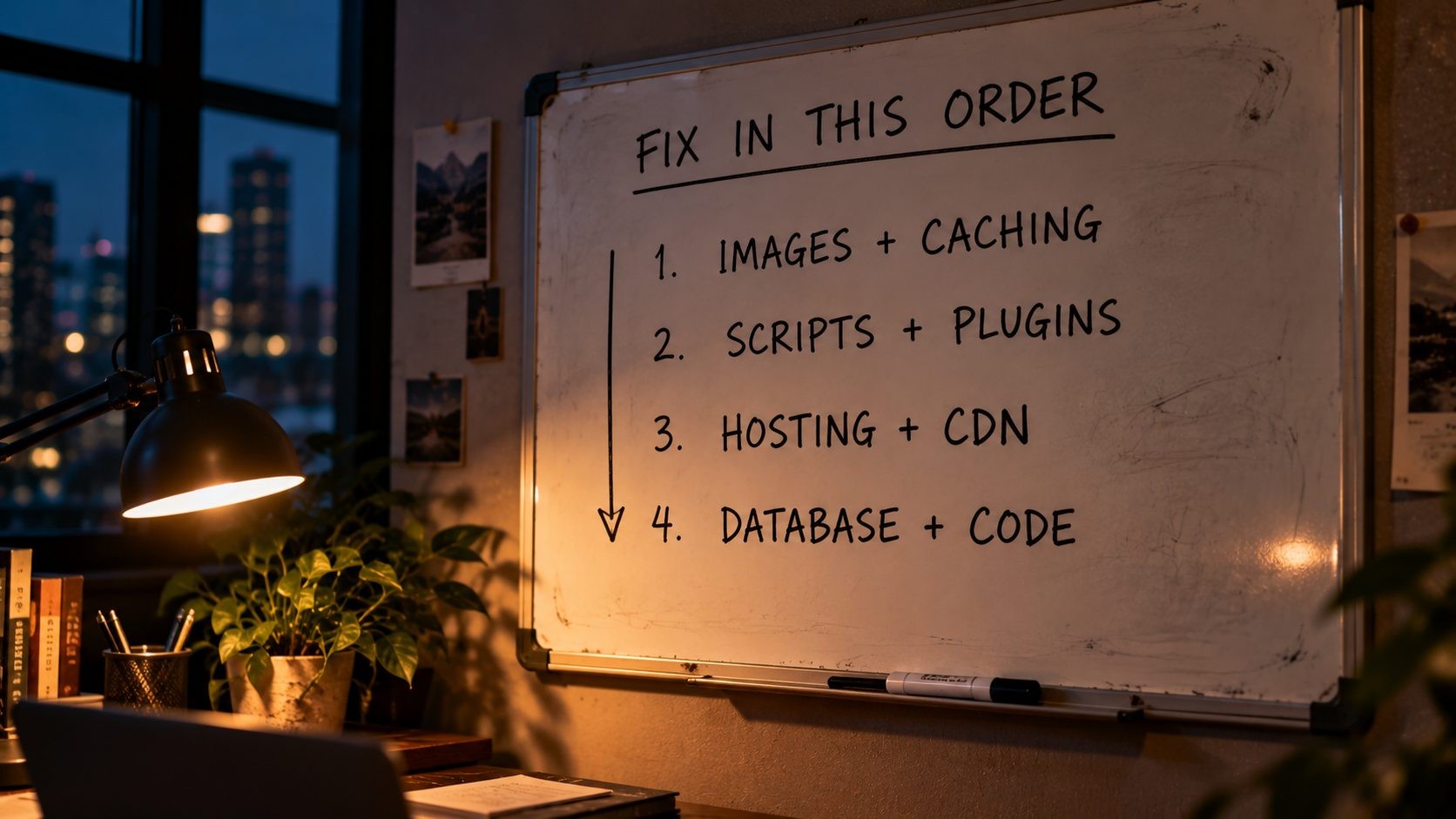
Not every fix is worth the same effort. If you're not sure where to start, this order works for most sites:
| Cause | Typical impact | Difficulty | Where to start |
|---|---|---|---|
| Oversized images | High | Easy | Compress and resize your largest images |
| No caching | High | Easy to Moderate | Turn on page caching |
| Third-party scripts | Medium to High | Easy to Moderate | Remove unused tags and widgets |
| Plugins and heavy theme | Medium to High | Moderate | Audit and remove plugins |
| Slow hosting | High | Moderate | Upgrade if TTFB stays high after caching |
| No CDN | Medium | Easy to Moderate | Set up a CDN |
| Database and code | Medium to High | Needs a developer | Find slow queries |
In practice, that means four rounds of work:
- Quick wins: images and caching.
- Cleanup: third-party scripts and plugins.
- Infrastructure: hosting and CDN.
- Deeper work: the database and code, usually with a developer.
Test again after each change, so you know which fix made the difference. If you'd rather have a professional handle it, it helps to know what a care plan or developer help typically costs before you ask for quotes.
When the Problem Isn't Your Website
Sometimes a website is fast for everyone except one person. If someone tells you your site is slow but your tests look fine, the problem may be on their end. Common causes include browser extensions, an older device, a congested Wi-Fi network, a VPN or a slow DNS resolver.
To tell the difference, test the site on another device and another network, try an incognito window, and run PageSpeed Insights, which tests from Google's servers rather than your own connection. If PageSpeed Insights and other devices show a fast site, the slowness is most likely local to that visitor. If everything is slow everywhere, it's your website, and the causes above apply.
Frequently Asked Questions
Conclusion: Diagnose First, Then Fix One Thing at a Time
A slow website usually comes down to one or two specific bottlenecks, not a long list of mysterious problems. Measure first, fix the biggest problem, and measure again. That simple loop solves more speed problems than any plugin.
Start today by running your homepage and one other key page through PageSpeed Insights. If images are flagged, which they very often are, that's your first and easiest fix.
Shrink your images before you upload them Reduce image file sizes in seconds with SEO Site Checker's free Image Compressor. It supports PNG, JPEG and WebP and shows the before and after size of every image.
No Tags


Comments (0)