
The frustrating thing about technical SEO issues is that you usually cannot see them. The page loads, the design looks right, the content is good, and yet the page never shows up in search. Behind the scenes, a leftover noindex tag is telling Google to ignore it, or a canonical tag is pointing somewhere else, or a redirect is bouncing crawlers through four hops before they reach anything useful.
These problems rarely announce themselves. They show up as a slow decline in traffic, a page that "should" rank but does not, or a confusing status message in Google Search Console. And because one template change can affect hundreds of pages at once, a single technical mistake can undo months of content and link building work.
This guide covers the 15 technical SEO issues that cause most of those problems. For each one, you will get the same four things: the symptom you will notice, the cause behind it, the fix, and the free tool that detects it. There is also a simple priority order, so you know which problems to tackle first, and a short prevention routine so they do not come back.
Quick answer: the 5 technical SEO issues to fix first
- Accidental noindex tags that remove pages from Google entirely.
- robots.txt rules blocking important pages, files or crawlers.
- Server errors (5xx) that make Google slow down and eventually drop pages.
- Wrong canonicals and duplicate URLs that split or redirect your ranking signals.
- Broken redirects and 404s on pages that have links or traffic.
How to Find Technical SEO Issues
You do not need expensive software to find most technical problems. A handful of free tools covers almost everything in this guide:
- Google Search Console. The Page indexing report shows which pages are not indexed and why. URL Inspection shows how Google sees a single page, including the canonical it chose and the rendered HTML. The Core Web Vitals report groups slow pages, Crawl Stats shows server response times and errors, and the robots.txt report shows how Google reads your robots.txt file.
- A site crawler. Screaming Frog SEO Spider crawls up to 500 URLs free and finds broken links, redirect chains, duplicate titles, canonical problems and click depth in one pass.
- PageSpeed Insights and Lighthouse. These show real-user speed data and diagnose what is slowing pages down.
- A quick scan. The free Website SEO Score Checker checks a page's basics in seconds without an account, which is useful for spot checks after a change.
- Bing Webmaster Tools. Its site scan is a helpful second opinion, and Bing sometimes describes issues more plainly.
Use them together rather than relying on one. Search Console tells you what Google actually experienced on your site, while a crawler shows you what your site looks like from the outside right now. When both point at the same pages, you have found a real problem worth fixing.
If you want a full process that walks through every check in order, use this technical SEO audit checklist. For more detail on each tool and its limits, see this list of the best free SEO tools.
Which Technical SEO Issues to Fix First
Not every warning deserves the same attention. A crawler might report 400 issues, but only a few of them actually stop pages from ranking. Work through problems in this order:
| Priority | Issues | Why |
|---|---|---|
| P1: Blocks indexing | 1 (noindex), 2 (robots.txt), 3 (not indexed), 12 (server errors) | Pages cannot rank at all until these are fixed |
| P2: Splits or wastes signals | 6 (duplicate URLs), 7 (canonicals), 8 (redirects), 9 (broken links), 10 (orphan pages) | Pages rank weaker than they should, or the wrong URL ranks |
| P3: Performance and experience | 4 (sitemaps), 5 (JavaScript), 11 (Core Web Vitals), 13 (mobile), 14 (HTTPS), 15 (structured data) | Affects how well pages perform and how fully Google understands them |
Two rules make this faster. First, fix template-level issues before individual pages, because one fix in a theme or plugin setting can solve hundreds of URLs at once. Second, start with the pages that matter most to your business, such as your top services, products and landing pages, rather than working through the report from top to bottom.
JavaScript rendering sits in P3 here because it only affects some sites. If your site relies on JavaScript to show its main content, treat it as P1.
Crawling and Indexing Issues
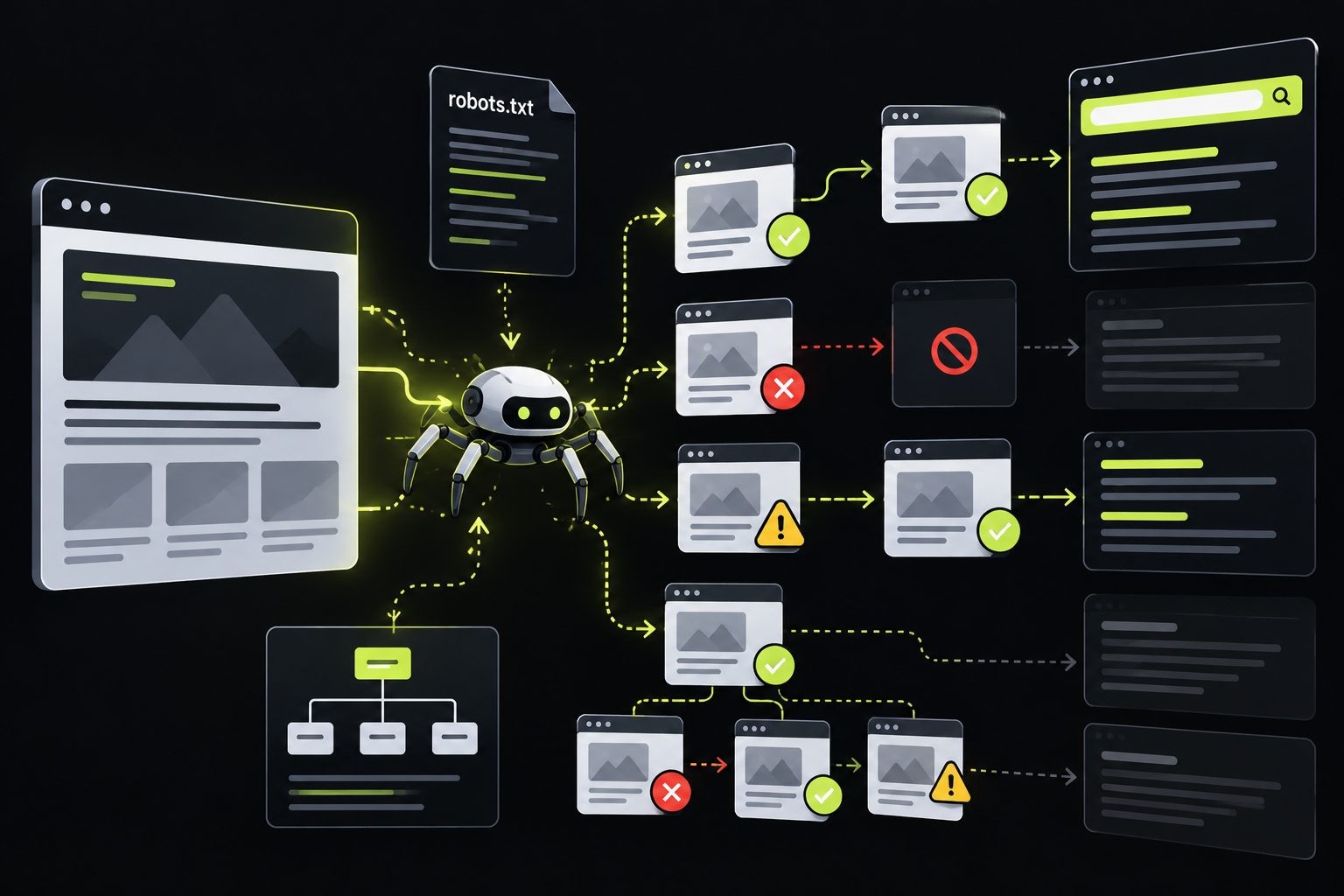
These are the most serious problems on the list, because they decide whether Google can find and store your pages at all. If a page is not crawled, it cannot be indexed, and if it is not indexed, nothing else in this guide matters for it. Start every investigation here, especially after a sudden drop in traffic.
1. Accidental noindex tags
A noindex directive tells search engines not to include a page in their index. Used on purpose, it is useful. Left in place by mistake, it quietly removes pages from Google.
Symptom: Pages disappear from search, or Search Console's Page indexing report lists them under "Excluded by 'noindex' tag". Sometimes a whole site drops out after a launch.
Cause: The usual culprits are staging settings carried over to the live site, WordPress's "Discourage search engines from indexing this site" checkbox (under Settings, then Reading) left ticked after launch, SEO plugin settings that noindex whole content types, and an X-Robots-Tag HTTP header set at server level, which you will not see in the page source.
Fix: Remove the noindex from the original HTML or the server header, then request indexing in URL Inspection for your key pages. Be careful with JavaScript: Google's JavaScript SEO guidance warns that if it sees a noindex in the original page code, it may skip rendering, so a script that removes the tag later may never run. If you want a page indexed, the noindex must not be in the initial HTML at all. After a launch or migration, make checking for noindex the very first test you run. It takes a minute, and it is the single most expensive mistake on this list when it slips through.
A related problem is a staging or development site getting indexed. Protect staging sites with a password (HTTP authentication) rather than relying on noindex alone, because a noindexed staging site can still be crawled and its settings can easily be copied to the live site by mistake.
Detect with: URL Inspection in Search Console, the Page indexing report, and the Directives tab in Screaming Frog, which also shows X-Robots-Tag headers.
2. robots.txt blocking important pages, files or crawlers
robots.txt tells crawlers which parts of your site they may request. One wrong line can block an entire site or the files Google needs to render it.
Symptom: Pages show "Blocked by robots.txt" in Search Console. Or pages are indexed but appear unstyled or broken in URL Inspection's screenshot, because CSS and JavaScript files are blocked.
Cause: A leftover Disallow: / from development, rules that block folders containing theme files, scripts or images (such as /wp-content/ or /assets/), and blanket rules added to block "all AI bots" that end up blocking crawlers you actually want, including the ones that decide whether you appear in AI answers.
Fix: Allow crawlers to access the CSS, JavaScript and image files your pages need. Remove any rule that blocks pages you want in search. Remember that robots.txt controls crawling, not indexing. Google's documentation notes that blocking a page "doesn't fully prevent indexing", so a blocked URL can still appear in results if other pages link to it. To keep a page out of search, allow crawling and use noindex instead. When editing robots.txt, keep it short and test each change before publishing, because one misplaced slash can turn a narrow rule into a sitewide block. A good habit is to save a copy of the working file before every edit so you can restore it instantly. Review your AI crawler rules separately. This guide to getting cited in AI search explains which crawlers control which AI products.
Detect with: The robots.txt report in Search Console (which replaced the old robots.txt Tester), URL Inspection's live test, and your crawler's list of blocked URLs.
3. "Crawled" or "Discovered: currently not indexed"
These two statuses confuse more site owners than any others in Search Console, because nothing is technically broken.
Symptom: Pages you want in search sit in the Page indexing report under "Crawled - currently not indexed" or "Discovered - currently not indexed" for weeks or months.
Cause: They mean different things. According to Google's Page indexing report documentation, "Crawled - currently not indexed" means Google visited the page and chose not to index it, often because it looks thin, duplicated or less useful than similar pages. "Discovered - currently not indexed" means Google knows the URL exists but has not crawled it yet, typically because crawling it "was expected to overload the site", which points to server capacity or crawl priority.
Fix: For "Crawled", improve the page: add unique content, merge it with similar pages, or remove it if it serves no purpose. Google notes there is "no need to resubmit this URL for crawling", so repeated indexing requests will not help. For "Discovered", strengthen internal links to the page from important pages, make sure it is in your sitemap, and improve server response times so Google can crawl more without strain. If the status covers thousands of low-value URLs such as filters or tag pages, the real fix is to stop creating those URLs.
Keep some perspective too. Almost every site has some pages in these statuses, and Google does not aim to index every URL it finds. The question is whether pages you actually care about are stuck there. If your main service pages or best articles are not indexed, that deserves attention. If the list is mostly old tag archives and paginated pages, it is often working as intended.
Detect with: The Page indexing report in Search Console. Click each status to see example URLs and look for patterns by section or template.
4. Missing, outdated or bloated XML sitemaps
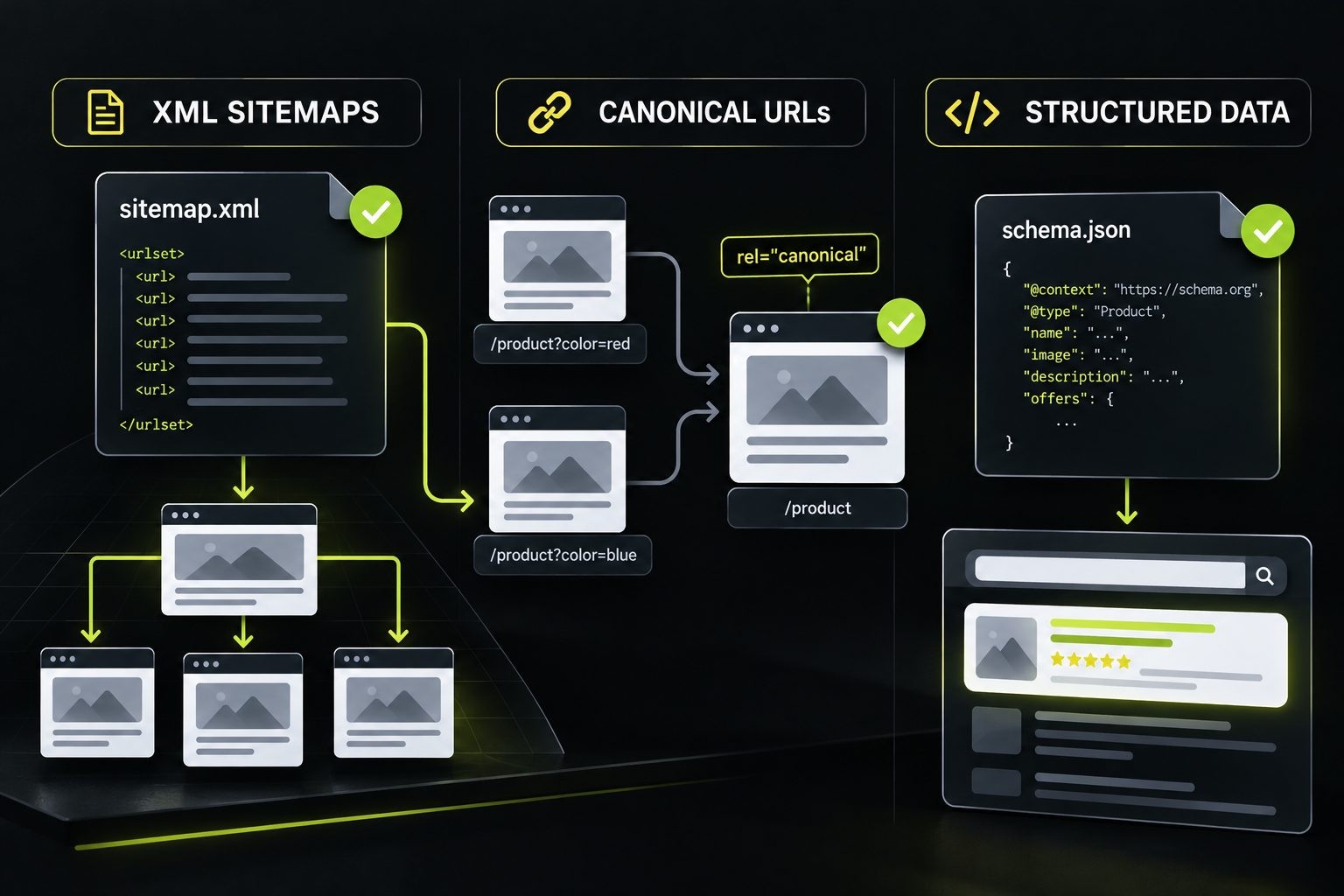
A sitemap helps search engines discover the pages you want indexed. A messy one sends mixed signals.
Symptom: Search Console shows "Couldn't fetch" for your sitemap, or the sitemap lists URLs that redirect, return 404 errors or carry noindex tags. Sometimes there is no sitemap at all.
Cause: Plugin defaults that include tag archives, author pages and media attachment pages, sitemaps that were never updated after a redesign, and sitemaps generated once by hand and then forgotten.
Fix: List only canonical, indexable URLs that return a 200 status. Exclude redirects, noindexed pages, filters and thin archives. Make sure the sitemap updates automatically when you publish or remove content, reference it in robots.txt, and submit it in Search Console and Bing Webmaster Tools. For very large sites, split sitemaps by section so you can see indexing rates for each one. Accurate last-modified dates also help, but only if they change when the content really changes. A sitemap that marks every page as updated every day teaches search engines to ignore the dates.
Detect with: The Sitemaps report in Search Console, and a crawler running in list mode against your sitemap URLs to check their status codes.
5. JavaScript content Google cannot render
Modern sites often build pages with JavaScript. Google can render JavaScript, but not always, and not always quickly.
Symptom: URL Inspection's rendered HTML or screenshot is missing your main content, product details or links. Pages built with JavaScript frameworks get indexed with little or no text.
Cause: Google processes JavaScript sites in three phases: crawling, rendering and indexing. Problems happen when key content only appears after user interaction, when links are built without real <a href=""> elements, when routing uses URL fragments (#/products), or when a single-page app returns a 200 status for pages that do not exist. Google's JavaScript SEO basics also notes that Google may skip rendering for pages that do not return a 200 status.
Fix: Use server-side rendering or pre-rendering for important content, so it is in the HTML from the start. Build navigation with standard <a href=""> links and use the History API instead of fragments for routing. Return proper status codes, such as a real 404 for missing pages. Test key templates in URL Inspection after every major front-end change.
A quick way to gauge your risk is to view the page source (not the inspected element) of a key page in your browser. If the main text, headings and links are there in the raw HTML, you are in good shape. If the source is mostly empty containers and script tags, your content depends entirely on rendering, and any rendering failure means Google sees an empty page.
Detect with: URL Inspection (view the tested page's rendered HTML and screenshot), and a crawler with JavaScript rendering enabled, comparing the raw HTML with the rendered version.
Duplicate Content and Canonical Issues
Duplicate URLs do not usually cause penalties, but they split signals and let Google pick which version to show, which is not always the one you want. Links, internal signals and engagement get spread across several versions instead of building up on one, so the page ranks weaker than it should.
6. Duplicate URLs and multiple site versions
Symptom: The same page appears at several URLs, or Search Console lists pages as "Duplicate without user-selected canonical".
Cause: Your site loads at more than one address: http and https, www and non-www, with and without a trailing slash, in uppercase and lowercase, or with tracking and sorting parameters attached. Printer-friendly pages, session IDs and filter combinations add more copies.
Fix: Choose one version of every URL (https, one of www or non-www, one trailing slash style, lowercase) and 301 redirect every other variation to it. Add a self-referencing canonical tag to each page. Make sure your internal links, sitemap and canonical tags all use the same version, because mixed internal links are one of the most common reasons Google picks a different URL than you intended. For parameters you do not need in search, such as sort orders or session IDs, keep them out of internal links where possible.
Content duplication across pages is a related problem. If you have several pages that cover almost the same topic, such as three blog posts about the same question written in different years, Google has to choose between them and none ranks as well as one strong page would. Merge them into the best version and redirect the others to it.
Detect with: A crawler (look for duplicate titles and content across different URLs), and the Page indexing report's duplicate statuses. Typing each variation of your homepage into a browser is a fast manual check.
7. Wrong or conflicting canonical tags
A canonical tag tells Google which URL you prefer when similar pages exist. Google treats it as a strong hint, not a command.
Symptom: Search Console shows "Duplicate, Google chose different canonical than user", which means Google indexed a different URL than the one you declared. Or the wrong version of a page ranks.
Cause: Canonical tags that point to URLs that redirect or return 404 errors, templates that set every page's canonical to the homepage, paginated pages all canonicalized to page one, product variants pointing to the wrong parent, and canonicals that conflict with what the sitemap, internal links or hreflang tags say.
Fix: Give each page one clear canonical that points to a live, indexable 200 URL, and make it agree with your other signals. If page two of a category has different products from page one, it should canonicalize to itself, not to page one. When Google keeps choosing a different canonical, look at why: often the pages are near duplicates, or most internal links point to the other version. Either make the pages meaningfully different or consolidate them with a 301 redirect.
Also check where canonical tags come from. On many WordPress sites, the SEO plugin sets them, but a theme or another plugin can add a second canonical tag to the same page. Two conflicting canonicals on one page usually lead Google to ignore both, so make sure each page outputs exactly one.
Detect with: URL Inspection, which shows both the "User-declared canonical" and the "Google-selected canonical" side by side, and your crawler's canonical report.
Redirect, Link and Structure Issues
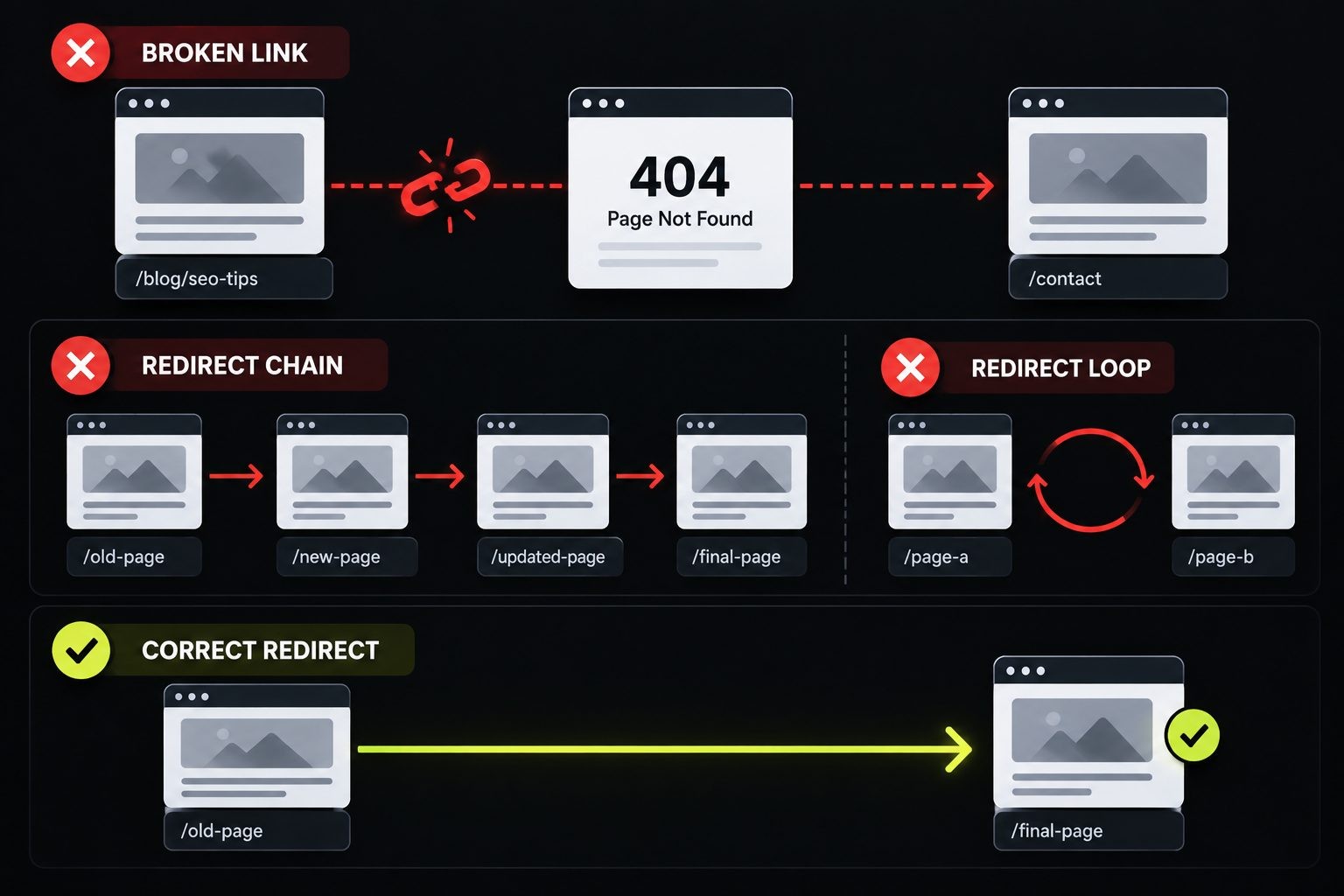
These issues waste crawl attention and leak the value of your internal and external links. They tend to build up slowly, one deleted page or one migration at a time, which is why sites that have been online for years usually have more of them than they realize.
8. Redirect chains, loops and temporary redirects
Symptom: URLs that hop through several redirects before reaching a page, browser errors such as ERR_TOO_MANY_REDIRECTS, or pages that never seem to pass their old rankings to a new URL.
Cause: Redirect chains build up over years of redesigns and migrations, where each change adds another hop. Loops often come from two systems fighting, such as a WordPress plugin, the server configuration and a CDN all trying to force HTTPS or www in different ways. A common example is Cloudflare's Flexible SSL mode combined with WordPress forcing HTTPS, which is covered in this guide to Cloudflare settings for WordPress. Temporary redirects (302 or 307) used for permanent moves are another frequent cause.
Fix: Point every old URL directly at its final destination with a single 301 redirect, and update internal links so they skip redirects entirely. Use permanent redirects for permanent moves. Google's redirect documentation explains that permanent redirects are used as a signal for which URL to show, while temporary ones are not. Google notes on how it handles HTTP status codes that "Googlebot generally follows 10 redirect hops," but visitors, page speed and link value all suffer long before that limit.
Keep redirect rules in as few places as possible. If redirects live in a plugin, the server configuration and a CDN at the same time, nobody can see the full picture, and new rules start fighting old ones. Pick one main place for redirects, document it, and export a list of all rules after every migration so you can audit them later.
Detect with: Your crawler's redirect and redirect chain reports, and Search Console's "Page with redirect" status for context.
9. Broken links, 404 errors and soft 404s
Symptom: Your crawler finds internal links pointing to 404 pages, Search Console lists "Not found (404)" URLs, or pages show up as "Soft 404".
Cause: Deleted pages, changed URL slugs without redirects, typos in links, and old campaign URLs. A soft 404 is different: the page says "not found" or has almost no content, but returns a 200 success status, so Google has to guess that it is an error.
Fix: For deleted pages that have backlinks or traffic, add a 301 redirect to the closest relevant page, not the homepage. Update internal links to point to live URLs. For pages that are genuinely gone with no replacement, let them return a real 404 or 410 status. That is perfectly normal, and Google's documentation notes that 4xx errors (other than 429) "have no effect on crawl rate". For soft 404s, either return a proper 404 status or add real content to the page.
Make your 404 page helpful while you are at it. A good 404 page still returns a 404 status, but it gives visitors a search box, links to your main sections and a way to contact you. That keeps people on the site when a link breaks, which it inevitably will on any site that has been around for a few years.
Detect with: Your crawler's response codes report (filter for 4xx with inlinks), and the Page indexing report in Search Console.
10. Orphan pages and deep click depth
Symptom: Important pages have no internal links pointing to them, or sit five or more clicks from the homepage. They tend to be crawled rarely and rank poorly.
Cause: Pages published without being added to menus, hubs or related articles, landing pages built for campaigns and then forgotten, and content only reachable through deep pagination or internal search.
Fix: Link every important page from at least one relevant hub or category page, and from related articles. Keep key pages within about three clicks of the homepage. If a page has no natural place in your structure, ask whether it should exist at all. This guide to site architecture for SEO covers how to plan categories, hubs and internal links so pages do not get buried.
Use descriptive anchor text when you add these links. A link that says "see our pricing for commercial roof repair" tells both readers and search engines far more than "click here". Google uses anchor text to understand the linked page, so good internal links help orphaned pages get found and understood at the same time.
Detect with: Your crawler's crawl depth report, plus a comparison between the URLs your crawler found and the URLs in your sitemap or CMS. Pages in the sitemap that the crawl never reached are orphans.
Speed and Server Issues
Speed affects both rankings and conversions, and server problems can stop crawling entirely. Speed is rarely the reason a page is missing from search, but a slow, unstable server can be, and slow pages lose visitors even when they rank.
11. Poor Core Web Vitals
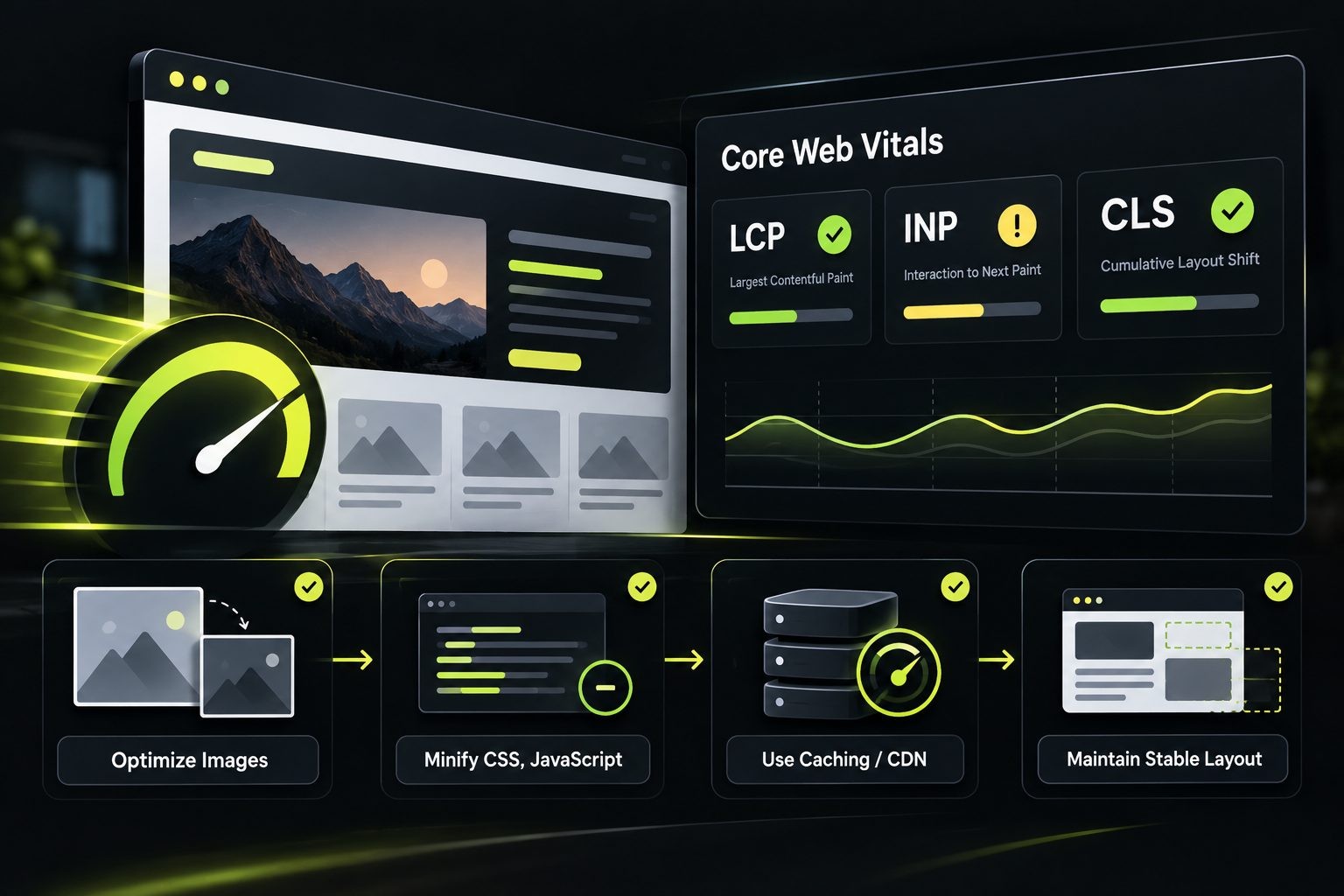
Core Web Vitals measure loading speed, responsiveness and visual stability using real Chrome user data.
Symptom: Search Console's Core Web Vitals report shows URL groups as "Poor" or "Need improvement", and PageSpeed Insights fails the assessment for key pages.
Cause: Each metric has typical causes. Slow Largest Contentful Paint (good is 2.5 seconds or less) usually comes from large, unoptimized hero images, render-blocking CSS and JavaScript, or a slow server. Poor Interaction to Next Paint (good is 200 milliseconds or less) comes from heavy JavaScript, often from page builders, sliders, chat widgets and tracking scripts. High Cumulative Layout Shift (good is 0.1 or less) comes from images, ads and embeds without set dimensions, and from late-loading fonts or banners that push content down.
Fix: Work through the issues Lighthouse flags. In Lighthouse 13, the old audit names were replaced with insights, so look for items such as "Improve image delivery", "Render-blocking requests" and "Document request latency". Compress and resize images, serve modern formats, preload the main hero image, defer non-critical scripts, remove plugins you do not need, and set width and height on images and embeds. This guide on how to read a PageSpeed Insights report explains each section, and this list of reasons why your website is slow covers the most common causes in more depth.
Fix by template, not by page. If your blog post template loads a heavy slider script or an oversized featured image, every post fails for the same reason, and one change to the template fixes all of them. Search Console's Core Web Vitals report groups similar URLs together for exactly this reason.
Detect with: The Core Web Vitals report in Search Console for sitewide patterns, and PageSpeed Insights for individual pages. Remember that field data uses a 28-day window, so improvements take weeks to show.
12. Slow server response and 5xx errors
Symptom: High Time to First Byte (Google's guidance treats 0.8 seconds or less as good), pages listed as "Server error (5xx)" in Search Console, or rising average response times in the Crawl Stats report.
Cause: Underpowered or overcrowded hosting, no page caching, slow database queries, heavy plugins, traffic spikes, aggressive bots consuming server resources, and firewall or CDN settings that time out or block crawlers.
Fix: Add page caching, through your host, a caching plugin or a CDN. Upgrade hosting if the server is consistently slow under normal load. Block abusive bots while allowing search engine crawlers. Fix the errors quickly, because Google's documentation explains that 5xx and 429 errors make crawlers "temporarily slow down", and URLs that persistently return server errors are eventually dropped from the index.
Watch for errors that only crawlers see. Security plugins, rate limits and CDN firewall rules sometimes block or time out Googlebot while normal visitors load the site fine. If Search Console reports server errors you cannot reproduce in your browser, check your firewall logs and bot protection settings before blaming the host.
Detect with: The Crawl Stats report in Search Console (Settings, then Crawl stats), uptime monitoring, and your server's error logs.
Mobile, Security and Markup Issues
These issues affect how Google sees your pages on mobile, whether visitors trust your site, and how fully search engines understand your content. They are often quick to fix once found, but easy to reintroduce with a theme update or a new plugin, so they deserve a place in your regular checks.
13. Mobile issues under mobile-first indexing
Symptom: Content, links or structured data that appear on desktop are missing on mobile. Text is too small, buttons are too close together, or the page needs zooming. Pop-ups cover the content on phones.
Cause: Google completed its move to mobile-first indexing in July 2024, which means it primarily uses the mobile version of your pages for indexing and ranking. Problems come from mobile templates that hide content to save space, separate m-dot mobile sites with less content, missing viewport meta tags, and intrusive interstitials.
Fix: Serve the same main content, links and structured data on mobile as on desktop. Use responsive design with a proper viewport meta tag. Collapsible sections are fine, as long as the content is in the page. Keep pop-ups small and easy to dismiss on phones.
Pay special attention to internal links and structured data on mobile. Some themes simplify mobile menus so heavily that whole sections of the site have no links from mobile pages, and some mobile templates leave out schema markup. Because Google indexes the mobile version, anything missing there is effectively missing from the page.
Detect with: A Lighthouse or PageSpeed Insights mobile test, URL Inspection (which crawls as a smartphone), and testing on a real phone. Google's standalone Mobile-Friendly Test was retired in December 2023, so older guides that recommend it are out of date.
14. HTTPS problems: mixed content and certificate errors
Symptom: Browsers show "Not secure" warnings or a broken padlock, visitors see certificate errors, or http versions of pages still appear in search results.
Cause: An expired SSL certificate, images, scripts or stylesheets still loaded over http (mixed content), no sitewide redirect from http to https, and hardcoded http URLs in the database after moving a site to HTTPS.
Fix: Use a certificate that renews automatically, which most hosts provide free. Redirect every http URL to its https version with a 301. Update hardcoded http links in your database with a search and replace tool so you are not relying on browser upgrades. Add HSTS only once everything works on HTTPS, because browsers remember it and it is hard to undo.
Set a reminder or monitoring alert for certificate expiry even if renewal is automatic. Automatic renewal can fail quietly after a DNS change, a hosting move or a CDN configuration update, and an expired certificate shows visitors a full-screen warning that most of them will not click past.
Detect with: The browser console (mixed content warnings appear there), your crawler's security or protocol report, and a quick scan with the Website SEO Score Checker.
15. Structured data and hreflang errors
Symptom: Errors or warnings in Search Console's enhancement reports, rich results that disappear, or the wrong language or country version of a page ranking in a market.
Cause: For structured data: markup that does not match the visible content, missing required properties, outdated schema types, and plugins adding duplicate or conflicting markup. For hreflang: tags without return links from the other language versions, wrong language or region codes, and hreflang pointing to redirected or non-canonical URLs.
Fix: Validate structured data and keep it consistent with what users can see on the page. Remove duplicate markup from overlapping plugins. Note that FAQ rich results were removed from Google Search in 2026, so FAQ errors no longer affect any search feature. For international sites, make sure every hreflang set is reciprocal, uses correct codes, points to canonical URLs, and includes an x-default for users who do not match any listed language.
Treat structured data as a description of the page, not a ranking trick. Markup that claims ratings, prices or authors the page does not show can be ignored or flagged, and markup that contradicts your visible content creates confusion about your facts. Accurate, modest markup is better than ambitious markup that does not match the page.
Detect with: Google's Rich Results Test and the Schema.org validator for markup, Search Console's enhancement reports, and your crawler's hreflang report.
How to Prevent Technical SEO Issues
Most technical problems are introduced by change: a redesign, a plugin update, a migration or a new developer. A simple routine catches them before they cost traffic.
Before and after every launch or major update:
- Check that noindex is off and robots.txt allows the live site.
- Test redirects from old URLs to new ones, and confirm there are no chains.
- Confirm canonicals and the sitemap use the final URLs.
- Inspect your homepage and one page of each template in URL Inspection.
Monthly:
- Review the Page indexing report and Core Web Vitals report for new problems.
- Check Crawl Stats for rising response times or server errors.
- Run quick checks on your most important pages.
Quarterly:
- Run a full crawl and fix broken links, redirect chains and orphan pages.
- Review the sitemap for URLs that should not be there.
Keep a short change log with dates. When traffic drops, the first question is always "what changed?", and a log answers it in seconds instead of days. It also helps you tell the difference between a technical problem you caused and an outside change, such as a Google update, which needs a very different response.
Finally, set up email alerts in Search Console and make sure they go to someone who reads them. Google sends messages about new indexing problems, security issues and manual actions, and many sites only discover them months later because the alerts go to an old address.
FAQs
Conclusion
Technical SEO issues are easy to miss because the site still looks fine. But they decide whether Google can find your pages, which version it shows and how well those pages perform once people arrive. The good news is that most problems come from a short list of causes, and the free tools to find them are already available.
Work in priority order. Fix anything that blocks indexing first: noindex tags, robots.txt rules and server errors. Then fix the issues that split or waste your signals, such as duplicate URLs, conflicting canonicals, redirect chains and broken links. Finally, improve speed, mobile experience, HTTPS and structured data. After that, keep a simple routine of monthly checks, quarterly crawls and careful testing after every change, so new problems are caught before they cost you traffic.
Check your pages for technical issues in seconds. Run any URL through the free Website SEO Score Checker to spot missing tags, broken links, HTTPS problems and other basics before they affect your rankings.
No Tags


Comments (0)