
Most websites are not planned. They grow. A few pages at launch, a blog added a year later, a services section that keeps getting new pages, categories created on the spot whenever a new post did not quite fit. After a few years, the result is a site where important pages are buried, similar pages compete with each other, and nobody, including Google, can easily tell what the site is really about.
Site architecture is how you fix that. It is the plan behind how your pages are grouped, how they link to each other and how their URLs are written. Good site architecture for SEO helps search engines find and understand every page that matters, helps visitors get to what they need in a few clicks, and builds the kind of topical depth that makes a site worth ranking.
This guide walks through the whole process: the structure models that actually work, how to plan categories around real searches, how to build hub pages that earn their place, how to write URLs that last, and how to connect everything with navigation, breadcrumbs and internal links. You will also see a worked example from this blog's own category cleanup, and a safe process for changing an existing structure without losing traffic.
Quick answer: how to plan site architecture for SEO
- List every page you have and the searches each one should rank for.
- Group pages into a small number of categories based on how people search.
- Give each category a hub page that introduces the topic and links to every page in it.
- Use short, readable, lowercase URLs with hyphens, and keep post URLs stable.
- Link everything together with clear menus, breadcrumbs and contextual links, so every important page is a few clicks from the homepage and none are orphaned.
- When you change the structure, map every old URL to a new one with 301 redirects.
What Site Architecture Means for SEO
Site architecture, also called website structure, is the way your pages are organized and connected. It has three parts that people often mix up.
Architecture, URL structure and navigation are not the same thing
- Information architecture is the logical grouping: which topics exist, which pages belong to which topic, and how the topics relate. It is the plan.
- Internal linking and navigation are how that plan shows up on the page: menus, breadcrumbs, category pages, related links and links inside the content. This is what search engines actually follow.
- URL structure is how page addresses are written, such as /services/roof-repair or /blog/site-architecture-seo. It is the most visible part, but for SEO it is the least important of the three.
That last point surprises people. Google's own documentation on ecommerce sites says plainly that "Google generally doesn't look at the structure of URLs to work out the structure of a site." Instead, it looks at how pages link to each other. Your URLs should still be clean and logical, because people read them and they appear in search results, but if your links tell a different story from your folders, the links win.
So when this guide says "architecture", think of it as the grouping plus the links, with the URLs as a tidy label on top.
Why Site Architecture Matters for SEO
It controls what search engines find
Search engines discover most pages by following links. Google's guidance on crawlable links states that "every page you care about should have a link from at least one other page on your site." A page that nothing links to, called an orphan page, may never be found through crawling at all, and even if it appears in your sitemap, it sends a signal that the page is not very important. Good architecture makes sure every page you care about sits on a clear path from the homepage.
It tells search engines which pages matter most
Internal links do not just help discovery. They also signal importance. Google's ecommerce structure guidance notes that "the more links a page has to it within a site, the higher the relative importance of the page." Your homepage usually has the most authority, because most external links point to it. Each click away from the homepage passes some of that on. Pages linked from your main menu and from many related articles tend to be treated as more important than pages buried four or five clicks deep.
It builds topical relevance
When a group of related pages is clustered together, linked to a central hub and linked to each other, search engines get a clearer picture of what your site covers in depth. Ten scattered articles about different technical SEO subjects say less than ten articles organized under one technical SEO hub, each linking back to it and to each other where it makes sense.
It helps people, which helps everything else
Visitors who can find what they need stay longer, view more pages and convert more often. Clear categories, sensible menus and breadcrumbs reduce the number of people who land on a page, get lost and leave. Good structure for users and good structure for search engines are almost always the same structure.
It makes growth easier
A clear structure also pays off every time you publish. When categories and hubs are already defined, each new page has an obvious home, an obvious hub to link back to and obvious neighbors to link across to. Without that plan, every new page adds a little more clutter, and the cleanup job grows with the site.
The Main Site Structure Models
Flat vs deep structures

A flat structure keeps most pages close to the homepage, usually within two or three clicks. A deep structure has many layers of categories and subcategories, so some pages sit five or more clicks away. Flat structures are generally better for SEO because authority and crawl attention reach every page more easily. But flat does not mean everything links to everything. A homepage that links to 400 pages is not a structure; it is a list. The aim is a shallow hierarchy with meaningful groups, not no hierarchy at all.
Hierarchical structures and silos
The classic model is a pyramid: homepage at the top, a handful of main categories below it, then subcategories and individual pages. "Siloing" takes this further by keeping links mostly within each category, so each silo builds strength in one topic. Strict silos, where pages never link across categories, are usually too rigid. Real topics overlap, and a link from a technical SEO post to a related page speed post helps readers. Use categories as the main grouping, and link across them whenever it genuinely helps the reader.
Hub and spoke (topic clusters)
In a hub and spoke model, a central hub page covers a broad topic and links to detailed spoke pages that each cover one subtopic. Every spoke links back to the hub and to closely related spokes. This is the model most content sites use today, because it maps neatly onto how people search: a broad query such as "technical SEO" for the hub, and specific queries such as "how to fix redirect chains" for the spokes.
The hybrid most sites end up with
In practice, most sites combine the two. The main navigation follows a simple hierarchy (services, products, blog categories), and within each section, hub pages and topic clusters connect the detailed content. A local business site, for example, might have a hierarchy of service pages and location pages, plus a blog organized into two or three topic clusters that support those services.
Step 1: Inventory What You Already Have
Before you plan a new structure, you need a clear picture of the current one.
- List every URL. Export the URLs from your XML sitemap, your CMS, or a site crawler. Small sites can do this in a spreadsheet by hand.
- Add the basics for each page: its title, its current category or section, its main target keyword, and whether it gets organic traffic. Search Console's Performance report gives you clicks and impressions per page.
- Mark the problems. Note pages with no clear topic, pages that target the same keyword as another page, categories with only one or two posts, and pages that nothing links to.
- Check click depth. Many crawlers report how many clicks each page sits from the homepage. Anything important that is more than three or four clicks deep is a candidate for better linking.
A quick external scan helps too. Running your homepage and key sections through the free Website SEO Score Checker highlights on-page and technical issues, such as missing titles or broken links, that you will want to fix during the restructure anyway. For the deeper crawl and indexing checks, use this technical SEO audit checklist.
- Note your top performers. Sort the list by organic clicks and mark the 10 to 20 pages that bring in most of your traffic or leads. Whatever structure you choose, these pages need to stay easy to reach, and if their URLs change, their redirects need extra care.
Keep this spreadsheet. It becomes your planning document in the next steps and your redirect map if any URLs change. By the end of this step, you should know what you have, what is working, and where the mess is.
Step 2: Plan Categories Around How People Search
Start from search intent, not your org chart
Categories should reflect how your audience thinks and searches, not how your company is organized internally. A marketing agency might be structured into "creative", "media" and "analytics" teams, but customers search for "website design", "Google Ads management" and "SEO audit". Start with your keyword research and group the searches by topic and intent. Each strong group is a candidate category.
Intent matters as much as topic. Someone searching "how to fix a leaking faucet" wants to learn, while someone searching "emergency plumber near me" wants to hire. Mixing these in one section confuses both visitors and search engines. On most business sites, commercial pages (services, products, pricing) form one part of the structure, and informational content (guides, how-tos, blog posts) forms another, with links running from the guides to the related commercial pages.
A quick test for each proposed category: could you write a genuinely useful hub page for it today, and do you expect to publish more on it over the next year? If the answer to either question is no, it probably belongs inside another category.
Keep the number of categories small
Fewer, stronger categories beat many thin ones. As a rule of thumb, a category should hold enough content to be useful on its own, often at least five to ten pages over time, and should be clearly different from every other category. If you cannot explain the difference between two categories in one sentence, merge them. A small business blog rarely needs more than five to eight categories. A large publisher or online store will need more, but the same principle applies within each level.
Give every page one primary home
Each page should belong to one main category. Many content systems allow multiple categories per post, but assigning a post to four categories spreads it thin and creates confusing breadcrumbs and duplicate archive listings. Pick the best fit, and use contextual links to connect it with related pages in other categories.
Use tags sparingly, if at all
Tags are where many blogs lose control of their structure. Every tag creates an archive page, and a site with 300 tags used once or twice each has 300 thin, near-duplicate pages competing for crawl attention. If you use tags, keep a short, deliberate list, and consider setting tag archives to noindex unless they are genuinely useful landing pages. Often, well-planned categories and hub pages make tags unnecessary.
Step 3: Design Hub Pages That Earn Their Place
What a hub page is
A hub page is the central page for a topic. It gives an overview, answers the broad version of the question, and links to every detailed page in the cluster. On a blog, the category page can be the hub. On a services site, the main service page often is. For big topics, a dedicated guide page works best.
What goes on a good hub
An automatically generated list of posts, newest first, is not a hub. A hub that ranks and helps readers usually has:
- A real introduction of a few hundred words that explains the topic and who it is for
- Organized links to the detailed pages, grouped by subtopic or by stage (beginner to advanced), not just by date
- A short summary next to each link so readers know where to go
- Links to related hubs for neighboring topics
- A clear next step, such as a service, tool or contact page
Here is how that looks in practice. A "Technical SEO" hub might open with a short explanation of what technical SEO covers and when it matters. It might then group its articles under three subheadings (crawling and indexing, site speed, site structure), with a one-line summary under each link, and finish with links to the neighboring "On-Page SEO" and "Web Performance" hubs. Every article in the cluster links back to the hub near the top or bottom of the post. The result is a page that is useful by itself and a clear centre that ties the whole topic together.
Update hubs as you publish. A hub that still lists only the first five articles two years later loses its value, so add each new article to its hub on the day it goes live.
Turn category pages into hubs
If your CMS lets you add a description to category pages (WordPress does, and most themes can display it), use it. A category page with a helpful introduction and a curated list of its best articles can rank for the broad topic itself, while a bare archive page of excerpts rarely does. If your theme does not support this, it is a worthwhile improvement, and one I often build into custom WordPress theme development work.
Step 4: Plan Your URL Structure
Follow Google's basic URL rules
Google's URL structure best practices are short and worth following exactly:
- Use "readable words rather than long ID numbers in your URLs."
- Use "hyphens (
-) instead of underscores (_) to separate words." - Stay consistent with case, because "Google treats both
/APPLEand/appleas distinct URLs." Lowercase everywhere is the simplest rule. - Trim unnecessary parameters, and avoid session IDs in URLs.
- Do not rely on URL fragments (the part after #) to change page content, because Google generally does not support them.
Beyond that, keep URLs short and descriptive. /services/roof-repair beats /services/our-roofing-services/residential-roof-repair-and-maintenance-austin.
Folders: when to nest and when to stay flat
Folders in URLs (/services/, /blog/, /products/) help people understand where they are, and they make analytics and reporting easier. Use them for major sections. But because Google relies on links rather than URL paths to understand structure, deep nesting brings little SEO benefit and some real risk: every time you rename or move a category, every URL inside it changes.
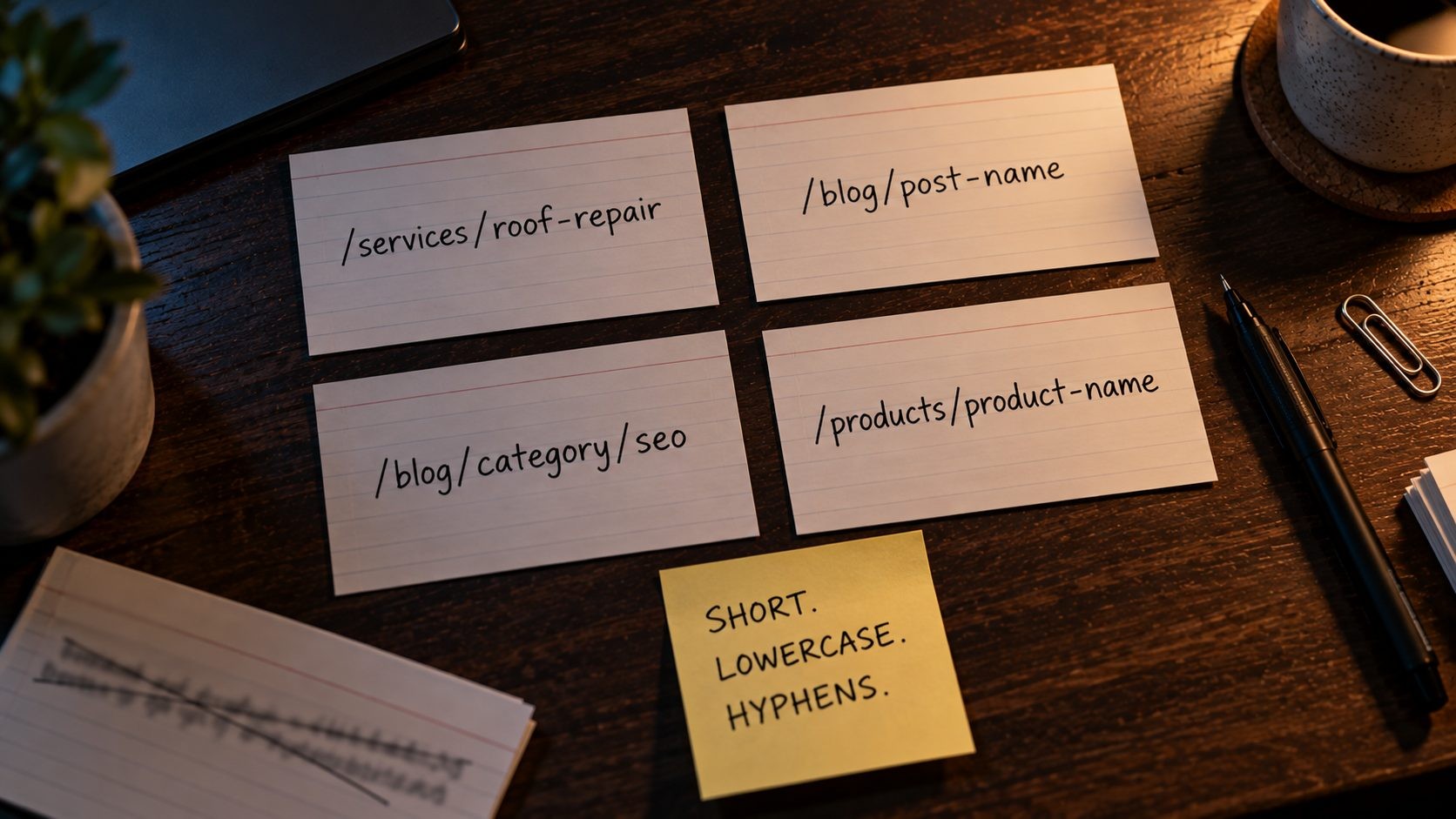
A good default:
| Page type | Recommended pattern | Why |
|---|---|---|
| Main service | /services/roof-repair | Clear section, short and stable |
| Location page | /locations/austin or /roof-repair-austin | Pick one pattern and stick to it |
| Blog post | /blog/post-name | Post URL stays the same if you change its category |
| Blog category | /blog/category/category-name | Category can change without touching post URLs |
| Product | /products/product-name | Product can live in several categories without duplicate URLs |
| Product category | /shop/category-name | Short, readable, one level where possible |
Should blog URLs include the category?
Usually not. Including the category in post URLs (/blog/technical-seo/site-architecture-seo) looks neat, but it ties every post's URL to a decision you may want to change later. Move the post to a better category and the URL changes, which means redirects, lost social shares and broken links from other sites. Keeping posts at /blog/post-name means you can reorganize categories freely. The same logic applies to products that belong to several categories.
Avoid dates and IDs in URLs
Dates (/2026/10/post-name) make evergreen content look old and force awkward choices when you update a post. Numeric IDs (/p?id=4821) tell readers and search engines nothing. If your CMS adds either by default, change the permalink setting before you publish, not after.
Keep one version of every URL
The same page should only ever load at one address. Choose HTTPS, choose www or non-www, choose whether URLs end with a trailing slash, and redirect every other variation to your choice. Then add a self-referencing canonical tag to each page. Without this, /blog/post-name and /blog/post-name/ can be treated as two URLs, splitting signals between them.
Subfolders vs subdomains
Keep your main content in subfolders of your main domain (example.com/blog) rather than on subdomains (blog.example.com) when you can. Search engines can treat subdomains more like separate sites, and keeping everything in one place means your blog, services and product pages all build on the same domain and link to each other naturally. Subdomains still make sense for genuinely separate things, such as a web app at app.example.com or a help center run on a different platform.
Step 5: Connect It With Navigation, Breadcrumbs and Internal Links
Menus that reflect your priorities
Your main menu is the strongest set of internal links on your site, because it appears on every page. Use it for your main categories and most important pages, not for everything. A menu with seven clear items is easier for people to use and gives each item more weight than a mega menu with 80 links. Make sure menu links are standard HTML links. Google's guidance is clear that it can "generally only crawl your link if it's an HTML element" with an href attribute, so menus built entirely on JavaScript click events can hide pages from crawlers.
Breadcrumbs
Contextual links and anchor text
Links inside your content carry the most context, because the surrounding words explain why the linked page matters. Link from each detailed page back to its hub, across to closely related pages, and from older posts to newer ones on the same topic. Use descriptive anchor text. Google's guidance says good anchor text is "descriptive, reasonably concise, and relevant to the page that it's on," and warns against generic phrases like "click here" and against stuffing keywords into anchors. For a page-by-page view of these details, this on-page SEO checklist covers internal links alongside titles and headings.
Related posts, footers and sidebars
Automatic "related posts" modules help, but they should not be your only cross-links. Many plugins match posts by shared tags or words, which can produce odd suggestions. Use them as a supplement and add your most important links by hand inside the content. Footer links are useful for legal pages, contact details and a handful of key sections, but stuffing the footer with dozens of keyword links adds noise without helping anyone. Sidebars work the same way: a short list of your main hubs is helpful, while a long tag cloud is not.
Keep important pages close to the homepage
There is no magic number, but a common target is that every important page should be reachable within about three clicks from the homepage. If a key service or a high-value guide sits five clicks deep, link to it from the homepage, a main hub or several related articles to pull it closer.
Fix orphan pages
Compare your list of URLs from Step 1 against the pages your crawler found by following links. Any page in your sitemap or CMS that the crawler never reached through links is an orphan. Either link to it from a relevant hub and related pages, merge it into a stronger page, or remove it if it has no purpose.
Step 6: Handle Pagination, Filters and Sitemaps
Pagination
Large categories split across pages (/blog/category/seo/page/2) should use normal, crawlable links between pages, so search engines can reach older posts. Do not rely only on "load more" buttons or infinite scroll without crawlable links behind them. And do not let your best older content depend on page 9 of an archive: link to it from hubs and related posts so it stays close to the surface.
Faceted navigation and filters
Online stores and directories often let visitors filter by size, color, price, location and more. Every filter combination can create a new URL, and those can multiply into millions of near-duplicate pages. Google's faceted navigation guidance (last updated December 2025) recommends using robots.txt to block filter URLs you do not need in search. If you do want some filtered pages crawled, it advises keeping filter order consistent, using & as the separator and returning a 404 status when a filter combination has no results. Pick a small number of filter pages that match real searches (such as "women's running shoes size 8") and treat those as proper landing pages, and keep the rest out of the index.
XML sitemaps
An XML sitemap lists the pages you want indexed and helps search engines discover new and updated content. It supports good architecture but does not replace it: a page that appears only in the sitemap, with no internal links, is still effectively an orphan. Keep the sitemap limited to indexable, canonical pages that return a 200 status, and submit it in Google Search Console. Leave out redirected URLs, noindexed pages, filter URLs and thin tag archives, so the sitemap reflects the structure you actually want indexed. Most SEO plugins generate sitemaps automatically, but check which content types they include, because they often add tags, author archives and media attachment pages by default.
An HTML sitemap, a normal page that lists your main sections and pages, can also help on larger sites. It gives visitors an overview and gives crawlers one more set of links to deeper pages. It is optional for small sites with clear navigation.
Worked Example: Cleaning Up This Blog's Categories
Theory is easier to follow with a real case, so here is the structure of this blog itself.
Where it started
The blog's URL setup is already in good shape. Posts live at /blog/post-name and category archives live at /blog/category/category-name, so a post's address does not depend on its category. The problem was the categories themselves. Ten categories had grown up over time:
| Category | Posts |
|---|---|
| Tech Stacks | 7 |
| WordPress | 2 |
| Web Performance | 2 |
| Technical SEO & AI Search | 2 |
| Web Strategy | 2 |
| Google Updates | 2 |
| Security Alerts | 2 |
| Infrastructure | 1 |
| Laravel & SaaS | 1 |
| Digital Marketing | 1 |
"Tech Stacks" had become a catch-all. Posts about UI/UX, landing pages and design trends were filed there alongside genuine tech stack posts, simply because it existed when they were published. Meanwhile, several categories held just one or two posts, and "Digital Marketing" overlapped heavily with "Web Strategy" and "Technical SEO & AI Search".
The plan

The content calendar for the next months is organized around a fixed set of pillars, so the categories should match them:
- Technical SEO & AI Search for audits, on-page and technical SEO, site structure and search updates
- Web Performance for speed, Core Web Vitals and PageSpeed topics
- Web Strategy for redesigns, website costs, UI/UX, landing pages and design trends
- WordPress for themes, plugins and WordPress-specific guides
- Infrastructure for hosting, CDN and server topics
- Laravel & SaaS for Laravel and SaaS development
- Local & Reputation for local SEO and reviews
- AI Integration for building AI features into web apps
Under that plan, the misfiled posts in "Tech Stacks" move to the pillar that matches their topic (UI/UX, landing page and design trend posts to Web Strategy, Laravel posts to Laravel & SaaS), and the one-post "Digital Marketing" category folds into the pillar its post belongs to. The time-sensitive news posts in "Google Updates" and "Security Alerts" need a decision of their own: either keep a single news category for them, or file each under the pillar it relates to and accept that they will age out of the hubs.
Why this is low risk
Because post URLs do not include the category, moving a post to a new category changes nothing about its address. No post redirects are needed. The only URLs that change are the archive pages of categories that disappear, and each of those gets a 301 redirect to the category that replaces it, such as /blog/category/digital-marketing to the matching pillar's category page. After the move, each pillar's category page becomes a hub with a short introduction and its best posts listed first, and new posts are filed straight into the right pillar from day one.
The lesson applies to almost any blog. Decide the categories from the topics you plan to cover over the next year, not from the posts you happened to publish first. Keep post URLs independent of categories, so the cleanup only touches archive pages. And once the new set is in place, treat adding a category as a decision, not a reflex: if a new post does not fit any pillar, ask whether it belongs on the blog at all before creating a new category for it.
Changing an Existing Structure Without Losing Traffic
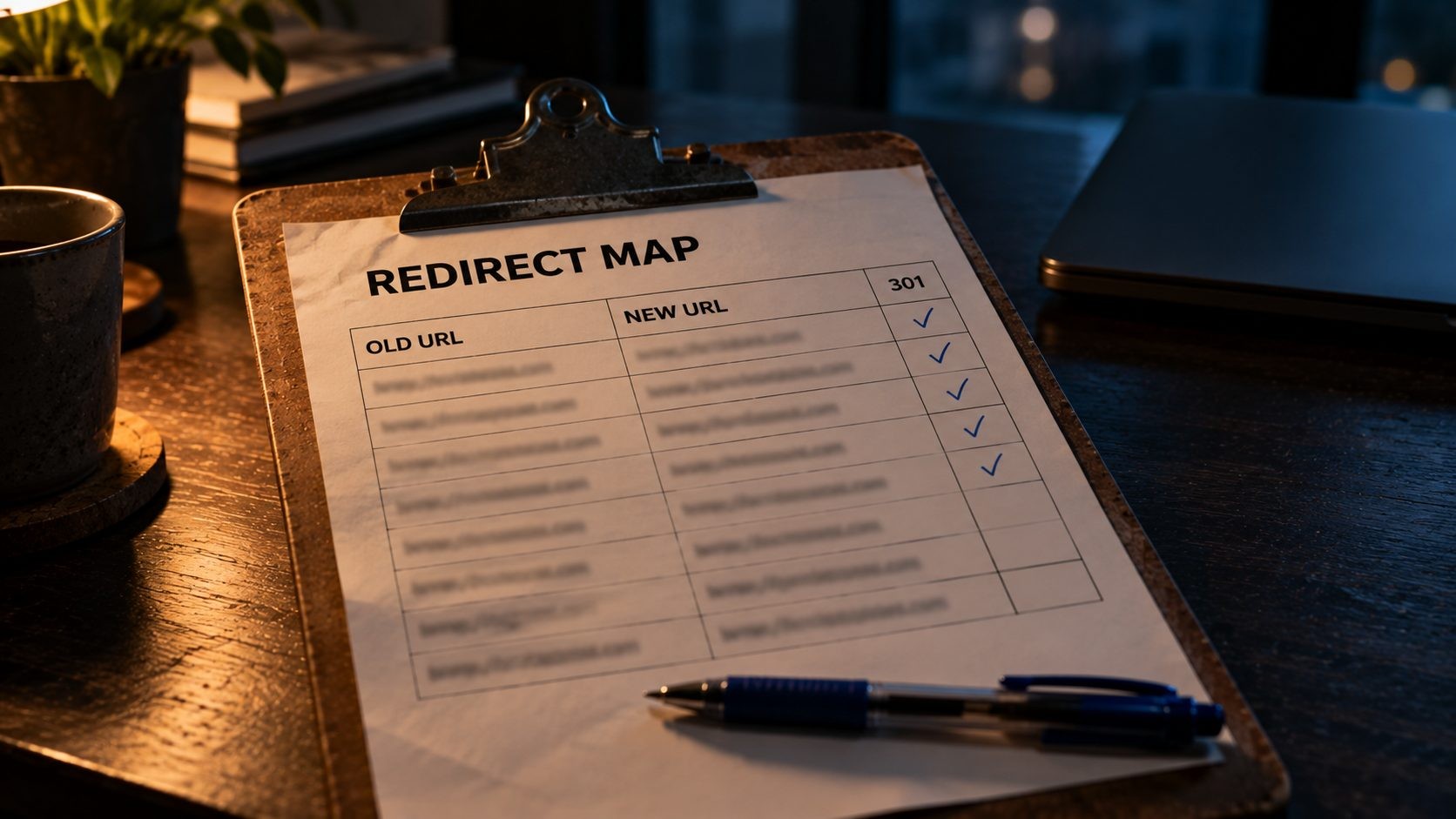
Restructuring a live site is where most architecture projects go wrong. A careful process avoids almost all of the damage.
- Map every old URL to a new one. Build a spreadsheet with two columns: old URL and new URL. Every page that changes address needs a row. Pages you are removing should point to the closest relevant page, not the homepage.
- Use 301 redirects. Set up permanent redirects from each old URL to its new one, and avoid chains (old to interim to new).
- Update internal links. Change menus, breadcrumbs and in-content links to point straight at the new URLs, rather than relying on redirects.
- Update sitemaps and canonicals. Your XML sitemap and canonical tags should list only the new URLs.
- Test before and after launch. Crawl the site to confirm that old URLs redirect correctly and no new 404s or orphans appeared.
- Monitor Search Console. Watch the Pages and Performance reports for a few weeks. Some ranking movement is normal while Google processes the changes.
- Keep redirects in place. Leave the 301 redirects running long term, at least a year and ideally permanently. Other sites, old bookmarks and social posts will keep sending visitors to the old URLs long after search engines have updated.
Timing helps too. Avoid restructuring right before your busiest season, and if the site is large, consider moving one section at a time so you can spot problems before they spread. Change as few URLs as you need to. Often the biggest gains come from better categories, hubs and internal links, which can be improved without touching a single post URL.
If the restructure is part of a bigger rebuild, these signs your website needs a redesign help you decide whether a structural cleanup is enough or a full rebuild makes more sense.
Site Architecture for Different Types of Sites
- Local business sites: Keep it simple. Homepage, one page per service, location pages only where you genuinely operate, and a small blog that supports the services. This small business SEO checklist covers the service page setup in more detail.
- Ecommerce sites: Categories and subcategories carry most of the weight. Keep product URLs independent of categories, control faceted navigation carefully, and link best sellers from the homepage and category pages. Platform choice affects how much control you have here, which is one of the trade-offs covered in WordPress vs Shopify.
- SaaS and product sites: Separate the product section (features, use cases, pricing), the content section (blog and guides) and the docs, then link content pages to the features they relate to so blog traffic flows toward product pages.
- Blogs and publishers: Use a handful of category hubs, one primary category per post, flat post URLs, and deliberate cross-links between related articles.
- Custom-built sites: If your site runs on a framework such as Laravel rather than a CMS, you control routing, breadcrumbs and category logic directly, which is a big advantage for architecture but means nothing comes ready-made. This comparison of Laravel vs WordPress covers when that extra control is worth it.
Common Site Architecture Mistakes
- Catch-all categories. "General", "News" or a category that holds everything nobody sorted.
- Too many thin categories and tags. Dozens of archive pages with one or two posts each.
- Category names in post URLs. It makes every future reorganization a redirect project.
- Orphan pages. Important pages that exist in the CMS but have no internal links.
- Important pages buried deep. Key services or guides five or more clicks from the homepage.
- JavaScript-only navigation. Menus or filters that do not use standard
<a href="">links. - Uncontrolled filters. Faceted navigation creating thousands of indexable near-duplicate URLs.
- Restructuring without a redirect map. The fastest way to lose rankings that took years to build.
- Strict silos that block useful links. Readers benefit from cross-category links when topics overlap.
FAQs
Conclusion
Site architecture is the part of SEO that quietly decides how well everything else works. Great content buried five clicks deep, filed in the wrong category or never linked from anywhere will struggle no matter how good it is. A clear structure does the opposite: it puts your best pages within easy reach, groups related content so its depth is obvious, and gives both people and search engines a map they can follow.
The process is straightforward. Inventory what you have, plan a small set of categories around real searches, turn each category into a genuine hub, keep URLs short and stable, and connect everything with menus, breadcrumbs and contextual links. When you change an existing structure, map every old URL to a new one before anything moves. Do that, and your architecture becomes an asset you build on for years, rather than a mess you work around.
Check your site before you restructure it. Run your homepage and key sections through the free Website SEO Score Checker to spot missing titles, broken links and other issues worth fixing while you plan your new structure.
No Tags



Comments (0)