Most pages that struggle in search aren't badly written. They're missing something small. A title tag that says "Home." An H1 that doesn't match the topic. Images with no alt text. A great article that no other page on the site links to. Each one takes a minute to fix before publishing, and each one is easy to forget once the page is live.
This on-page SEO checklist exists to catch those mistakes. It covers 30 checks in the order you actually work, from choosing the keyword to the final preview, and each check names a tool you can use to verify it. It also reflects how search works in 2026, where your page has to be understood by Google's ranking systems and by the AI tools that read, summarize and cite web pages.
I run these checks on my own posts and on client content before anything goes live. The list below is the working version, not a theory exercise.
The best way to use it: bookmark this page, work through it on your next post, and within a few rounds the checks become habit.
The on-page SEO checklist at a glance
Stage 1: Search intent and keywords
- Confirm the search intent matches your page type
- Pick one primary keyword per page
- Collect secondary keywords and entities
- Study the top-ranking pages for gaps
Stage 2: Title, meta description and URL 5. Write a unique title tag with the keyword near the start 6. Check how the title will display in search results 7. Write a meta description that earns the click 8. Use a short, descriptive URL slug 9. Set the canonical tag correctly
Stage 3: Headings and structure 10. Use one clear H1 11. Build a logical H2 and H3 hierarchy 12. Answer the main question in the first 100 words 13. Use lists, tables and steps where they help 14. Add a table of contents to long posts
Stage 4: Content quality and E-E-A-T 15. Cover the topic completely for the intent 16. Use keywords naturally 17. Add first-hand experience and examples 18. Show who wrote it 19. Check facts, figures and dates 20. Make it easy to read
Stage 5: Images and media 21. Use descriptive file names 22. Write useful alt text 23. Compress images and use modern formats 24. Lazy-load below the fold, not the main image
Stage 6: Links 25. Add internal links with descriptive anchors 26. Link to the new page from existing pages 27. Link to authoritative sources and check for broken links
Stage 7: Schema, social and final checks 28. Add the right structured data 29. Set Open Graph and social tags 30. Do the final pre-publish check
What On-Page SEO Covers (and What It Doesn't)
On-page SEO is everything you control on the page itself that helps search engines and people understand it. That includes the content, the HTML elements like the title and headings, images and media, and the links in and out of the page.
It sits alongside two other areas:
- Technical SEO covers how search engines crawl, render and index your site, along with speed and site structure. It's handled at the site level rather than page by page.
- Off-page SEO covers signals from outside your site, such as backlinks, brand mentions and reviews.
This checklist deals with on-page optimization only. A few checks touch technical topics like image loading and indexing, but only where they affect a single page before it goes live.
In 2026, your page also serves two audiences: Google's ranking systems and AI answer engines like AI Overviews, ChatGPT and Gemini. The same on-page SEO factors help with both.
Stage 1: Search Intent and Keywords
Everything else on this list depends on getting this stage right. A perfectly optimized page aimed at the wrong intent won't rank.
1. Confirm the Search Intent Matches Your Page Type
Why it matters: Google ranks the type of page that best satisfies what people want when they search. If the results for your keyword are all step-by-step guides, a sales page won't break into the top ten, no matter how well it's optimized.
How to do it: search your keyword in a private browser window and look at what ranks: guides, lists, product pages, comparisons or tools. Match that format. The four intent types are informational, navigational, commercial and transactional.
Tool to check it: Google's results page itself.
2. Pick One Primary Keyword per Page
Why it matters: one page should own one main topic. When two pages on your site target the same keyword, they compete with each other, a problem called keyword cannibalization, and often neither ranks as well as one strong page would.
How to do it: choose the single phrase that best describes the page. Before you publish, check that you don't already have a page targeting the same thing. Search site:yourdomain.com your keyword on Google, or look in Search Console to see which of your pages already get impressions for it.
Tool to check it: Google Search Console's Performance report, filtered by query.
3. Collect Secondary Keywords and Entities
Why it matters: search engines understand topics through related terms and entities, meaning the specific people, products, places and concepts connected to your topic. A page about on-page SEO that never mentions title tags or headings looks thin.
How to do it: note the related searches at the bottom of the results page, the questions in the People Also Ask box, and the subtopics every top-ranking page covers. Use them as a map for your headings and content, not as a list of words to repeat.
Tool to check it: Google's related searches and People Also Ask, plus any keyword research tool you already use.
4. Study the Top-Ranking Pages for Gaps
Why it matters: to earn a place on page one, your page needs to cover what the current results cover, then add something they don't.
How to do it: open the top five results and note the baseline (topics every page covers) and the gap (something useful none of them cover). For this checklist, the gap was accuracy: most ranking pages still recommend FAQ schema for rich results, even though Google stopped showing them in May 2026.
Tool to check it: your browser and a simple notes document.
Stage 2: Title, Meta Description and URL
These are the elements people see before they ever reach your page, so they shape both rankings and clicks.
5. Write a Unique Title Tag With the Keyword Near the Start
Why it matters: the title tag is one of the strongest on-page SEO factors and usually becomes the clickable headline in search results.
How to do it: describe the page clearly and include your primary keyword, ideally near the beginning. Google's guidance is to keep titles descriptive, concise and unique, without keyword stuffing or boilerplate repeated across pages. If you include your brand, add it at the end after a separator like a pipe or a hyphen.
Tool to check it: view the page source, or your SEO plugin's preview.
6. Check How the Title Will Display in Search Results
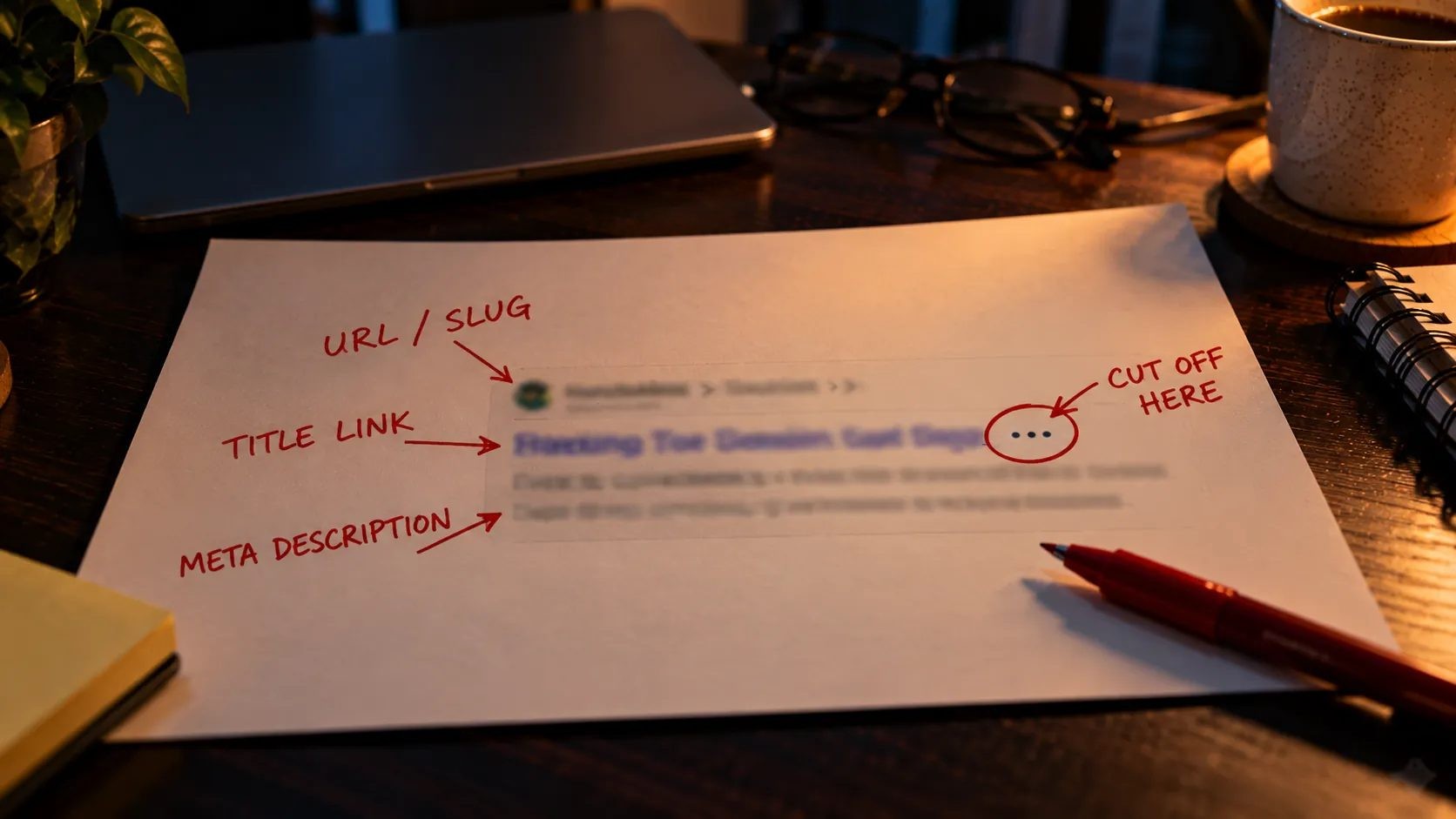
Why it matters: a title that gets cut off in the wrong place can hide the words that would have earned the click.
How to do it: here's something many guides get wrong. Google doesn't set a character limit for title elements. According to Google's guidance on title links, a title can be any length, but Google truncates it in results as needed to fit the device width. In practice, that means you put the most important words first and keep the whole title reasonably short, so nothing essential sits at the end where it might be cut.
Tool to check it: check your title and description with SEO Site Checker's Meta Tag Analyzer. It shows the character count of each and a preview of how the page may look in search results.
7. Write a Meta Description That Earns the Click
Why it matters: the meta description isn't a direct ranking factor, but it often becomes the text under your title in search results, and that text decides whether people click.
How to do it: write a unique description for every important page. Make it specific: what the reader will get, plus a concrete detail like the number of steps, a price or a key benefit. Google's documentation on how Google creates search snippets says there's no length limit, but snippets are truncated to fit the screen. It also explains that Google may show different text depending on the search, and sometimes uses page content instead of your description. That's normal. A good description still gives Google a strong option to use.
Tool to check it: the same Meta Tag Analyzer preview, or your SEO plugin's snippet editor.
8. Use a Short, Descriptive URL Slug
Why it matters: a clean URL tells people and search engines what the page is about before they click, and it's easier to share and link to.
How to do it: use lowercase words separated by hyphens, include the primary keyword, and cut filler words. /blog/on-page-seo-checklist beats /blog/2026/10/the-ultimate-on-page-seo-checklist-for-beginners-and-pros. Leave dates and years out of the slug. This blog follows that rule so posts can be refreshed next year without changing their URLs or setting up redirects.
Tool to check it: your CMS's permalink field. Set it before you publish, because changing it later means adding a redirect.
9. Set the Canonical Tag Correctly
Why it matters: the canonical tag tells search engines which URL is the main version of a page, so ranking signals aren't split across duplicate URLs created by tracking parameters or category paths.
How to do it: the original page should have a self-referencing canonical tag pointing to its own clean URL. Popular WordPress SEO plugins like Rank Math and Yoast add this automatically, which is one reason they're part of the WordPress SEO tools I use. Still, check it once, especially on custom-built sites.
Tool to check it: view the page source and search for rel="canonical", or use the URL Inspection tool in Search Console after publishing.
Stage 3: Headings and Page Structure
Structure is how readers skim and how search engines and AI tools work out what each part of your page is about.
10. Use One Clear H1 That Matches the Topic
Why it matters: the H1 is the main headline on the page. It confirms to readers that they've landed in the right place and signals the main topic to search engines.
How to do it: use one H1 per page, usually the post title, and include the primary keyword naturally. Many themes automatically turn the post title into the H1, so avoid adding a second H1 inside the content.
Tool to check it: a browser heading extension, or view the source and search for <h1>
11. Build a Logical H2 and H3 Hierarchy
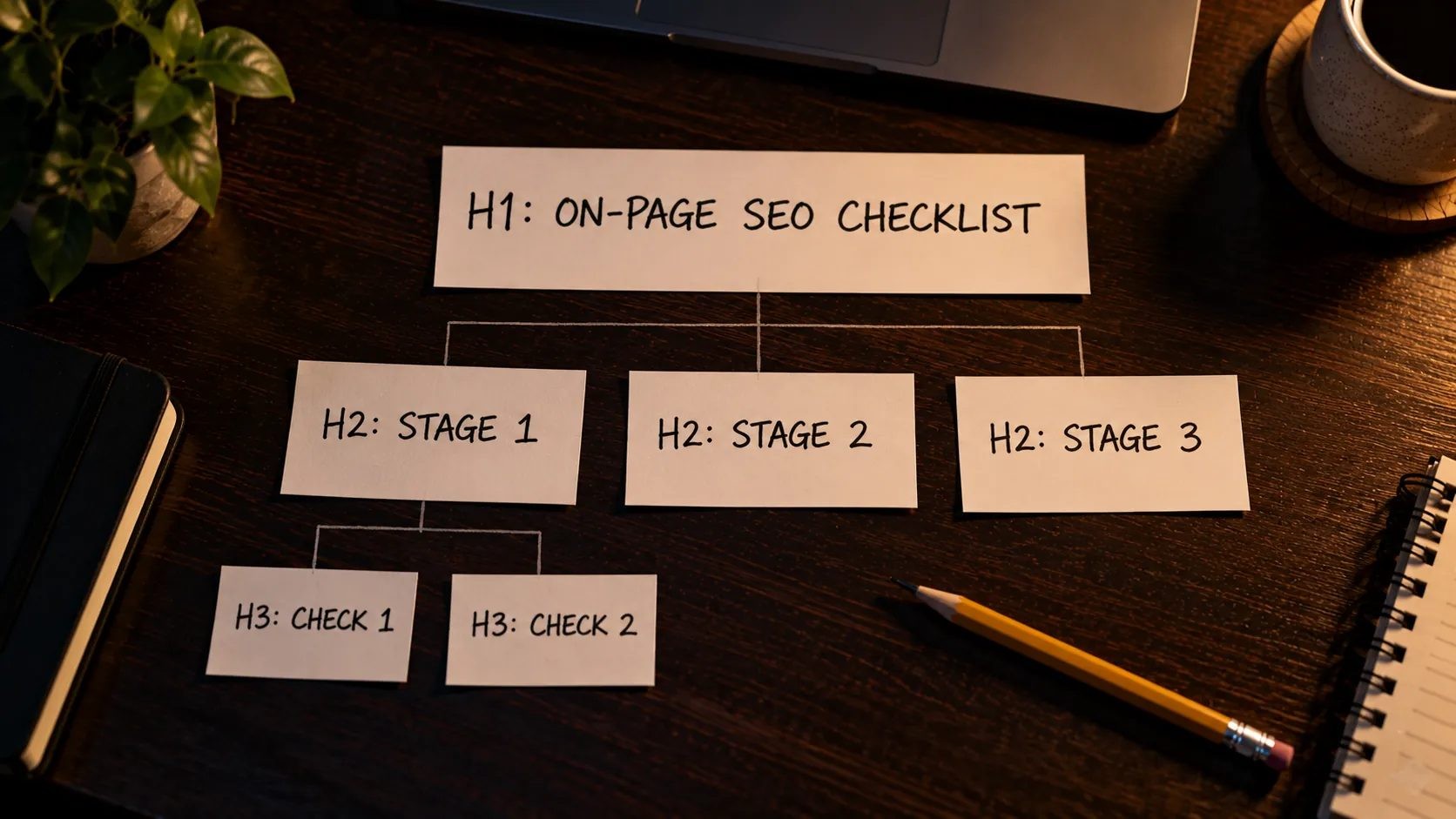
Why it matters: headings are an outline of your page. Screen readers use them to navigate, readers use them to skim, and search engines and AI systems use them to understand which passage answers which question.
How to do it: use H2s for main sections and H3s for points inside them, without skipping levels. Write descriptive headings rather than clever ones. "How to write alt text" tells everyone what follows. "Picture perfect" tells no one anything.
Tool to check it: read only your headings from top to bottom. If they make sense as an outline on their own, the structure works.
12. Answer the Main Question in the First 100 Words
Why it matters: readers want to know quickly that the page has their answer. Featured snippets and AI Overviews also tend to pull clear, direct answers that appear early and stand on their own.
How to do it: state the core answer near the top, then expand. Compare two openings for a post on meta descriptions:
- Before: "In the ever-changing world of SEO, many people wonder about meta descriptions."
- After: "A meta description is the short summary under your page title in search results. It doesn't directly affect rankings, but a good one earns more clicks."
Tool to check it: read your first paragraph out loud and ask whether a stranger would know what the page answers.
13. Use Lists, Tables and Steps Where They Genuinely Help
Why it matters: well-formatted content is easier to scan and easier for search engines to pull into snippets and AI answers. Numbered steps suit processes, bullet lists suit groups of items, and tables suit comparisons.
How to do it: turn paragraphs that list items or compare options into lists or tables, but don't force it. The same principle applies to sales pages, and these landing page optimization tips show how structure helps people act.
Tool to check it: scroll through the page quickly. If you can find the key points without reading every word, the formatting is doing its job.
14. Add a Table of Contents to Long Posts
Why it matters: on long guides, a table of contents lets readers jump to the section they need. Jump links can also appear under your result in Google, giving readers a direct route into the page.
How to do it: add a table of contents near the top of any post long enough to need scrolling through several sections. Most SEO plugins and block editors can generate one from your headings.
Tool to check it: click every link in the table of contents after publishing. Broken anchor links are common after headings are edited.
Stage 4: Content Quality and E-E-A-T
This is the stage that decides whether your page deserves to rank at all. Everything before it helps search engines understand the page. This stage makes it worth showing.
15. Cover the Topic Completely for the Intent
Why it matters: the page that best satisfies the searcher usually wins. That means answering the main question and the natural follow-up questions, so the reader doesn't need to go back to Google.
How to do it: use the subtopics from Stage 1 as your checklist, and for each section ask what the reader will want to know next. Quality matters more than word count, so only add length when it adds value.
Tool to check it: compare your outline against the top-ranking pages one more time before publishing.
16. Use Keywords Naturally, Never Stuffed
Why it matters: keywords help search engines match your page to searches, but repeating them unnaturally makes the page harder to read and can look manipulative.
How to do it: place the primary keyword where it naturally belongs: the title, the H1, the introduction, one or two H2s and the conclusion. Everywhere else, use variations, synonyms and related terms the way you would in normal conversation.
Tool to check it: read the page aloud. If a sentence sounds like it was written for a robot, rewrite it.
17. Add First-Hand Experience and Specific Examples
Why it matters: experience is the first "E" in E-E-A-T (experience, expertise, authoritativeness and trustworthiness). Google's guide to helpful, people-first content asks whether content provides original information, reporting, research or analysis, and whether it adds value beyond what's already out there. Summaries of other articles rarely do.
How to do it: add what only you can add: real screenshots, your own results, and mistakes you've made and what fixed them.
Tool to check it: ask yourself whether someone could have written this page without ever doing the thing it describes. If yes, add more of your own experience.
18. Show Who Wrote It
Why it matters: Google's helpful content guidance encourages clear authorship, meaning it should be obvious who created the content. Readers trust advice more when they know who is giving it and why they're qualified.
How to do it: add an author byline, a short factual bio with relevant experience, and a link to an about page.
Tool to check it: view the page as a first-time visitor. Can you tell who wrote it, and why they know the topic, within seconds?
19. Check Facts, Figures and Dates
Why it matters: outdated or wrong information damages trust with readers, and search features change often. A single stale claim can make an entire guide look unreliable.
How to do it: link to the original source for every statistic, confirm product details and prices are current, and update anything time-sensitive. Guides that still promise FAQ rich results show how fast advice goes stale.
Tool to check it: click every source link and confirm it still says what you claim it says.
20. Make It Easy to Read
Why it matters: readable content keeps people on the page long enough to find what they came for.
How to do it: keep paragraphs short, use plain language and the active voice, and stick to one idea per paragraph. Readability is part of user experience, and this post on how readable design lifts conversions explains why that matters beyond SEO.
Tool to check it: a readability checker in your editor or SEO plugin, used as a guide rather than a strict rule.
Stage 5: Images and Media
Images make content easier to follow, and they can also bring traffic through image search. They're also a common cause of slow pages, so they need care.
21. Use Descriptive Image File Names
Why it matters: file names give search engines extra context about what an image shows.
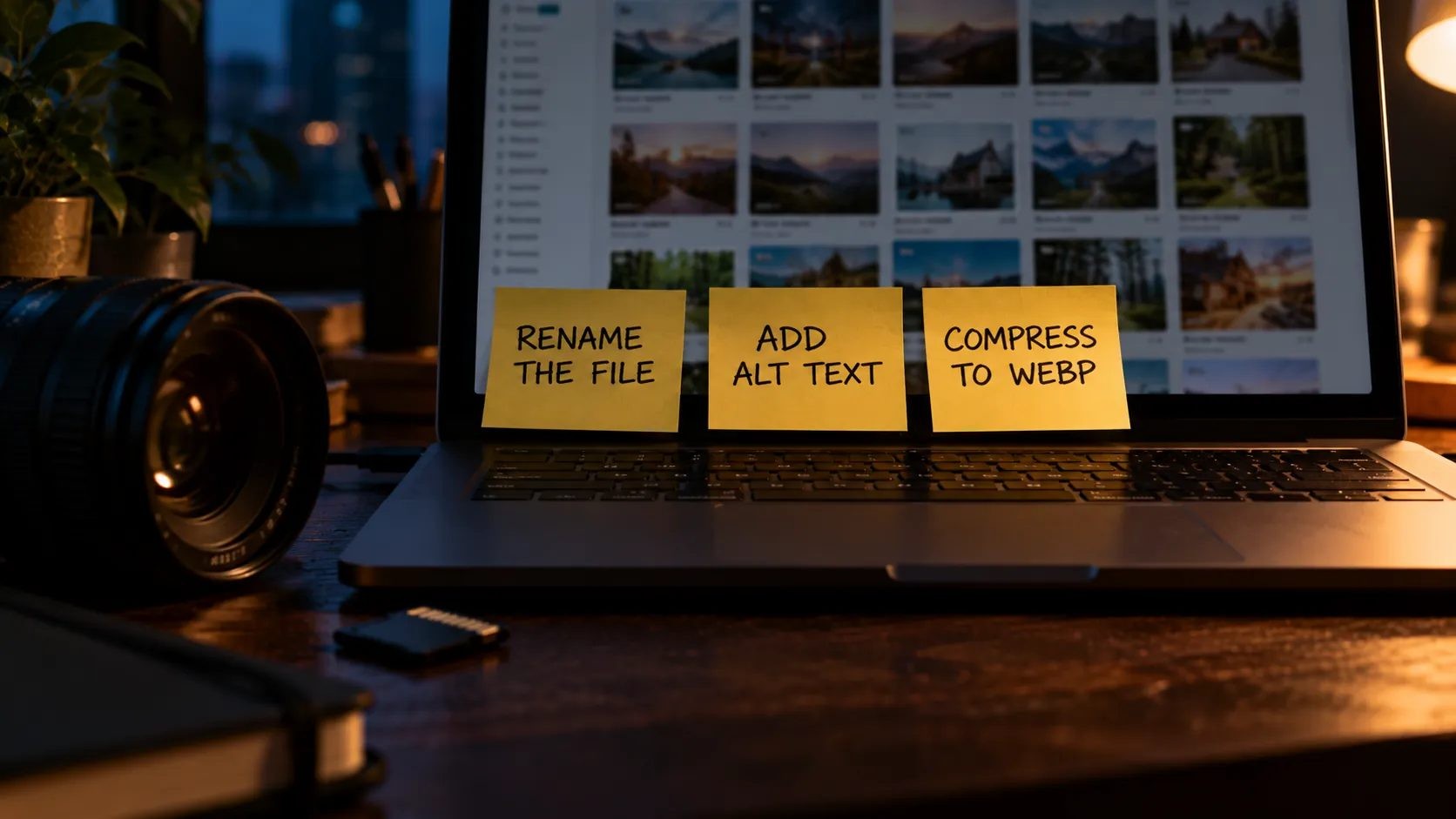
How to do it: rename files before uploading. on-page-seo-checklist-stages.webp says far more than IMG_4032.jpg. Use lowercase words separated by hyphens.
Tool to check it: your media library's file name column.
22. Write Useful Alt Text
Why it matters: alt text describes an image for screen reader users and search engines, and appears if the image fails to load.
How to do it: describe what the image shows and why it's there, in a short sentence. Include a keyword only if it fits naturally. Purely decorative images, like background shapes, should have empty alt text so screen readers skip them.
Tool to check it: an accessibility checker like WAVE or the accessibility audit in Lighthouse, both of which flag missing alt text.
23. Compress Images and Use Modern Formats
Why it matters: large images are one of the most common reasons pages load slowly, and slow pages lose readers.
How to do it: resize images to the largest size they'll actually display at, compress them, and use modern formats like WebP or AVIF. Set width and height attributes on images so the browser reserves space for them, which prevents content jumping around as the page loads.
Tool to check it: PageSpeed Insights, which flags oversized and poorly compressed images.
24. Lazy-Load Images Below the Fold, but Not the Main Image
Why it matters: lazy loading delays images until the reader scrolls near them, which speeds up the initial page load. But if you lazy-load the main image at the top of the page, often the largest element on screen, you slow down the very thing readers see first.
How to do it: make sure your hero or featured image loads normally, and let images further down lazy-load. Many themes lazy-load everything by default, so check this setting.
Tool to check it: PageSpeed Insights, which warns if the largest image on the page was lazy-loaded.
Stage 6: Links
Links connect your new page to the rest of your site and to the wider web. They help readers find more, and help search engines discover and understand the page.
25. Add Internal Links With Descriptive Anchor Text
Why it matters: internal links guide readers to related content and show search engines how your pages relate to each other and which ones matter most.
How to do it: link to two to five relevant pages on your own site where they genuinely help the reader. Use anchor text that describes the destination, like "run a full SEO audit of your site," rather than "click here" or "read more." For example, once your page is live, you can run a full SEO audit of your site to catch issues across every page, not just this one.
Tool to check it: read only the linked text on the page. Each anchor should make sense out of context.
26. Link to the New Page From Existing Pages

Why it matters: this is the check most people skip. A new page that nothing links to is hard for search engines to discover and has no internal authority flowing to it. These are sometimes called orphan pages.
How to do it: find two or three older posts on related topics and add a natural link from each to your new page. Older pages already have search engine attention, so this helps the new page get found faster.
Tool to check it: search site:yourdomain.com related topic to find relevant older pages, then update them right after publishing.
27. Link to Authoritative Sources and Check for Broken Links
Why it matters: citing original sources builds trust and lets readers verify your claims. Broken links make a page look neglected.
How to do it: link to primary sources like official documentation and original research, not articles that quote them secondhand. Before publishing, click every link to confirm it works.
Tool to check it: a broken link checker, or simply clicking through every link in preview.
Stage 7: Schema, Social and Final Checks
The last three checks make sure the page is described properly to search engines and social platforms, and that nothing blocks it from being indexed.
28. Add the Right Structured Data
Why it matters: structured data, usually added as JSON-LD, describes your content precisely to search engines and can make pages eligible for rich results.
How to do it: use the schema type that matches the page: Article or BlogPosting for posts, Product for product pages, LocalBusiness for location pages. Most SEO plugins add basic Article schema automatically.
One important 2026 update: FAQ rich results stopped appearing in Google Search starting May 7, 2026, and Google has removed the documentation. FAQ sections are still worth writing for readers and AI answers, but FAQPage markup won't add expandable questions to your result anymore.
Tool to check it: Google's Rich Results Test or the Schema Markup Validator.
29. Set Open Graph and Social Tags
Why it matters: Open Graph tags control the title, description and image shown when your page is shared. Without them, platforms guess, often badly.
How to do it: set an Open Graph title, description and a 1200 × 630 pixel image for every page, using your SEO plugin's social fields. SEO Site Checker's Meta Tag Analyzer also checks whether your Open Graph tags are in place.
Tool to check it: paste your URL into a social platform's post composer and look at the preview before publishing the post.
30. Do the Final Pre-Publish Check
Why it matters: small last-minute problems, like a stray noindex tag left over from a draft setting, can stop a perfectly optimized page from appearing in search at all.
How to do it: before you publish, run through this quick final pass:
- Preview the page on a phone, not just a desktop screen
- Confirm the page isn't set to noindex in your SEO plugin or page settings
- Check that the page loads quickly and nothing looks broken
- Click through the table of contents and a sample of links one last time
After publishing, request indexing using the URL Inspection tool in Google Search Console. If a page keeps underperforming after all 30 checks, the problem may be bigger than a single page, and it's worth knowing the signs a page needs more than on-page fixes.
Tool to check it: Google Search Console's URL Inspection tool.
Short on Time? The 10 Checks That Matter Most
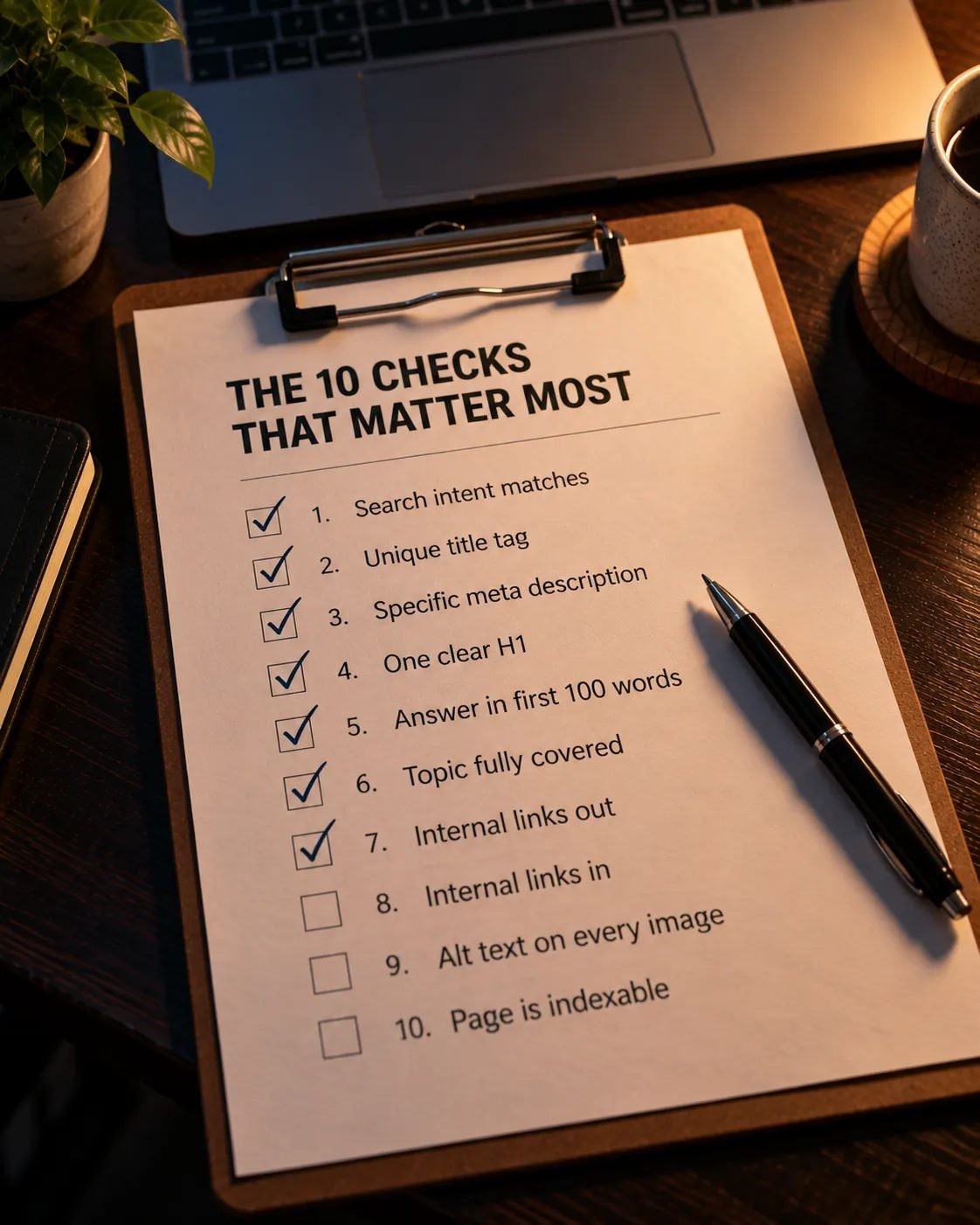
Not every page gets a full review. When you're publishing under pressure, these ten checks cover most of the impact:
- The search intent matches the page type (check 1)
- The title tag is unique and includes the keyword (check 5)
- The meta description is specific and written for clicks (check 7)
- There's one clear H1 (check 10)
- The main question is answered in the first 100 words (check 12)
- The topic is covered completely for the intent (check 15)
- The page links to relevant internal pages (check 25)
- At least one existing page links to the new one (check 26)
- Every image has useful alt text (check 22)
- The page is indexable, with no stray noindex tag (check 30)
Run the other 20 checks during your next content review, starting with pages that already get impressions.
Frequently Asked Questions
Conclusion: Make the Checklist a Habit
On-page SEO is the part of search you fully control. You can't guarantee backlinks or predict algorithm updates, but you can make every page clear, useful and easy for search engines and AI tools to understand. Running the same 30 checks every time is what makes that consistent.
Start with your most recent post. Work through the on-page SEO checklist, fix what's missing, and you'll likely find a few quick wins on a page that's already live.
Check your meta tags in seconds Run any page through SEO Site Checker's free Meta Tag Analyzer to review your title, meta description, robots tags and Open Graph tags, with a preview of how the page may appear in search results.
No Tags
Comments (0)