- Khurram Shahzad
- WordPress
- 130
- 0
A shopper finds a product, adds it to the cart, and starts checkout. They may already be interested in buying, but a confusing form, unexpected shipping charge, unavailable payment method, or technical error can make them reconsider. Every unnecessary step creates another opportunity for a customer to leave before placing an order.
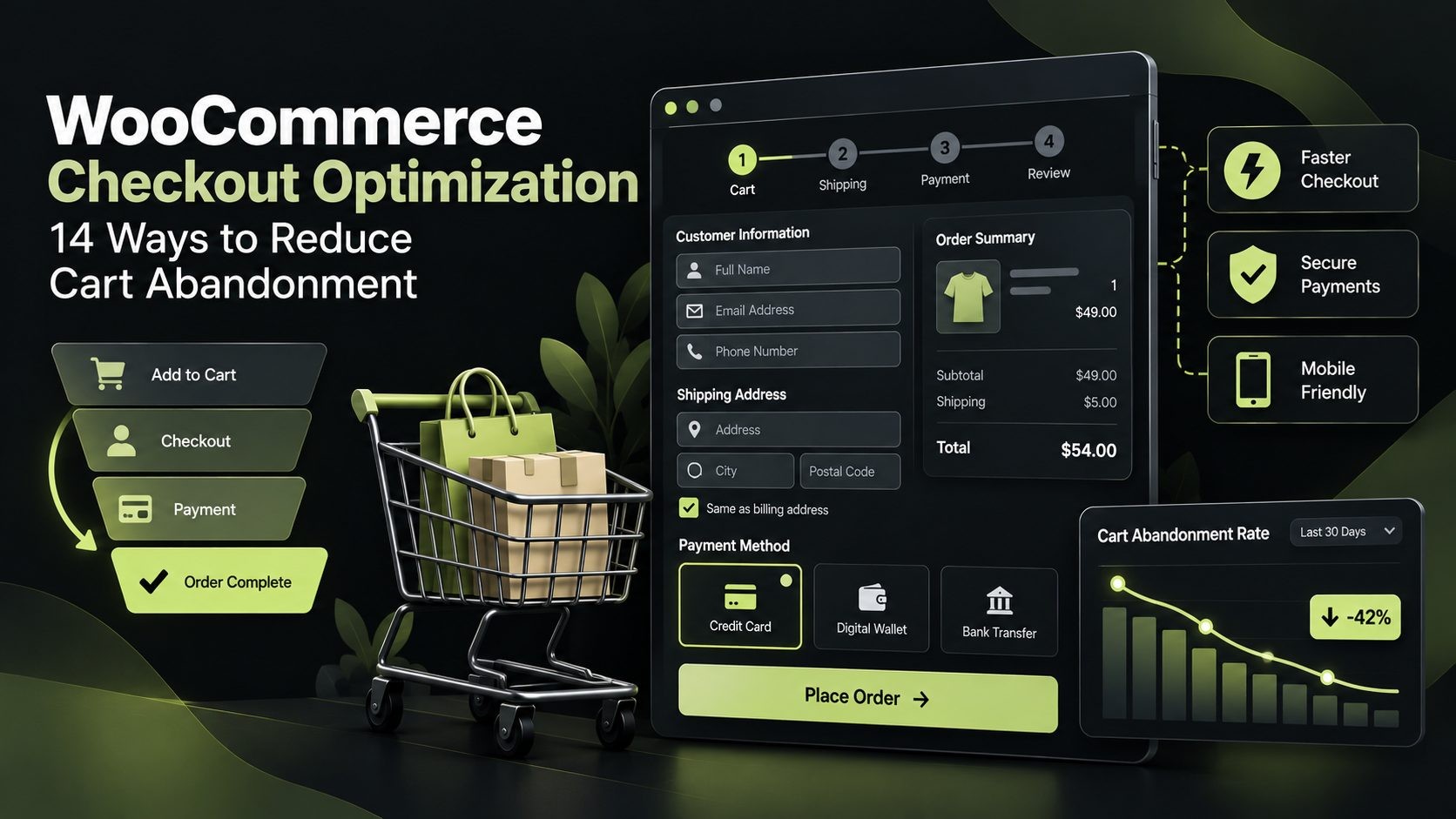
WooCommerce checkout optimization is the process of making the cart and checkout journey clearer, faster, more reliable, and easier to complete. It is not about removing every field or adding every available payment option. It is about identifying the points where customers experience friction and fixing the problems that matter most to your store.
In this guide, you will learn 14 practical ways to improve WooCommerce checkout, reduce avoidable cart abandonment, improve mobile usability, and measure the impact of changes. You will also learn which settings and extensions may help, what to test before publishing changes, and how to avoid common checkout optimization mistakes.
What Is WooCommerce Checkout Optimization?
WooCommerce checkout optimization means improving the steps customers take between reviewing their cart and completing payment. The goal is to remove unnecessary friction while keeping the information, security, and order details needed to process purchases correctly.
Optimization can involve simplifying checkout fields, enabling guest checkout, improving mobile forms, making shipping costs clearer, offering suitable payment methods, improving page performance, and fixing validation or payment errors.
Checkout optimization vs. cart optimization
These terms are related, but they describe different parts of the shopping journey.
- Cart optimization helps shoppers review products, quantities, discounts, shipping information, and estimated totals before checkout.
- Checkout optimization helps customers enter required information, choose delivery and payment options, review the order, and submit payment.
- Abandoned-cart recovery attempts to bring back customers who leave before completing a purchase.
These activities work together. A customer may abandon a cart because shipping costs are too high, for example, rather than because the checkout form is difficult. Your optimization process should identify the actual cause instead of assuming every abandoned order can be fixed with a shorter form.
Why Shoppers Abandon WooCommerce Carts
There is no single reason why customers leave an online checkout. Some are only researching products or comparing prices. Others intend to buy but encounter an avoidable obstacle.
Unexpected costs and unclear delivery information
Customers may reconsider an order when shipping, taxes, handling fees, or other charges appear late in the process. Unclear delivery estimates can create similar uncertainty, particularly when shoppers need an item by a specific date.
Display costs and shipping information as early as reasonably possible. If a precise delivery estimate depends on the customer's address, explain when that information will become available.
Complicated forms and forced account creation
Long forms can make checkout feel like work. Customers may not understand why a business needs a particular field, and some may not want to create an account just to make a one-time purchase.
Collect only the information needed to fulfill the order, calculate taxes, comply with applicable requirements, or support the customer's chosen service. Offer guest checkout when the transaction does not require an account.
Payment, trust, and technical problems
Customers may leave if their preferred payment method is unavailable, a transaction fails, the order total is unclear, or the checkout page behaves unexpectedly. Slow loading, broken validation, and confusing error messages can also prevent an otherwise willing customer from completing the purchase.
Not every abandoned cart is recoverable
Some visitors use carts to save products, compare options, or estimate costs. Treat abandonment data as a way to discover patterns, not proof that every incomplete checkout represents a lost sale.
WooCommerce Checkout Optimization Checklist: All 14 Improvements
Use this checklist to prioritize your work:
- Simplify checkout fields.
- Enable guest checkout.
- Optimize checkout for mobile devices.
- Show shipping costs and delivery estimates early.
- Offer relevant payment methods.
- Add suitable express checkout options.
- Build trust at the point of payment.
- Improve checkout page speed.
- Make errors clear and easy to correct.
- Improve address entry and autofill.
- Simplify coupon and discount handling.
- Make the order summary clear.
- Recover abandoned carts.
- Test and measure checkout changes.
Do not implement every feature at once just because it appears on this list. Review analytics, customer feedback, support tickets, and checkout errors first. Fix the most serious and measurable problems, then evaluate the results.
1. Simplify WooCommerce Checkout Fields
Every checkout field asks customers to spend time and attention. Fields that do not serve a clear purpose can add friction without improving order fulfillment.
Remove fields you do not need
Review the billing and shipping fields used by your store. Depending on the products and business model, you may not need to request a company name, a second address line, or a telephone number for every order. Do not remove information that is required for delivery, payment processing, tax calculation, invoicing, fraud prevention, or a service the customer selected.
The objective is not to create the shortest possible form at any cost. It is to make the form as short as it can reasonably be while still collecting the information the business needs.
Make required and optional fields obvious
Use clear labels and mark optional fields appropriately. Place fields in a logical order and avoid asking for the same information twice. If the store supports both billing and shipping addresses, make it easy for customers to indicate when the addresses are the same.
Validation should help customers correct mistakes without making them search for the problem. Where possible, show a specific message near the affected field and preserve information already entered.
How to simplify fields in WooCommerce
First, review the checkout settings and editing tools available in your current WooCommerce setup. The process differs depending on whether the store uses the Checkout block, the classic checkout template, a theme-based checkout, or a third-party checkout extension.
A compatible checkout field editor may help you remove, reorder, or relabel fields. Custom code may also be an option, but it should be implemented and tested carefully, preferably in a staging environment. Check that changes do not break shipping calculations, taxes, payment gateways, order emails, or downstream fulfillment integrations.
Action step: Complete a test order before and after changing the form. Confirm that the store still receives all the information required to process the order correctly.
2. Enable Guest Checkout
Not every customer wants to create an account. A forced registration step can add friction, especially for first-time buyers who simply want to complete a single purchase.
Why guest checkout helps
Guest checkout allows eligible customers to place an order without creating a permanent account. It can reduce the steps required to purchase and avoid asking customers to remember another password.
Guest checkout does not mean abandoning customer relationships. You can still send transactional order updates and, where customers have given appropriate consent, invite them to create an account or subscribe to marketing communications.
How to enable guest checkout in WooCommerce
In many WooCommerce installations, account and guest checkout options are available under:
WooCommerce → Settings → Accounts & Privacy
Review the options in your version and enable guest ordering if it suits your store. Interface labels and available settings can change between versions, so verify the current settings in your own installation.
Offer account creation after the purchase
For many stores, the confirmation page or a follow-up email is a more convenient place to invite customers to create an account. Explain the benefits, such as viewing order history or tracking future purchases, rather than making registration feel mandatory.
Some business models legitimately require accounts, including certain membership, subscription, or personalized service workflows. Keep necessary requirements in place and explain them clearly.
Action step: Test checkout as a logged-out visitor. Make sure the guest option is visible, the order completes correctly, and the customer receives the expected confirmation.
3. Optimize WooCommerce Checkout for Mobile
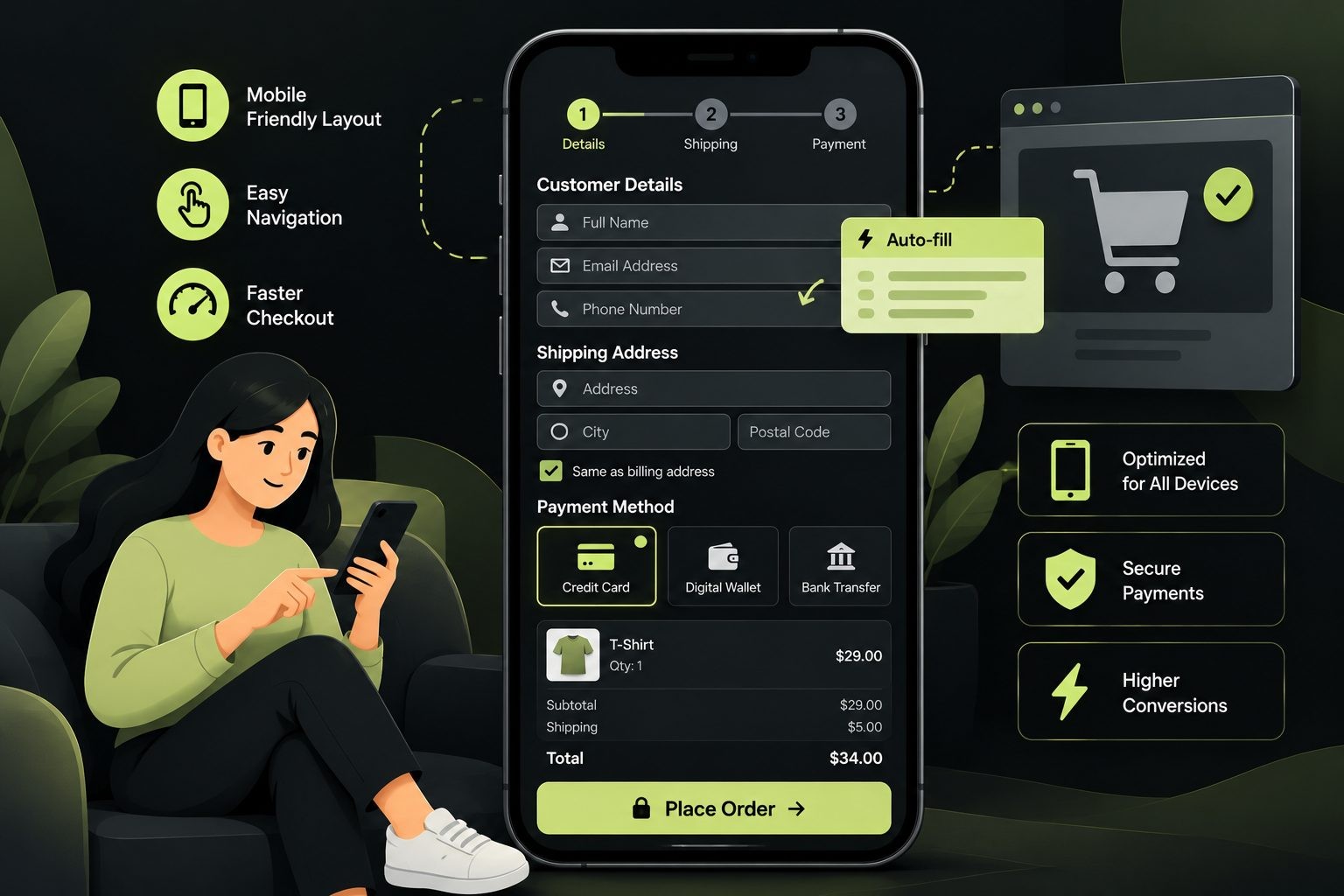
A checkout page that works on a large desktop monitor may feel awkward on a phone. Mobile customers may have a smaller screen, use an on-screen keyboard, switch between apps, or rely on autofill to complete forms.
Make the layout easy to use
Use a responsive layout with readable text, clear field labels, and buttons that are easy to tap. Avoid crowded columns, overlapping elements, distracting pop-ups, and unnecessary navigation that pulls customers away from the purchase.
Keep the main action, such as placing the order, easy to identify. If the order summary is collapsible on mobile, make its contents and total straightforward to access before payment.
Reduce repeated typing
Use appropriate input types for email addresses, telephone numbers, and postal codes. Make sure field labels and autocomplete attributes are implemented correctly so supported browsers can help customers enter information. Avoid asking for information that is already available and legitimately usable.
Test the entire mobile purchase
Do not judge mobile checkout only by how it looks. Test the whole flow on common screen sizes and real devices where possible:
- Open a product and add it to the cart.
- Apply a coupon, if relevant.
- Enter billing and shipping details.
- Change the shipping method.
- Select a payment option.
- Complete a successful test payment.
- Confirm the order confirmation and emails.
- Test an unsuccessful payment and check whether the customer can recover.
Also test any third-party payment redirect or digital wallet flow. The checkout page may work well while a gateway handoff fails on a particular device or browser.
Action step: Compare mobile and desktop checkout completion rates. If mobile performance is substantially weaker, investigate form usability, speed, payment behavior, and errors before redesigning the entire page.
4. Show Shipping Costs and Delivery Estimates Early
Unexpected shipping costs can undermine a purchase decision. Customers may be willing to pay for delivery, but they need enough information to decide whether the total cost and delivery timing meet their needs.
Avoid surprise charges
Where possible, show shipping information on product pages or in the cart before customers begin entering their details. If shipping depends on location, explain that the final rate will be calculated after the customer provides a postal code or address.
Display applicable charges accurately. Do not hide mandatory fees until the last step or advertise a total that does not reflect the conditions customers will actually face.
Configure WooCommerce shipping zones and methods
WooCommerce shipping zones let store owners define available shipping methods for different locations. Review your zones, methods, rates, free-shipping conditions, and any shipping extensions you use.
Test orders with different destinations, product combinations, quantities, and cart values. Confirm that the correct methods appear and that shipping costs update when customers change their address or order contents.
Explain delivery estimates clearly
If you provide delivery estimates, explain what they mean and whether they refer to dispatch time or arrival time. Avoid presenting an estimate as a guarantee unless your fulfillment process supports that promise.
If your store offers free shipping above a threshold, communicate the threshold and any restrictions clearly. A message such as “Free shipping on qualifying orders over $75” is useful only if the amount and conditions match the store's actual rules.
Action step: Place test orders using several addresses and cart totals. Confirm that the displayed rates, delivery details, and final order total match the store's shipping configuration.
5. Offer the Payment Methods Your Customers Need
Payment choice can influence whether a customer completes an order. The right mix depends on your customers, country, currency, products, transaction fees, and payment provider requirements.
Choose relevant payment methods
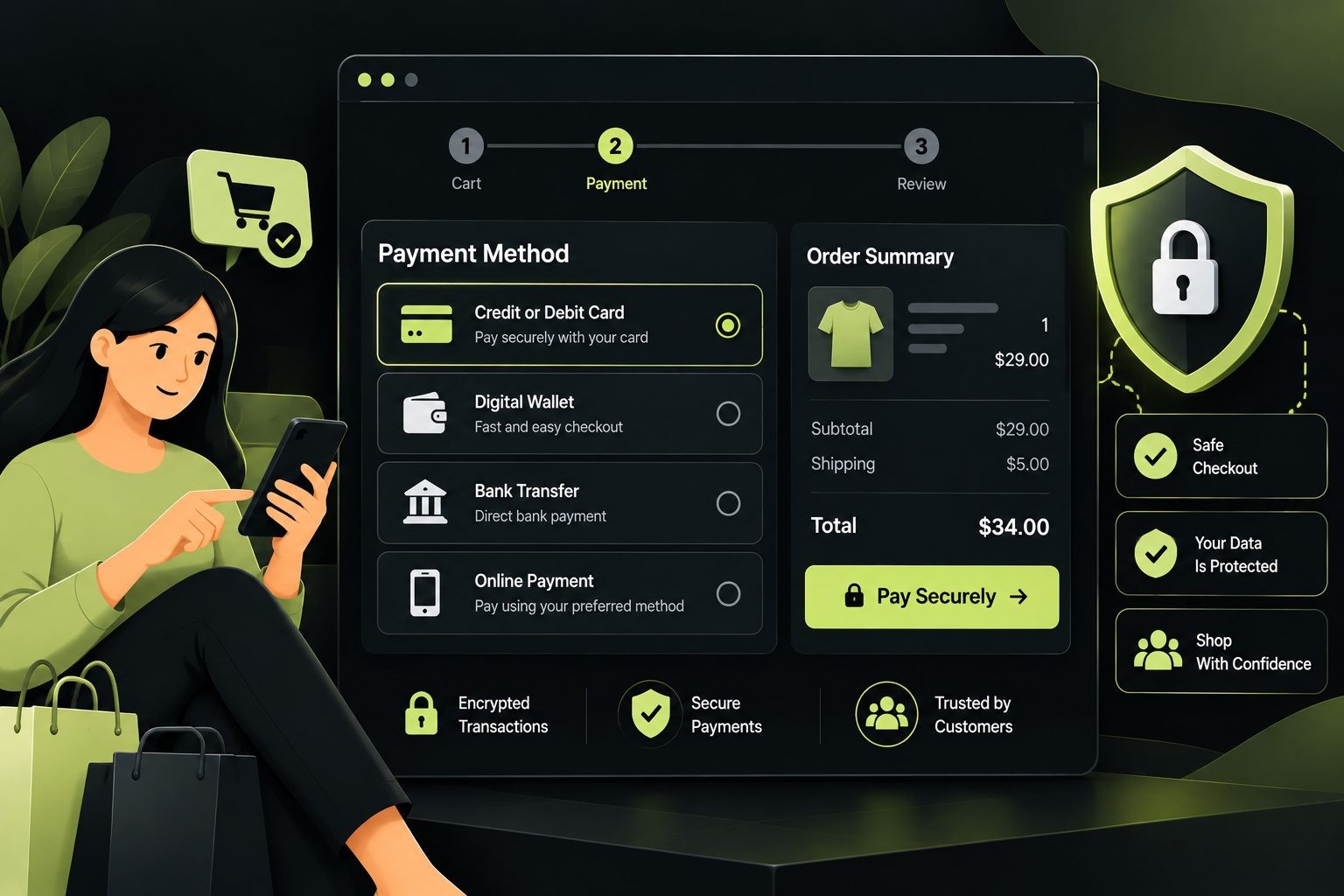
Depending on eligibility and customer preferences, a store may offer credit and debit cards, PayPal, digital wallets, or buy-now-pay-later services. These options are not equally suitable for every business, and some providers restrict certain product categories or markets.
Start with reliable methods that your customers are likely to use. More options are not always better if they confuse shoppers or create unnecessary maintenance and support work.
Check gateway compatibility
Before adding a gateway, verify that it supports your country, currency, product types, checkout implementation, and required transaction features. Review fees, settlement times, refund processes, dispute handling, and the support available when payments fail.
Confirm that the gateway works with the WooCommerce checkout method your store uses. Some integrations may behave differently with the Checkout block, classic checkout, subscription products, or other extensions.
Diagnose failed payments
Track payment errors and review gateway logs where available. Common causes can include incorrect configuration, expired credentials, unsupported currencies, authentication failures, or issues with a customer's payment method.
Do not repeatedly retry a failed transaction without understanding the cause. Make error messages helpful while avoiding the exposure of sensitive payment information.
Action step: Test successful payments, declined transactions, refunds, and order status updates in a safe test environment before launching a new gateway.
6. Add Express Checkout Options
Express checkout options can reduce the amount of information customers need to type. Supported digital wallets may let eligible shoppers confirm payment and use stored billing or shipping details instead of completing every field manually.
When express checkout is useful
Express checkout can be particularly convenient for returning customers and mobile shoppers. However, its effectiveness depends on the payment provider, the customer's device and wallet setup, the product, and the checkout integration.
Review supported payment options
Depending on the provider and market, options may include Apple Pay, Google Pay, PayPal, or other accelerated payment methods. Do not assume that every provider supports every option in every country or on every WooCommerce checkout implementation.
Check the provider's current documentation for setup requirements, domain verification, currency support, product restrictions, and any additional fees.
Test the complete flow
Verify that express checkout correctly handles shipping addresses, taxes, discounts, order totals, payment confirmation, and order status. Test it on the devices and browsers your customers use. Make sure customers who cannot or do not want to use a digital wallet can still complete the standard checkout.
Action step: Add express checkout only after confirming compatibility and testing the entire purchase process. Monitor completed orders by payment method to understand how customers use it.
7. Build Trust at the Point of Payment
Customers need to feel confident that the store is legitimate, the payment process is secure, and the order terms are clear. Trust is built through consistency and transparency, not simply by adding badges to the checkout page.
Explain payment security accurately
Use HTTPS and a properly configured payment integration. Explain the role of the payment provider where relevant, and avoid claiming that the store has certifications or security guarantees it cannot substantiate.
Never display fake trust seals, misleading security statements, or unsupported guarantees.
Make support and policies easy to find
Ensure customers can locate relevant shipping, return, refund, privacy, and contact information. These details do not need to dominate the checkout, but they should be accessible when shoppers need reassurance.
Confirm the final order details
Before payment, show the products, variations, quantities, discounts, shipping costs, applicable taxes, and total due. Use clear wording for the final purchase action so customers understand when they are placing a paid order.
Keep the experience consistent
Unexpected redirects, unfamiliar design changes, broken images, and intrusive pop-ups can make customers hesitate. Keep the payment experience consistent with the store's branding while preserving the payment provider's required security and authentication steps.
Action step: Ask someone unfamiliar with your store to complete a test purchase. Observe where they hesitate, what they look for, and whether any information is difficult to find.
8. Improve WooCommerce Checkout Page Speed
A slow checkout can frustrate customers and make the store feel unreliable. However, checkout speed is affected by several layers, including hosting, server response, database queries, themes, plugins, scripts, payment integrations, and third-party services.
Find the actual bottleneck
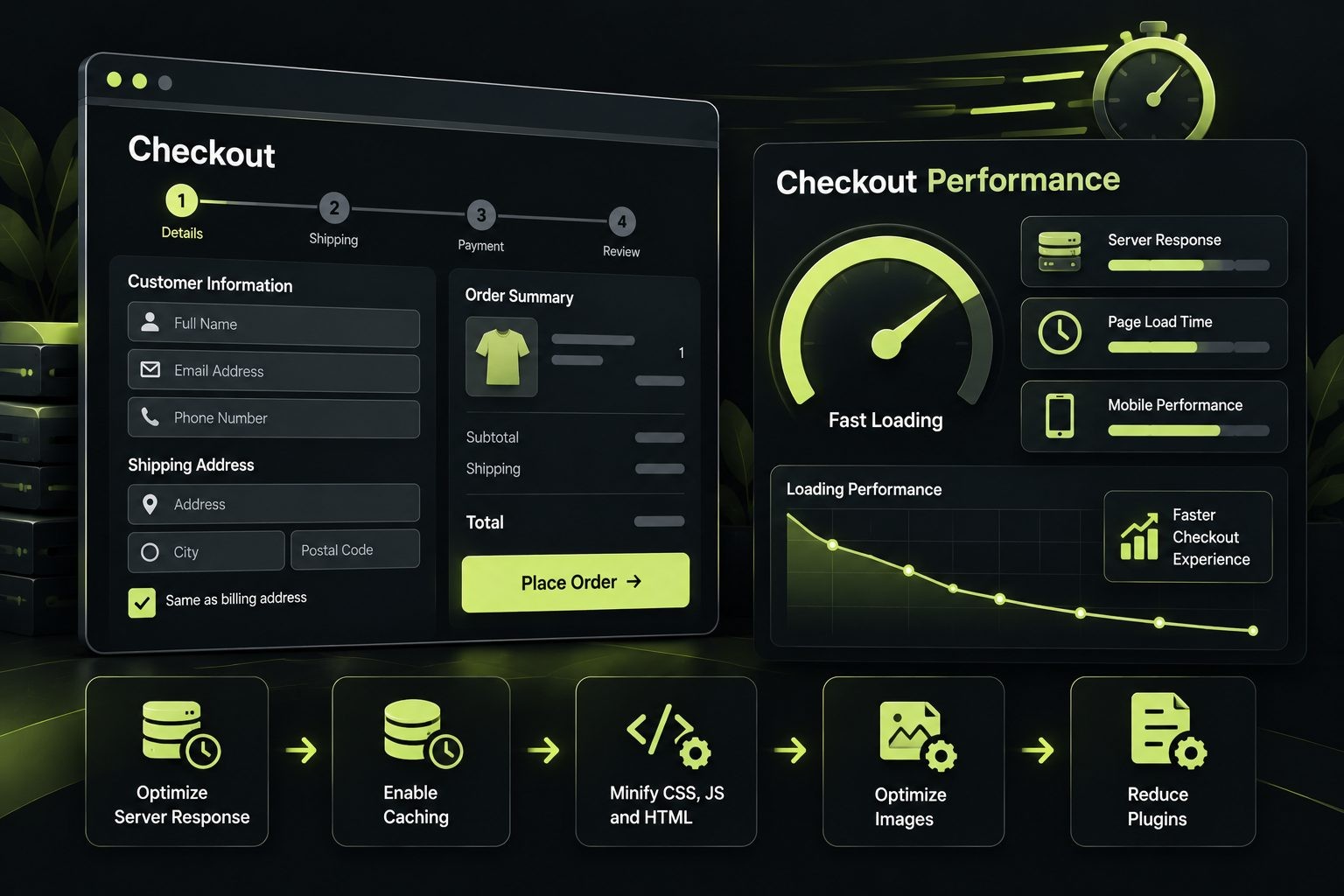
Start by testing the checkout page and reviewing browser developer tools, performance reports, and server logs where available. Look for slow requests, JavaScript errors, large assets, excessive scripts, and slow database operations.
Compare performance across representative devices and network conditions. A desktop test on a fast connection may not reflect the experience of a mobile customer.
Optimize assets and scripts carefully
Consider compressing images, removing unnecessary plugins or features, reducing unused scripts, and using caching where appropriate. Review third-party marketing, analytics, chat, and personalization scripts because they may add loading or interaction costs.
Be careful with caching on cart, checkout, and account pages. These pages often contain dynamic, customer-specific information. Incorrect caching can show stale cart contents, interfere with sessions, or expose information that should not be shared. Follow your caching provider's WooCommerce guidance and test all transactional flows after changing rules.
Measure real checkout performance
Use tools such as Google PageSpeed Insights and browser developer tools to investigate page performance. Consider Core Web Vitals where relevant, but remember that a single performance score does not measure every part of the purchase journey.
A faster server may help if the hosting environment is the bottleneck, but it will not automatically fix a large image, a broken script, or an inefficient plugin.
Action step: Measure first, make one meaningful change at a time, and run test orders after every significant performance change.
9. Make Checkout Errors Clear and Easy to Fix
A customer who encounters an error should understand what happened and how to continue. Generic messages, lost form entries, and repeated failures can turn a small issue into an abandoned order.
Write specific validation messages
Instead of showing only “Something went wrong,” explain the problem in plain language where it is safe to do so. For example, tell customers when a required field is missing or a postal code needs correction. For payment failures, provide a useful next step without exposing sensitive information or internal system details.
Keep customers near the problem
When validation fails, highlight the relevant field and move focus appropriately. Preserve information the customer has already entered wherever possible. Make sure error messages are readable, accessible, and understandable on mobile screens.
Test common failure scenarios
Test invalid addresses, declined payments, interrupted redirects, expired sessions, unavailable products, and network interruptions. Check that the customer can correct the issue and attempt checkout again without creating duplicate orders.
Prevent duplicate submissions
Verify how the checkout behaves when the customer clicks the order button multiple times or refreshes after a payment attempt. Payment and order handling should be designed to reduce duplicate charges and duplicate orders.
Action step: Review checkout logs and support requests for recurring error patterns. Fix the underlying causes instead of relying on more prominent error messages alone.
10. Improve Address Entry and Autofill
Address entry can be one of the more time-consuming parts of checkout, particularly on a mobile device. Good form labels, sensible field requirements, and browser autofill support can reduce unnecessary typing.
Use only the address fields you need
Make a second address line optional when appropriate and label it clearly for apartment, suite, or unit information. Avoid requesting a phone number or other personal information unless it is needed for delivery, customer service, payment, or a legitimate business requirement.
Support browser autofill
Use clear, standard field labels and appropriate autocomplete attributes so supported browsers can recognize names, addresses, email addresses, and telephone numbers. Test autofill behavior rather than assuming it works correctly because the form looks conventional.
Address autocomplete services may also help, but they should not be added without considering cost, privacy, accessibility, and the accuracy of suggested addresses.
Avoid overly strict validation
Address formats vary across countries and regions. Validation that assumes one postal-code format or one address structure can reject legitimate customers. If your store serves multiple markets, test the address formats relevant to those locations.
Address suggestions should help customers correct mistakes without preventing them from entering a valid address that the suggestion tool does not recognize.
Action step: Test checkout with different supported address formats, including apartment numbers and postal codes. Confirm that shipping calculations and delivery details remain correct.
11. Simplify Coupons and Discount Handling
Discounts can encourage purchases, but confusing coupon behavior can also create frustration. Customers may leave checkout to search for codes, try invalid codes, or become uncertain about the final price.
Make the coupon field easy to find
If coupons are a common part of your sales strategy, make the entry field easy to locate. Avoid letting a large coupon prompt dominate the page or encourage every customer to leave the store in search of a discount.
Explain coupon errors
Where possible, explain why a coupon does not work. It may be expired, restricted to specific products, limited to certain customers, or subject to a minimum order value. Keep messages helpful and concise.
Test discount combinations
Verify how coupons interact with sale prices, shipping discounts, free-shipping thresholds, and other promotions. Confirm that totals update correctly when products or quantities change.
Be clear about eligibility
State discount conditions accurately. Avoid false urgency, misleading discount claims, or unclear restrictions that appear only after the customer has entered a code.
Action step: Test valid and invalid coupon scenarios, including edge cases where a cart changes after a coupon is applied. Check the final amount before and after checkout.
12. Make the Order Summary Clear
Customers should be able to confirm what they are buying and how much they will pay before placing an order. A clear order summary helps prevent mistakes and reduces uncertainty at the final step.
Show the important product details
Display product names, selected variations, quantities, and other relevant information. If a customer chooses a size, color, subscription term, or other option, make sure the selection is clear in the summary.
Display the full total
The customer should be able to understand the subtotal, discounts, shipping, applicable taxes, and total amount due. Update the summary correctly when customers change their address, shipping method, product quantity, or coupon.
Avoid showing a partial total that could be mistaken for the final charge.
Make corrections straightforward
Where the checkout design allows it, give customers a clear way to return to the cart or change an item without losing all their progress. If a change requires leaving checkout, make the route back obvious.
Explain what happens next
Use clear wording for the order submission button and provide a reliable confirmation after successful payment. Explain relevant next steps, such as order emails, delivery updates, or account access.
Action step: Review the order summary as a customer would. Before payment, can the shopper tell exactly what is being purchased and what the final charge will be?
13. Recover Abandoned Carts
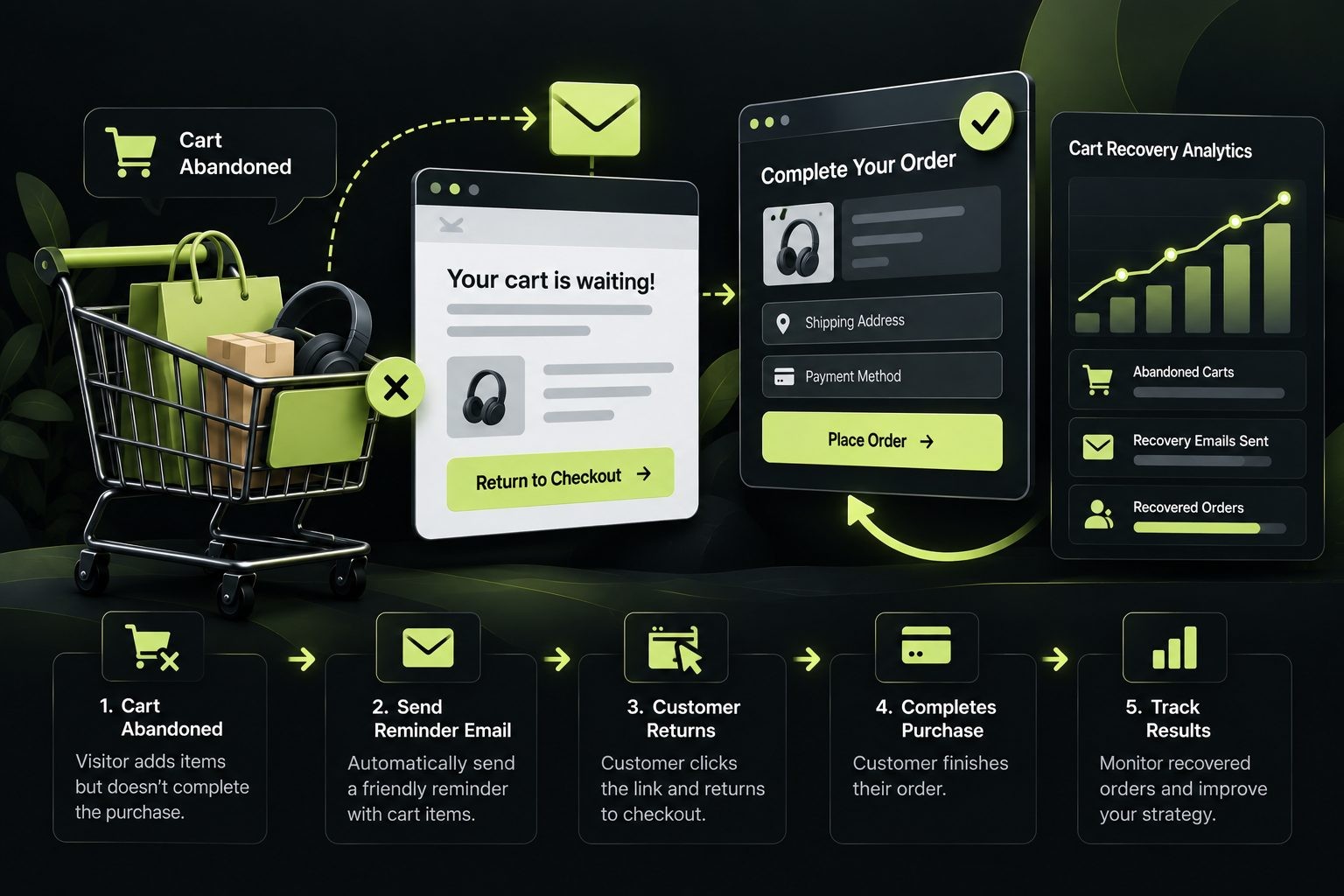
Even a well-optimized checkout will have some abandonment. Recovery tools can remind eligible customers about products they left behind and make it easier to return to checkout.
Set up abandoned-cart tracking responsibly
WooCommerce extensions and analytics integrations can help identify incomplete purchases, but capabilities differ. Some tools can associate a cart with a known customer, while others may have limited information unless the shopper has provided details.
Tracking must be implemented in line with applicable privacy requirements, consent choices, and platform policies. Do not assume that every anonymous visitor can be identified or contacted.
Send helpful recovery emails
A recovery email may remind customers about the products in their cart and provide a direct route back to the store. Keep the message clear, include relevant product details, and provide a way to get help if the customer had a problem.
Choose timing based on your audience and test it carefully. Respect marketing consent and distinguish transactional communications from promotional messages where required.
Use discounts carefully
A coupon may help resolve price concerns, but offering a discount to every abandoned cart can reduce margins and teach customers to wait for a code. First consider whether the shopper needs more information about shipping, payment, or the product.
Consider retargeting where appropriate
Paid retargeting depends on tracking configuration, consent, platform policies, and audience size. Make sure your implementation follows relevant privacy rules and that the audience is large enough to make the campaign practical.
Measure recovered orders and profitability
Track messages sent, clicks, completed purchases, revenue, discount costs, unsubscribes, and complaints. Compare recovered sales with the costs of the recovery tool and incentives. Attribute results carefully, since some customers may have returned and purchased without a reminder.
Action step: Start with a simple, compliant recovery flow, then review whether it produces incremental, profitable orders rather than just email clicks.
14. Test and Measure Checkout Changes
Checkout optimization should be an ongoing process, not a one-time redesign. A change that seems useful in theory may not improve results for your particular customers.
Establish a baseline
Before changing the checkout, record the current number of checkout starts, completed purchases, payment failures, and relevant error events. Check that analytics tracking is configured correctly and define the period you will use for comparison.
Test meaningful changes
Possible tests include simplifying fields, making guest checkout more visible, changing how shipping information is presented, adding a supported payment method, or improving the mobile layout.
Where traffic permits, run a controlled A/B test and change one major element at a time. If the store has too little traffic for a reliable experiment, use a documented before-and-after comparison while accounting for seasonality, traffic sources, promotions, and other changes.
Measure more than conversion rate
Track the metrics that help explain what is happening:
- Checkout completion rate.
- Cart abandonment rate.
- Payment success rate.
- Checkout error rate.
- Revenue per checkout session.
- Average order value.
- Refunds and chargebacks where relevant.
- Mobile versus desktop results.
- Results by payment method and traffic source.
Check for unintended effects
A change might increase completed orders while also increasing refunds, support requests, or payment disputes. Review both conversion and order quality. Make sure the change has not damaged accessibility, privacy, security, or fulfillment processes.
Action step: Keep a record of the hypothesis, the change, the test period, the results, and the decision. This creates a useful history of what works for your store.
WooCommerce Checkout Settings and Plugins to Consider
WooCommerce includes checkout-related settings and supports extensions for payment methods, checkout fields, analytics, and cart recovery. The right tools depend on your store's setup and the specific problem you are trying to solve.
Start with built-in WooCommerce features
Review account and privacy settings, shipping zones, shipping methods, payment gateways, and the checkout editing options available in your installation. Check whether you use the Checkout block, classic checkout, a theme-specific template, or a third-party checkout extension, because customization steps can differ.
Official guidance: WooCommerce checkout page customization documentation.
Consider checkout field editors
A compatible field editor may help you remove, reorder, or relabel fields. Before installing one, check whether it supports your checkout implementation and other active extensions. Test order creation, taxes, shipping, payment, and emails after making changes.
Choose payment integrations carefully
Use payment extensions that support your store's country, currency, product type, and required payment flows. Review the provider's fees, maintenance status, support, and compatibility with the checkout experience you use.
Use cart recovery tools where they make sense
Abandoned-cart extensions and email marketing integrations can help recover some incomplete orders. Review their tracking methods, privacy controls, consent handling, email deliverability, and reporting capabilities.
Avoid unnecessary plugins
Every extension can add maintenance requirements and may affect performance or compatibility. Check whether WooCommerce or your current payment provider already offers the feature you need. Install only what solves a real problem, and remove tools that are no longer used.
Do not choose a plugin solely because it promises higher conversions. Review current documentation, support quality, update history, compatibility, and pricing before installing it on a live store.
How to Measure WooCommerce Checkout Optimization Results
Measurement helps you determine which changes are making checkout easier and which problems remain.
Define the checkout funnel
Where your analytics setup supports it, track the journey from product view to add-to-cart, checkout start, payment attempt, and completed purchase. Confirm that events fire consistently and that test orders do not distort production reports.
Segment the results
Compare mobile and desktop users, new and returning customers, traffic sources, payment methods, and relevant product categories. A store-wide average can hide a serious issue affecting one device type or payment option.
Calculate checkout completion rate
One useful definition is:
Checkout completion rate = (Completed purchases ÷ Checkout starts) × 100
Analytics platforms may define sessions, checkout starts, and purchases differently. Keep the definitions consistent when comparing periods, and make sure you are not comparing unrelated populations.
Review the full business impact
Alongside checkout completion, review revenue, average order value, refunds, payment failures, and customer support issues. A change should improve the experience and support the store's business goals, not simply increase one metric in isolation.
FAQs
Conclusion: Make WooCommerce Checkout Easier to Complete
Effective WooCommerce checkout optimization is about removing unnecessary friction while keeping the information and safeguards needed to process orders correctly. Simplifying fields, enabling guest checkout, making shipping costs clear, supporting relevant payment methods, improving mobile usability, and fixing technical errors can all make the buying process easier.
The 14 methods in this guide are a starting point, not a guarantee of a particular conversion increase. Review your own checkout data, identify the biggest problems, and test changes carefully. Start by completing a test order on both desktop and mobile, document the top three issues you find, and fix them one at a time.
Get new posts by email
New guides and alerts, sent when they are published. No spam. Unsubscribe anytime.


Comments (0)